LaTeX Common Packages and Tips
The previous chapters have already used quite a few packages; this article systematically wraps up: package quick reference, custom commands, code typesetting, multi-file projects, latexmk, and troubleshooting techniques.
Master these "toolbox" topics, and you'll evolve from writing LaTeX to managing LaTeX projects.
Common Packages Quick Reference
Load packages with \usepackage[options]{package-name}, all placed in the preamble.
| Package | Purpose | Appears in this series |
|---|---|---|
| geometry | Page margins and paper | LaTeX Document Structure and Typesetting |
| fancyhdr | Headers and footers | LaTeX Document Structure and Typesetting |
| amsmath / amssymb | Math formula enhancement / extended symbols | LaTeX Math Formulas Basics、Advanced LaTeX Math Formulas |
| graphicx | Figures | LaTeX Figures and Tables |
| booktabs / multirow | Booktabs / vertically merged cells | LaTeX Figures and Tables |
| enumitem | Customizing lists | LaTeX Text Formatting and Lists |
| xcolor | Color definition | Introduced in this chapter |
| listings | Code typesetting | Introduced in this chapter |
| hyperref | Hyperlinks and bookmarks | LaTeX Cross-references and Bibliography Management |
| biblatex | References (modern approach) | LaTeX Cross-references and Bibliography Management |
| float | Forced placement of figures and tables [H] | LaTeX Figures and Tables |
When the local environment prompts File 'xxx.sty' not found, use tlmgr install xxx to install (TeX Live); MiKTeX will automatically download. Overleaf comes with almost all packages, so no such trouble.
Custom Commands: \newcommand
When you've written the same content more than three times, it's time to define a command. \newcommand{\command-name}[number-of-parameters]{definition}.
{...}$ gives x_1, … , x_5
\newcommand{\R}{\mathbb{R}} % From now on, writing $\R$ gives $\mathbb{R}$
% One parameter: wrap a fixed format
\newcommand{\email}[1]{\texttt{#1}} % #1 represents the first parameter
% Optional parameter with default value: [number of parameters][default value]
\newcommand{\vecn}[2][n]{x_1, \dots, x_#1}
% Usage: $\vecn{...}$ gives x_1, … , x_n
% $\vecn
\begin{document}
defined on$\R$function on, vector$\vecn$and$\vecn[5]$,
Contact email\email{[email protected]}。
\end{document}
| Command | Purpose | Note |
|---|---|---|
| \newcommand | Define new command | Command name must not conflict with existing commands |
| \renewcommand | Redefine existing command | Use when modifying default styles; be cautious with basic commands |
| \newenvironment | Define new environment | Syntax same as above; provide begin and end code |
Let's also learn the syntax for custom environments:
Example: Custom "Note" Environment
{\par\medskip\noindent\textbf{Note:}\itshape} % Begin code
{\par\medskip} % End code
\begin{note}
The content here will automatically start with "Note:" and be typeset in italics.
\end{note}
Code Typesetting: listings Package
To include code in technical documents, use the listings package; language highlighting, line numbers, and borders are all automatic.
Example: Code Block with Highlighting and Line Numbers
\usepackage{listings} % Code typesetting package
\usepackage{xcolor} % Color support
\lstset{ % Global code style settings
basicstyle=\ttfamily\small, % Monospace font, slightly smaller font size
keywordstyle=\color{blue}, % Keywords in blue
commentstyle=\color{gray}, % Comments in gray
stringstyle=\color{purple}, % Strings in purple
numbers=left, % Line numbers on the left
numberstyle=\tiny\color{gray},
showstringspaces=false, % Do not display space markers within strings
frame=single % Single-line border
}
\begin{document}
\begin{lstlisting}[language=Python, caption=Calculate the Fibonacci sequence]
# Calculate the nth Fibonacci number (Chinese comment test)
def fib(n):
if n < 2:
return n
return fib(n - 1) + fib(n - 2)
print(fib(10)) # Output 55
\end{lstlisting}
\end{document}
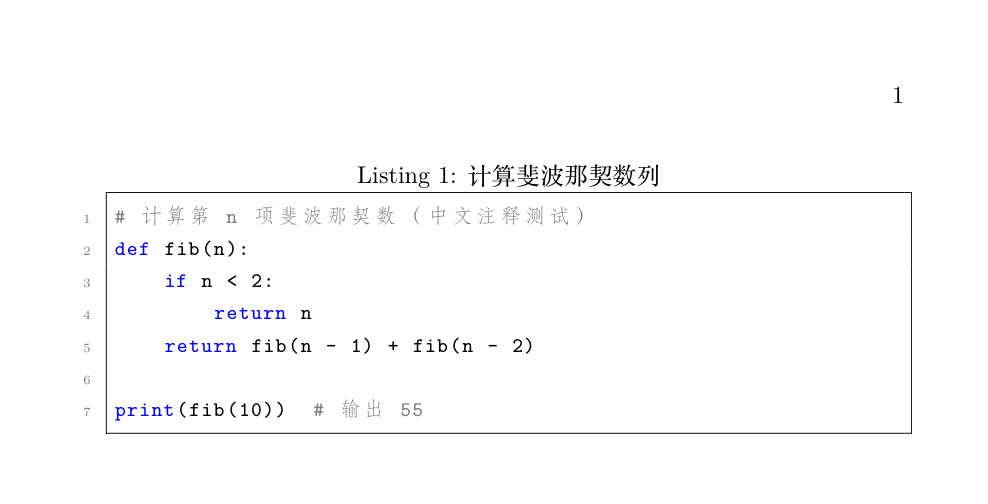
lstlisting is a "verbatim environment": its contents are not interpreted by LaTeX at all, and & and % do not need escaping. The caption is also automatically numbered (Listing 1). Common language names include Python, C, Java, HTML, SQL, bash, etc. If language is not specified, it is colored as plain text.
listings' support for UTF-8 Chinese depends on the compiler: Chinese comments work normally under XeLaTeX; under legacy engines (latex/pdfLaTeX) they become garbled. For Chinese documents, always compile with XeLaTeX.
Multi-file Projects: \input and \include
When a document exceeds a few hundred lines, it should be split into files—main.tex acts only as the skeleton, and the content is divided and conquered.
Example: main.tex Skeleton
\usepackage{amsmath, graphicx, booktabs, hyperref}
\begin{document}
\input{chapters/intro} % Introduction (file name without .tex)
\input{chapters/method} % Methods
\input{chapters/experiment} % Experiments
\input{chapters/conclusion} % Conclusions
\bibliographystyle{plain}
\bibliography{refs}
\end{document}
The two commands look similar, but their behaviors are clearly divided.
| Comparison item | \input{file} | \include{file} |
|---|---|---|
| Can be nested? | Yes (further \input inside subfiles) | No |
| Forces page break? | No page break | Forces \clearpage before each file |
| Works with \includeonly | Not supported | Supported; compile only specified chapters (a great speedup tool) |
| Applicable granularity | Any segment (macro definitions, figures/tables, cover pages) | Chapter-level large content blocks |
Common pitfall: \include forces a page break. Using it to assemble "several sections on the same page" will cause unexpected page breaks—use \input for small fragments.
latexmk: One-click Compilation
The four-pass compilation pipeline from Chapter 9 is painful to type manually as four commands; latexmk handles it fully automatically.
$ latexmk -xelatex main.tex     # XeLaTeX 引擎编译,自动跑满所有遍数
$ latexmk -xelatex -c main.tex  # 清理中间文件(保留 PDF)
$ latexmk -xelatex -C main.tex  # 连 PDF 一起清理
latexmk automatically decides: if there is a .bib file, it runs bibtex; if cross-references change, it compiles several more times until all numbers are stable. Configuring the "build command" in your editor as latexmk is the best practice for a local environment.
Troubleshooting Techniques
LaTeX error messages start with an exclamation mark and include a line number, with a fixed format. Understanding the first few lines is enough.
! Undefined control sequence.
l.42 \secton{方法}
l.42 indicates the error line—in this example, line 42 misspelled \section as \secton. Fix this one spot, and a chain of subsequent errors often disappears together.
| Error message | Meaning | Handling |
|---|---|---|
| Undefined control sequence | Command does not exist: spelling error or missing package | Check the spelling against the line number; confirm the package is loaded |
| Missing $ inserted | Math command appears in text mode | Put _ ^ \alpha etc. inside $ |
| File 'xxx' not found | File or package not found | Check the path; tlmgr install xxx |
| Runaway argument | Environment not closed (missing \end) | Add \end{...} according to the line number |
| LaTeX Error: Environment xxx undefined | Used an undefined environment | Check the environment spelling and package |
| ! Emergency stop | Compilation aborted completely | Scroll up in the log to find the first error |
| Reference undefined (warning) | The reference shows ?? | Compile once more |
Always fix only the first error in the log—the later errors are mostly cascading effects of the first. After fixing, recompile; this is much more reliable than changing ten places at once.
Summary
| Need | Solution |
|---|---|
| Reduce repeated input | \newcommand defines commands and environments |
| Paste code | listings + \lstset global style |
| Large document splitting | \input (fragment) / \include (chapter level) |
| One-click compilation | latexmk -xelatex |
| Debugging | Read the line number of the first ! error in the log |