Using the Status Bar
The status bar displays key information about the device.
- Device model or network provider
- Network signal strength
- Battery usage
- Time
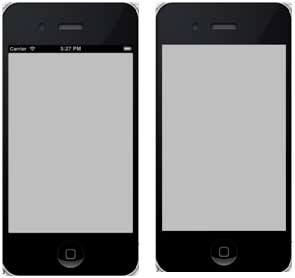
The status bar is shown as follows:

How to hide the status bar
[[UIApplication sharedApplication] setStatusBarHidden:YES];
Another way to hide the status bar
We can also hide the status bar by adding a row and, with the help of info.plist, selecting UIStatusBarHidden and setting its value to NO.
Add a custom method hideStatusbar to the class
It hides the status bar with animation and also adjusts the size that we think occupies the status bar space.
-(void)hideStatusbar{
    [[UIApplication sharedApplication] setStatusBarHidden:YES
    withAnimation:UIStatusBarAnimationFade];
    [UIView beginAnimations:@"Statusbar hide" context:nil];
    [UIView setAnimationDuration:0.5];
    [self.view setFrame:CGRectMake(0, 0, 320, 480)];
    [UIView commitAnimations];
}
Update viewDidLoad in ViewController.m as follows:
- (void)viewDidLoad
{
    [super viewDidLoad];
    // The method hideStatusbar called after 2 seconds
    [self performSelector:@selector(hideStatusbar)
    withObject:nil afterDelay:2.0];
    // Do any additional setup after loading the view, typically from a nib.
}
Initial output and output after 2 seconds