Using Scroll View
If the content exceeds the screen size, a scroll view is used to display the hidden parts.
It can contain all other user interface elements, such as image views, labels, text views, and even another scroll view.
Important Properties
- contentSize
- contentInset
- contentOffset
- delegate
Important Methods
- (void)scrollRectToVisible:(CGRect)rect animated:(BOOL)animated
- (void)setContentOffset:(CGPoint)contentOffset animated:(BOOL)animated
Important Delegate Methods
In ViewController.h, add:
#import <UIKit/UIKit.h>

@interface ViewController : UIViewController<UIScrollViewDelegate>
{
    UIScrollView *myScrollView;
}

@end
Add a custom method addScrollView
-(void)addScrollView{
    myScrollView = [[UIScrollView alloc]initWithFrame:
    CGRectMake(20, 20, 280, 420)];
    myScrollView.accessibilityActivationPoint = CGPointMake(100, 100);
    imgView = [[UIImageView alloc]initWithImage:
    [UIImage imageNamed:@"AppleUSA.jpg"]];
    [myScrollView addSubview:imgView];
    myScrollView.minimumZoomScale = 0.5;
    myScrollView.maximumZoomScale = 3;
    myScrollView.contentSize = CGSizeMake(imgView.frame.size.width,
    imgView.frame.size.height);
    myScrollView.delegate = self;
    [self.view addSubview:myScrollView];
}
Note:We must add an image named "AppleUSA1.jpg" to our project. This can be done by dragging the image into the navigation area where our project files are listed. The image should be taller than the device's height.
Implement the scrollView delegate in ViewController.m
 -(UIView *)viewForZoomingInScrollView:(UIScrollView *)scrollView{
    return imgView;
}
-(void)scrollViewDidEndDecelerating:(UIScrollView *)scrollView{
    NSLog(@"Did end decelerating");
}
-(void)scrollViewDidScroll:(UIScrollView *)scrollView{
//    NSLog(@"Did scroll");
}
-(void)scrollViewDidEndDragging:(UIScrollView *)scrollView
  willDecelerate:(BOOL)decelerate{
    NSLog(@"Did end dragging");
}
-(void)scrollViewWillBeginDecelerating:(UIScrollView *)scrollView{
    NSLog(@"Did begin decelerating");
}
-(void)scrollViewWillBeginDragging:(UIScrollView *)scrollView{
    NSLog(@"Did begin dragging");
}
Update viewDidLoad in ViewController.m as follows
(void)viewDidLoad
{
   [super viewDidLoad];
   [self addScrollView];
   //Do any additional setup after loading the view, typically from a nib
}
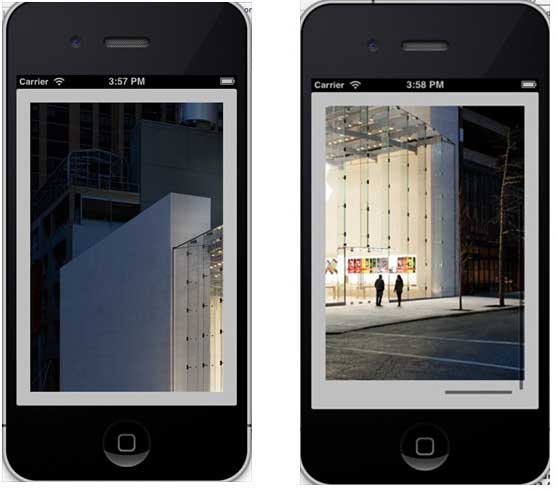
Output
Now when we run the application, we will see the output below. Once you scroll the scroll view, you will be able to view the rest of the image: