Eclipse Navigate Menu
Browsing the Eclipse workspace
The Navigate menu provides several menu items that allow you to quickly locate specific resources.
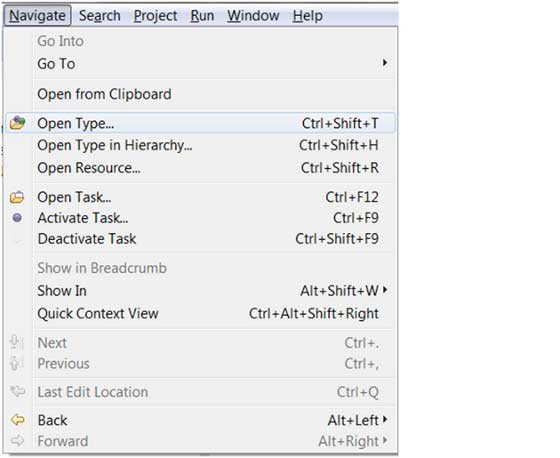
In the above figure, the three menu items Open Type, Open Type in Hierarchy, and Open Resource are very useful.
Open Type
The Open Type menu item opens a dialog in which you can search for Java type files.
You can enter the class name in the input box to search. The '*' represents zero or more characters, and the '?' represents a single character, which can be used to specify patterns. The dialog will display all matching patterns.
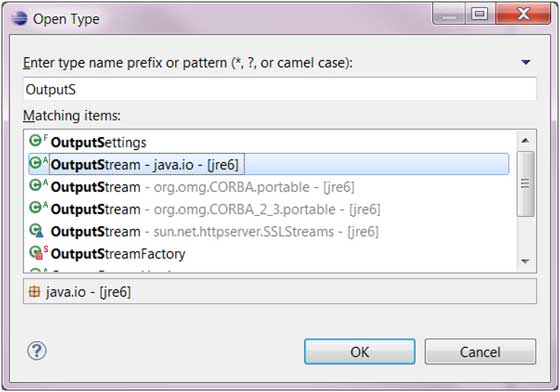
Simply select the file you are looking for from the list.
Eclipse will open an editor displaying the selected type. If the source code of the selected type cannot be displayed, the class file editor will be used to show the bytecode of the selected type.
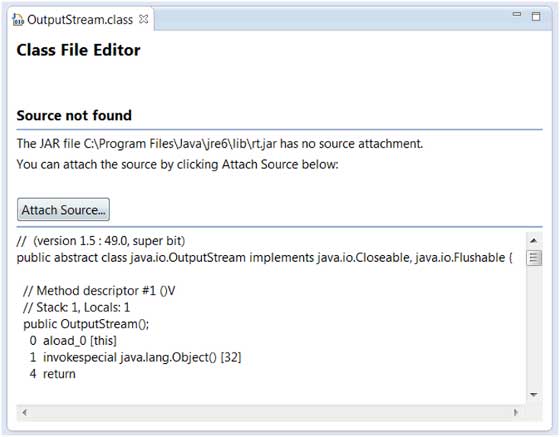
You can click the Attach Source button to view the source code corresponding to the class file.
The source code is located in the src.zip compressed file in the Java home directory.
Open Type in Hierarchy
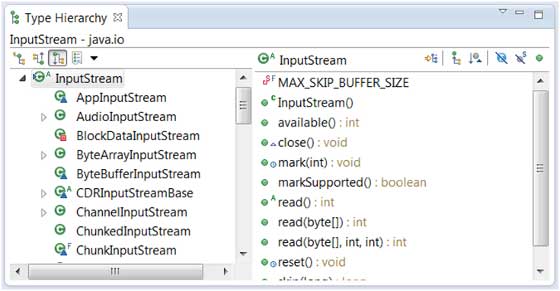
The Open Type in Hierarchy menu allows users to view the class inheritance hierarchy in the Type Hierarchy view.
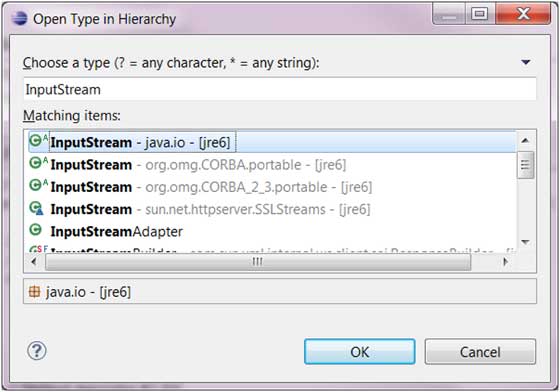
In the Type Hierarchy view, select the specified class to see the class definition information, including its corresponding attributes and methods:
Open Resource
The Open Resource menu can be used to find files in the workspace.
The '*' represents zero or more characters, and the '?' represents a single character, which can be used to specify patterns. The dialog will display all matching patterns.
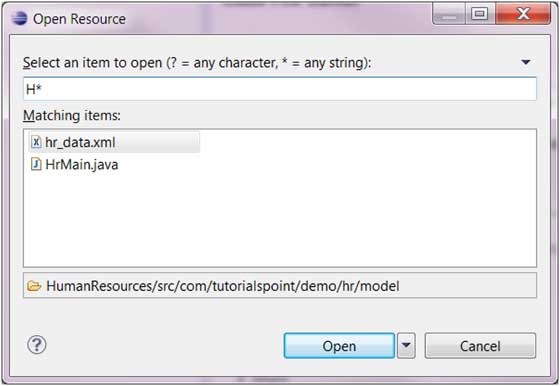
Select the file you want to open and click the OK button.
other extensions