Eclipse Create Java Class
Open the New Java Class wizard
You can use the New Java Class wizard to create a Java class. You can open the Java Class wizard in the following ways:
- Click the "File" menu and select New > Class
- In the Package Explorer window, right-click and select New > Class
- Click the class dropdown button (
 ) and select (
 )
)
Before opening the New Java Class wizard, it is best to select the package name to which the Java class belongs, so that the Package field will be automatically filled in when creating the Java class.
Use the New Java Class wizard
In the Java Class wizard dialog, you can perform the following operations:
- Confirm that the folder name (Source Folder) and package name (Package) are correct.
- Enter class name
- Select other modifier classes
- Enter the name of the Superclass or click the Browse button to select an existing class.
- Click the Add button to select the interfaces implemented by the class.
- In the checkboxes, you can choose the method creation approach and whether to automatically generate comments.
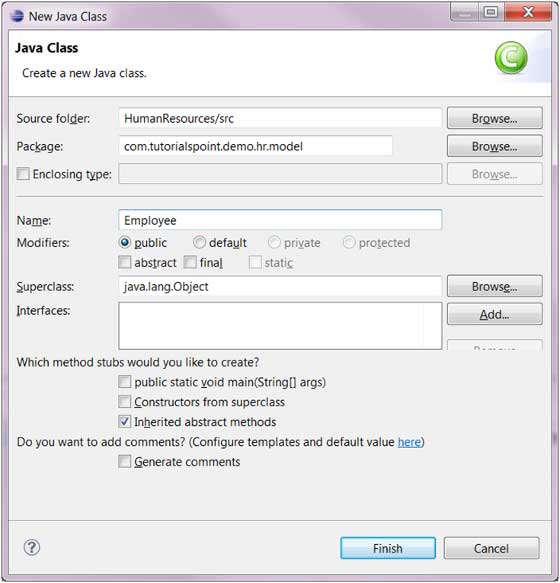
- Click the Finish button.
View the newly created Java class
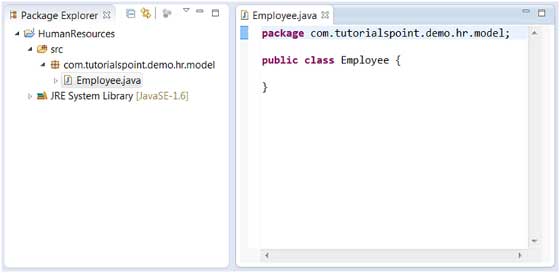
In the Package Explorer view, we can see the newly created class, and we can modify the code using the Java editor on the right.
 other extensions