Eclipse Creating a Java Project
Open the New Java Project Wizard
Java projects can be easily created through the New Java Project wizard. The ways to open the wizard include:
- By clicking the "File" menu and then selecting New > Java Project
- Right-click anywhere in the Project Explorer window and select New > Java Project
- Click the New button on the toolbar
 ) and select Java Project
Use the New Java Project Wizard
The New Java Project wizard has two pages.
First page:
- Enter the project name (in the Project Name field)
- Select a Java Runtime Environment (JRE) or just use the default
- Select Project Layout. The project layout determines whether source code and class files are placed in separate folders. The recommended option is to create separate folders for source code and class files.
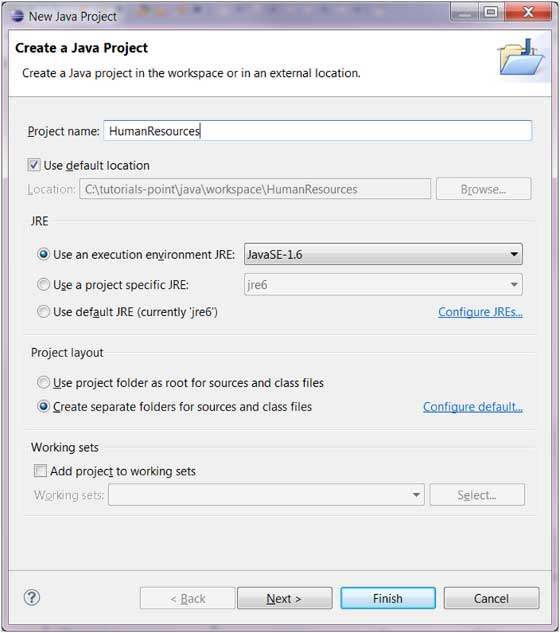
You can click the "Finish" button to create the project or click the "Next" button to modify the Java build configuration.
Second pageJava Build Path Settings (Java Build Settings)On this page, we can configure the project's dependencies and additional JAR files.
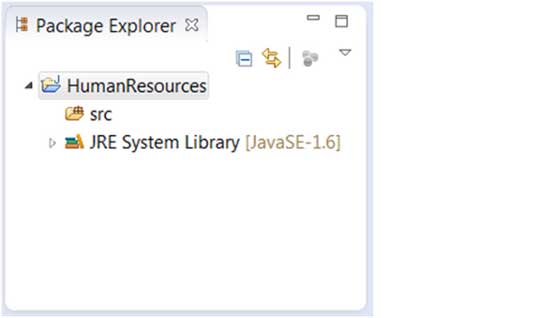
View new project
The Package Explorer displays the newly created Java project. The "J" letter in the project icon indicates a Java project. The folder icon indicates that this is a Java resource folder.
 other extensions