Eclipse Views
About Views
Eclipse views allow users to view project metadata more intuitively in a graphical form. For example, the folder and file graphical representations displayed in the Project Navigator view, and the related Project and Properties views in another editing window.
Eclipse perspectives can display any views and editor windows.
All editor instances appear within one editor area and can be viewed through the folder view.
A workbench window can display any number of folder views. Each folder view can display one or more views.
Organizing Views
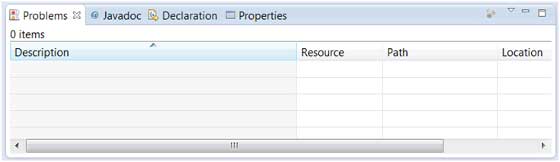
The figure below shows four views in a folder view.
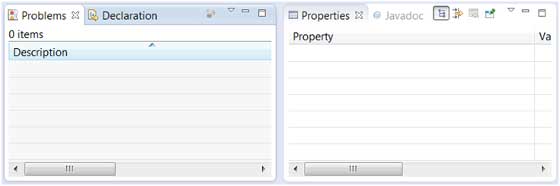
The figure below shows four views in two folder views.
Remove views
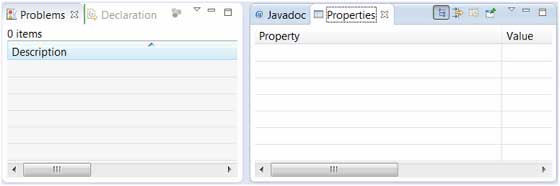
To move a view from one folder view to another, simply click the view title and drag the view toolbar area to the other folder view.
Create folder view
Folder views can be dynamically created by moving the view title bar outside the editor area or moving the title bar to another folder view. In the figure below, if you drag the title bar within the green wireframe, a new folder view will be created.
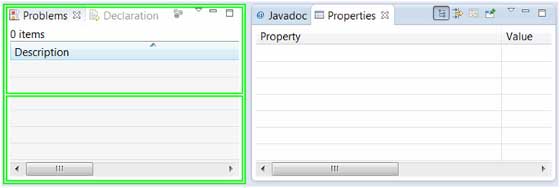
Move the drag icon to the bottom of the window to create a view folder spanning the entire width of the window. Move the drag icon to the left or right side of the window to create a view folder spanning the entire height of the window.
Using Views
You can open other views by clicking the "Show View" option in the Window menu.
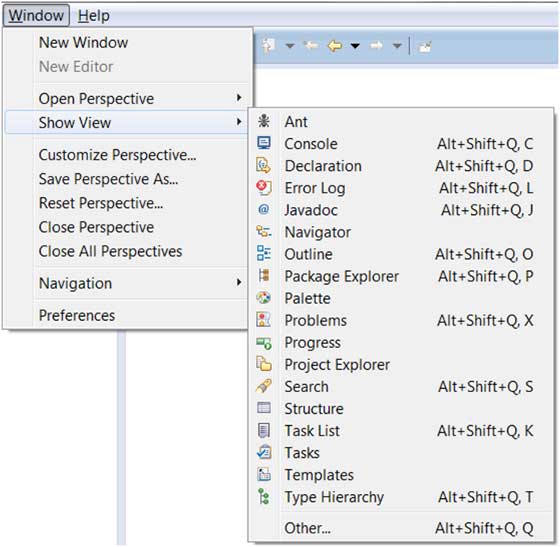
Clicking the "Other" menu option will pop up a "Show View" dialog, in which you can search for and activate views.
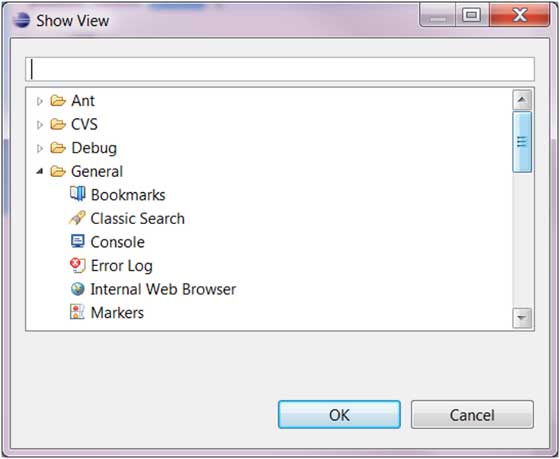
Views are organized by categories. You can quickly search for views using the search box. Then open and select the view, and click the "OK" button.
other extensions