Использование панели инструментов
Мы можем использовать панель инструментов для изменения элементов представления.
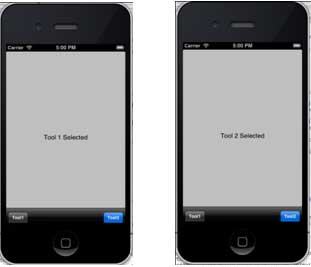
Например, панель входящих в приложении Mail содержит Delete, Share, Reply и т. д. Как показано ниже:

Важные свойства
- barStyle
- items
Добавление пользовательского метода addToolbar
-(void)addToolbar
{
    UIBarButtonItem *spaceItem = [[UIBarButtonItem alloc]
    initWithBarButtonSystemItem:UIBarButtonSystemItemFlexibleSpace
    target:nil action:nil];
    UIBarButtonItem *customItem1 = [[UIBarButtonItem alloc]
    initWithTitle:@"Tool1" style:UIBarButtonItemStyleBordered
    target:self action:@selector(toolBarItem1:)];
    UIBarButtonItem *customItem2 = [[UIBarButtonItem alloc]
    initWithTitle:@"Tool2" style:UIBarButtonItemStyleDone
    target:self action:@selector(toolBarItem2:)];
    NSArray *toolbarItems = [NSArray arrayWithObjects:
    customItem1,spaceItem, customItem2, nil];
    UIToolbar *toolbar = [[UIToolbar alloc]initWithFrame:
    CGRectMake(0, 366+54, 320, 50)];
    [toolbar setBarStyle:UIBarStyleBlackOpaque];
    [self.view addSubview:toolbar];
    [toolbar setItems:toolbarItems];
}
Чтобы понять выполняемые операции, мы добавляем IBOutlet для UILabel в наш ViewController.xib и создаём IBOutlet для UILabel с именем label.
Нам также нужно добавить два метода для выполнения операций элементов панели инструментов, как показано ниже:
-(IBAction)toolBarItem1:(id)sender{
    [label setText:@"Tool 1 Selected"];
}

-(IBAction)toolBarItem2:(id)sender{
    [label setText:@"Tool 2 Selected"];
}
Обновите viewDidLoad в ViewController.m следующим образом:
- (void)viewDidLoad
{
    [super viewDidLoad];
    // The method hideStatusbar called after 2 seconds
    [self addToolbar];
    // Do any additional setup after loading the view, typically from a nib.
}
Вывод
Теперь, когда мы запустим приложение, мы увидим результат ниже.
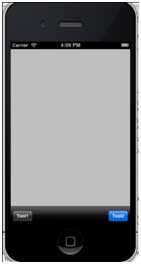
Нажмите кнопки панели tool1 и tool2, которые мы получим.