Аудио и видео в iOS
Введение
Аудио и видео довольно распространены на новейших устройствах.
Добавление iosAVFoundation.framework и MediaPlayer.framework в проект Xcode позволяет iOS поддерживать аудио и видео.
Шаги примера
1. Создайте простое приложение на основе View
2. Выберите файл проекта, выберите цель, затем добавьте AVFoundation.framework и MediaPlayer.framework
3. Добавьте две кнопки в ViewController.xib и создайте действие для воспроизведения аудио и видео соответственно
4. Обновите ViewController.h, как показано ниже
#import <UIKit/UIKit.h>
#import <AVFoundation/AVFoundation.h>
#import <MediaPlayer/MediaPlayer.h>

@interface ViewController : UIViewController
{
    AVAudioPlayer *audioPlayer;
    MPMoviePlayerViewController *moviePlayer;

}
-(IBAction)playAudio:(id)sender;
-(IBAction)playVideo:(id)sender;
@end
5. Обновите ViewController.m, как показано ниже
#import "ViewController.h"

@interface ViewController ()

@end

@implementation ViewController

- (void)viewDidLoad
{
    [super viewDidLoad];
}

- (void)didReceiveMemoryWarning
{
   [super didReceiveMemoryWarning];
   // Dispose of any resources that can be recreated.
}
-(IBAction)playAudio:(id)sender{
   NSString *path = [[NSBundle mainBundle]
   pathForResource:@"audioTest" ofType:@"mp3"];
   audioPlayer = [[AVAudioPlayer alloc]initWithContentsOfURL:
   [NSURL fileURLWithPath:path] error:NULL];
   [audioPlayer play];
}
-(IBAction)playVideo:(id)sender{
   NSString *path = [[NSBundle mainBundle]pathForResource:
   @"videoTest" ofType:@"mov"];
   moviePlayer = [[MPMoviePlayerViewController
   alloc]initWithContentURL:[NSURL fileURLWithPath:path]];
   [self presentModalViewController:moviePlayer animated:NO];
}
@end
Примечания
Аудио- и видеофайлы необходимо добавить, чтобы получить ожидаемый результат
Вывод
Запустите программу, результат вывода будет следующим
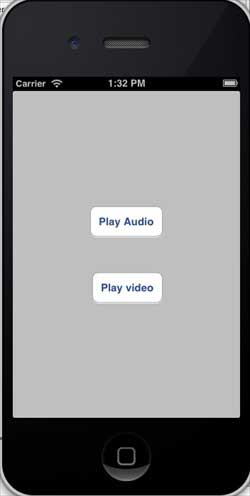
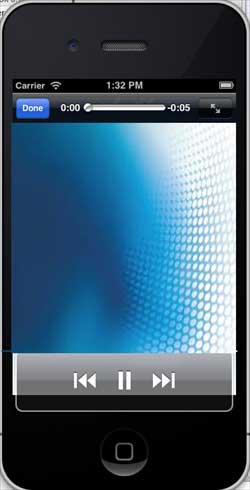
При нажатии кнопки воспроизведения видео отображается следующее: