Встроенные покупки в iOS
Введение
Встроенная покупка — это функция, используемая приложениями для покупки дополнительного контента или улучшения функциональности.
Шаги примера
1. В iTunes Connect убедитесь, что у вас есть уникальный App ID. При создании bundle ID и обновлении приложения код будет подписан в Xcode с соответствующим профилем подготовки.
2. Создайте новое приложение и обновите информацию о приложении. Подробнее об этом можно узнать в документации Apple "Adding a New App".
3. На странице приложения в разделе «Управление встроенными покупками» добавьте новый продукт для встроенной покупки.
4. Убедитесь, что для приложения указаны банковские реквизиты. Их необходимо настроить для встроенных покупок. Кроме того, в iTunes используйте опцию «Управление пользователями», чтобы создать тестовую учетную запись пользователя на странице вашего приложения.
5. Следующий шаг — заняться кодом и создать пользовательский интерфейс, связанный с нашей встроенной покупкой.
6. Создайте приложение с одним представлением и введите в iTunes Connect идентификатор пакета, соответствующий указанному идентификатору.
7. Обновите ViewController.xib, как показано ниже.

8. Создайте IBOutlets для трех меток и кнопки, назвав их соответственно productTitleLabel, productDescriptionLabel, productPriceLabel и purchaseButton.
9. Выберите файл проекта, затем выберите цель, затем добавьте StoreKit.framework.
10. Обновите ViewController.h, как показано ниже.
#import <UIKit/UIKit.h>
#import <StoreKit/StoreKit.h>

@interface ViewController : UIViewController<
SKProductsRequestDelegate,SKPaymentTransactionObserver>
{
    SKProductsRequest *productsRequest;
    NSArray *validProducts;
    UIActivityIndicatorView *activityIndicatorView;
    IBOutlet UILabel *productTitleLabel;
    IBOutlet UILabel *productDescriptionLabel;
    IBOutlet UILabel *productPriceLabel;
    IBOutlet UIButton *purchaseButton;
}
- (void)fetchAvailableProducts;
- (BOOL)canMakePurchases;
- (void)purchaseMyProduct:(SKProduct*)product;
- (IBAction)purchase:(id)sender;

@end
11. Обновите ViewController.m, как показано ниже.
#import "ViewController.h"
#define kTutorialPointProductID
@"com.tutorialPoints.testApp.testProduct"

@interface ViewController ()

@end

@implementation ViewController

- (void)viewDidLoad
{
    [super viewDidLoad];
    // Adding activity indicator
    activityIndicatorView = [[UIActivityIndicatorView alloc]
    initWithActivityIndicatorStyle:UIActivityIndicatorViewStyleWhiteLarge];
    activityIndicatorView.center = self.view.center;
    [activityIndicatorView hidesWhenStopped];
    [self.view addSubview:activityIndicatorView];
    [activityIndicatorView startAnimating];
    //Hide purchase button initially
    purchaseButton.hidden = YES;
    [self fetchAvailableProducts];
}

- (void)didReceiveMemoryWarning
{
    [super didReceiveMemoryWarning];
    // Dispose of any resources that can be recreated.
}

-(void)fetchAvailableProducts{
    NSSet *productIdentifiers = [NSSet
    setWithObjects:kTutorialPointProductID,nil];
    productsRequest = [[SKProductsRequest alloc]
    initWithProductIdentifiers:productIdentifiers];
    productsRequest.delegate = self;
    [productsRequest start];
}

- (BOOL)canMakePurchases
{
    return [SKPaymentQueue canMakePayments];
}
- (void)purchaseMyProduct:(SKProduct*)product{
    if ([self canMakePurchases]) {
        SKPayment *payment = [SKPayment paymentWithProduct:product];
        [[SKPaymentQueue defaultQueue] addTransactionObserver:self];
        [[SKPaymentQueue defaultQueue] addPayment:payment];
    }
    else{
        UIAlertView *alertView = [[UIAlertView alloc]initWithTitle:
        @"Purchases are disabled in your device" message:nil delegate:
        self cancelButtonTitle:@"Ok" otherButtonTitles: nil];
        [alertView show];
    }
}
-(IBAction)purchase:(id)sender{
    [self purchaseMyProduct:[validProducts objectAtIndex:0]];
    purchaseButton.enabled = NO;
}

#pragma mark StoreKit Delegate

-(void)paymentQueue:(SKPaymentQueue *)queue
 updatedTransactions:(NSArray *)transactions {
    for (SKPaymentTransaction *transaction in transactions) {
        switch (transaction.transactionState) {
            case SKPaymentTransactionStatePurchasing:
                    NSLog(@"Purchasing");
                break;
            case SKPaymentTransactionStatePurchased:
               if ([transaction.payment.productIdentifier
                  isEqualToString:kTutorialPointProductID]) {
                   NSLog(@"Purchased ");
                   UIAlertView *alertView = [[UIAlertView alloc]initWithTitle:
                   @"Purchase is completed succesfully" message:nil delegate:
                   self cancelButtonTitle:@"Ok" otherButtonTitles: nil];
                   [alertView show];
                }
                [[SKPaymentQueue defaultQueue] finishTransaction:transaction];
                break;
            case SKPaymentTransactionStateRestored:
                NSLog(@"Restored ");
                [[SKPaymentQueue defaultQueue] finishTransaction:transaction];
                break;
            case SKPaymentTransactionStateFailed:
                NSLog(@"Purchase failed ");
                break;
            default:
                break;
        }
    }
}

-(void)productsRequest:(SKProductsRequest *)request
 didReceiveResponse:(SKProductsResponse *)response
{
    SKProduct *validProduct = nil;
    int count = [response.products count];
    if (count>0) {
        validProducts = response.products;
        validProduct = [response.products objectAtIndex:0];
        if ([validProduct.productIdentifier
           isEqualToString:kTutorialPointProductID]) {
            [productTitleLabel setText:[NSString stringWithFormat:
            @"Product Title: %@",validProduct.localizedTitle]];
            [productDescriptionLabel setText:[NSString stringWithFormat:
            @"Product Desc: %@",validProduct.localizedDescription]];
            [productPriceLabel setText:[NSString stringWithFormat:
            @"Product Price: %@",validProduct.price]];
        }
    } else {
        UIAlertView *tmp = [[UIAlertView alloc]
                            initWithTitle:@"Not Available"
                            message:@"No products to purchase"
                            delegate:self
                            cancelButtonTitle:nil
                            otherButtonTitles:@"Ok", nil];
        [tmp show];
    }
    [activityIndicatorView stopAnimating];
    purchaseButton.hidden = NO;
}

@end
Примечание:Вам нужно изменить kTutorialPointProductID для встроенной покупки, которую вы создали. Изменяя NSSet идентификаторов продуктов в fetchAvailableProducts, вы можете добавить несколько продуктов.
Вывод
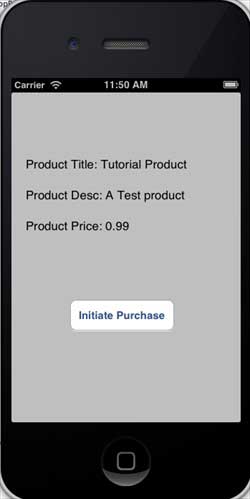
Запустите приложение, вывод будет следующим.
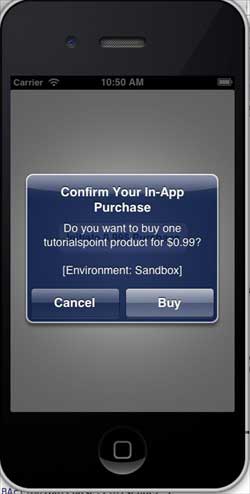
Убедитесь, что вы вошли в систему. Нажмите purchase, чтобы выбрать существующий Apple ID. Введите имя пользователя и пароль действительной тестовой учетной записи. Через несколько секунд отображается следующее сообщение.
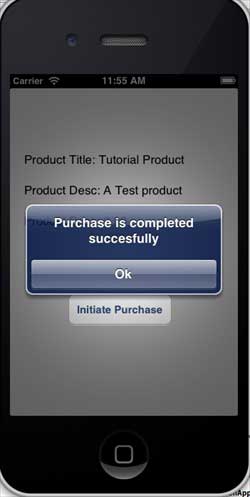
После успешной покупки продукта будет показана следующая информация. Там, где отображается эта информация, вы можете обновить код, связанный с функциональностью приложения.