Pi Agent and llama.cpp Local Models
Pi Agent has built-in support for llama.cpp, allowing you to run open-source large models locally without cloud APIs.
What is llama.cpp
llama.cpp is a high-performance LLM inference engine that can run open-source large language models on consumer-grade hardware.
It supports CPU inference (drastically reducing memory requirements via quantization) and GPU acceleration (CUDA, Metal, Vulkan, etc.).
Pi Agent, through thellama.cpp router server,communicates with local models.
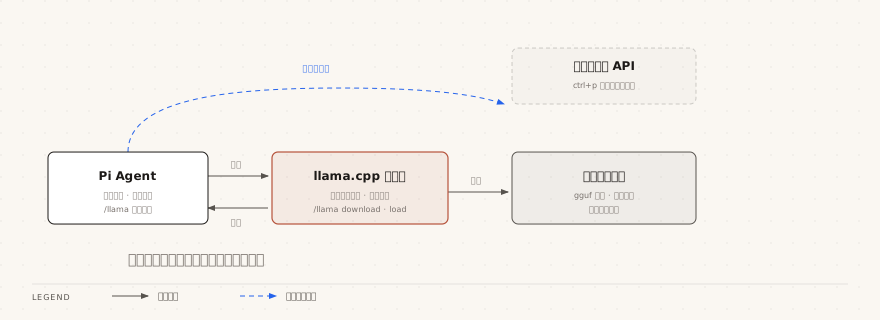
Configure llama.cpp
Configuration involves three steps: first start the llama-server router, then register the llama.cpp provider, and finally load and select a model.
Start the llama-server router
Without-mor--modelparameters, starting llama-server will enter router mode.
Once a model parameter is passed, llama-server enters single-model mode and no longer scans the model directory.
The router will load or unload on demand--models-dirGGUF models in the directory. Common parameters include --models-dir (model directory), --no-models-autoload (disable auto-loading), --jinja (enable conversation templates and tool-calling support), -ngl (number of layers offloaded to GPU), and -c 32768 (context window per model).
llama-server \
  --models-dir ~/models \
  --no-models-autoload \
  --jinja \
  --host 127.0.0.1 \
  --port 8080 \
  -ngl 999 \
  -c 32768
After startup, you can use the /health and /models endpoints to check whether the router is reachable and whether models are discovered.
Log in to llama.cpp
In Pi Agent interactive mode:
/login llama.cpp
This step only registers the local provider; no account authentication is required, but you need to fill in the router address (default http://127.0.0.1:8080).
After executing, Pi will ask for the router URL and an optional API Key. For local services, you can usually leave the API Key blank.
Manage local models
Use the/llamacommand to open the model management menu:
/llama
In the menu, select an unloaded model and press Enter to load it into memory.
Select a loaded model and press Enter to unload it.
Select the menu itemDownload model...to search Hugging Face and download new models. During loading or downloading, press Escape to confirm cancellation.
The menu always shows the real current state of the router, and only loaded models appear in the /model selector.
Switch to a local model
Use the/modelcommand to select a loaded local model.
Keyboard shortcuts: Ctrl+L opens the model selector, Ctrl+P cycles between models.
Recommended open-source models
Here are some open-source coding models suitable for local operation:
| Model | Parameters | Minimum VRAM/RAM | Use cases |
|---|---|---|---|
| Qwen 2.5 Coder | 7B / 14B / 32B | 8G / 16G / 32G | General coding, multilingual |
| DeepSeek Coder V2 | 16B / 236B | 16G / 128G+ | Complex programming tasks |
| CodeLlama | 7B / 13B / 34B | 8G / 16G / 32G | Code completion, general coding |
| Mistral | 7B | 8G | Lightweight coding assistant |
The coding ability of local models is usually weaker than top cloud models (such as Claude Sonnet, GPT-4o), but they are a very good alternative in scenarios with restricted networks, high data sensitivity requirements, or frequent use.
Model storage
The model directory is determined by the llama-server startup parameter--models-dir(such as ~/models); model downloads are also executed by the llama.cpp server.
Model files are usually large (from a few GB to tens of GB). Please ensure the directory has enough disk space.
Custom llama.cpp server
If your llama.cpp server runs on a non-default port or a remote machine, there are two ways to connect.
The zero-code approach is to set the environment variableLLAMA_BASE_URLandLLAMA_API_KEYto point to a custom llama.cpp server; no need to write extensions or use /login.
export LLAMA_BASE_URL=http://192.168.1.20:8080
export LLAMA_API_KEY=optional-secret
pi
If the server has an API Key enabled, llama-server must be started with the same --api-key value, and keep --host 127.0.0.1 to restrict access to the local machine.
When you only need to connect to an OpenAI-compatible API, the models.json approach is simpler; see the chapter "Connecting to DeepSeek". Use the extension approach when you need full control over the request flow.
Register the llama.cpp provider in an extension:
Example
pi.registerProvider("llama.cpp", {
name: "Local llama.cpp",
baseUrl: "http://localhost:8080/v1",
apiKey: "local",
api: "openai-completions",
// Dynamically discover loaded models
async refreshModels({ signal }) {
const response = await fetch(
"http://localhost:8080/v1/models",
{ signal }
);
const { data } = await response.json();
return data.map(({ id }) => ({
id,
name: id,
reasoning: false,
input: ["text"],
cost: {
input: 0,
output: 0,
cacheRead: 0,
cacheWrite: 0,
},
contextWindow: 128000,
maxTokens: 16384,
}));
},
});
This dynamic discovery mode allows Pi Agent to obtain the list of currently loaded models on the llama.cpp server in real time.
Save the file to the ~/.pi/agent/extensions/ directory and restart Pi Agent; the extension will automatically load and register this provider.
After it takes effect, open the /model selector to see the models currently loaded on the llama.cpp server and chat with them directly.
Limitations of local models
When using local models, note the following:
- Tool calling capability: some open-source models have weak tool-calling ability and may not correctly use Pi Agent's built-in tools
- Inference speed: without GPU acceleration, inference speed may be slower.
- Context length: the effective context window of local models is usually smaller than that of cloud models.
- Reasoning level: non-reasoning models always run as off and cannot use the reasoning level feature.
When tool-calling ability is weak, the most common symptom is that the model outputs the tool call as text instead of actually triggering the tool.
> 查看 src/index.ts 的内容

好的,下面是 src/index.ts 的内容:
import { createAgent } from "pi";
export const agent = createAgent();
...
If no tool-calling card appears in the message area, it means the model did not actually call the read tool, but instead fabricated file content itself.
In this case, you can switch to a model with better tool-calling support, or break the task into smaller steps.
Other extensionsRecommended hybrid strategy: use cloud models (such as Claude Sonnet) when deep reasoning and complex coding are needed, and switch to local models for routine simple tasks or when the network is restricted.
Use Ctrl+P to quickly switch between two models.