Pi Agent Common Issues and Troubleshooting
The following are common issues and solutions encountered while using Pi Agent.
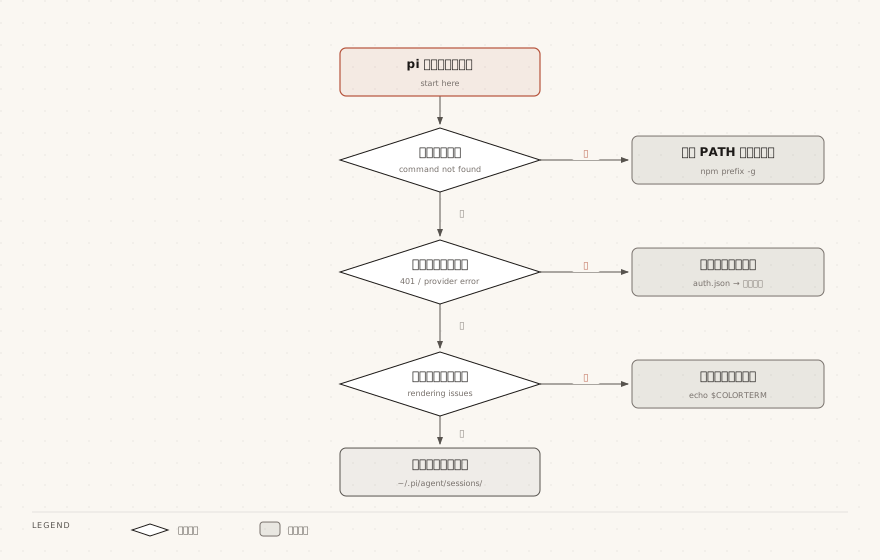
Installation Issues
This section covers typical errors and resolution paths during installation.
npm install fails
Symptom: The installation command exits with an error midway. Common errors fall into three categories: version, network, and permissions.
| Possible causes | Troubleshooting steps | Solutions |
|---|---|---|
| Node.js version too low. Pi Agent requires Node.js 22.19.0 or higher. | Runnode --versionto check the current version | Use nvm to install and switch to 22 LTS or higher |
| Network issue: accessing the official npm registry from China often times out. | Check whether the error contains network timeout messages such as ETIMEDOUT. | Runnpm config set registry https://registry.npmmirror.comSwitch to a mirror registry and reinstall. |
| Permission issue: the global installation directory on macOS/Linux is not writable by the current user. | Check whether the error contains EACCES permission errors. | Use nvm to manage Node.js, or configure the npm prefix to a user directory. Avoid using sudo. |
pi command not found after installation
Symptom: Installation reports success, but entering pi gives "command not found".
First check npm's global installation prefix:
$ npm prefix -g
/usr/local
Then confirm whether the bin directory under that prefix is in PATH:
$ echo $PATH | grep "$(npm prefix -g)/bin"
/usr/local/bin:/opt/homebrew/bin:/usr/bin:/bin
When the directory is not in PATH, this command produces no output:
$ echo $PATH | grep "$(npm prefix -g)/bin"
No output means the global bin directory is not in PATH, which is why the pi command cannot be found.
| Possible causes | Troubleshooting steps | Solutions |
|---|---|---|
| The global bin directory is not added to PATH. | Use the grep command above to confirm whether there is output. | hold$(npm prefix -g)/binAppend to~/.zshrcor~/.bashrcin the PATH, then restart the terminal for it to take effect. |
| Switched Node versions, old symlink no longer valid. | Runls $(npm prefix -g)/binto check whether pi still exists | Run the global installation again under the current Node version. |
Authentication Issues
This section covers resolution paths for /login login and API Key authentication failures.
/login login failure
Symptom: After entering /login, the browser cannot complete the redirect, or the interface stays in a waiting-for-authorization state.
| Possible causes | Troubleshooting steps | Solutions |
|---|---|---|
| Subscription is not in a valid state. | Log in to the provider's official website to confirm whether the subscription has expired. | Renew the subscription, or switch to another provider to log in. |
| Cannot access the provider's authentication server. | Open the provider's site in a browser to confirm network reachability. | Configure a proxy and retry. See the Proxy Settings section below. |
| Using /login on an SSH remote connection | The remote machine has no browser, so the OAuth callback cannot be delivered. | Copy the authorization URL to a local browser, then manually paste the callback URL to complete login. |
API Key not working
Symptom: Environment variables have been exported, but the app still prompts "not authenticated" at startup, or continues using old credentials.
Check in the following order:
| Possible causes | Troubleshooting steps | Solutions |
|---|---|---|
| Environment variables are not set correctly. | Runecho $ANTHROPIC_API_KEYto view the output | If the output is empty, add export to the shell configuration file, then source it again. |
| auth.jsonDuplicate credentials already exist in [file], with higher priority than environment variables. | Check~/.pi/agent/auth.jsonwhether an entry for this provider already exists in [file]. | Run/logoutClear the old credentials, or edit auth.json directly to update the Key. |
| API Key format is incorrect. | Check whether the copied content contains extra spaces or quotes. | Copy the Key completely again and reconfigure. |
auth.jsonCredentials saved in [file] have higher priority than environment variables.
When the API Key is not working, first check~/.pi/agent/auth.json, don't just focus on environment variables.
Model unavailable
Symptom: The expected model cannot be found in the model list, or a permission error is shown when calling it.
| Possible causes | Troubleshooting steps | Solutions |
|---|---|---|
| Local model directory is out of date. | Runpi update --modelsto refresh the model directory | After refreshing, reopen the model picker. |
| Unsure which models are currently available. | Runpi --list-modelsto view the available model list | Select a model available to the current account from the list. |
| The API Key does not have access to the corresponding model. | In the provider console, confirm the model authorization scope for this Key. | Upgrade the plan, or switch to an authorized model. |
| GitHub Copilot model shows "not supported". | Confirm whether the model has been enabled in VS Code. | First enable the model in VS Code Copilot Chat, then return to Pi Agent to use it. |
Interface Issues
This section covers three types of interface anomalies: terminal rendering, image display, and shortcut keys.
Interface display abnormal (wrong colors, misaligned)
Symptom: Colors appear dim or distorted, and borders of tables and text boxes are misaligned.
| Possible causes | Troubleshooting steps | Solutions |
|---|---|---|
| The terminal does not support True Color. | Runecho $COLORTERMIf the output is truecolor or 24bit, it means supported. | Switch to a terminal that supports True Color (iTerm2, Windows Terminal, etc.). |
| VS Code automatically adjusted the terminal contrast. | Check the setting itemterminal.integrated.minimumContrastRatio | Set that item to 1. |
| The current terminal has poor rendering compatibility. | Run in another terminal to confirm whether the issue reproduces. | Change terminal; iTerm2 or Windows Terminal is recommended. |
Images cannot be displayed
Symptom: After sending or pasting an image, only a placeholder or blank space is visible in the terminal.
| Possible causes | Troubleshooting steps | Solutions |
|---|---|---|
| The terminal does not support image display protocols. | Check whether the terminal supports iTerm2's imgcat or Kitty's icat. | Switch to a terminal that supports image protocols. |
| Image display is disabled by configuration. | Checkterminal.showImageswhether it is true. | Change it to true and run/reloadto apply the configuration. |
Shortcut keys not working
Symptom: Pressing the shortcut keys described in the documentation has no effect, or triggers the terminal's own functions.
| Possible causes | Troubleshooting steps | Solutions |
|---|---|---|
| The terminal intercepts the shortcut key. | Check the shortcut key binding list in the terminal settings. | Modify or release conflicting bindings in the terminal. |
| Misremembered the current shortcut keys. | Run/hotkeysto view all current shortcut key bindings. | Operate according to the actual bindings in the list. |
| Need to adjust according to personal habits. | Confirm the configuration file~/.pi/agent/keybindings.jsonwhether it exists. | Edit this file to customize keyboard shortcuts |
Session Issues
This section covers two types of issues: session file bloat and inability to find historical sessions.
Session file too large
Symptom: Context usage keeps rising, responses slow down, or compression is triggered early.
| Possible causes | Troubleshooting methods | Solutions |
|---|---|---|
| Conversation history too long | Run/sessionCheck message count and token usage | Run/compactCompress conversation history |
| Auto-compression not enabled | Checkcompaction.enabledwhether it is true | After setting it to true, restart pi for it to take effect |
| A single session has accumulated for too long | use/sessionObserve session file size growth | Regularly use/newStart a new session, split sessions by task |
Cannot find previous session
Symptom: Previous work records cannot be seen in the pi -r list.
| Possible causes | Troubleshooting methods | Solutions |
|---|---|---|
| Did not use the resume entry point | Runpi -rOr enter /resume in interactive mode to browse the session list | Select the target session in the list to resume |
| sessionDirSettings were modified | Check in settings.jsonsessionDirthe current value of | Change back to the original directory, or migrate files from the original directory to the new directory |
| Session directory permission anomaly | Runls ~/.pi/agent/sessions/Confirm it is readable and writable | Runchmod -R u+rw ~/.pi/agent/sessionsFix permissions |
Performance Issues
This section covers two types of performance issues: slow responses and degraded performance under long context.
AI responses are slow
Symptom: After submitting a request, there is no first-word output for a long time, or the overall time is significantly higher than usual.
| Possible causes | Troubleshooting methods | Solutions |
|---|---|---|
| High network latency or broken link | Runping api.anthropic.comCheck latency and packet loss | Switch networks, or configure a proxy as described in the proxy settings below |
| Reasoning level too high, thinking time extended | Check the current reasoning level in the status bar | Press Shift+Tab to lower the reasoning level |
| System prompt or context file content is too large | Check the size of context files such as AGENTS.md | Shorten the system prompt, streamline the content of AGENTS.md |
| Token consumption per request is too large | Run/sessionView token usage and time consumption distribution | Run/compactor/newShorten the context and try again |
If using a proxy environment, switch tocurl -x $HTTP_PROXY https://api.anthropic.comtest.
In a proxy environment, ping failure does not mean the API is unavailable.
ping uses ICMP, while the API uses HTTPS; in this case, switch to curl to verify the actual link.
AI performance degrades after large context
Symptom: After more conversation turns, the AI starts to forget previous agreements or gives repetitive answers.
| Possible causes | Troubleshooting methods | Solutions |
|---|---|---|
| Context is close to the window limit, and early content gets compressed away | Run/sessionCheck current token usage | Manually run/compactCompress the context |
| A large number of invalid attempts are mixed into historical messages | use/treeCheck branches and invalid conversations | use/newStart a new session, write conclusions into AGENTS.md |
| Referenced file content is unrelated to the current task | Check whether @ references and context files contain irrelevant content | Reduce unnecessary context file content, only keep what the current task needs |
Proxy Settings
This section explains how to let Pi Agent access the API normally in a restricted network environment.
Accessing API from China
Configure an HTTP proxy in settings.json:
{
  "httpProxy": "http://127.0.0.1:7890"
}
Or start after setting environment variables:
$ export HTTP_PROXY=http://127.0.0.1:7890
$ export HTTPS_PROXY=http://127.0.0.1:7890
$ pi
Other Extensions