Pi Agent Context Management
Context management is a core skill for using Pi Agent efficiently.
This chapter explains how to control AI behavior through environment files and how to manage conversation context.
Context Files Overview
Pi Agent automatically loads project instruction files at startup, allowing the AI to understand your project conventions, commands, and preferences.
These files tell the AI "how to work in this project."
AGENTS.md / CLAUDE.md
These are the most important context files for Pi Agent, loaded in the following order:
- ~/.pi/agent/AGENTS.md- Global instructions, effective for all projects
- Traverse AGENTS.md or CLAUDE.md in parent directories upward from the current directory
- AGENTS.md or CLAUDE.md in the current directory
The following isAGENTS.mda complete example placed in the project root directory:
Example
## Code Standards
- All code uses TypeScript strict mode
- Functions must have return type annotations
- Use ESLint and Prettier to keep code style consistent
## Workflow
- Run `npm run check` to verify after code changes
- Run `npm test` before committing to ensure tests pass
- Do not run production database migrations directly on your local machine
## Security Notes
- Do not write API keys or passwords into code
- Use environment variables for sensitive configuration
## Reply Style
- Keep replies concise, and do not over-explain obvious code
- When problems arise, provide a fix first, then explain the cause
After updating AGENTS.md, use the/reloadcommand to hot reload, no need to restart Pi Agent.
If you have both AGENTS.md and CLAUDE.md, Pi Agent will load AGENTS.md first.
If you previously used Claude Code, you can directly reuse your existing CLAUDE.md.
If AGENTS.override.md exists in a directory, it will be loaded instead of that directory's AGENTS.md and CLAUDE.md.
To disable context file loading, use the command-line argument:
$ pi --no-context-files
$ pi -nc   # 短形式
SYSTEM.md
SYSTEM.md is used to completely replace Pi Agent's default system prompt. If you only want to append content, use APPEND_SYSTEM.md instead.
Both have global and project levels, with paths and effects as follows:
| File | Level | Effect |
|---|---|---|
| ~/.pi/agent/SYSTEM.md | Global | Replaces the default system prompt |
| Project root/.pi/SYSTEM.md | Project | Replaces the default system prompt |
| ~/.pi/agent/APPEND_SYSTEM.md | Global | Appends after the default system prompt |
| Project root/.pi/APPEND_SYSTEM.md | Project | Appends after the default system prompt |
In most cases, you do not need to modify the system prompt.
AGENTS.md can already cover the vast majority of customization needs.
SYSTEM.md is suitable for scenarios that require deep customization of AI behavior; improper changes may affect the AI's performance.
Context Compaction
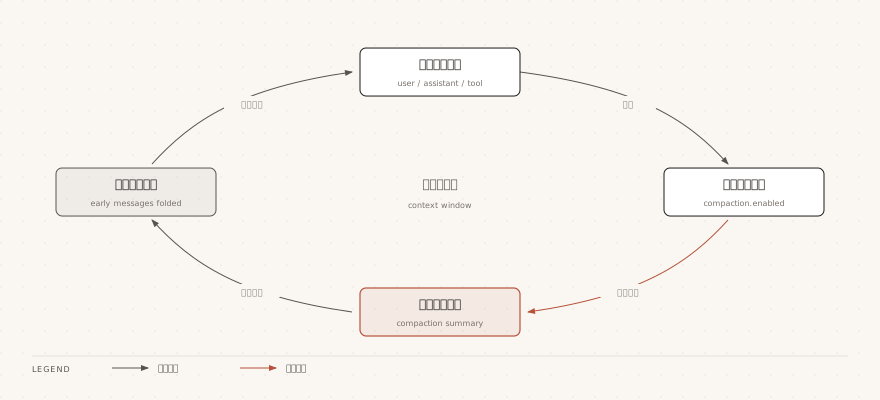
When a conversation becomes very long, the AI's context window will gradually fill up.
Pi Agent solves this through context compaction—it automatically summarizes earlier conversation content into a short digest, freeing up context space.
Automatic Compaction
By default, Pi Agent automatically triggers compaction when the context approaches the model limit.
Compaction behavior is~/.pi/agent/settings.jsoncontrolled by the compaction configuration in:
Example
"compaction": {
"enabled": true,
"reserveTokens": 16384,
"keepRecentTokens": 20000
}
}
| Configuration Item | Type | Default Value | Description |
|---|---|---|---|
| compaction.enabled | boolean | true | Whether to enable automatic compaction |
| compaction.reserveTokens | number | 16384 | Number of tokens reserved for LLM responses |
| compaction.keepRecentTokens | number | 20000 | Number of recent tokens to keep uncompressed |
The trigger condition is when context tokens exceed the available space after subtracting reserveTokens from contextWindow.
The check occurs after each tool execution completes and before the next user prompt is sent.
Manual Compaction
You can also manually trigger compaction at any time:
/compact
When compacting, you can add custom instructions to tell the AI what to focus on when summarizing:
/compact 重点关注错误修复和 API 变更
Compaction is irreversible only for the current conversation context.
The compressed original messages are still fully retained in the session file. Use /tree to jump back to the node before compaction to retrieve details.
If you want to keep a full backup before compaction, /clone is recommended.
/clone completely copies the current active branch to a new session file, suitable for backup before compaction.
/fork only starts from a certain historical user message, and content after it will not be carried into the new session.
Inference Process Display
Models that support reasoning output will think before answering.
You can control the display of the reasoning process through the following settings:
| Setting | Type | Default Value | Description |
|---|---|---|---|
| hideThinkingBlock | boolean | false | Hide the reasoning process and only show the final answer |
| showCacheMissNotices | boolean | false | Show cache miss prompts, and also show token usage prompts generated by compaction and branch summaries |
UseCtrl+Tto toggle the display/hiding of the reasoning process at any time during the conversation.
Hot Reload (/reload)
Whether you need to restart after modifying configuration depends on what you changed.
The table below summarizes how common changes take effect. For items marked "No", just run /reload:
| Change Item | Restart Required? | Description |
|---|---|---|
| AGENTS.md or CLAUDE.md (context files) | no | Reload immediately after running /reload |
| Extensions | no | Reload immediately after running /reload |
| Skills | no | Reload immediately after running /reload |
| Prompt templates | no | Reload immediately after running /reload |
| Theme files | no | Reload immediately after running /reload |
| Keyboard shortcut configuration | no | Reload immediately after running /reload |
| Some settings in ~/.pi/agent/settings.json | Yes | Some configuration is read once at startup |
| Newly installed extension packages | Yes | Package dependencies are resolved at startup |
| auth.json credentials | Yes | Credentials are loaded at startup |
Viewing Context Usage
The bottom status bar displays the current context's token usage and cost in real time.
Use the/sessioncommand to view more detailed information:
/session
Example output:
Session file: ~/.pi/agent/sessions/--Users-example-projects-example-demo--/2026-08-30T09-15-04-000Z_019fbb5d-7a2e-7f31-b5c4-1a2b3c4d5e6f.jsonl
Session ID:   abc123-def456
Messages:     42
Tokens:       85,432
Cost:         $0.52
Current model: claude-sonnet-4-20250514
Other extensions