ASP.NET MVC - Views
In order to learn ASP.NET MVC, we will build an Internet application.
Part 5: Add a view for displaying the application.
Views folder
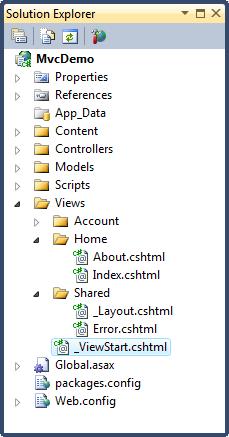
ViewsThe folder stores files (HTML files) related to the application's display (user interface). Depending on the language content used, these files may have extensions such as html, asp, aspx, cshtml, and vbhtml.
The Views folder contains one folder corresponding to each controller.
In the Views folder, Visual Web Developer has already created an Account folder, a Home folder, and a Shared folder.
The Account folder contains pages for user account registration and login.
The Home folder is used to store application pages such as the home page and about page.
The Shared folder is used to store views shared between controllers (master pages and layout pages).
ASP.NET File Types
In the Views folder, you can see the following HTML file types:
| File Type | Extension |
|---|---|
| Plain HTML | .htm or .html |
| Classic ASP | .asp |
| Classic ASP.NET | .aspx |
| ASP.NET Razor C# | .cshtml |
| ASP.NET Razor VB | .vbhtml |
Index File
The file Index.cshtml represents the Home page of the application. It is the default file (home page file) of the application.
Write the following content in the file:
<h1>Welcome to example.com</h1>
<p>Put Home Page content here</p>
About File
The file About.cshtml represents the About page of the application.
Write the following content in the file:
<h1>About Us</h1>
<p>Put About Us content here</p>
Run the Application
Select Debug, and from the Visual Web Developer menu choose Start Debugging (or press F5).
Your application will display as follows:
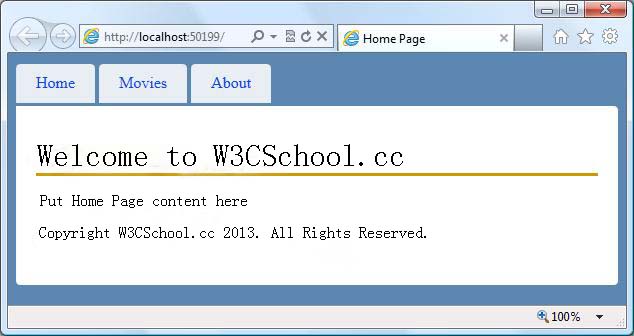
Click the "Home" tab and the "About" tab to see how it works.
Congratulations
Congratulations. You have successfully created your first MVC application.
Note:You cannot click the "Movies" tab for now. We will add code for the "Movies" tab in later chapters of this tutorial.
Other Extensions