UniApp Environment Installation
UniApp is a framework that uses Vue.js to develop all front-end applications. Developers write one set of code that can be published to iOS, Android, Web (responsive), and various mini programs (WeChat/Alipay/Baidu/Toutiao/Feishu/QQ/Kuaishou/DingTalk/Taobao), Quick App, and many other platforms.
uni-app supports quickly creating projects in two ways: through the visual interface and the vue-cli command line.
HBuilderX Development Tool Installation and Configuration
HBuilderXH is the first letter of HTML, Builder is constructor, and X is the next-generation version of HBuilder. We also abbreviate it asHX。HXYesLight as an editor, powerful as an IDEthe combined version.
HBuilderX has built-in related environments, works out of the box, and does not require configuring nodejs.
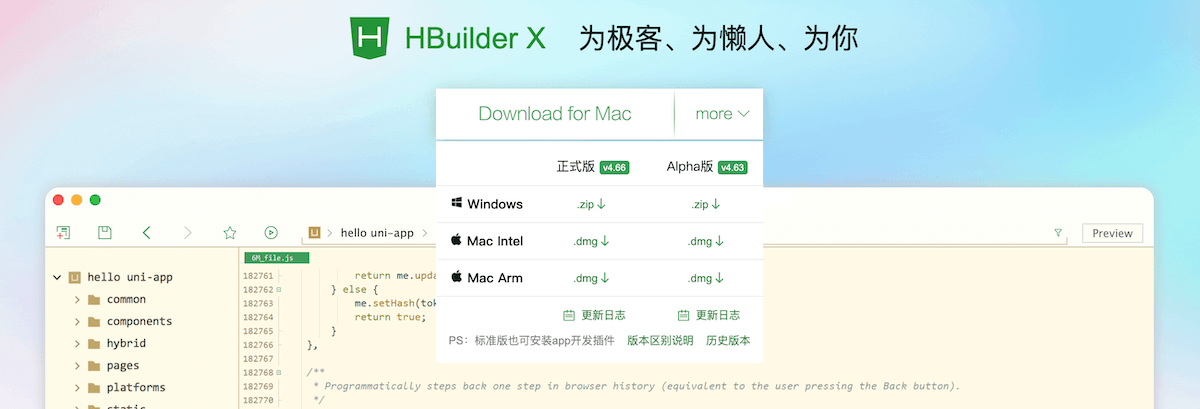
Download and install:
- Visit the official website:https://www.dcloud.io/hbuilderx.html
- Choose the version suitable for your operating system (Windows/macOS/Linux)
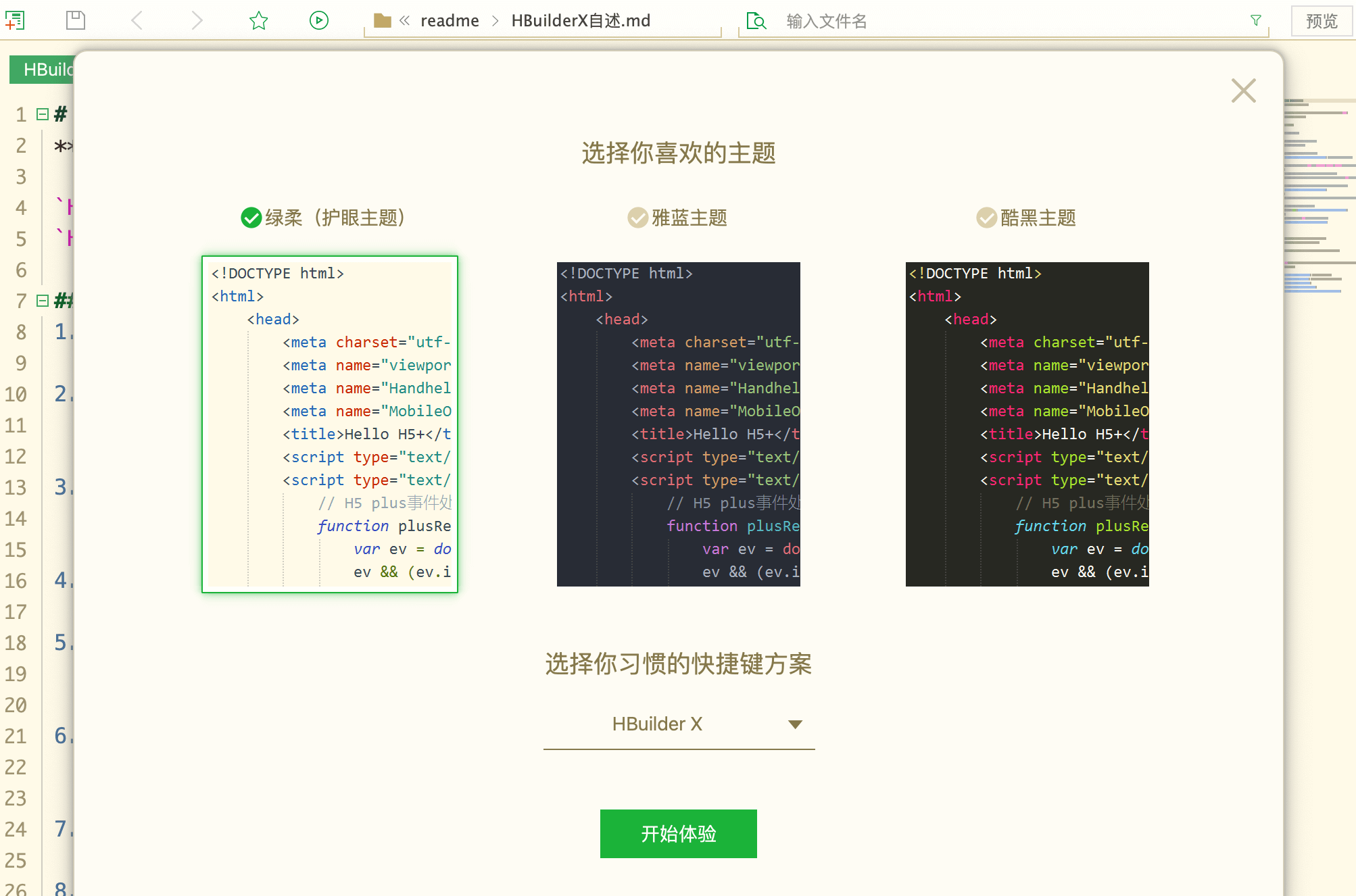
After downloading and installing, we can set our preferred theme:
Create UniApp
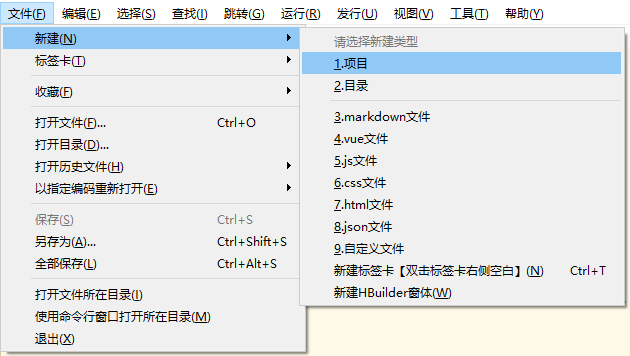
Click File in the toolbar -> New -> Project (shortcutCtrl+N):
Select the uni-app type, enter the project name, choose a template, and click Create. The project is then created successfully.
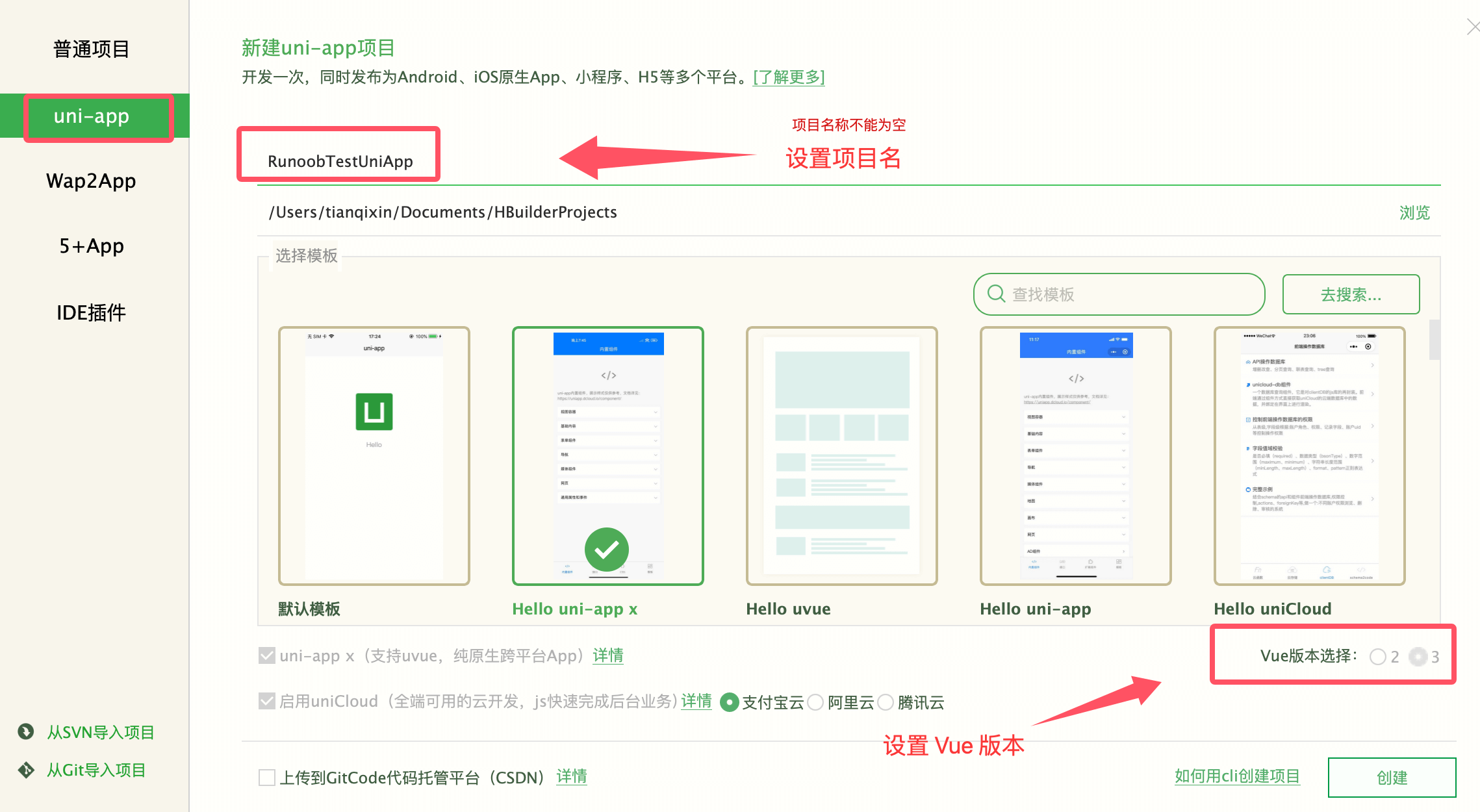
uni-app's built-in templates include the default empty project template, Hello uni-app official components and API examples, and an important template is the uni ui project template, which is recommended for daily development and has many commonly used components built in.
Run uni-app
Run in browser: Enter the project, click Run in the toolbar -> Run to Browser -> select a browser. Choose Chrome or another browser to experience the web version of uni-app.
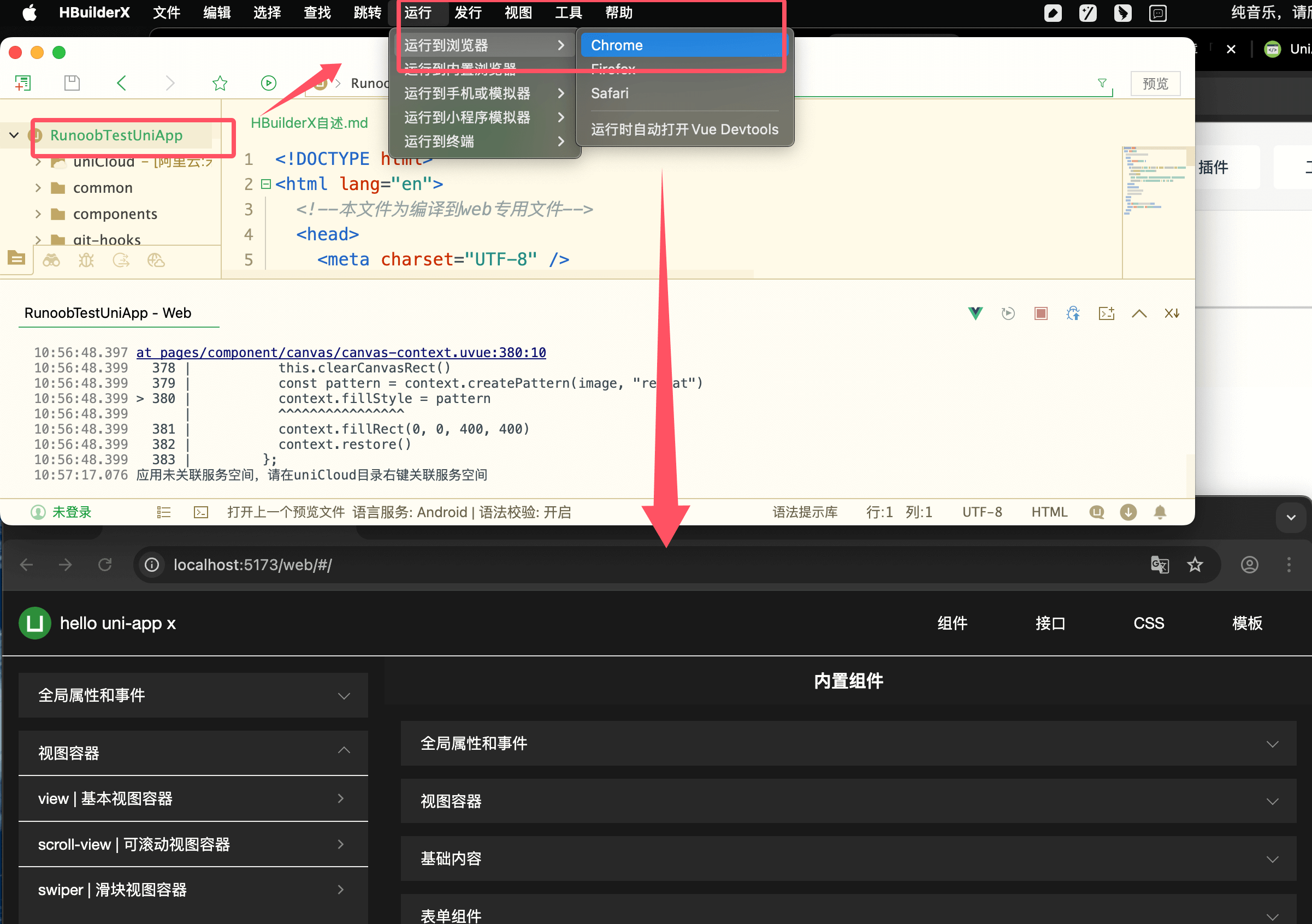
Run App on a phone or emulator: Use a USB port with sufficient voltage to connect the phone, enable USB debugging in settings, allow the computer to debug the phone on the phone, enter the project, click Run in the toolbar -> Run App to Phone or Emulator, and you can experience uni-app on that device.
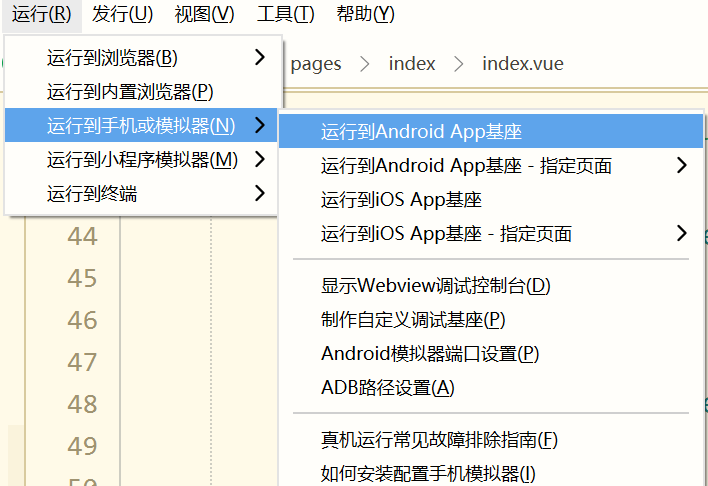
Run in WeChat Developer Tools: Enter the project, click Run in the toolbar -> Run to Mini Program Simulator -> WeChat Developer Tools, and you can experience uni-app in WeChat Developer Tools.
Note:If you are using it for the first time, you need to configure the relevant path of the mini program IDE before it can run successfully. As shown below, enter the installation path of WeChat Developer Tools in the input box.

Note:WeChat Developer Tools needs to have the service port enabled in Settings -> Security of WeChat Tools.
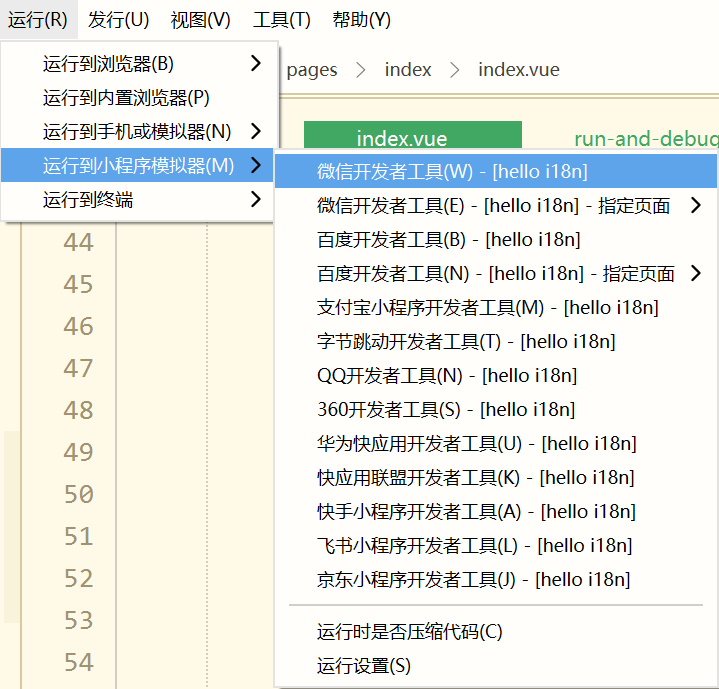
Run in Alipay Mini Program Developer Tools: Enter the project, click Run in the toolbar -> Run to Mini Program Simulator -> Alipay Mini Program Developer Tools, and you can experience uni-app in Alipay Mini Program Developer Tools.
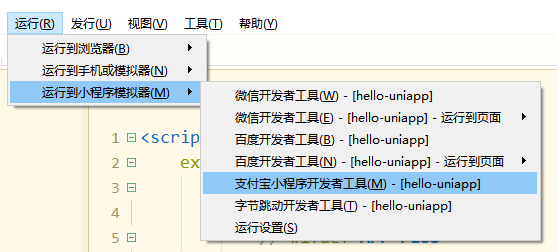
Run in mini program development tools for Baidu, Douyin, QQ, Quick App (divided into Alliance and Huawei), Kuaishou, Feishu, 360, JD.com, etc.: The content is the same as above, and will not be repeated.
Note:
If you are using it for the first time, you need to configure the relevant path of the development tool. Click Run in the toolbar -> Run to Mini Program Simulator -> Run Settings, and configure the path of the corresponding mini program developer tool.
-
The WeChat mini program tool needs to have permissions configured; otherwise, HBuilder cannot call the command line of the WeChat mini program developer tool.
Alipay/Baidu/Douyin/360 mini program tools do not support directly specifying a project to start and run. Therefore, after the development tool is started, open the project path indicated in the HBuilderX console in the corresponding mini program developer tool.
If automatic startup of the mini program development tool fails, manually start the mini program development tool and open the project using the project path indicated in the HBuilderX console.
The shortcut key for running isCtrl+R。
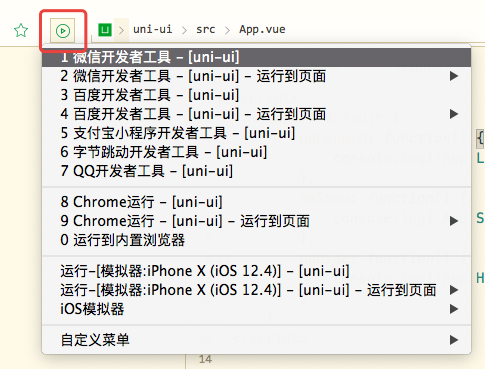
HBuilderX also provides a quick run menu, where you can quickly select the device to run by pressing a number:
Create via Vue CLI Command
In addition to the HBuilderX visual interface, you can also create uni-app projects via vue-cli.
Create uni-app
Create a Vue 3 project
Create a project developed with JavaScript:
npx degit dcloudio/uni-preset-vue#vite my-vue3-project
npx degit dcloudio/uni-preset-vue#vite-alpha my-vue3-project
Create a project developed with TypeScript
npx degit dcloudio/uni-preset-vue#vite-ts my-vue3-project
Create a Vue 2 project
Requires global installationvue-cli npm install -g @vue/cli
Use the official version (corresponding to the latest official version of HBuilderX)
vue create -p dcloudio/uni-preset-vue my-project
Use the alpha version (corresponding to the latest alpha version of HBuilderX)
vue create -p dcloudio/uni-preset-vue#alpha my-alpha-project
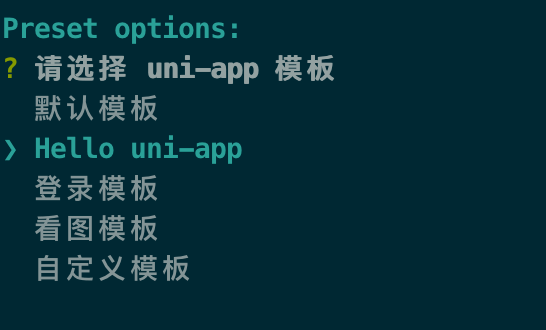
At this time, you will be prompted to select a project template (the Vue3/Vite version will not prompt; currently only the default template is supported). For the first experience, it is recommended to choose the hello uni-app project template, as shown below:
For more content, refer to:
Other Extensions