Scala Installation
The Scala language can run on Windows, Linux, Unix, Mac OS X, and other systems.
Scala is built on top of Java and heavily uses Java's class libraries and variables. Before using Scala, you must install Java (version >1.5).
Installing Scala on Mac OS X and Linux
Step 1: Java Setup
Make sure you have JDK 1.5 or later installed locally, and have set the JAVA_HOME environment variable and the JDK's bin directory.
We can use the following command to check whether Java is installed:
$ java -version
java version "1.8.0_31"
Java(TM) SE Runtime Environment (build 1.8.0_31-b13)
Java HotSpot(TM) 64-Bit Server VM (build 25.31-b07, mixed mode)
$
Next, we can check whether the Java compiler is installed. Enter the following command to check:
$ javac -version
javac 1.8.0_31
$
If it is not installed yet, you can refer to ourJava Development Environment Configuration。
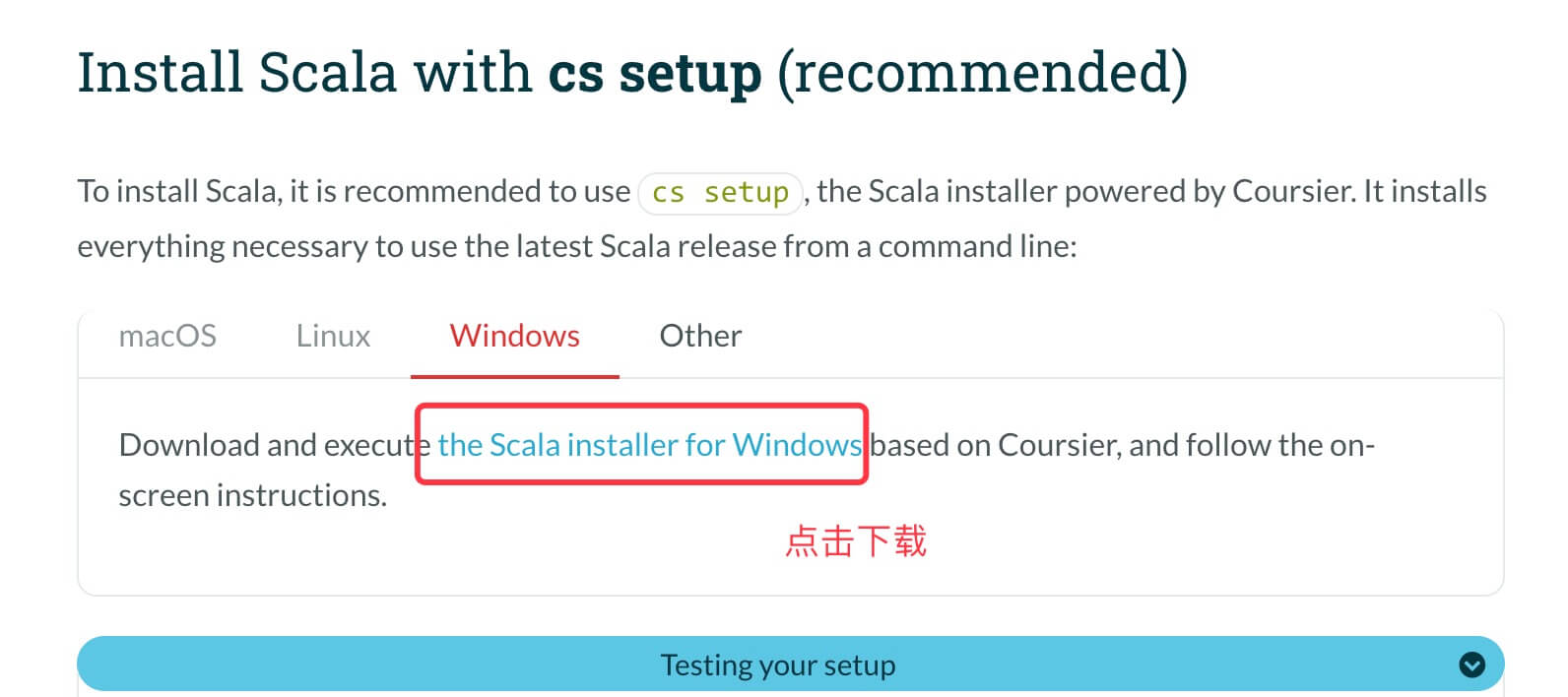
To install Scala, it is recommended to use the Scala installer powered by Coursiercs setup
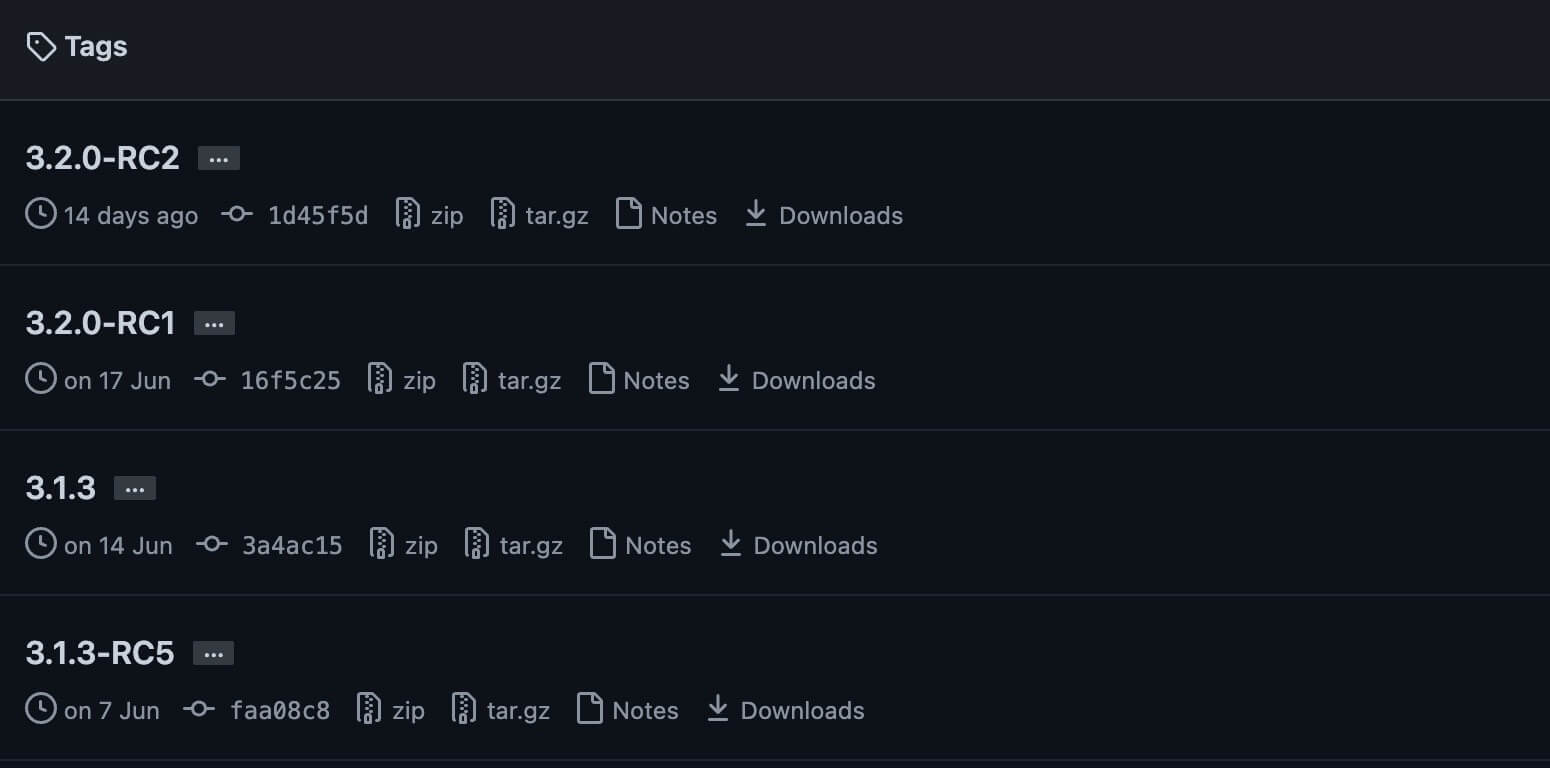
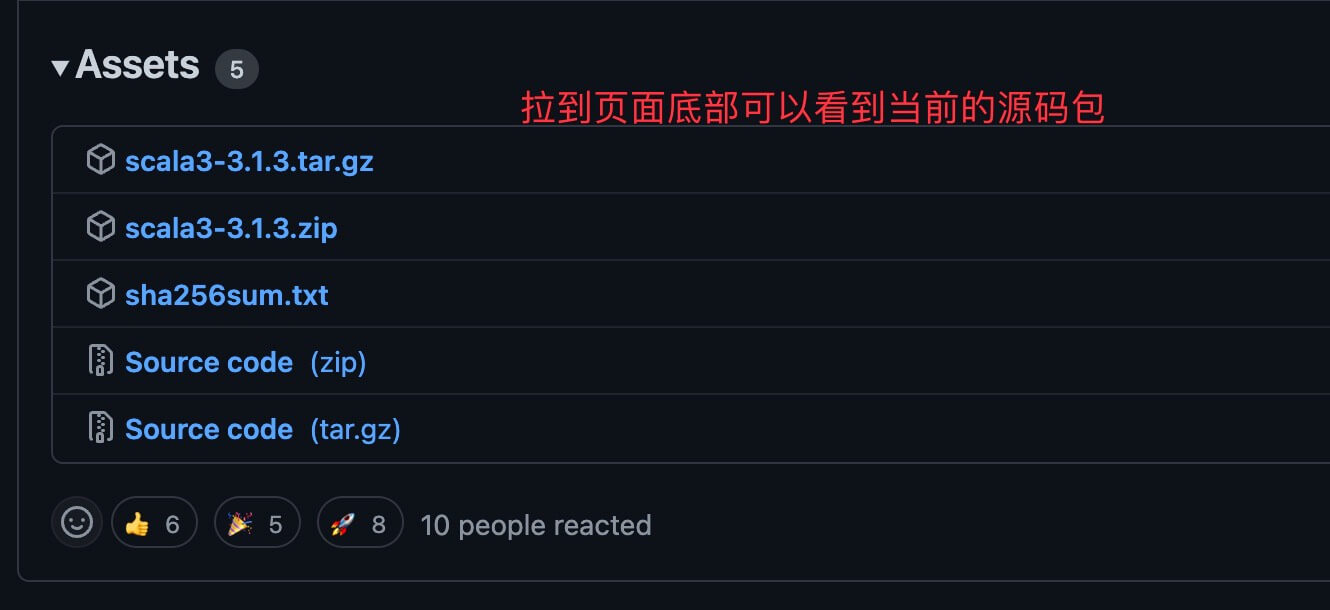
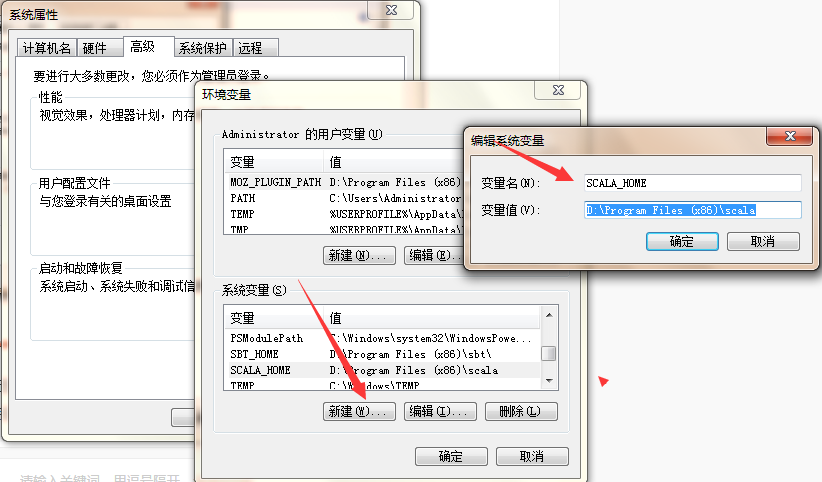
On macOS, use thebrewcommand to install: On Linux, use thecurlcommand to download the source package and install. x86-64 architecture: ARM64 architecture: You can use theuname -mcommand to check your server CPU architecture: We can use the GitHub addresshttps://github.com/lampepfl/dotty/tagsto download the Scala binary package. In this tutorial, we will download2.11.7version, as shown in the figure below: Click the version number we want to download, then scroll to the bottom of the page to see the download package: Extract the package, and you can move it to /usr/local/share: Modify the environment variables. If you are not an administrator, you can use sudo to gain administrator privileges and modify the profile configuration file: Add the following at the end of the file: :wq! Save and exit. Restart the terminal and run the scala command. If the following information is output, the installation is successful: Note:When compiling, if there is Chinese text, garbled characters may appear. For a solution, see:Solving Scala Chinese Garbled Text The detection method has been described earlier, so we will not repeat it here. If it is not installed yet, you can refer to ourJava Development Environment Configuration。 Next, we can use the Scala official website addresshttp://www.scala-lang.org/downloadsto download the Scala binary package (at the bottom of the page). In this tutorial, we will download2.11.7version, as shown in the figure below: After downloading, double-click the exe file and install step by step. During the installation process, you can use the default installation directory. After installing Scala, the system will automatically prompt. Click Finish to complete the installation. Right-click My Computer, click 'Properties', and enter the page as shown. Now start configuring environment variables: right-click [My Computer] -> [Properties] -> [Advanced System Settings] -> [Environment Variables], as shown: Set the SCALA_HOME variable: click New, and enter the following in the Variable Name field:SCALA_HOME: enter the following in the Variable Value field:D:\Program Files(x86)\scala That is, the Scala installation directory, which varies depending on the individual situation. If installed on the C drive, just change D to C. Set the Path variable: find 'Path' under System Variables as shown in the figure, and click Edit. Add the following path at the very beginning of the 'Variable Value' field: %SCALA_HOME%\bin;%SCALA_HOME%\jre\bin; Note:the trailing semicolon;should not be omitted. Set the Classpath variable: find 'Classpath' under System Variables as shown in the figure, and click Edit. If it does not exist, click 'New': Note:Do not miss the leading .; in the 'Variable Value'. Finally, click OK. Check whether the environment variables are set correctly: bring up 'cmd' to check. Click [Start], type cmd in the input box, then press Enter. Type scala and press Enter. If the environment variables are set OK, you should see this information. The following lists the directories placed by different systems (for reference):brew install coursier/formulas/coursier && cs setup
curl -fL https://github.com/coursier/launchers/raw/master/cs-x86_64-pc-linux.gz | gzip -d > cs && chmod +x cs && ./cs setup
curl -fL https://github.com/VirtusLab/coursier-m1/releases/latest/download/cs-aarch64-pc-linux.gz | gzip -d > cs && chmod +x cs && ./cs setup
# uname -m
x86_64
Binary Package Installation
mv scala-2.11.7 scala                   # 重命名 Scala 目录
mv /download/scalapath /usr/local/share # 下载目录需要按你实际的下载路径
vim /etc/profile

或

sudo vim /etc/profile
export PATH="$PATH:/usr/local/share/scala/bin"
$ scala
Welcome to Scala version 2.11.7 (Java HotSpot(TM) 64-Bit Server VM, Java 1.8.0_31).
Type in expressions to have them evaluated.
Type :help for more information.
Installing Scala on Windows
Step 1: Java Setup



Other Extensions
System Environment
Variable
Value (Example)
Unix
$SCALA_HOME/usr/local/share/scala
$PATH$PATH:$SCALA_HOME/bin
Windows
%SCALA_HOME%c:\Progra~1\Scala
%PATH%%PATH%;%SCALA_HOME%\bin