Python Environment Setup
Python is a cross-platform programming language that can run on multiple operating systems.
In this chapter, we will show you how to set up a Python development environment locally.
Python can be applied to multiple platforms, including Windows, Linux, and Mac OS X.
You can type in the terminal windowpythoncommand to check whether Python is already installed locally and the installed version of Python.
- Windows: Including Windows 7 and later versions.
- macOS: Applicable to all major macOS versions.
- Linux: Almost all major Linux distributions, such as Ubuntu, Debian, Fedora, CentOS, etc.
- Unix: Supports Unix-like systems, such as FreeBSD, OpenBSD, etc.
- Embedded systems: Devices such as Raspberry Pi.
- Mobile platforms: Supports iOS and Android through specific frameworks (such as Kivy).
- Cloud platforms: Supports cloud service environments such as AWS, Google Cloud, and Azure.
Python Download
The latest Python source code, binary documents, news, and more can be found on the official Python website:
Python official website:https://www.python.org/
You can download Python documentation from the following link, in formats such as HTML, PDF, and PostScript.
Python documentation download address:https://www.python.org/doc/
Python Installation
Python has been ported to many platforms (modified so that it can work on different platforms).
You need to download the binary code applicable to your platform, and then install Python.
If the binary code for your platform is not available, you need to manually compile the source code using a C compiler.
Compiling the source code provides more options in functionality and offers more flexibility for the Python installation.
The following are the download addresses of the installation packages for each platform:
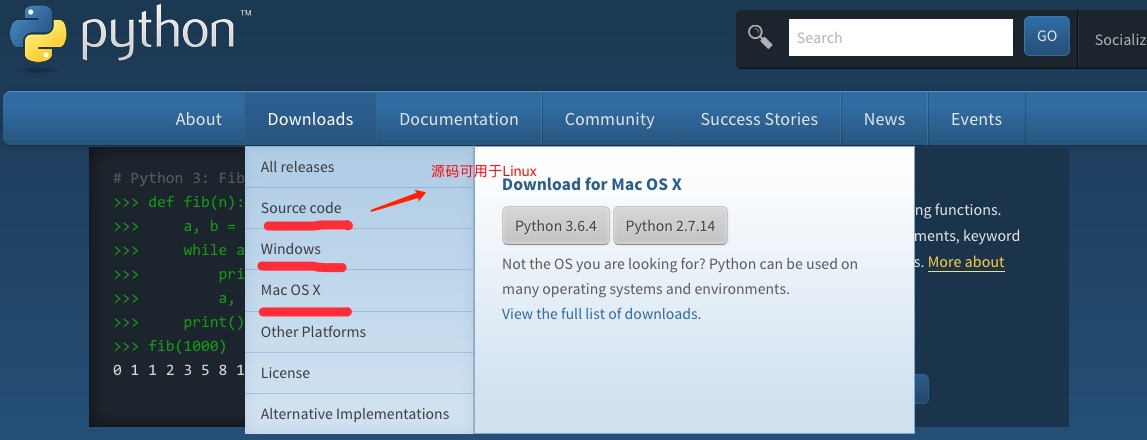
The following are methods for installing Python on different platforms:
Install Python on Unix & Linux Platforms:
The following are the simple steps to install Python on Unix & Linux platforms:
- Open a web browser and visithttps://www.python.org/downloads/source/
- Select the source code archive applicable to Unix/Linux.
- Download and decompress the archive.
- If you need to customize some options, modifyModules/Setup
- Execute./configure script
- make
- make install
After performing the above operations, Python will be installed in the /usr/local/bin directory, and the Python libraries will be installed in /usr/local/lib/pythonXX, where XX is the version number of Python you are using.
Install Python on Windows Platform:
The following are the simple steps to install Python on the Windows platform:
Open a web browser and visithttps://www.python.org/downloads/windows/
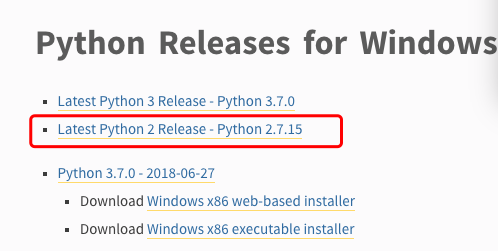
- In the download list, select the Windows platform installation package. The package format is:python-XYZ.msifile, where XYZ is the version number you want to install.
To use the installerpython-XYZ.msi, the Windows system must support Microsoft Installer 2.0. Just save the installation file to your local computer, then run it to see if your machine supports MSI. Windows XP and later versions already have MSI, and many older machines can also install MSI.
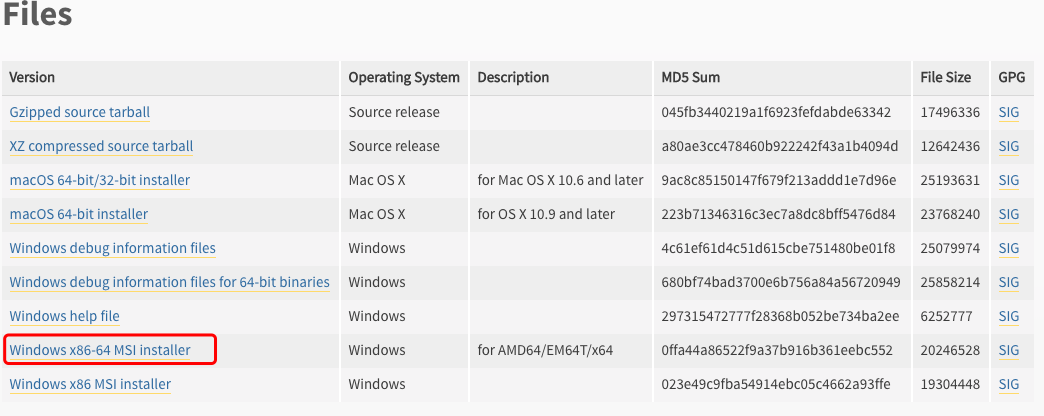
After downloading, double-click the downloaded package to enter the Python installation wizard. The installation is very simple: you just need to use the default settings and keep clicking "Next" until the installation is complete.
Install Python on Mac Platform:
Mac systems generally come with a Python 2.x environment. You can also visit the linkhttps://www.python.org/downloads/mac-osx/to download and install the latest version.
Environment Variable Configuration
Programs and executable files can be in many directories, and these paths are likely not in the search path that the operating system provides for executables.
The path is stored in environment variables, which are named strings maintained by the operating system. These variables contain information available to the command-line interpreter and other programs.
In Unix or Windows, the path variable is PATH (UNIX is case-sensitive, Windows is not case-sensitive).
In Mac OS, the installer changes the Python installation path during installation. If you need to reference Python in other directories, you must add the Python directory to the path.
Set Environment Variables in Unix/Linux
- In csh shell:Enter
setenv PATH "$PATH:/usr/local/bin/python"
, pressEnter。 - In bash shell (Linux):Enter
export PATH="$PATH:/usr/local/bin/python"
, pressEnter。 - In sh or ksh shell:Enter
PATH="$PATH:/usr/local/bin/python"
, pressEnter。
Note:/usr/local/bin/python is the Python installation directory.
Set Environment Variables in Windows
Add the Python directory to the environment variables:
In the command prompt (cmd):Enter
path=%path%;C:\Python
pressEnter。
Note:C:\Python is the Python installation directory.
You can also set it in the following way:
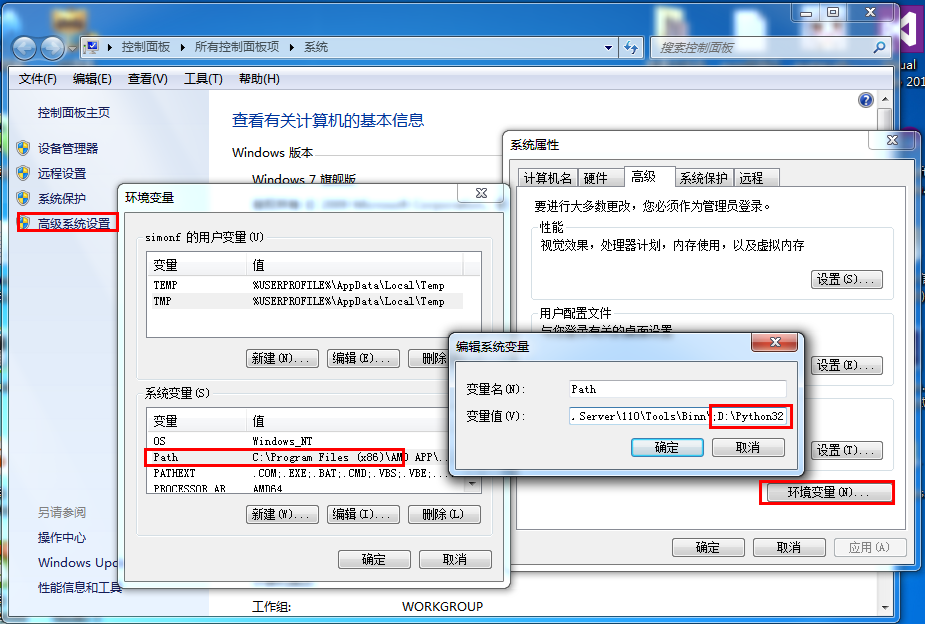
- Right-click "Computer" and then click "Properties"
- Then click "Advanced System Settings"
- Select "Path" under the "System Variables" window, and double-click it!
- Then in the "Path" line, add the Python installation path (mine is D:\Python32), so just add that path at the end.PS: Remember to separate the paths directly with semicolons ";"
- After the setting is successful, enter the command "python" in the cmd command line, and related information will be displayed.
Python Environment Variables
The following are several important environment variables used by Python:
| Variable Name | Description |
|---|---|
| PYTHONPATH | PYTHONPATH is the Python search path. By default, the modules we import are searched in PYTHONPATH. |
| PYTHONSTARTUP | After Python starts, it first looks for the PYTHONSTARTUP environment variable, and then executes the code in the file specified by this variable. |
| PYTHONCASEOK | Adding the PYTHONCASEOK environment variable will make Python case-insensitive when importing modules. |
| PYTHONHOME | Another module search path. It is usually embedded in the PYTHONSTARTUP or PYTHONPATH directories, making it easier to switch between two module libraries. |
Run Python
There are three ways to run Python:
1. Interactive Interpreter:
You can enter Python through a command-line window and start writing Python code in the interactive interpreter.
You can do Python coding on Unix, DOS, or any other system that provides a command line or shell.
Or
C:>python # Windows/DOS
The following are Python command-line arguments:
| Option | Description |
|---|---|
| -d | Show debug information during parsing |
| -O | Generate optimized code (.pyo files) |
| -S | Do not include the Python path lookup location at startup |
| -V | Output the Python version number |
| -X | Since version 1.6, built-in exceptions (only for strings) have been deprecated. |
| -c cmd | Execute a Python script and use the run result as the cmd string. |
| file | Execute a Python script in the given Python file. |
2. Command-Line Script
In your application, you can execute Python scripts from the command line by invoking the interpreter, as shown below:
Or
C:>python script.py # Windows/DOS
Note:When executing the script, please check whether the script has executable permissions.
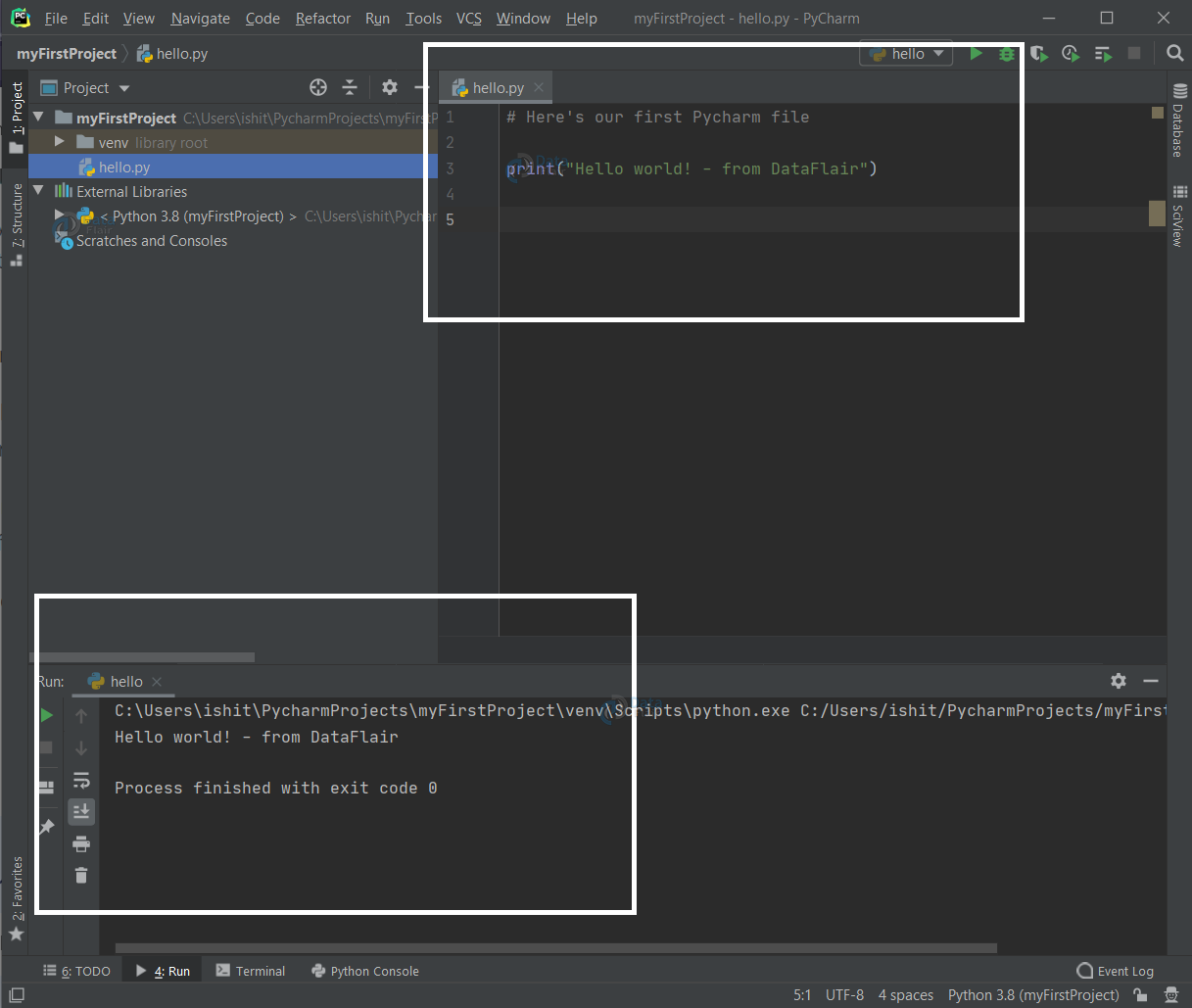
3. Integrated Development Environment (IDE): PyCharm
PyCharm is a Python IDE created by JetBrains, supporting macOS, Windows, and Linux systems.
PyCharm features: debugging, syntax highlighting, Project management, code navigation, smart hints, auto-completion, unit testing, version control...
PyCharm download address:https://www.jetbrains.com/pycharm/download/
PyCharm installation address:https://www.example.com/pycharm/pycharm-install.html
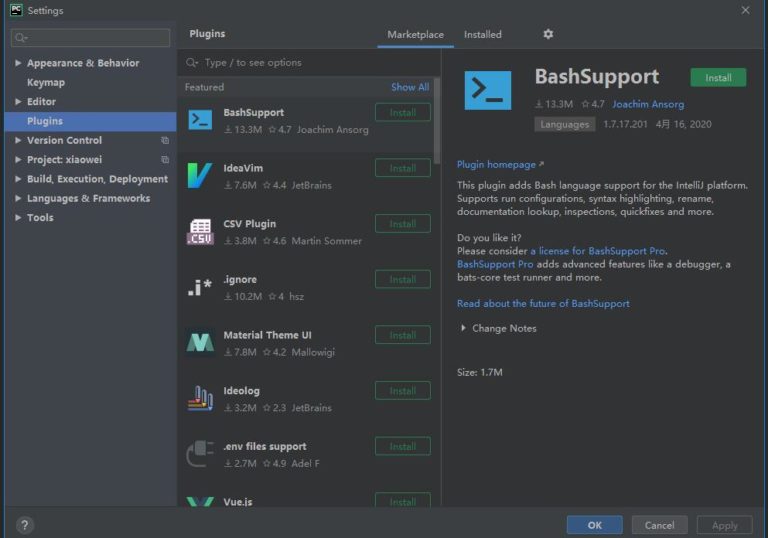
To install the PyCharm Chinese plugin, open the File menu bar, select Settings, then choose Plugins, click Marketplace, search for "chinese", and then click install:
In the following lessons, please make sure your environment has been set up successfully.
The examples given in later chapters have been tested on Python 2.7.6.
Other extensions