Python VScode Configuration
In the previous chapter, we installed the Python environment. In this chapter, we will introduce the configuration of Python VScode.
Preparation:- Install VS Code
- Install VS Code Python extension
- Install Python 3
Install VS Code
VSCode (full name: Visual Studio Code) is a free, cross-platform source code editor developed by Microsoft. The VSCode development environment is very simple and easy to use.
Installing VSCode is also simple: open the official websitehttps://code.visualstudio.com/, download the software package, and install it step by step. During installation, pay attention to the installation path settings; environment variables are automatically added to the system by default. Check all the following options:
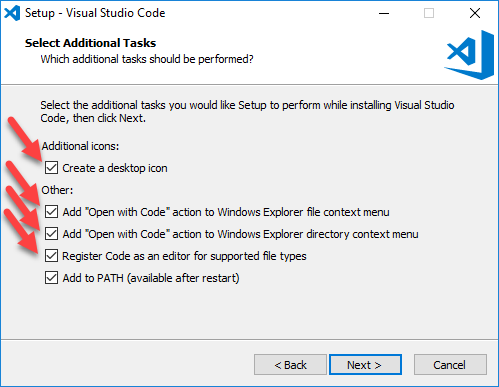
For the complete VSCode installation tutorial, refer to:https://www.example.com/vscode/vscode-tutorial.html
Next, we installPythonextensions:
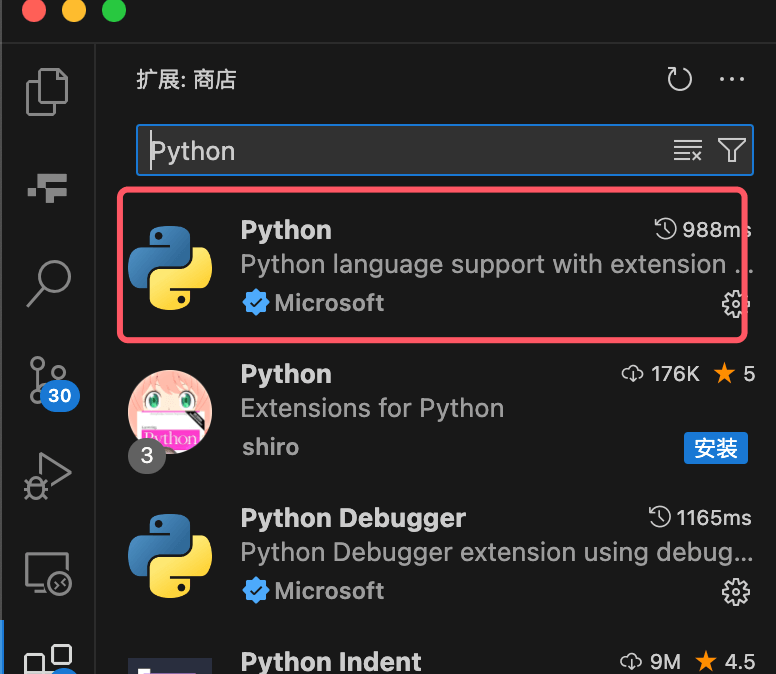
Create a Python code file
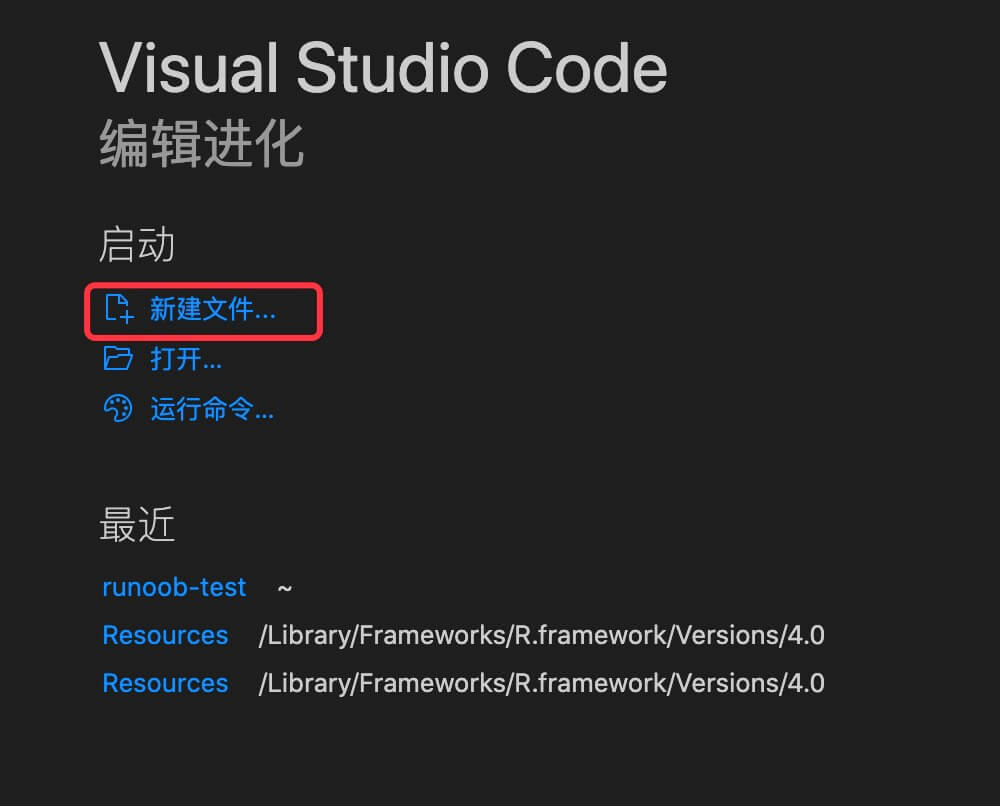
Open VScode, then click New File:
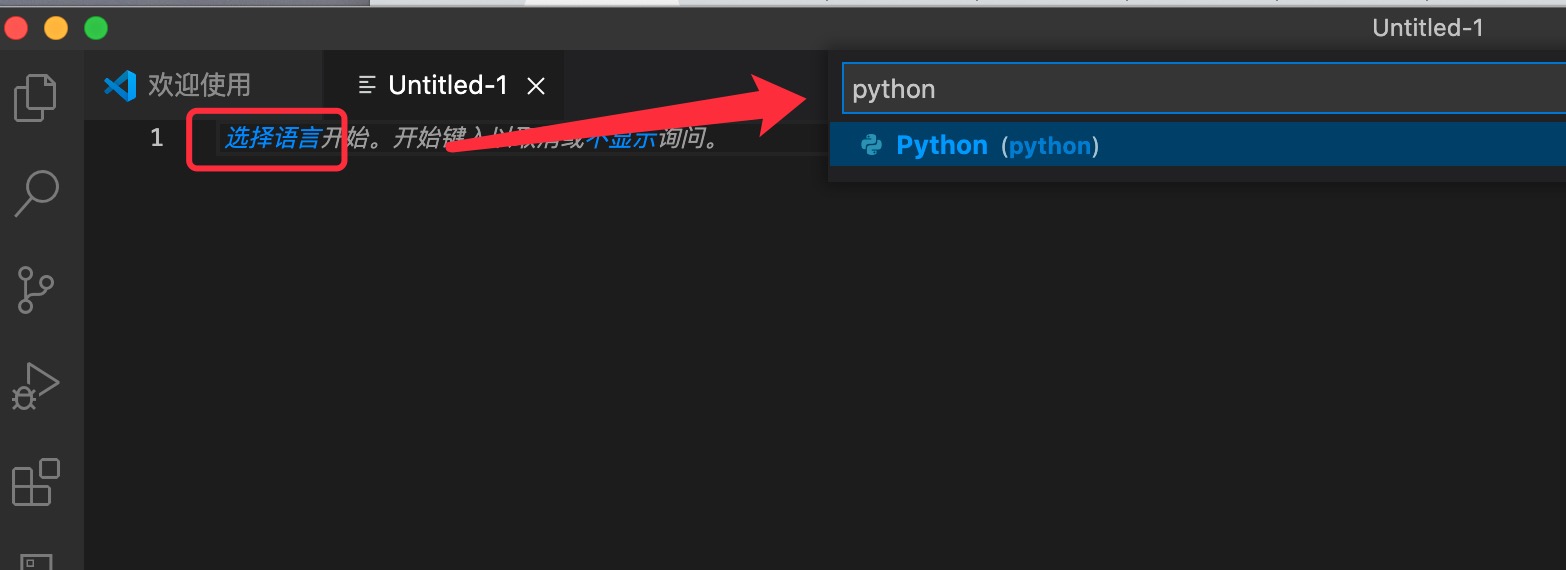
Click Select Language:
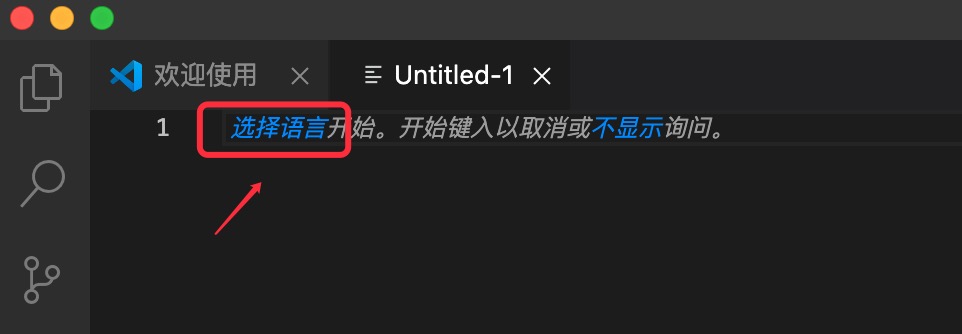
Type Python in the search box and select the Python option:
Enter the code:
print("Example")
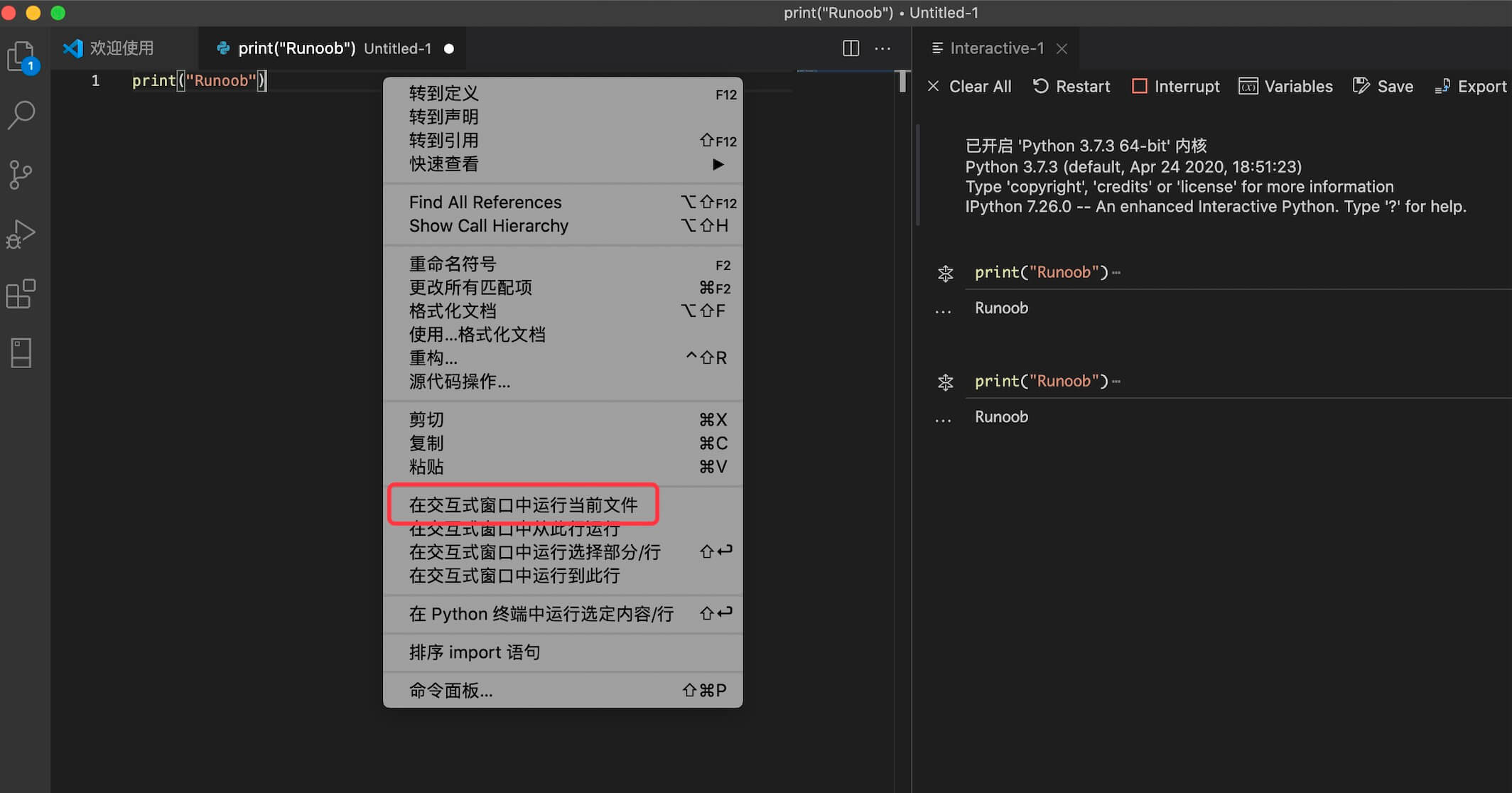
Right-click and choose Run File in Interactive Window,If prompted to install an extension, just click Install (if not installed, it will keep showing 'connecting to Python kernel'):
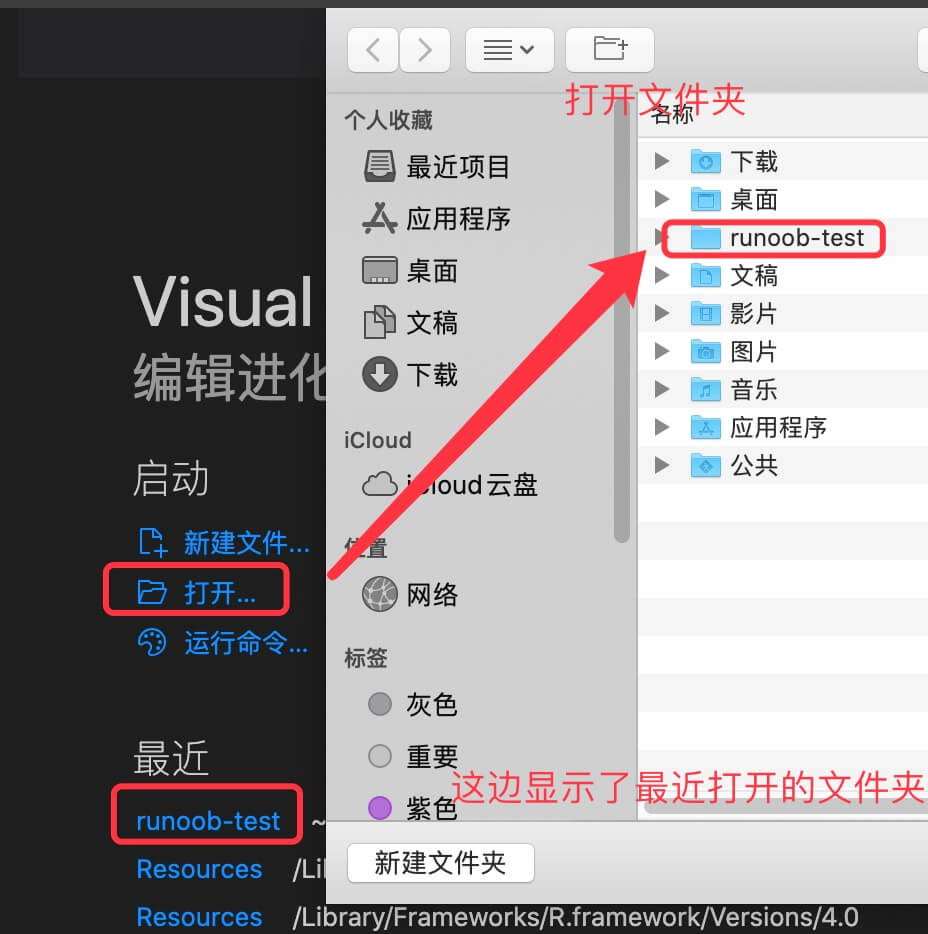
In addition, we can also open an existing file or directory (folder). For example, let's open a example-test; you can also create one yourself:
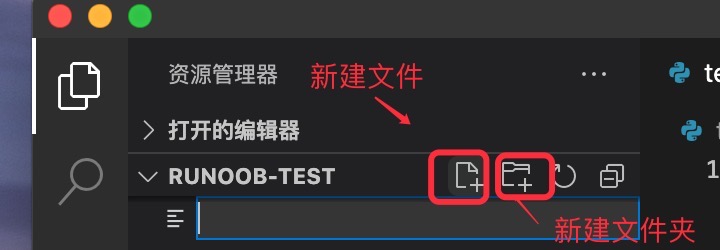
Then we create a test.py file. Click the New File icon below and enter the file name test.py:
Note:example-test contains a.vscodefolder, which contains some configuration information. You can ignore it for now.
Enter the following code in test.py:
print("Example")
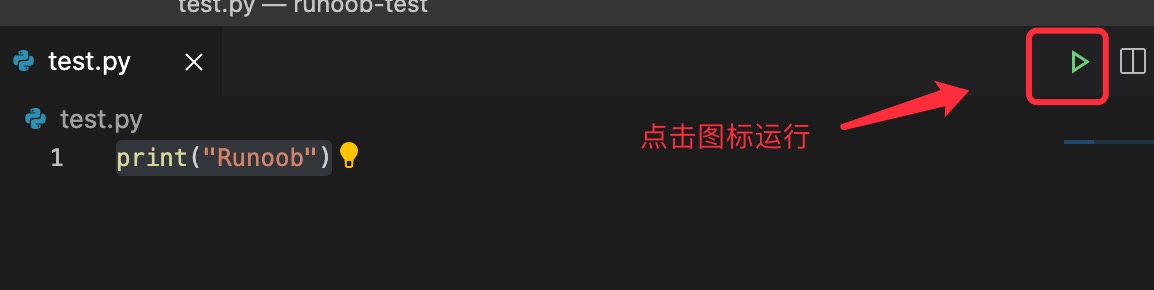
Click the green icon in the top-right corner to run:
You can right-click the file and select 'Run Python File in Terminal':
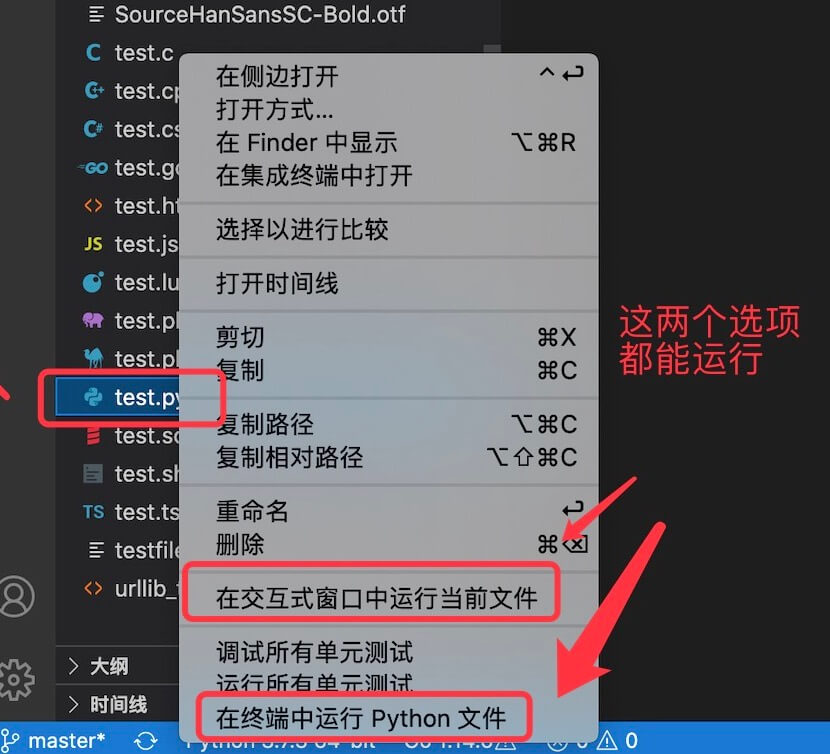
Of course, you can also right-click in the code window and select 'Run Python File in Terminal'.