Installing MongoDB on Mac OSX
MongoDB provides a 64-bit installation package for the OSX platform. You can download the installation package from the official website.
Download address:https://www.mongodb.com/try/download/community
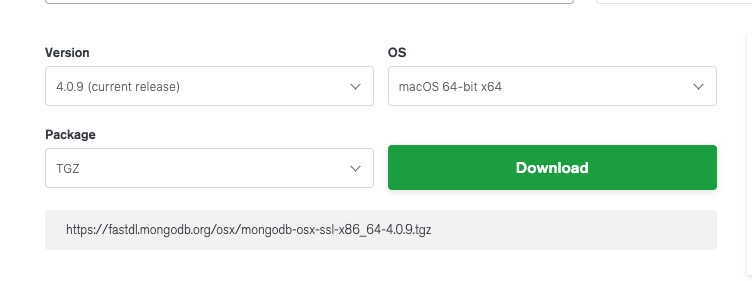
Starting from MongoDB 3.0, only OS X 10.7 (Lion) and later versions of the system are supported.
Next, we use the curl command to download and install:
# 进入 /usr/local
cd /usr/local

# 下载
sudo curl -O https://fastdl.mongodb.org/osx/mongodb-osx-ssl-x86_64-4.0.9.tgz

# 解压
sudo tar -zxvf mongodb-osx-ssl-x86_64-4.0.9.tgz

# 重命名为 mongodb 目录

sudo mv mongodb-osx-x86_64-4.0.9/ mongodb
After installation, we can add the MongoDB binary command file directory (installation directory/bin) to the PATH:
export PATH=/usr/local/mongodb/bin:$PATH
Create directories for logs and data storage:
-
Data storage path:
sudo mkdir -p /usr/local/var/mongodb
-
Log file path:
sudo mkdir -p /usr/local/var/log/mongodb
Next, ensure the current user has read and write permissions to the above two directories:
sudo chown example /usr/local/var/mongodb
sudo chown example /usr/local/var/log/mongodb
Create log file:
sudo touch /usr/local/var/log/mongodb/mongo.log
sudo chown example /usr/local/var/log/mongodb/mongo.log
The aboveexampleis the user on my computer; you need to modify it according to your current username.
Next, we use the following command to start MongoDB in the background:
mongod --dbpath /usr/local/var/mongodb --logpath /usr/local/var/log/mongodb/mongo.log --fork
- --dbpathSet data storage directory
- --logpathSet log storage directory
- --forkRun in the background
If you don't want to run in the background, but want to view the running process on the console, you can directly set the configuration file to start:
mongod --config /usr/local/etc/mongod.conf
Check whether the mongod service is started:
ps aux | grep -v grep | grep mongod
If you see a record of mongod after using the above command, it means the operation was successful.
After startup, we can usemongocommand to open a terminal:
$ cd /usr/local/mongodb/bin
$ ./mongo
MongoDB shell version v4.0.9
connecting to: mongodb://127.0.0.1:27017/?gssapiServiceName=mongodb
Implicit session: session { "id" : UUID("3c12bf4f-695c-48b2-b160-8420110ccdcf") }
MongoDB server version: 4.0.9
……
> 1 + 1
2
>
After MongoDB 6.0, a major change was made. MongoDB no longer installs the shell tool by default; you need to install an additional shell tool:MongoDB Shell
Install using brew
In addition, you can also use brew on OSX to install MongoDB:
brew tap mongodb/brew
brew install [email protected]
@After the symbol4.4is the latest version number.
Installation information:
- Configuration file:/usr/local/etc/mongod.conf
- Log file path:/usr/local/var/log/mongodb
- Data storage path:/usr/local/var/mongodb
Run MongoDB
We can use the brew command or the mongod command to start the service.
brew start:
brew services start [email protected]
brew stop:
brew services stop [email protected]
mongod command background process method:
mongod --config /usr/local/etc/mongod.conf --forkTo shut down after starting in this way, you can enter the mongo shell console:
> db.adminCommand({ "shutdown" : 1 })
Other extensions