Installing MongoDB on Linux
MongoDB provides 64-bit installation packages for various Linux distributions; you can download the installer from the official website.
Before installation, we need to install the corresponding dependency packages according to our system version.Choose any one of the three to execute:
Red Hat/CentOS:
sudo yum install libcurl openssl
Ubuntu 18.04 LTS ("Bionic")/Debian 10 "Buster":
sudo apt-get install libcurl4 openssl
Ubuntu 16.04 LTS ("Xenial")/Debian 9 "Stretch":
sudo apt-get install libcurl3 openssl
MongoDB source code download address:https://www.mongodb.com/try/download/community
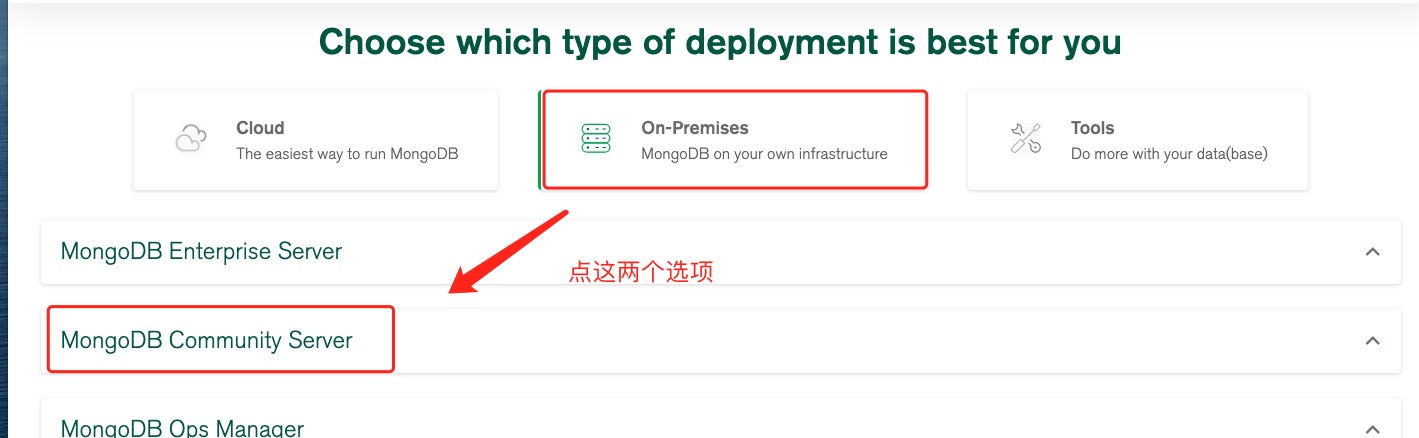
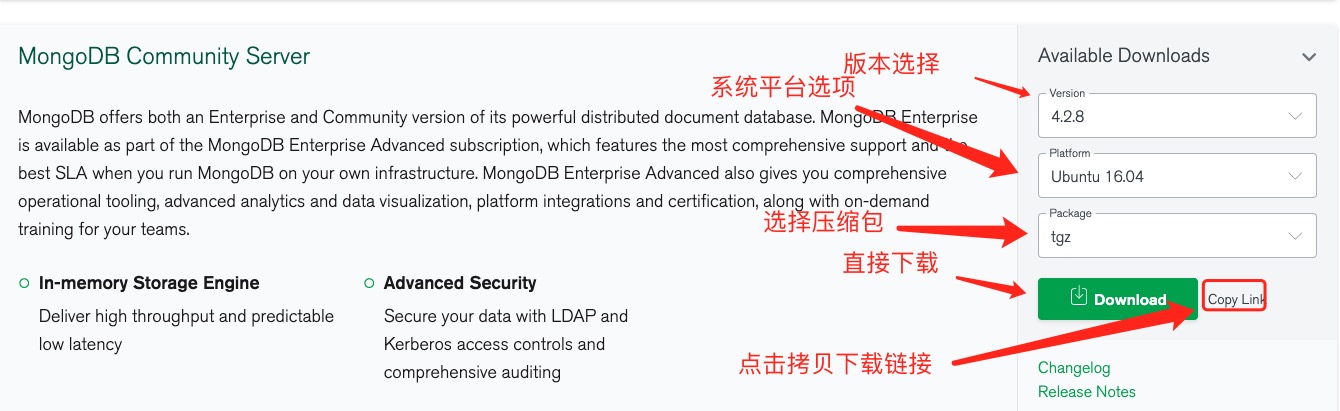
Here we choose the tgz download. After downloading the package, extract ittgz(The following demonstrates installation on 64-bit Linux).
wget https://fastdl.mongodb.org/linux/mongodb-linux-x86_64-ubuntu1604-4.2.8.tgz    # 下载
tar -zxvf mongodb-linux-x86_64-ubuntu1604-4.2.8.tgz                                # 解压

mv mongodb-linux-x86_64-ubuntu1604-4.2.8  /usr/local/mongodb4                      # 将解压包拷贝到指定目录
MongoDB's executable files are located in the bin directory, so you can add it to thePATHPATH so that you can execute MongoDB commands in any directory without needing to switch to the installation directory each time:
export PATH=<mongodb-install-directory>/bin:$PATH
<mongodb-install-directory>is your MongoDB installation path. For example, in this article,/usr/local/mongodb4 。
export PATH=/usr/local/mongodb4/bin:$PATH
Note: The above export command is only valid in the current terminal session and will become invalid after closing the terminal. To make it permanent, append this command to the~/.bashrcor~/.profilefile, then executesource ~/.bashrcto make it take effect immediately.
Create database directory
By default, MongoDB initializes the following two directories after startup:
- Data storage directory: /var/lib/mongodb
- Log file directory: /var/log/mongodb
Before startup, we can create these two directories and set read and write permissions for the current user:
sudo mkdir -p /var/lib/mongodb
sudo mkdir -p /var/log/mongodb
sudo chown `whoami` /var/lib/mongodb     # 设置权限,whoami 会自动替换为当前登录的用户名
sudo chown `whoami` /var/log/mongodb     # 设置权限
Next, start the MongoDB service:
mongod --dbpath /var/lib/mongodb --logpath /var/log/mongodb/mongod.log --fork
Parameter description:
--dbpath: specifies the storage directory for database files--logpath: specifies the path of the log file (note: it is a file path, not a directory)--fork: makes MongoDB run in the background (i.e., start as a daemon process). Without this parameter, it will occupy the current terminal
Open the /var/log/mongodb/mongod.log file and see the following information, indicating that startup was successful.
tail -10f /var/log/mongodb/mongod.log
2020-07-09T12:20:17.391+0800 I  NETWORK  [listener] Listening on /tmp/mongodb-27017.sock
2020-07-09T12:20:17.392+0800 I  NETWORK  [listener] Listening on 127.0.0.1
2020-07-09T12:20:17.392+0800 I  NETWORK  [listener] waiting for connections on port 27017
MongoDB Background Management Shell
MongoDB has made significant changes after MongoDB 6.0. MongoDB no longer installs the shell tool by default; you need to install an additional shell tool:MongoDB Shell
If you need to enter the MongoDB background management, you need to first open the bin directory under the MongoDB installation directory, and then execute the mongo command file.
MongoDB Shell is an interactive JavaScript shell that comes with MongoDB, an interactive environment for operating and managing MongoDB.
When you enter the MongoDB background, it connects to the test database by default:
$ cd /usr/local/mongodb4/bin
$ ./mongo
MongoDB shell version v4.2.8
connecting to: mongodb://127.0.0.1:27017/?compressors=disabled&gssapiServiceName=mongodb
Implicit session: session { "id" : UUID("2cfdafc4-dd56-4cfc-933a-187b887119b3") }
MongoDB server version: 4.2.8
Welcome to the MongoDB shell.
……
Since it is a JavaScript shell, you can run some simple arithmetic operations:
> 2+2
4
> 3+6
9
Now let's insert some simple data and retrieve the inserted data:
> db.example.insert({x:10})
WriteResult({ "nInserted" : 1 })
> db.example.find()
{ "_id" : ObjectId("5f069bdb4e02f8baf90f1184"), "x" : 10 }
>
The first command inserts the number 10 into the x field of the example collection.
To stop MongoDB, you can use the following command:mongod --dbpath /var/lib/mongodb --logpath /var/log/mongodb/mongod.log --shutdown
You can also do it in the mongo command line:
> use admin
switched to db admin
> db.shutdownServer()
For more installation methods, refer to the official website:https://docs.mongodb.com/manual/administration/install-on-linux/
Other extensions