JavaScript VScode
In the previous chapter, we introduced the basic concepts and examples of JavaScript. In this chapter, we will introduce the editor for JS code -- VSCode.
VSCode (full name: Visual Studio Code) is a free, cross-platform source code editor developed by Microsoft. The VSCode development environment is very simple and easy to use.
Visual Studio Code has built-in support for JavaScript features, including JavaScript IntelliSense, debugging, formatting, and more.
The IntelliSense features are as follows:
Install VS Code
VSCode installation is also simple. Open the official websitehttps://code.visualstudio.com/, download the installation package, and install it step by step. During the installation process, pay attention to the installation path settings. Environment variables are automatically added to the system by default. Check all the following options:
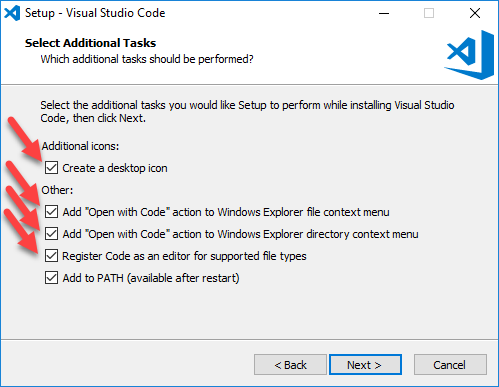
For the complete VSCode installation tutorial, refer to:https://www.example.com/vscode/vscode-tutorial.html
Create a JS Code File
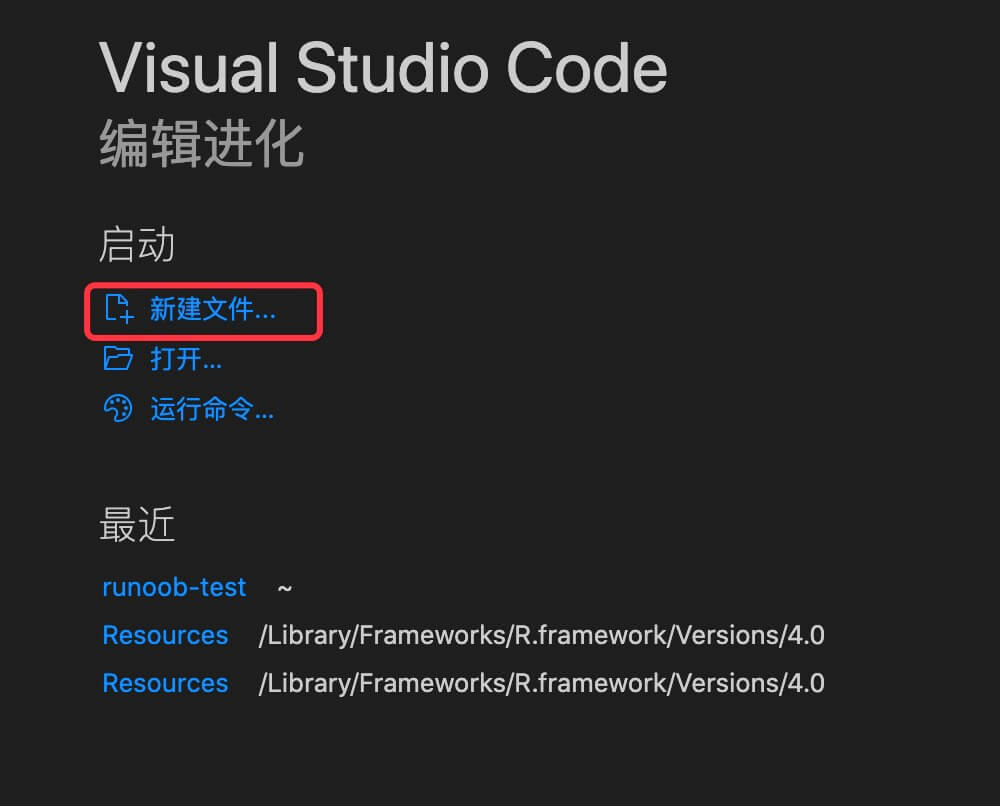
Open VSCode, then click New File:
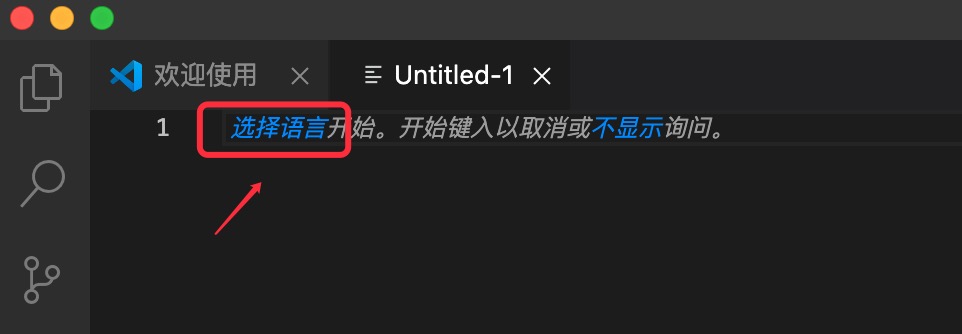
Click to select language:
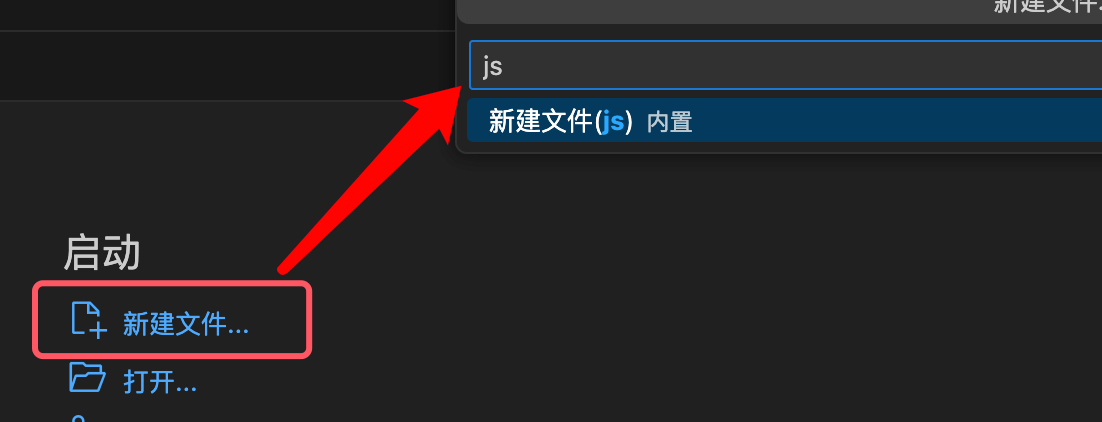
Enter js in the search box to create thetest.jsfile:
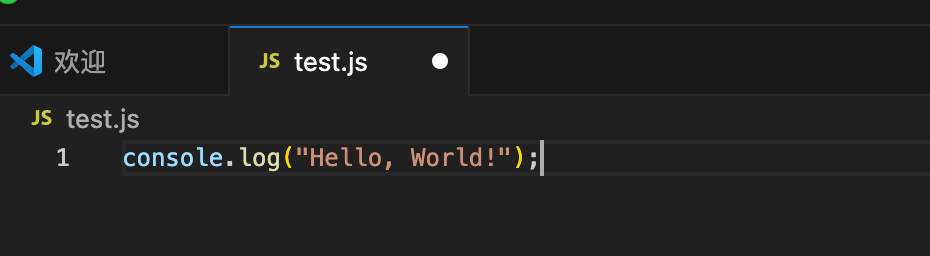
Enter the code:
console.log("Hello, World!");
Save the test.js file code, right-click the file name, and execute the following command in the integrated terminal:
# node test.js
Hello, World!        # 输出结果
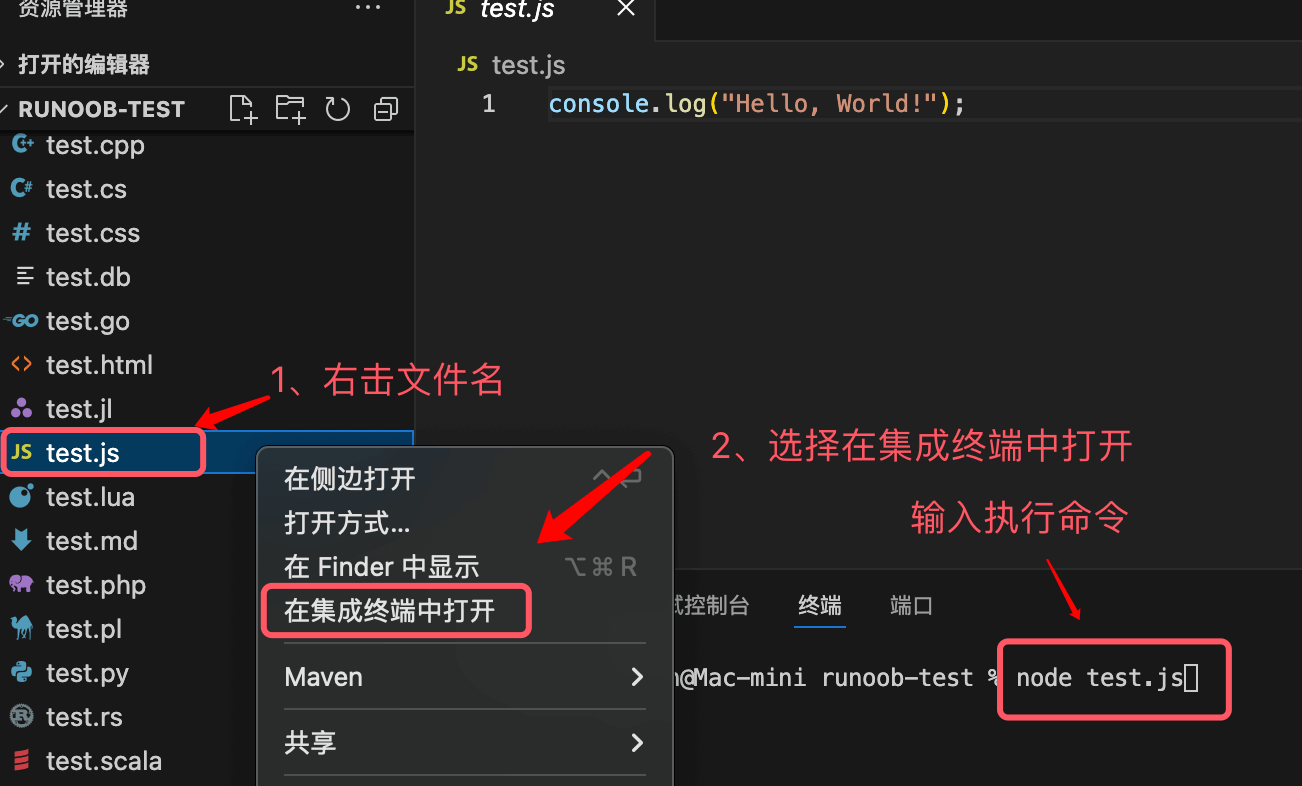
nodeis a command that can run JavaScript, a JavaScript runtime environment based on the Chrome V8 engine.
For more Node.js content, please refer to:Node.js Tutorial