Codex Native Windows Support
Codex offers native support on Windows and can run without WSL. This section covers Windows-specific features and configuration.
Windows Support Overview
Codex supports the following Windows environments:
| Environment | Support Status |
|---|---|
| Windows 11 (Native) | Official Support |
| Windows 10 | Official Support |
| Windows 11 + WSL2 | Full Support |
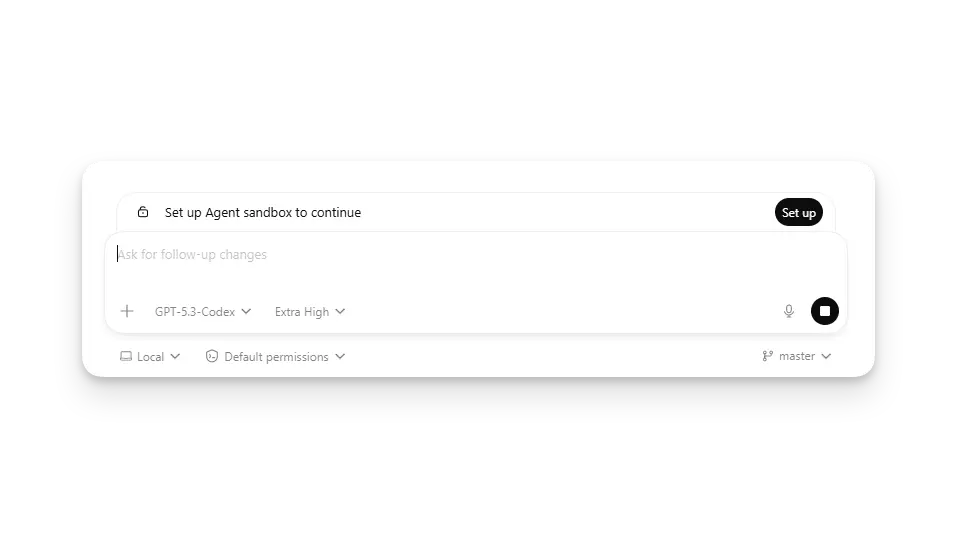
Codex can run natively on Windows, maintaining the Windows workflow.
Installation
Installing with winget
winget Installation
winget install OpenAI.Codex
# Or install the preview version
winget install OpenAI.Codex --source winget --accept-source-agreements --accept-package-agreements
Using Chocolatey
Chocolatey Installation
choco install codex -y
Manual installation
Download the Windows version from GitHub:
https://github.com/openai/codex/releases
Download the .exe installer and run it.
Installing via winget or Chocolatey is recommended for automatic updates.
Native Sandbox
Codex can run natively in Windows PowerShell:
- No WSL or virtual machine required
- Keep the Windows workflow
- Seamless integration with Windows tools
Sandbox mode configuration
Configure Sandbox
[windows]
# Sandbox mode: unelevated | elevated
sandbox = "unelevated"
# Run sandbox child process on a private desktop
sandbox_private_desktop = true
Sandbox mode description
| Mode | Description |
|---|---|
unelevated | Run with standard user permissions (recommended) |
elevated | Run with administrator permissions |
Unelevated mode is recommended to maintain security.
PowerShell Integration
Codex can be used directly in PowerShell:
Use in PowerShell
codex
# Non-interactive mode
codex exec "Review code"
# Use PowerShell command
codex ! Get-Process
CMD Support
Codex also supports the traditional CMD environment:
Use in CMD
codex exec "List files"
Codex automatically detects the terminal type and optimizes output.
Windows-Specific Configuration
Path Handling
Windows paths differ from Unix; Codex handles this automatically:
- Backslash to forward slash conversion
- Drive Letter Handling
- UNC path support
Environment Variables
Windows environment variables
set CODEX_HOME=C:\Users\YourName\.codex
set CODEX_SQLITE_HOME=C:\Users\YourName\.codex
Proxy Configuration
Proxy Settings
set HTTP_PROXY=http://proxy.example.com:8080
set HTTPS_PROXY=http://proxy.example.com:8080
# Then run Codex
codex
If your network requires a proxy, just configure the environment variables.
Troubleshooting
FAQ
Unable to Start?
- Check that the required Visual C++ runtime libraries are installed
- Try running with administrator permissions
- Check whether antivirus software is blocking it
PowerShell commands not executing?
Ensure the PowerShell executable is in PATH.
Chinese path issue?
Codex supports Unicode, but some older terminals may have issues.
Most issues can be resolved by reinstalling or updating.
Log Location
Windows log locations:
%USERPROFILE%\.codex\log\codex-tui.log
Check the logs to see detailed error messages.
Comparison with WSL2
| Features | Native Windows | WSL2 |
|---|---|---|
| Performance | Faster | Slightly slower |
| Settings | Simple | WSL installation required |
| Compatibility | Windows Tools | Linux Tools |
| Maintenance | Automatic update | Standalone update |
For most Windows users, the native version is recommended.
Best Practices
- Install using winget or Chocolatey
- Keep the system and Codex updated
- Use unelevated sandbox mode
- Configure a suitable proxy (if needed)
Native Windows support lets Codex seamlessly fit into your Windows workflow.
FAQ
Q: Which is better, the native Windows version or the WSL version?
For most users, the native version is better - faster and simpler.
Q: Can it coexist with WSL?
Yes, both can be installed and used at the same time.
Q: Does it require administrator privileges?
No, unelevated mode does not require administrator privileges.
Q: Does it support PowerShell ISE?
It is recommended to use Windows Terminal or the new version of PowerShell.
other extensions