What is HBuilder?
HBuilder is a Web development IDE supporting HTML5 launched by DCloud (Digital Heaven). The development of HBuilder involves Java, C, Web, and Ruby. The main body of HBuilder itself is written in Java, and it is based on Eclipse, so it naturally supports Eclipse plugins. Speed is the biggest advantage of HBuilder. Through complete syntax hints, code input methods, code blocks, etc., it greatly improves the development efficiency of HTML, JS, and CSS.
How to install HBuilder?
HBuilder download address: on the HBuilder official websitehttp://www.dcloud.io/Click Free Download to download the latest version of HBuilder.
HBuilder currently has two versions: a Windows version and a Mac version. When downloading, choose the version that suits your computer.
Creating a New Project with HBuilder
Click File → New → select Web Project in sequence (press Ctrl+N, W to trigger quick create (on macOS use Command+N, then left-click Web Project)).
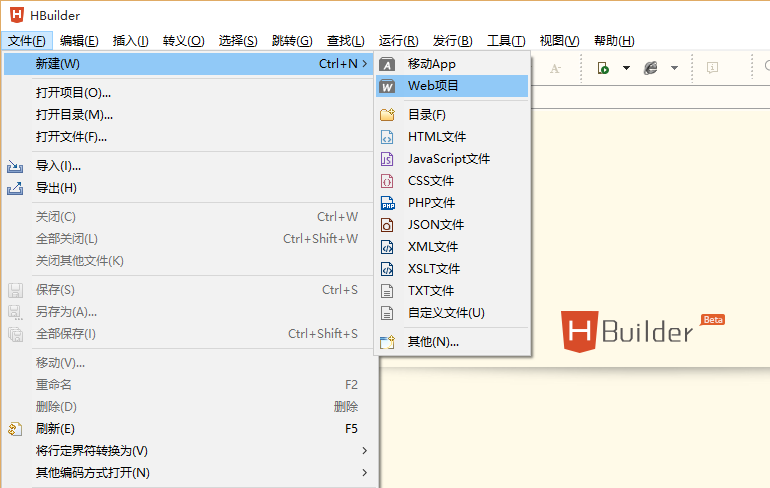
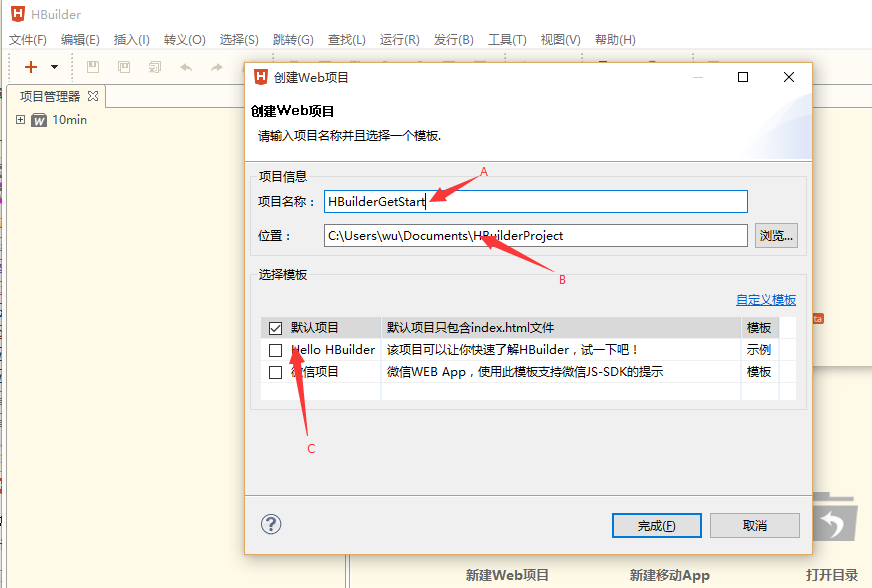
As shown above, fill in the name of the new project in area A, fill in (or select) the project save path in area B (HBuilder will record this path change and use the changed path by default next time), and in area C you can select the template to use (you can click Custom Template and refer to the readme.txt in the opened directory to customize the template).
Creating an HTML Page with HBuilder
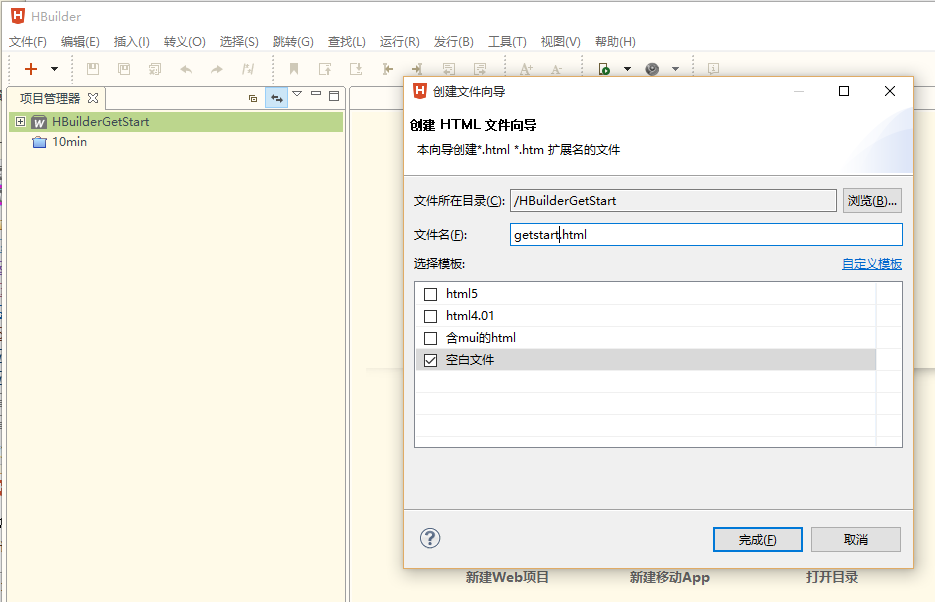
In the Project Explorer, select the project you just created, then click File → New → select HTML File (press Ctrl+N, W to trigger quick create (on macOS use Command+N, then left-click HTML File)), and choose the Blank File template, as shown below.
Try HBuilder's Live Preview to See Your Programming Effects
On Windows, press Ctrl+P (on macOS, Command+P) to enter live preview mode. In this mode, if the currently open file is an HTML file, it will automatically refresh on every save to display the current page effect (if the file is a JS or CSS file, it will also refresh if it has a reference relationship with the page opened in the current browser view).
HBuilder Code Blocks Greatly Reduce Repetitive Coding Work
In the opened getstart.html, type H, as shown below.
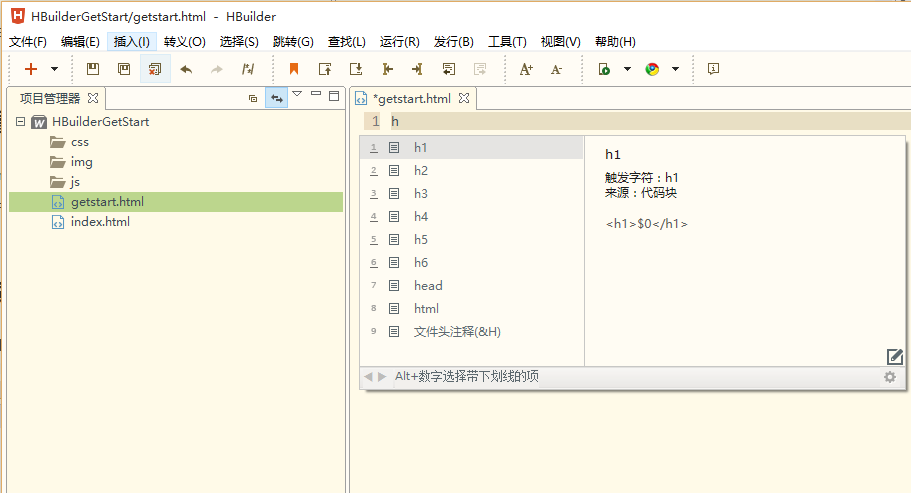
Then press 8 to automatically generate the basic HTML code, as shown below.
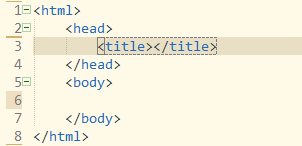
What is a code block?
A code block is a common code combination. For example, typing $ in JS and pressing Enter will automatically insert document.getElementById(id).
To view or edit code blocks, go to Tools - Custom Code Blocks, and select the corresponding code block to view and edit. You can also click the edit icon at the bottom right of the details in the code assistant that activates the code block to modify and view it.
Code block activation character principle 1:The first letters of consecutive words. For example: dg activates document.getElementById(""); vari activates var i=0; dn activates display: none;
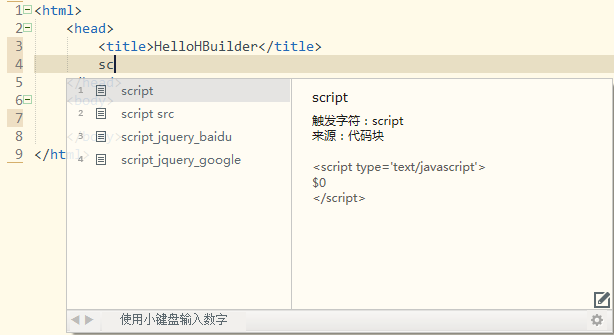
Code block activation character principle 2:For entire HTML segments, the tag name is generally used. For example, script, style. Usually, typing at most 4 letters is enough to match the needed code block; no need to enter the full name. For example, sc + Enter, st + Enter will complete the input of script and style tags.
Code block activation character principle 3:For the same tag with multiple code block outputs, add a suffix at the end. For example, meta outputs <meta name="" content=""/> but metau outputs <meta charset="UTF-8"/>, and metag is similar.
Code block activation character principle 4:If the original syntax is more than 4 characters, for common syntax, the first word's activation characters use an abbreviation. For example, input button is abbreviated as inbutton; similarly, intext is the input box.
Code block activation character principle 5:JS keyword code blocks are formed by adding a repeated letter at the end of the keyword. For example, typing if directly will prompt the if keyword, but iff + Enter will show the if code block. Similar examples are forr, withh, etc. Since "function" is a relatively long word, the abbreviation fun is used to speed up input. For example, funn outputs the function code block, while funa and func output anonymous function and closure respectively.
Flexible Shortcuts Keep Your Hands on the Keyboard During Coding
The effect is shown below.
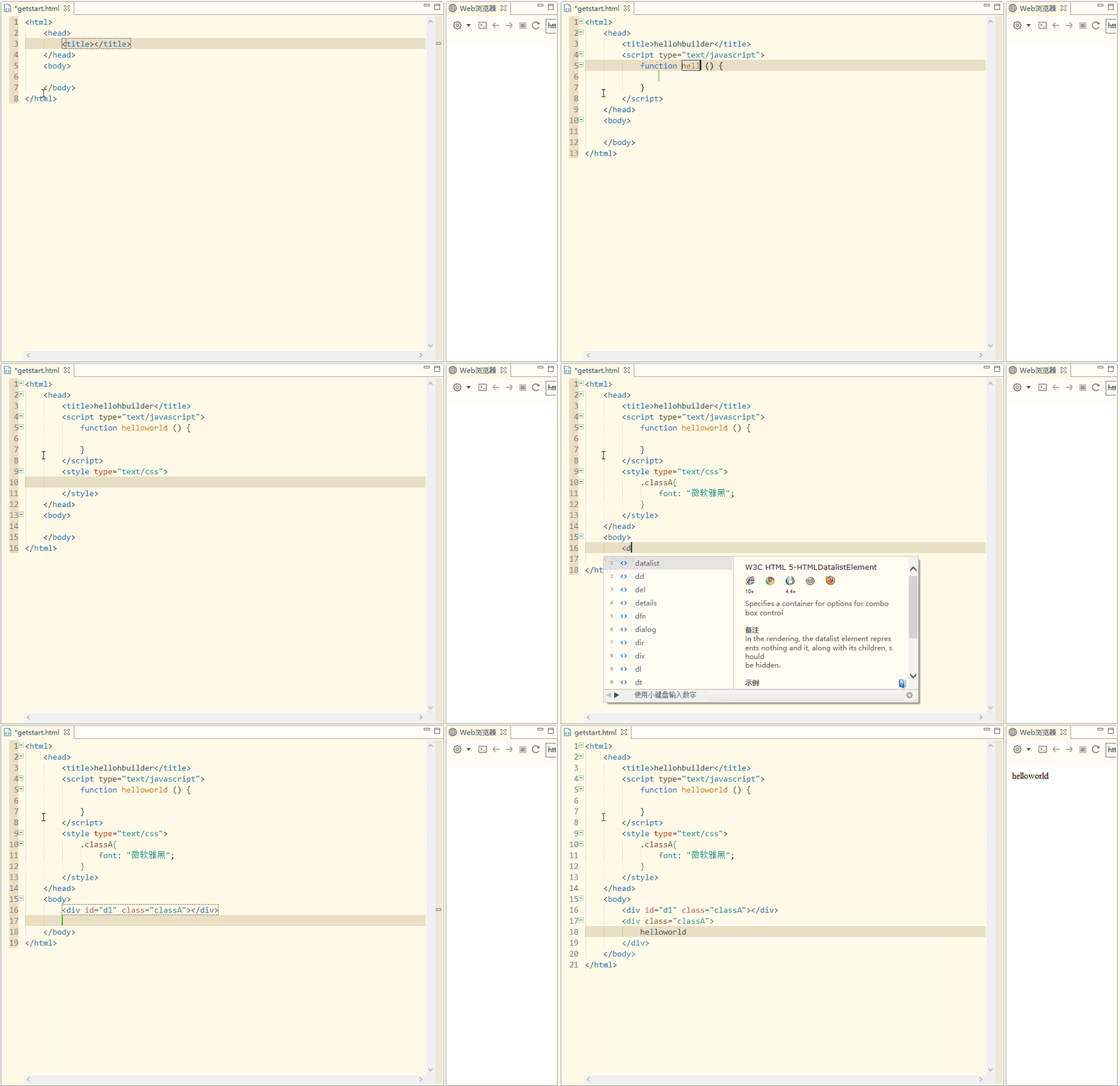
After creating the basic HTML template, the cursor is inside the title tag. At this point, we set the title of the HTML to hellohbuilder. After that, use Ctrl+Enter to insert a blank line below the current line and move the cursor to the next line.
Here, we use the sc code block to generate a script block for writing JS code (type sc, then Enter), as shown below.
- Use the funn code block to write a JS method helloworld (type funn, then Enter), as shown below.
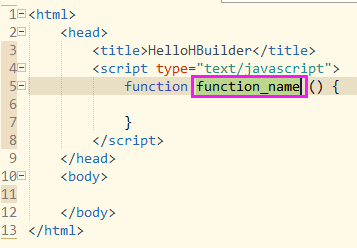
- At this point, the method name of the generated method is selected. We can simply type the new method name helloworld directly, as shown below.
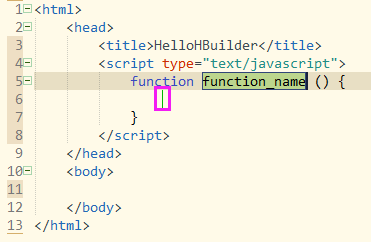
The green vertical line in the above figure is the next edit position specified by the code block. Pressing Enter will move the cursor directly to the vertical line position.
Now press Down, Down, Ctrl+Enter, type style, and press Enter to generate the CSS code area.
Define a CSS class classA: type .classA { Enter, font Enter Enter Enter.
Then press Alt+Down, Alt+Down to jump to the next edit area.
Type < d i v in sequence (you can also type <dv + Enter, <iv + Enter; the syntax assistant can determine the tag you want through fuzzy matching), as shown below.
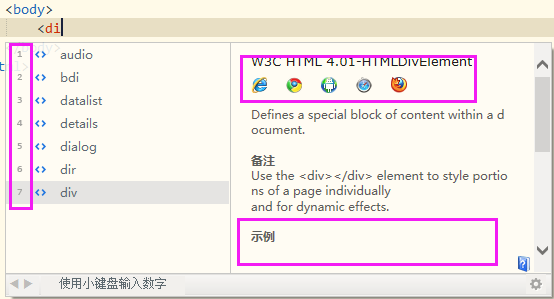
As shown in the figure above, the code assistant contains numbers on the left; you can use these numbers to select the corresponding item. The right side contains browser compatibility data and examples.
Type i, Enter, d 1, Right Arrow, Space, c, Enter, Enter.
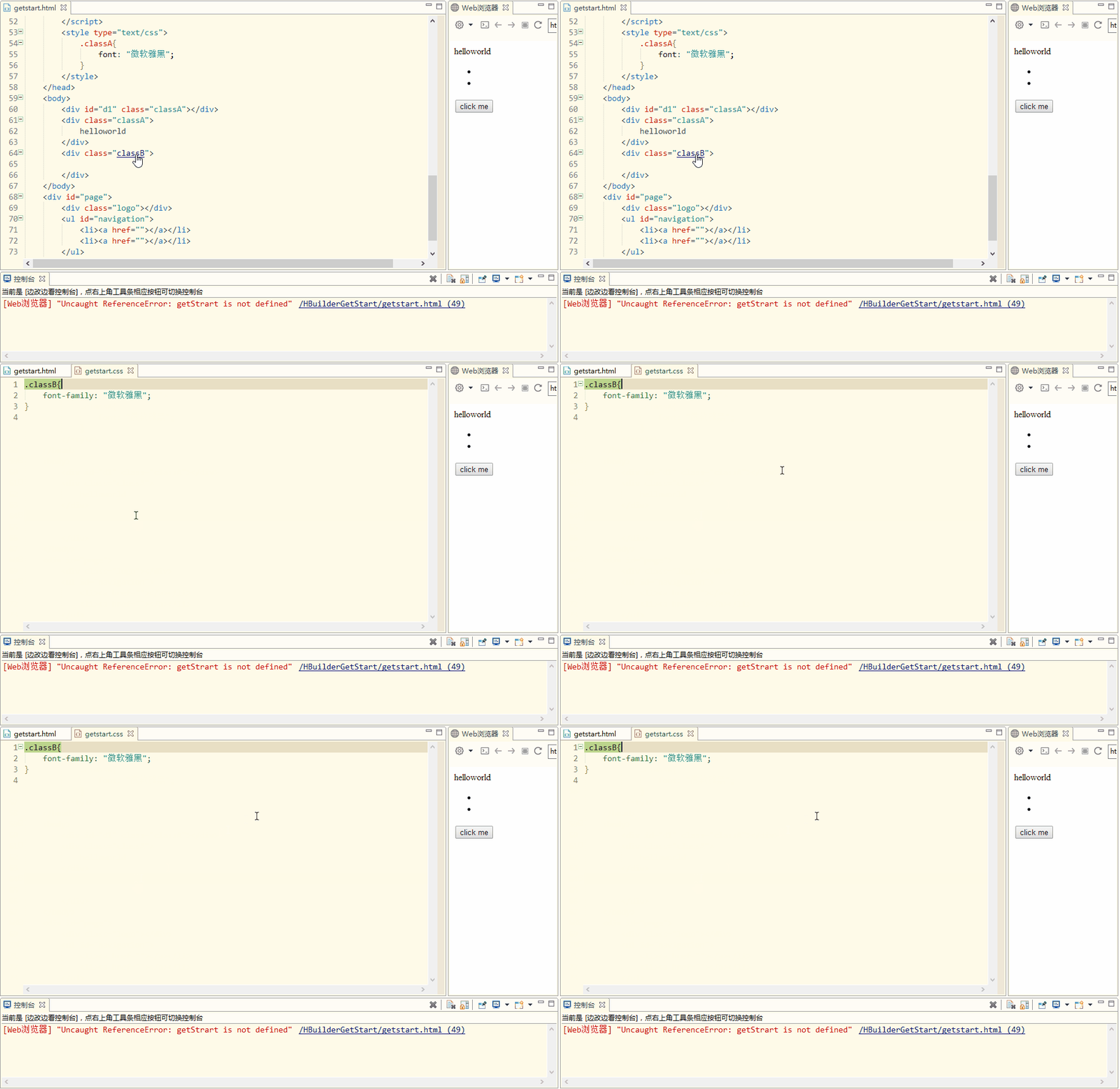
Hover the mouse over the class attribute classA of the div tag, press Alt and the left mouse button, and after clicking you can jump to the definition of classA.
Ctrl+Enter
div can also be generated via code block. For example, type divc, Enter, Enter, Enter, then type helloworld, as shown below.
Down, Enter.
Use CSS Selector Syntax to Quickly Develop HTML and CSS (Supports Emmet)
Type div#page>div.logo+ul#navigation>li*2>a and press Tab to generate the code, as shown below.
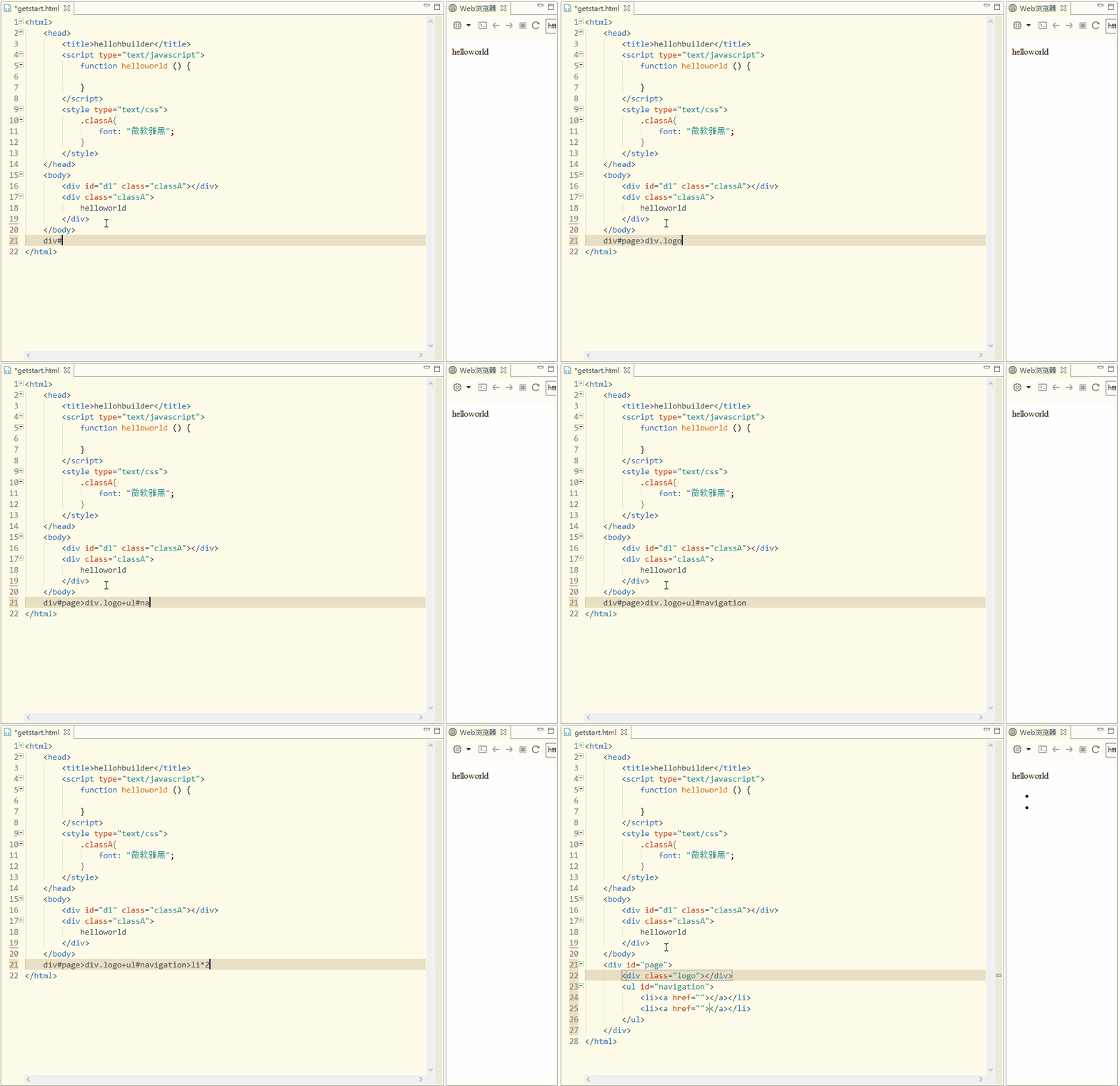
HBuilder has integrated the Emmet feature, so you can use CSS selector syntax to quickly develop HTML and CSS. If you want to learn more about Emmet, please visit the relevant page.http://www.emmet.io/
The Powerful JS Parsing Engine Greatly Speeds Up JS Development
JS Suggestions for HTML, CSS
JS Suggests HTML IDs
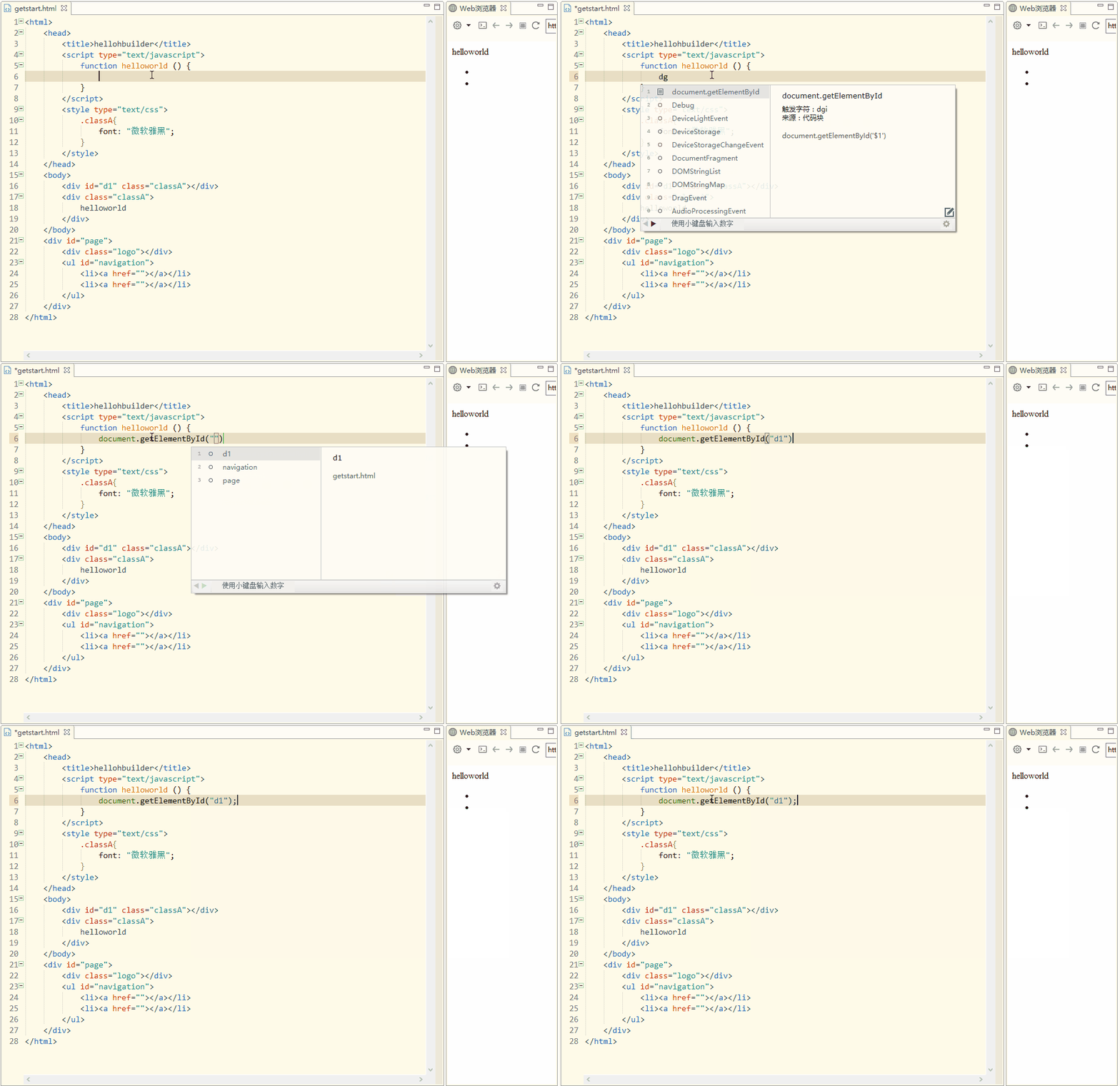
JS Suggests HTML Tag Names
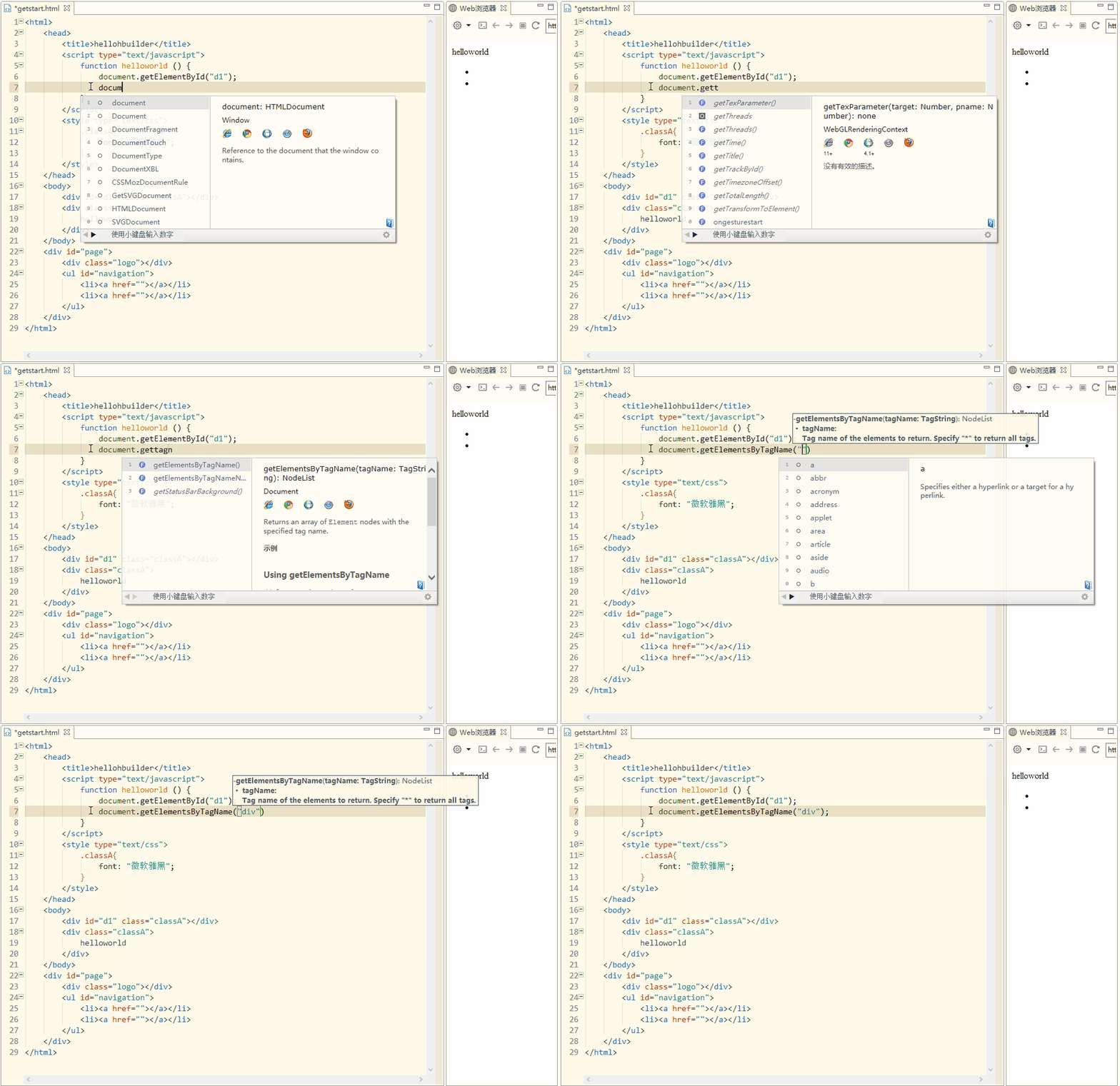
JS Suggests CSS Class Names
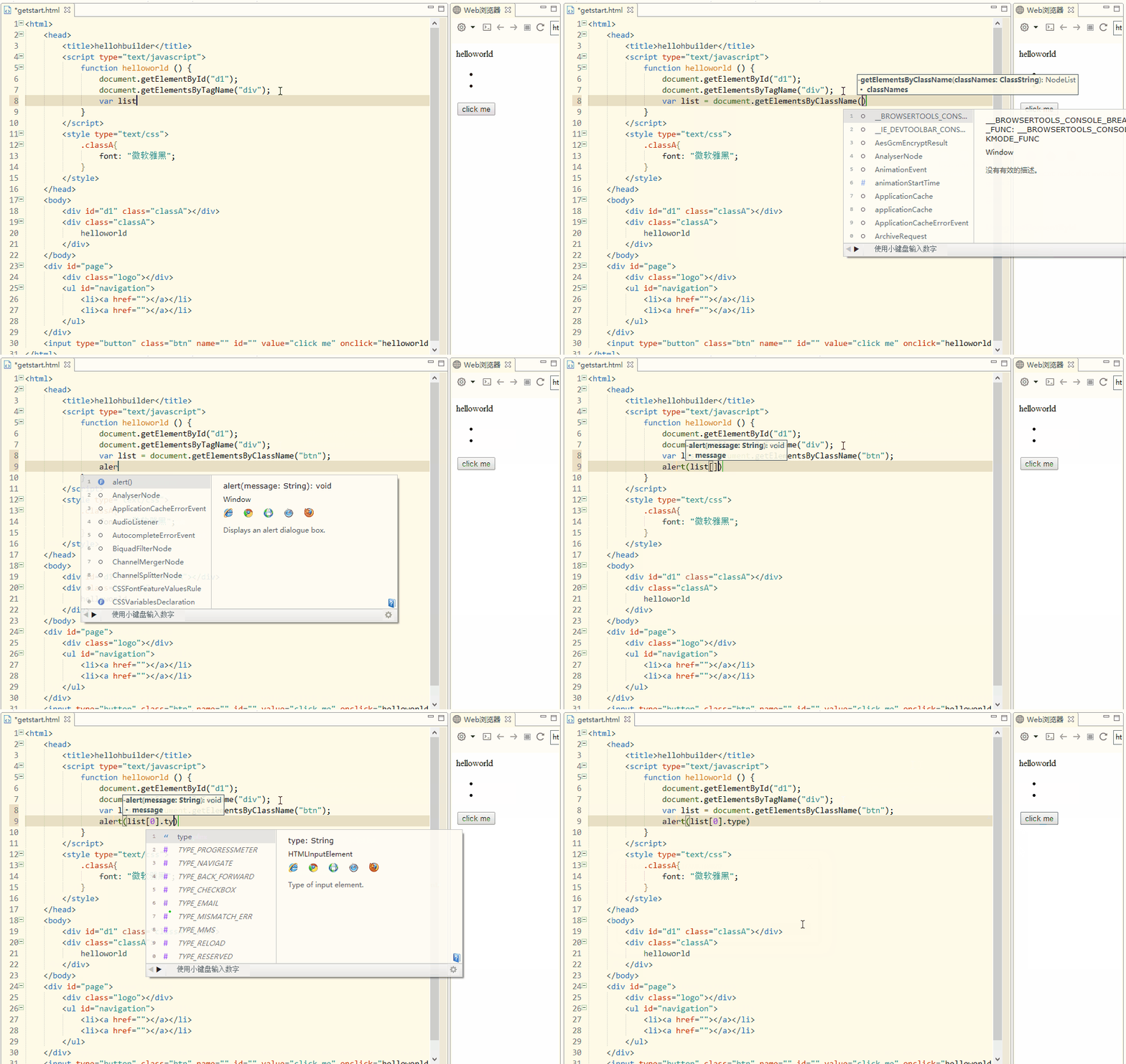
With IDs, tag names, and CSS class names, JS can not only get HTML elements, but also accurately analyze their element types and accurately suggest their properties. As shown above, it can suggest list
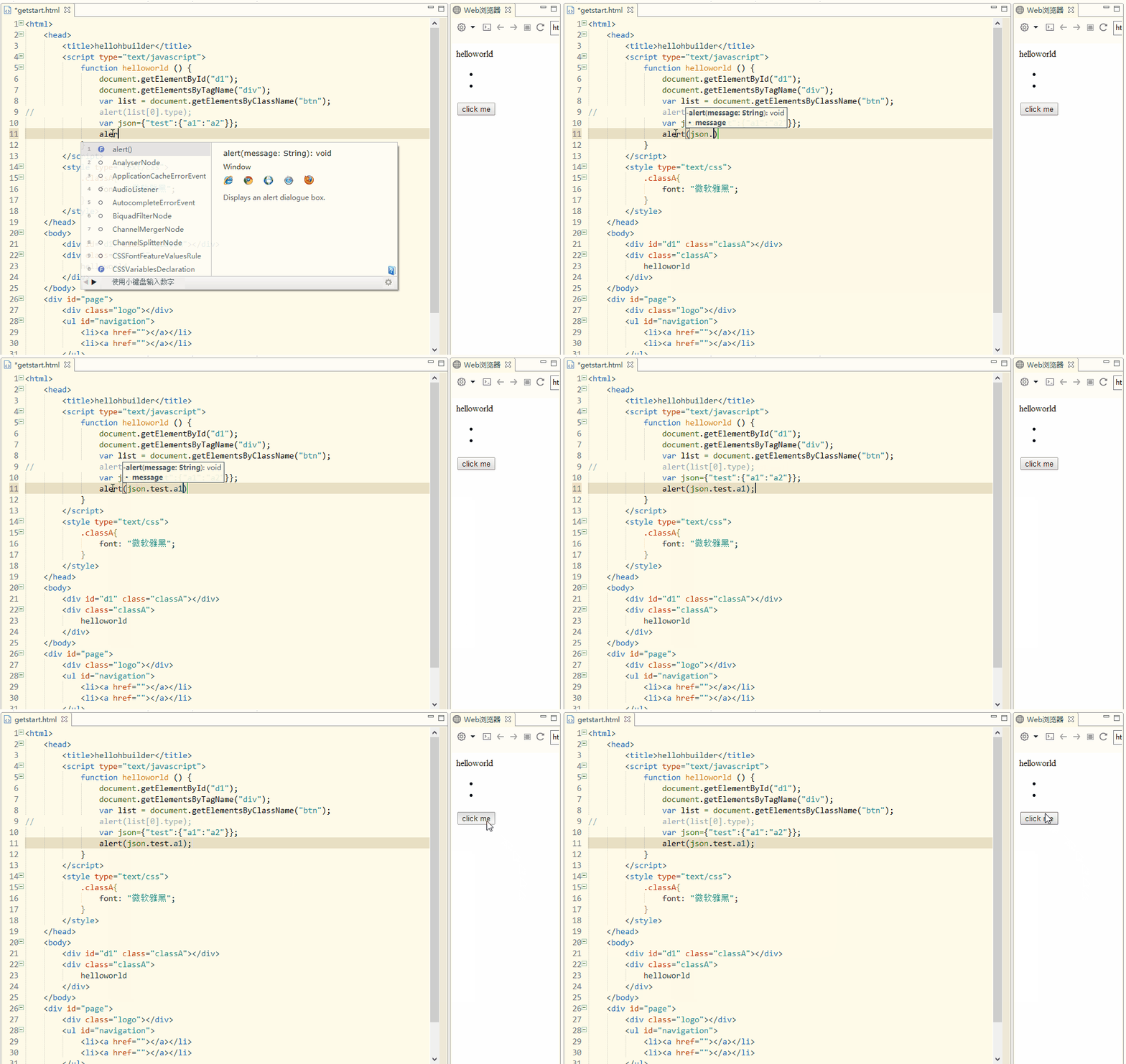
JS Suggestions for JSON
JS Suggests Custom System Methods
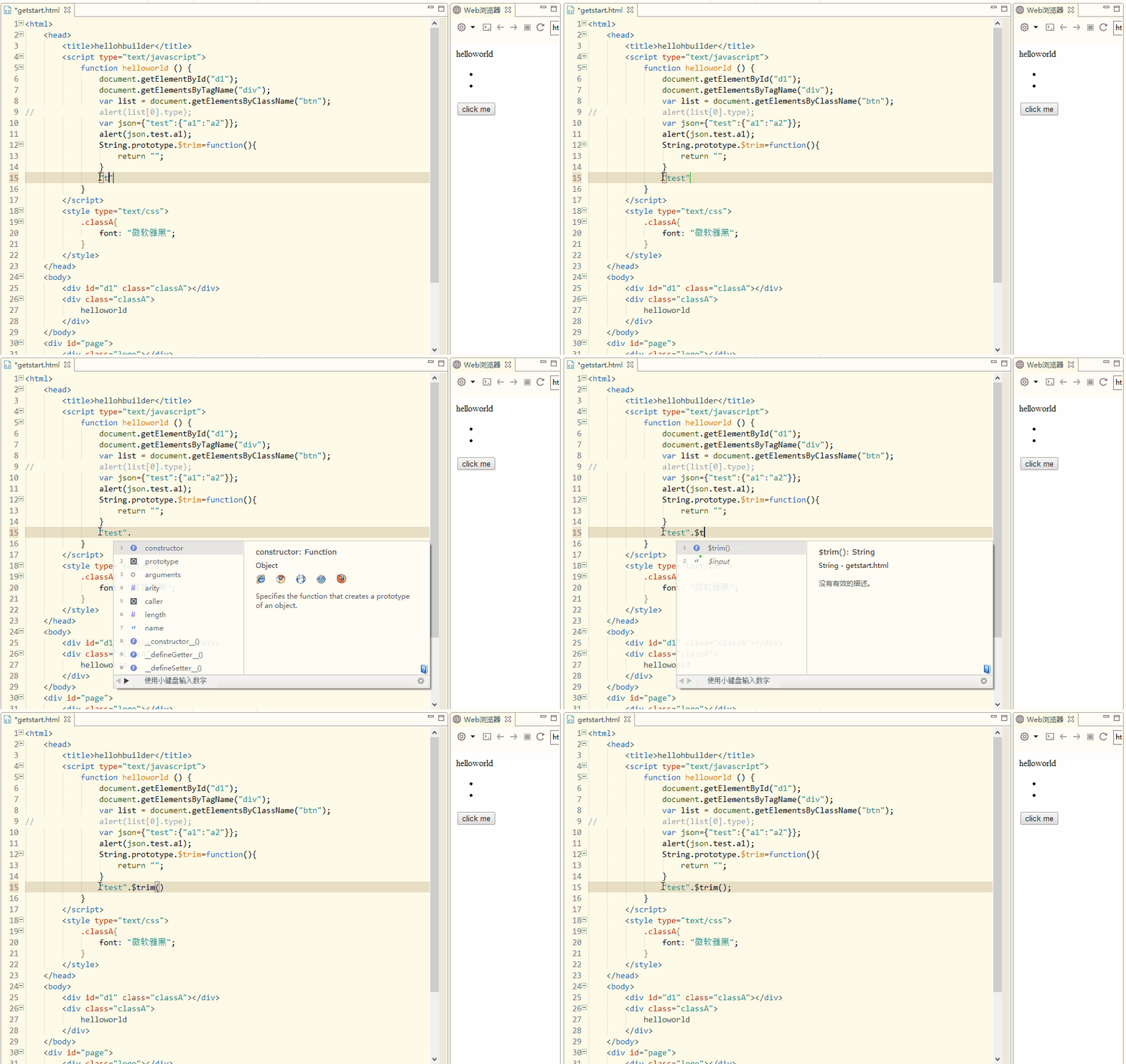
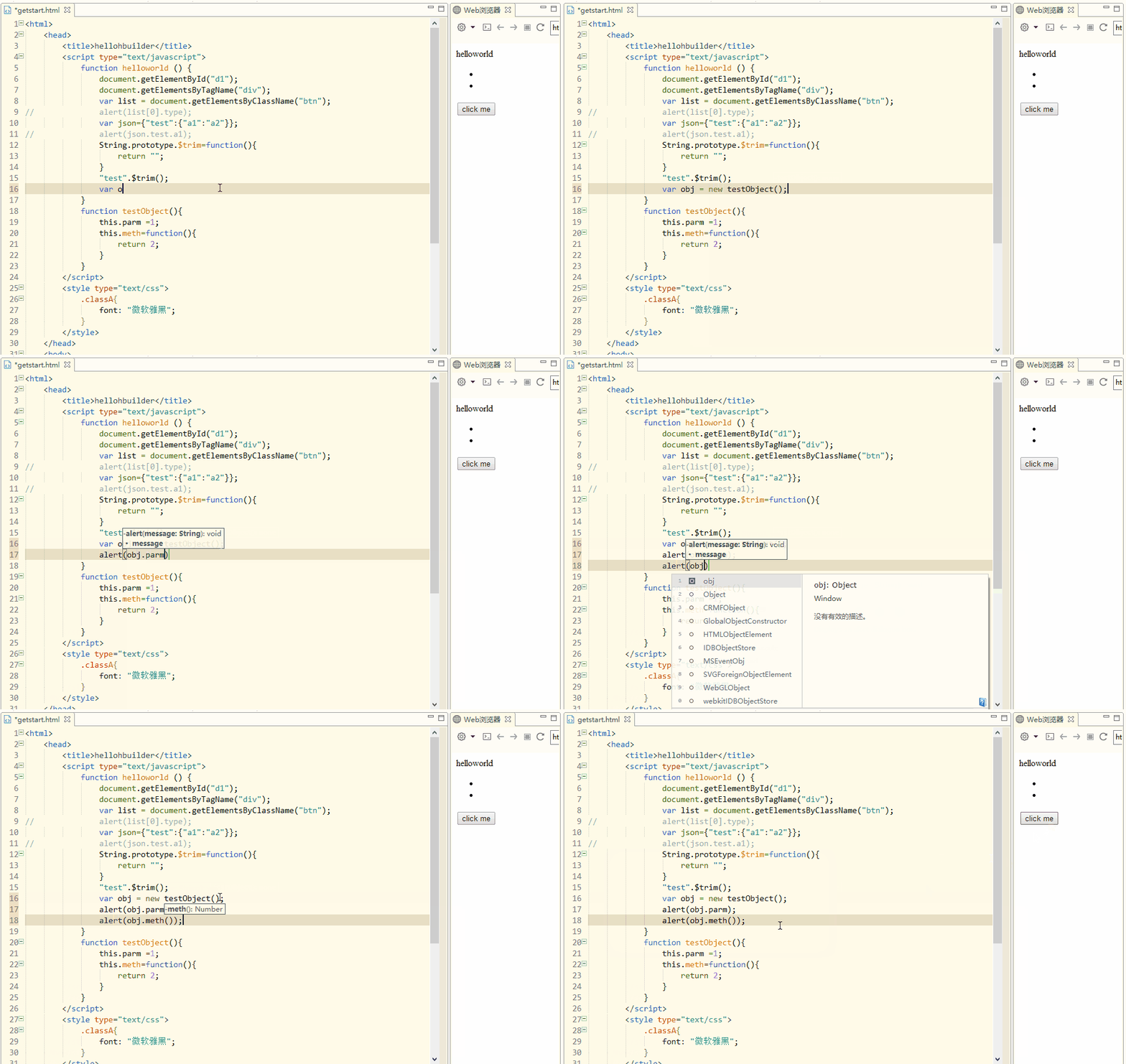
JS Suggests Object References and Their Properties, Methods
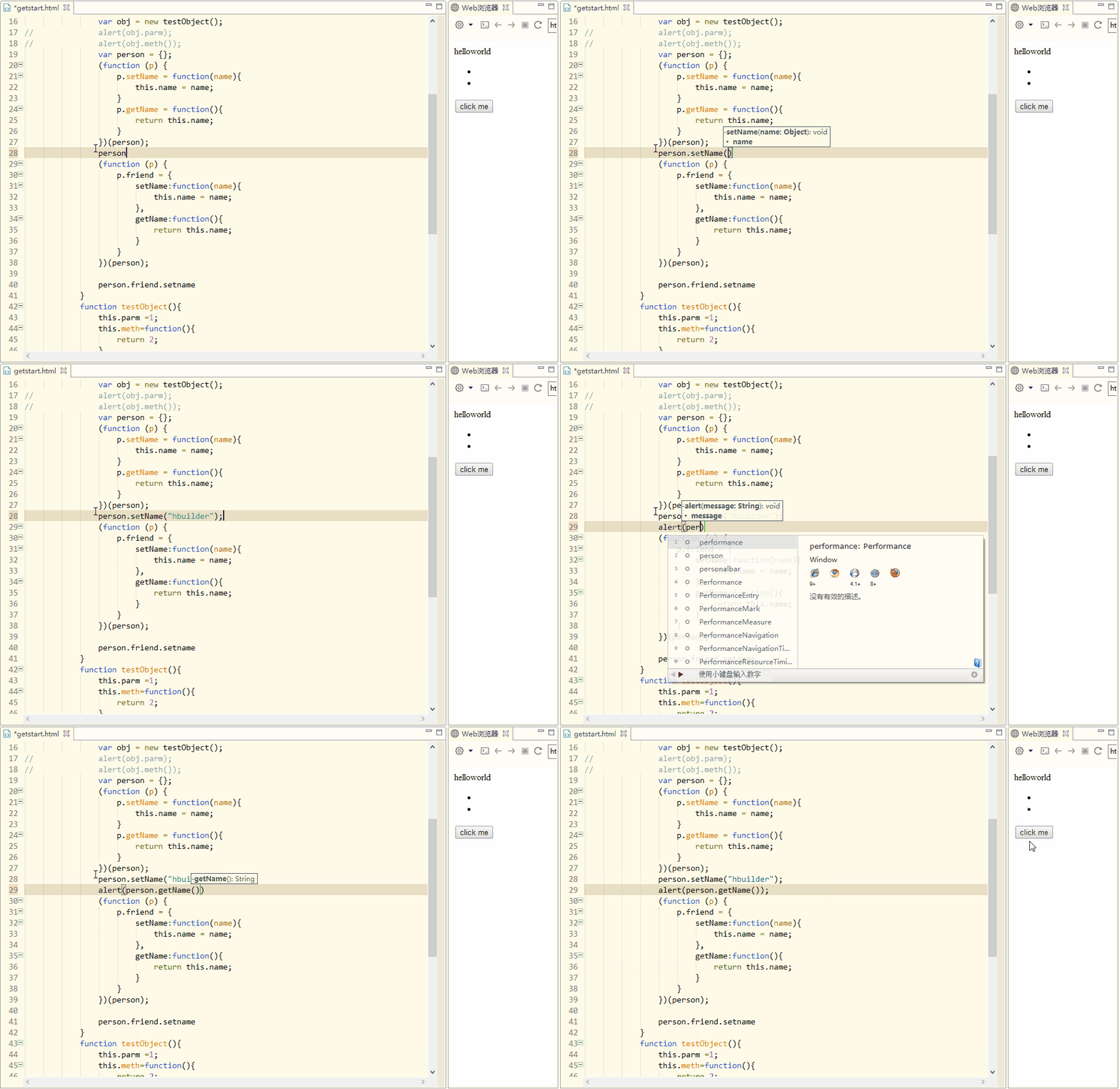
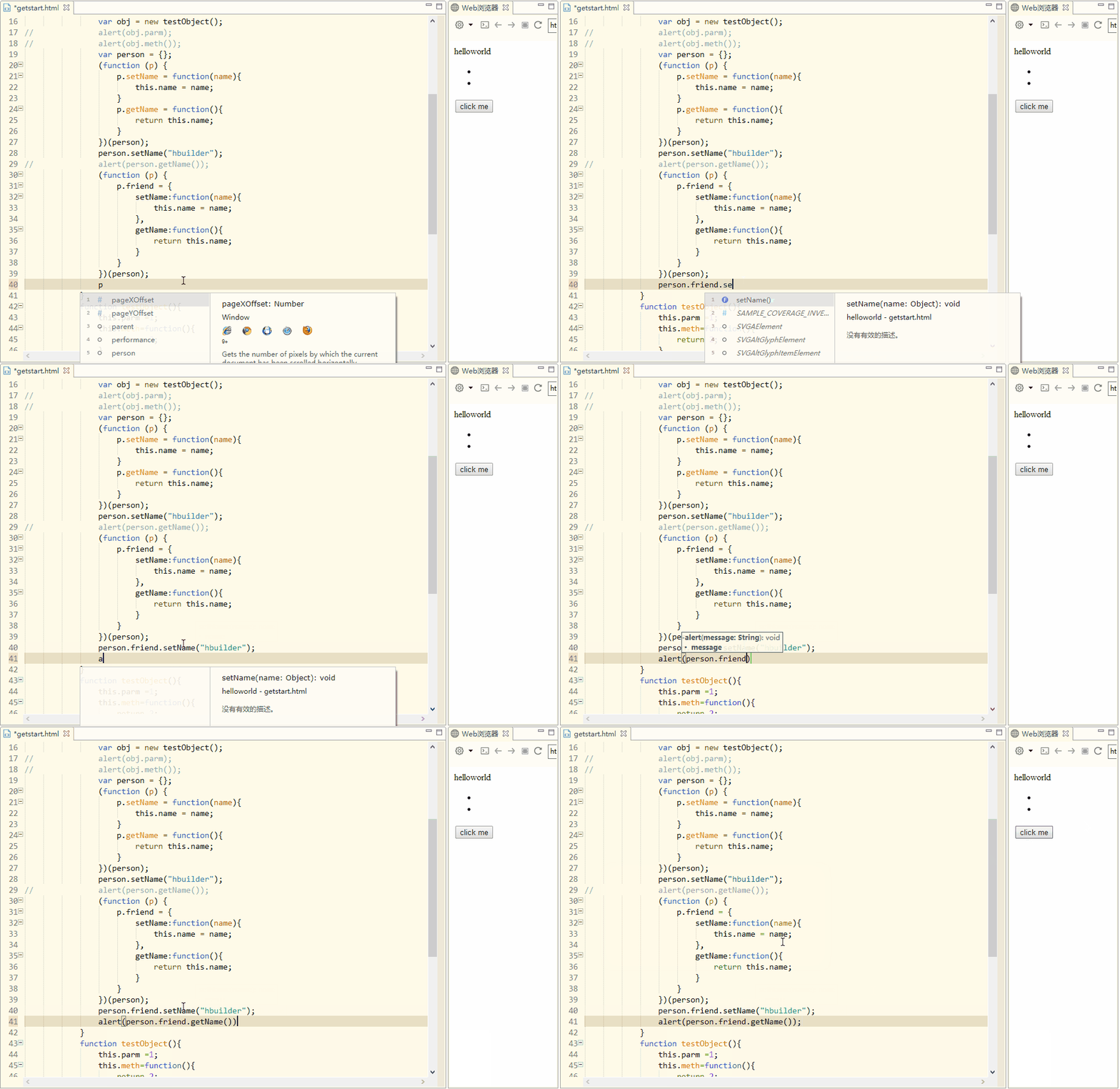
JS Suggests Closure Objects
Jump to Class, ID, and JS Method Definitions
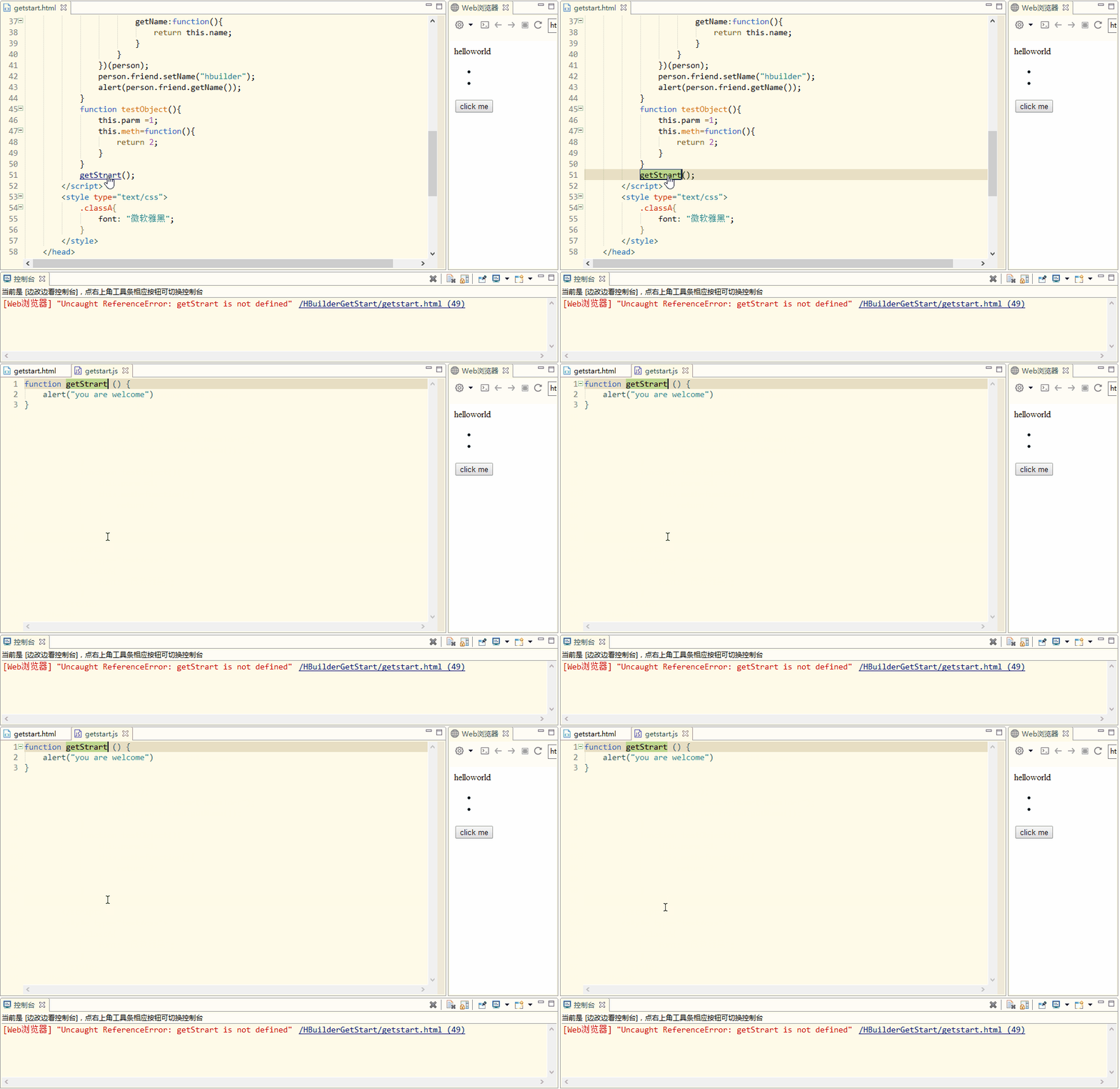
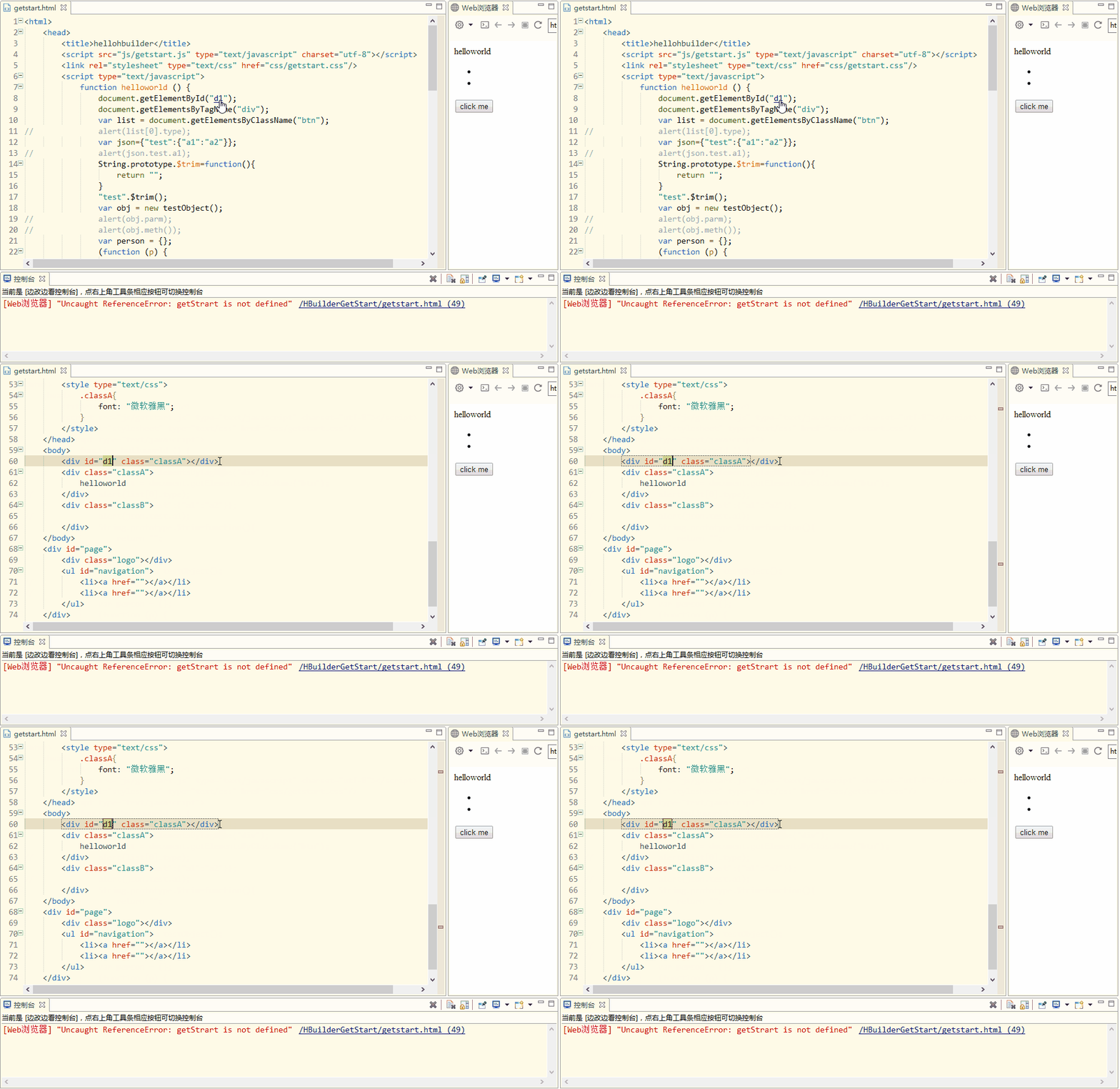
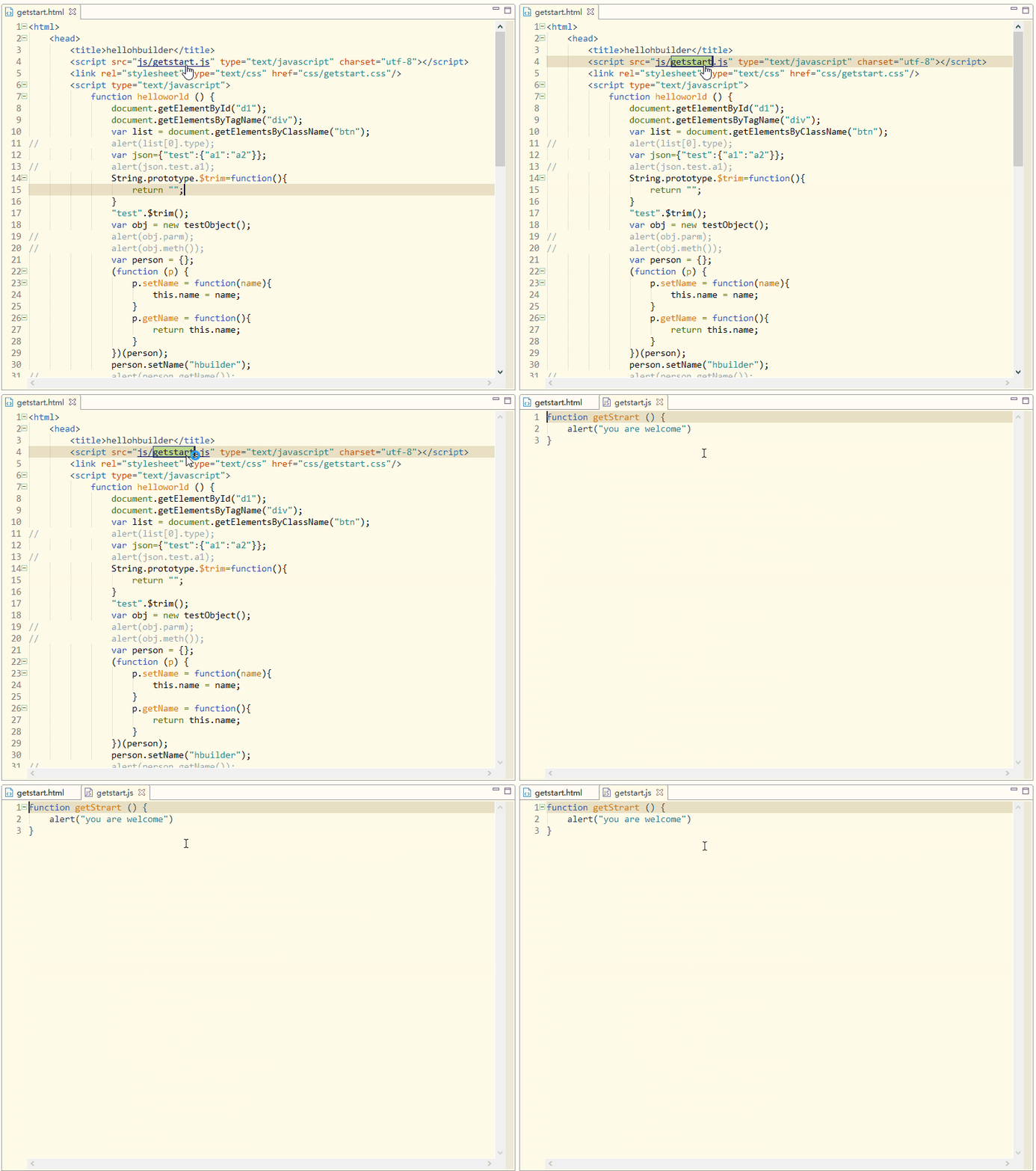
Press Alt and left-click a referenced method name, ID, CSS class, or file (link, image) to jump to the referenced location. Cross-file references are supported too.
Jump to JS Method Definition, as Shown Below
Jump to CSS Class Definition, as Shown Below
Jump to ID Definition, as Shown Below
Jump to File, as Shown Below
More Hidden Gems
Jump Helper, Selection Helper, Escape Helper, Shortcut Helper keep your hands on the keyboard.
HTML5+ support, real-device debugging on phones, and cloud compilation make it easy to develop cross-platform mobile apps.
More exciting features: Refactor | Outline | Tasks | Version History | Built-in WebServer | Real-time Upgrade | Secure Project Management | Surround | Mask Conversion | Smart Correction | Code Folding | Go to Definition | Format Code | URL Encoding/Decoding | Base Conversion | Auto-close.
Still not satisfied? Download plugins to enhance more features; experts can even develop plugins and share them to benefit all developers.