ChromeDriver is a standalone server that acts as a bridge between Selenium WebDriver and the Google Chrome browser.
ChromeDriver allows developers to control the Chrome browser programmatically, enabling automated testing, web scraping, and other operations.
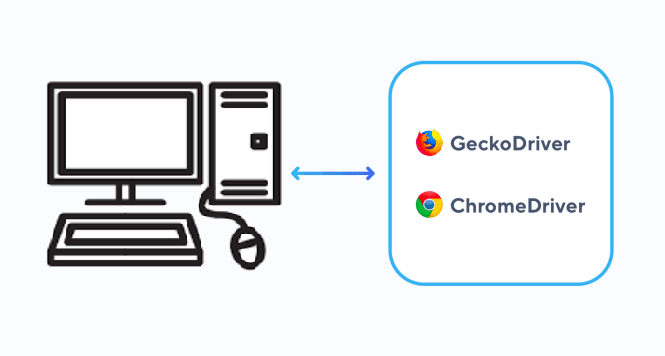
How ChromeDriver Works
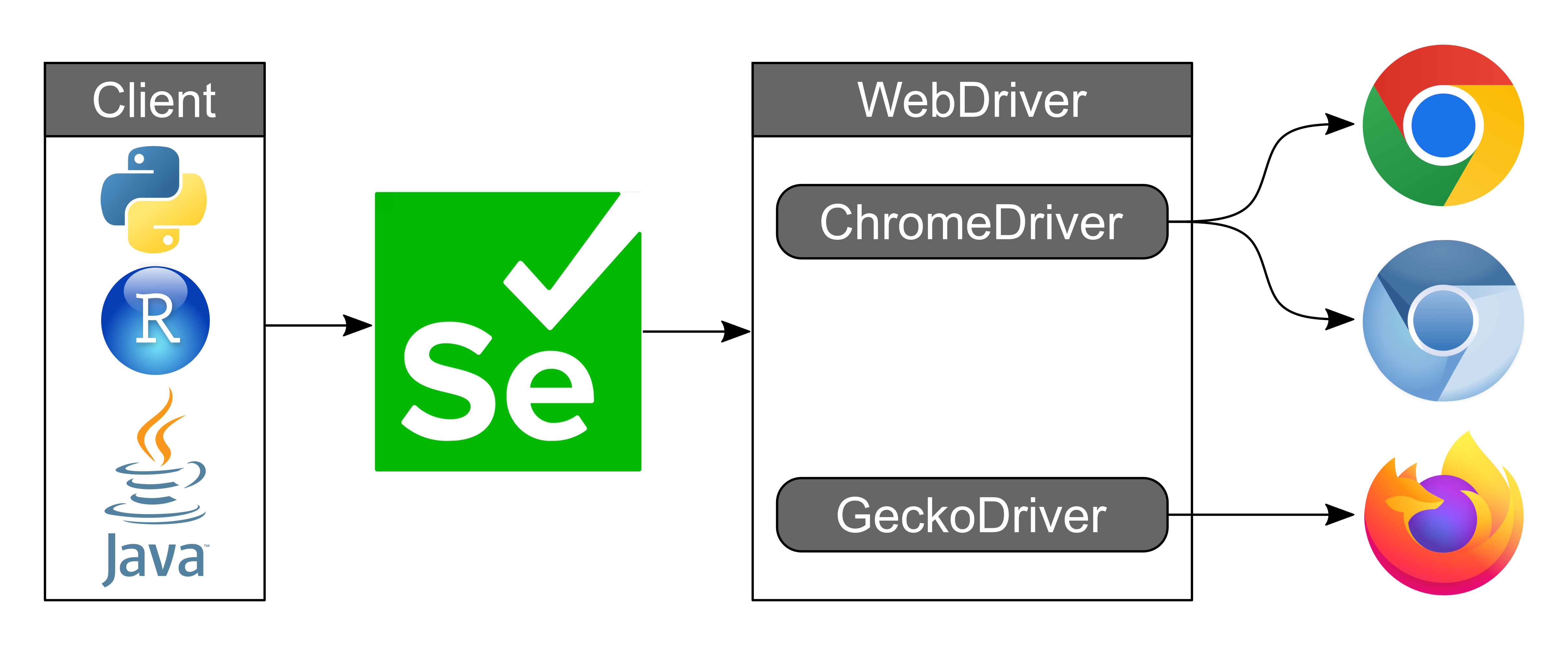
ChromeDriver acts as an intermediary between Selenium WebDriver and the Chrome browser. When you send commands through Selenium, ChromeDriver converts these commands into a protocol that Chrome can understand, and returns the browser's responses to Selenium. This mechanism allows you to simulate user operations in the browser through code.
Installing ChromeDriver
1. Download ChromeDriver
First, you need to download the ChromeDriver that matches the version of the Chrome browser you are using. You can find it on theChromeDriver official download pageFind the version suitable for your operating system.
Specific download address:https://googlechromelabs.github.io/chrome-for-testing/
2. Extract the downloaded file
After downloading, extract the compressed file to your system directory. For example, on Windows, you canchromedriver.exeextract the file toC:\Program Files\ChromeDriver\。
3. Configure environment variables
To let the system recognize ChromeDriver, you need to add its path to the system's environment variables. Here are the configuration steps:
Windows:
- Right-click "This PC" and select "Properties".
- Click "Advanced system settings".
- In the "System Properties" window, click "Environment Variables".
- In the "System variables" section, find the
Pathvariable and click "Edit". - Click "New", then enter the ChromeDriver path (for example
C:\Program Files\ChromeDriver\)。 - Click "OK" to save the changes.
macOS/Linux:
- Open the terminal.
- Edit the
~/.bash_profilefile, and add the following content:export PATH=$PATH:/path/to/chromedriver
- Save the file and run
source ~/.bash_profileto apply the changes.
Using ChromeDriver for Automated Testing
1. Install Selenium
Before using ChromeDriver, you need to install the Selenium library. You can install it with the following command:
pip install selenium
2. Write a simple test script
The following is an example code that uses ChromeDriver to open the Chrome browser and visit the Google homepage:
Example
# Initialize ChromeDriver
driver = webdriver.Chrome()
# Open the Google homepage
driver.get("https://www.google.com")
# Print the webpage title
print("Page title: ", driver.title)
# Close the browser
driver.quit()
3. Run the script
Save the above code asexample.py, then run it in the terminal:
python example.py
If everything is normal, you will see the Chrome browser open automatically and visit the Google homepage, while printing the webpage title in the terminal.
Common Issues and Solutions
1. ChromeDriver version mismatch
If you encounter theThis version of ChromeDriver only supports Chrome version XXerror, it may be because the ChromeDriver version does not match the Chrome browser version. You can resolve it by following these steps:
- Check the Chrome browser version:
- Type in the Chrome address bar
chrome://settings/help, to view the current version.
- Type in the Chrome address bar
- Download the ChromeDriver that matches the Chrome version.
2. ChromeDriver cannot start
If you encounter thechromedriver cannot be opened because the developer cannot be verifiederror (macOS), you can resolve it by following these steps:
- Open "System Preferences".
- Select "Security & Privacy".
- In the "General" tab, click "Allow" to permit ChromeDriver to run.
3. ChromeDriver errorunknown error: DevToolsActivePort file doesn't exist
This error is usually caused by missing necessary dependencies when the Chrome browser runs in headless mode. You can resolve it in the following ways:
Example
chrome_options = Options()
chrome_options.add_argument("--no-sandbox")
chrome_options.add_argument("--disable-dev-shm-usage")
driver = webdriver.Chrome(options=chrome_options)