Selenium Headless Browser Mode
Headless browser mode (Headless Mode) refers to running a browser without a graphical user interface (GUI). In other words, the browser runs in the background and no visible window pops up.
Headless browser mode is commonly used in scenarios such as automated testing, web scraping, and performance testing, because it can save system resources and can also run normally on servers without a display.
Enable headless mode: By
ChromeOptionsorFirefoxOptionsadding--headlessparameters.Optimization settings: Disable GPU acceleration, set window size, etc.
Verify headless mode: Verify the script execution results by printing the page title or taking screenshots.
Why use headless browser mode?
- Save resources: Headless mode does not need to render the graphical interface, so it can save CPU and memory resources.
- Improve speed: Because there is no need to load and render the graphical interface, headless mode is usually faster than normal mode.
- Suitable for automation: In automated testing and web scraping, headless mode can avoid interference and can run on servers without a display.
- Easy to debug: In some cases, headless mode can help developers debug and locate problems faster.
Headless browser mode in Selenium
Setting Chrome headless mode
In Selenium, you can use theChromeOptionsclass to set Chrome browser to headless mode. Here is a simple example:
Example
from selenium.webdriver.chrome.service import Service
from selenium.webdriver.common.by import By
from selenium.webdriver.chrome.options import Options
# Set Chrome to headless mode
chrome_options = Options()
chrome_options.add_argument("--headless") # Enable headless mode
chrome_options.add_argument("--disable-gpu") # Disable GPU acceleration
# Create a WebDriver instance
driver = webdriver.Chrome(service=Service('/path/to/chromedriver'), options=chrome_options)
# Open a web page
driver.get("https://www.baidu.com")
# Print the web page title
print(driver.title)
# Close the browser
driver.quit()
Setting Firefox headless mode
For Firefox browser, you can use theFirefoxOptionsclass to set headless mode. Here is an example:
Example
from selenium.webdriver.firefox.service import Service
from selenium.webdriver.firefox.options import Options
# Set Firefox to headless mode
firefox_options = Options()
firefox_options.add_argument("--headless") # Enable headless mode
# Create a WebDriver instance
driver = webdriver.Firefox(service=Service('/path/to/geckodriver'), options=firefox_options)
# Open a web page
driver.get("https://www.example.com")
# Print the web page title
print(driver.title)
# Close the browser
driver.quit()
Setting Edge headless mode
For Edge browser, you can use theEdgeOptionsclass to set headless mode. Here is an example:
Example
from selenium.webdriver.edge.service import Service
from selenium.webdriver.edge.options import Options
# Set Edge to headless mode
edge_options = Options()
edge_options.add_argument("--headless") # Enable headless mode
# Create a WebDriver instance
driver = webdriver.Edge(service=Service('/path/to/msedgedriver'), options=edge_options)
# Open a web page
driver.get("https://www.example.com")
# Print the web page title
print(driver.title)
# Close the browser
driver.quit()
Common problems and solutions in headless mode
Incomplete page loading
In headless mode, sometimes the page may not load completely, causing elements to not be found. This can be solved in the following ways:
- Increase wait time: Use
WebDriverWaitexplicit wait for elements to finish loading. - Adjust window size: Sometimes the position and size of page elements change according to the window size, and you can
driver.set_window_size(width, height)set the window size.
Screenshots and logs
In headless mode, you may need to take screenshots or record logs to debug issues. You can use the following methods:
- Screenshot: Use
driver.save_screenshot('screenshot.png')to save a screenshot of the current page. - Logs: Via
driver.get_log('browser')get browser logs.
Headless browser mode is a powerful tool in Selenium automated testing and web scraping. With simple settings, you can run the browser without a graphical interface, save resources, and improve efficiency. Whether it is Chrome, Firefox, or Edge, Selenium4 provides simple ways to enable headless mode.
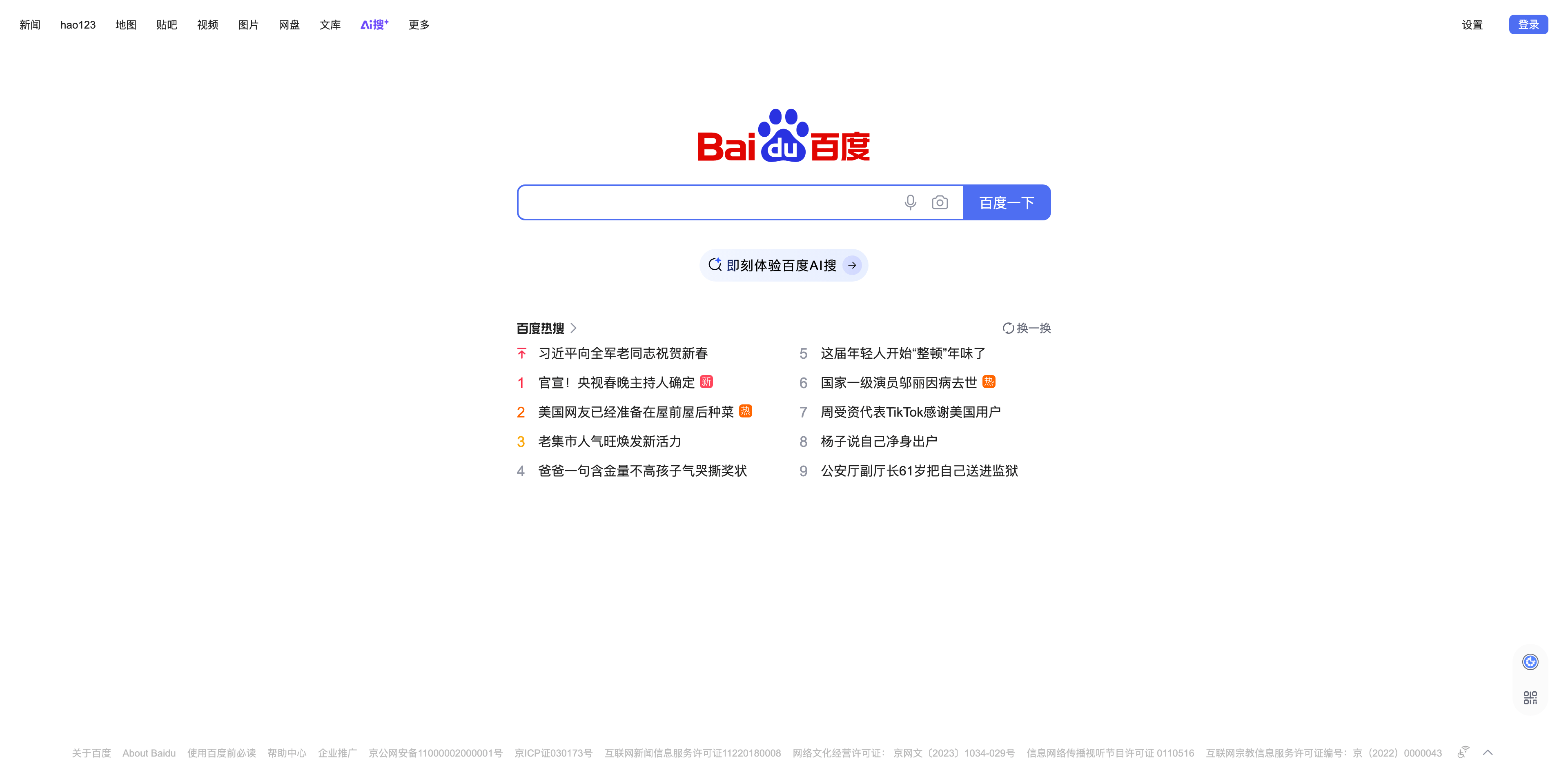
The following is a complete code example of how to use Selenium in headless mode to take a screenshot of the Baidu homepage (www.baidu.com).
The code enables Chrome browser's headless mode and takes a screenshot of the page, saving it to a file.
Example
from selenium import webdriver
from selenium.webdriver.chrome.service import Service as ChromeService
from selenium.webdriver.chrome.options import Options
from selenium.webdriver.common.by import By
# Configure Chrome options
chrome_options = Options()
chrome_options.add_argument("--headless") # Enable headless mode
chrome_options.add_argument("--disable-gpu") # Disable GPU acceleration
chrome_options.add_argument("--window-size=1920,1080") # Set window size
# Set the correct driver path
service = ChromeService(executable_path="./chromedriver-mac-arm64/chromedriver")
driver = webdriver.Chrome(service=service, options=chrome_options)
try:
# Open the Baidu homepage
driver.get("https://www.baidu.com")
# Wait for the page to finish loading
time.sleep(2) # Adjust the wait time as needed
# Force stop page loading
driver.execute_script("window.stop();")
# Print the page title
print("Page title:", driver.title)
# Take a screenshot of the page and save it
screenshot_path = "baidu_screenshot.png"
driver.save_screenshot(screenshot_path)
print(f"Screenshot saved to: {screenshot_path}")
finally:
# Close the browser
driver.quit()
After successful execution, the following output will appear:
页面标题: 百度一下,你就知道
截图已保存到: baidu_screenshot.png
Open the current directory and you will see the baidu_screenshot.png file. Open it, and it is shown as follows: