VSCode (full name: Visual Studio Code) is a free, cross-platform source code editor developed by Microsoft. The software supports syntax highlighting, code auto-completion (also known as IntelliSense), code refactoring, and view definition features, and includes built-in command-line tools and the Git version control system. Users can change themes and keyboard shortcuts for personalized settings, and can also install extensions through the built-in extension marketplace to expand the software's functionality.
VS Code uses Monaco Editor as its underlying code editor.
In the 2019 developer survey organized by Stack Overflow, Visual Studio Code was considered the most popular development environment among developers.
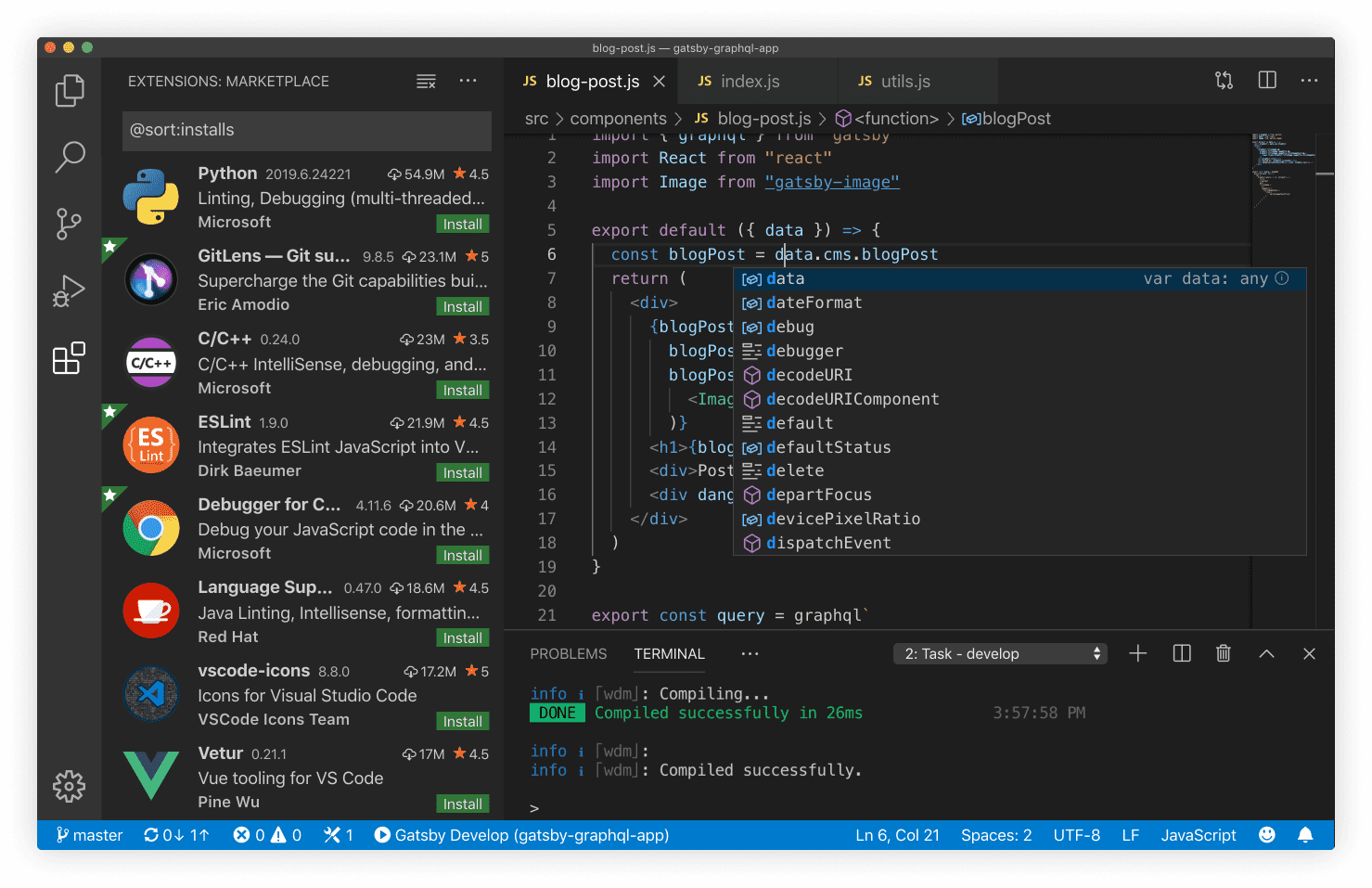
Visual Studio Code supports a large number of programming languages by default, including JavaScript, TypeScript, CSS, and HTML; it can also support other languages including Python, C/C++, Java, and Go by downloading extensions. Supported features include syntax highlighting, bracket completion, code folding, and code snippets; for some languages, IntelliSense can be used. Visual Studio Code also supports debugging Node.js programs. Like GitHub's Atom, Visual Studio Code is also built on the Electron framework.
Visual Studio Code supports opening multiple directories at the same time and saves the information in workspaces for reuse.
As a cross-platform editor, Visual Studio Code allows users to change the file's code page, line endings, and programming language.
VScode Installation
- VScode official website address:https://code.visualstudio.com/
- VScode detailed operation documentation:https://www.example.com/vscode/vscode-tutorial.html
We can download the software for the corresponding system (supporting Windows, Linux, macOS) from the VScode official website homepage:
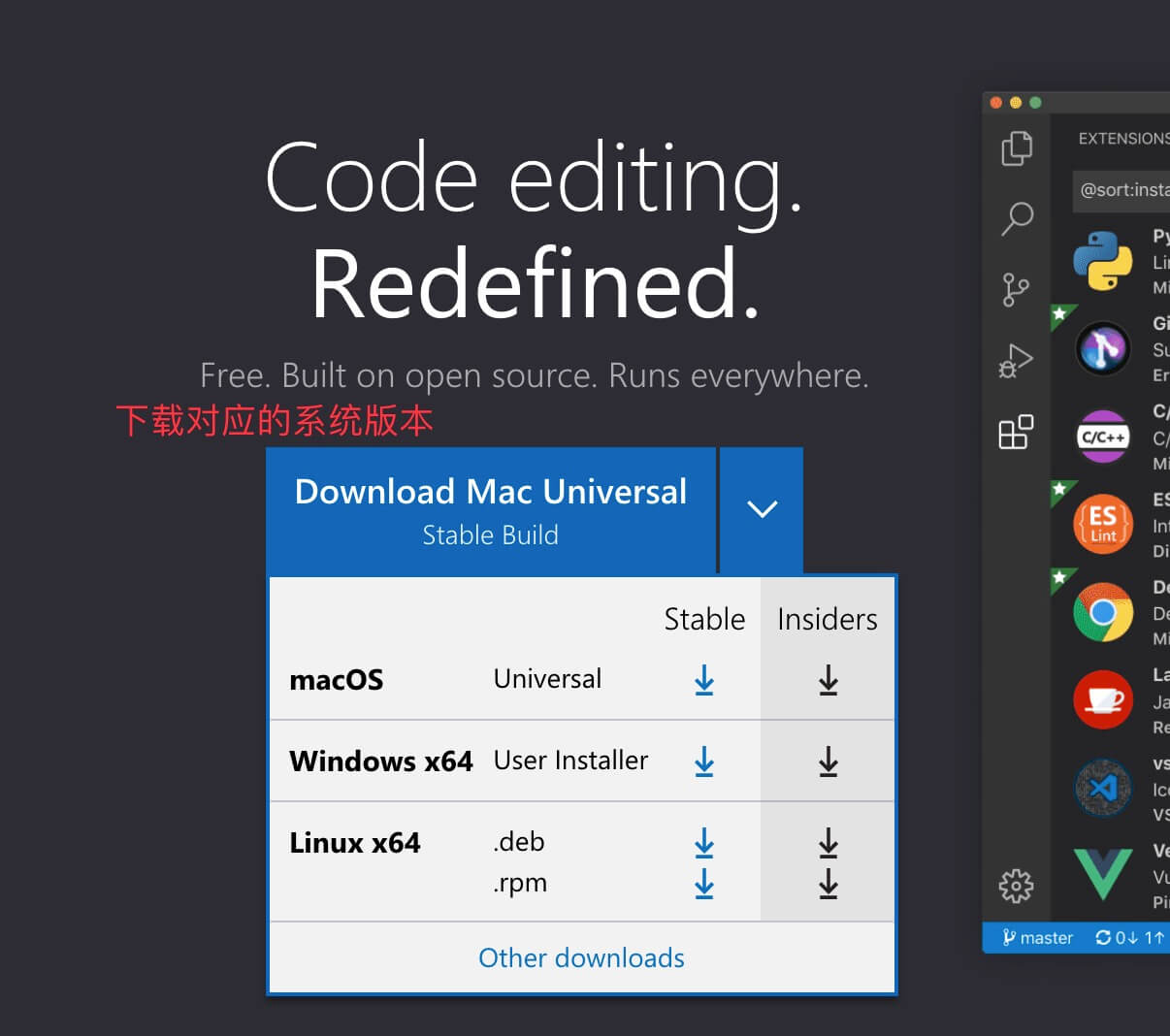
You can also open the download pagehttps://code.visualstudio.com/download, and download the desired format package:
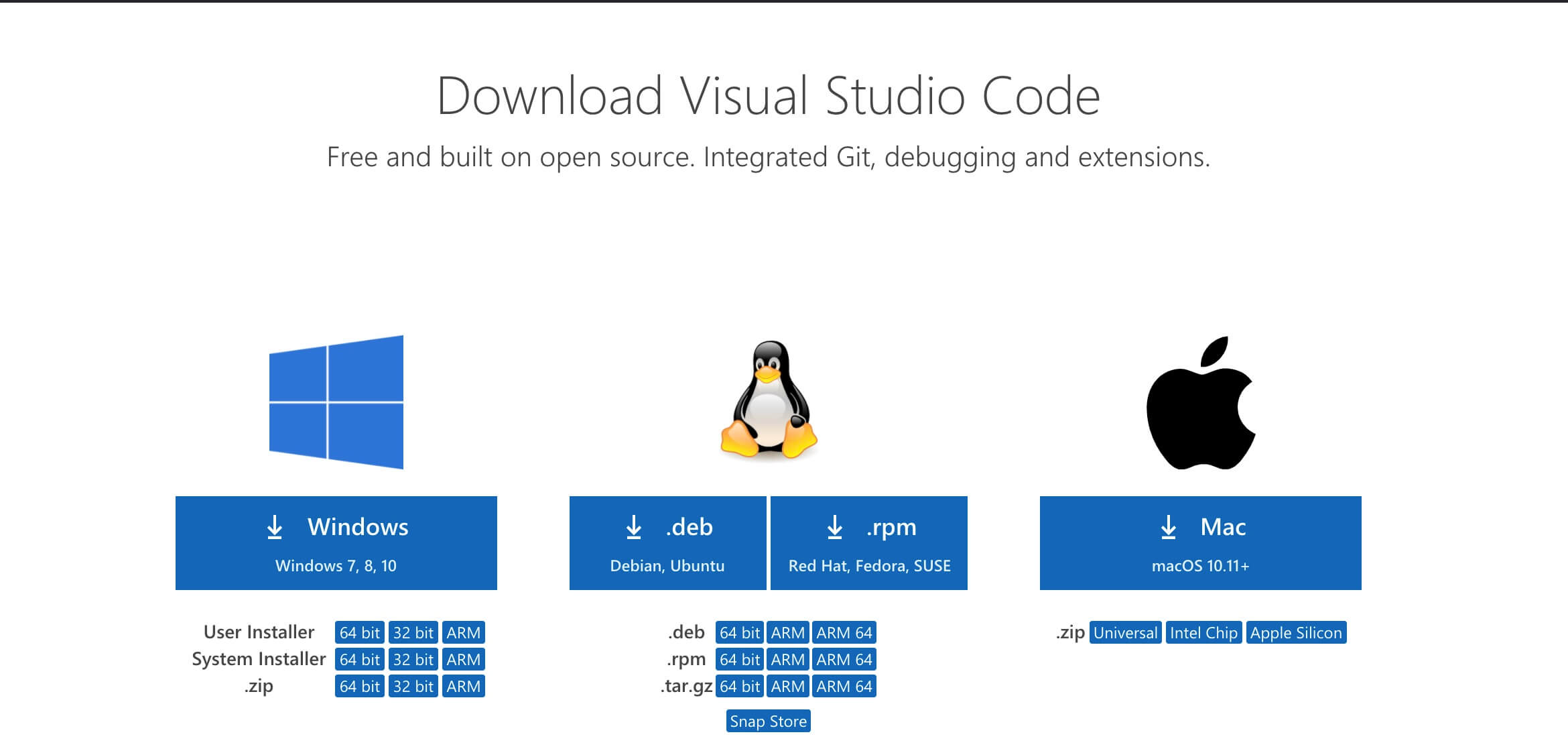
VSCode installation is very simple. On macOS, you can use it directly after downloading the zip and unzipping it.
In this section, we use Windows as an example to download the installation package, then double-click to open the installer and click Next:
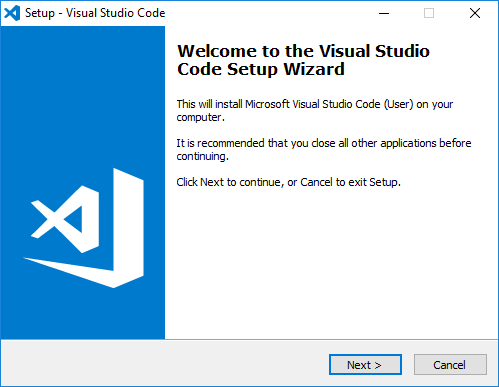
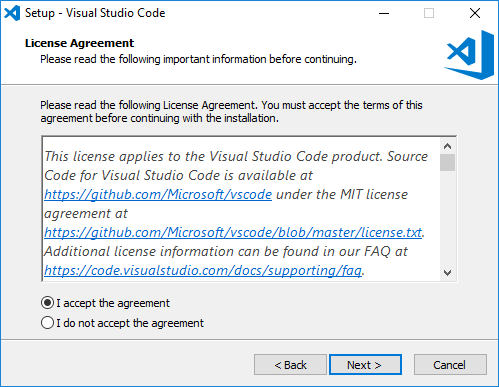
Check the option to accept the agreement, then click Next:
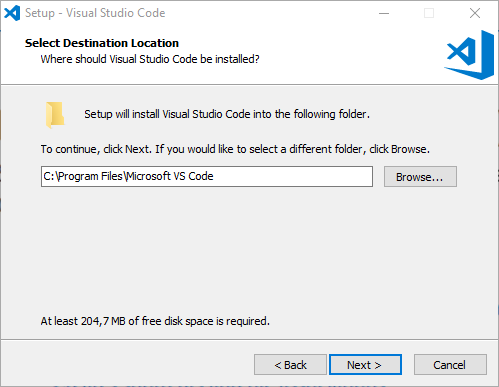
Choose the installation path, or you can directly use the default one:
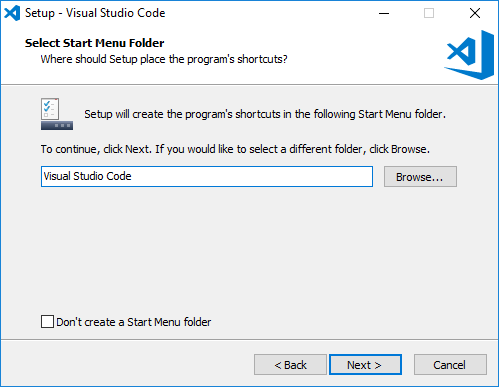
Click Next:
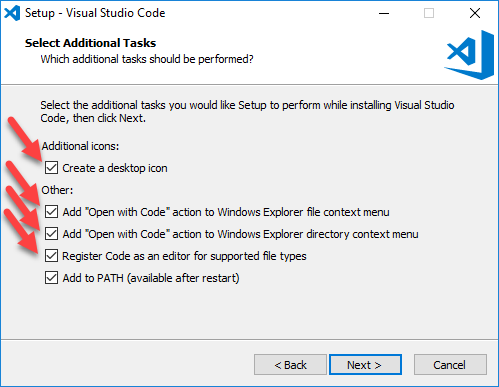
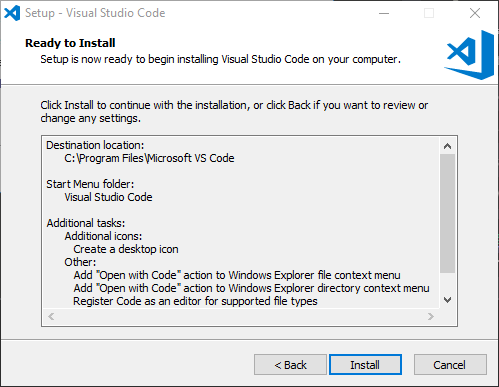
Note the installation path settings. Environment variables are automatically added to the system by default. Check all of the following options:
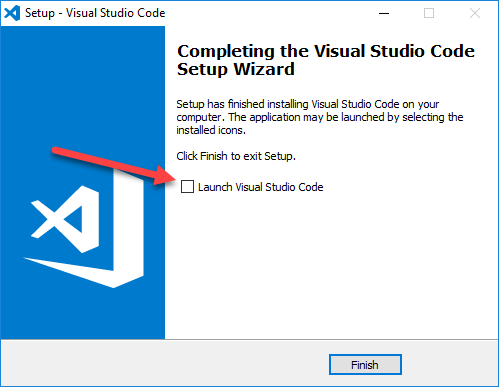
Finally, we click Install to complete the installation:
Installing the Chinese Language Pack
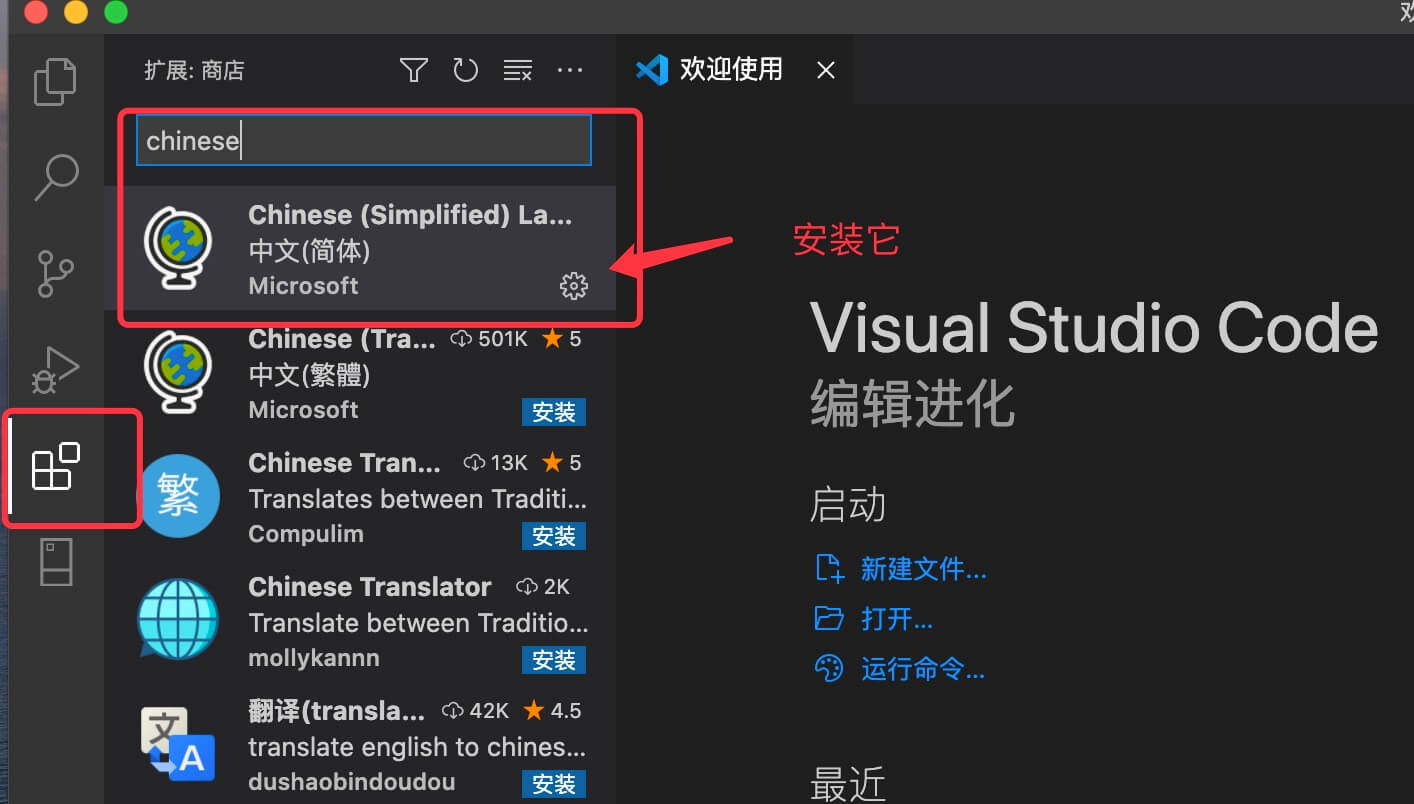
Installing the Chinese Language Pack in VScode is very simple. Open VScode, click Install Extension, enter "Chinese" in the search box, then click Install:
For detailed content and operation videos, check WeChat:

VScode's extension functionality is very powerful. We can find tools needed for almost all development, and of course we can also develop our own.
VScode extension documentation reference:https://code.visualstudio.com/docs/editor/extension-marketplace
Interface Description
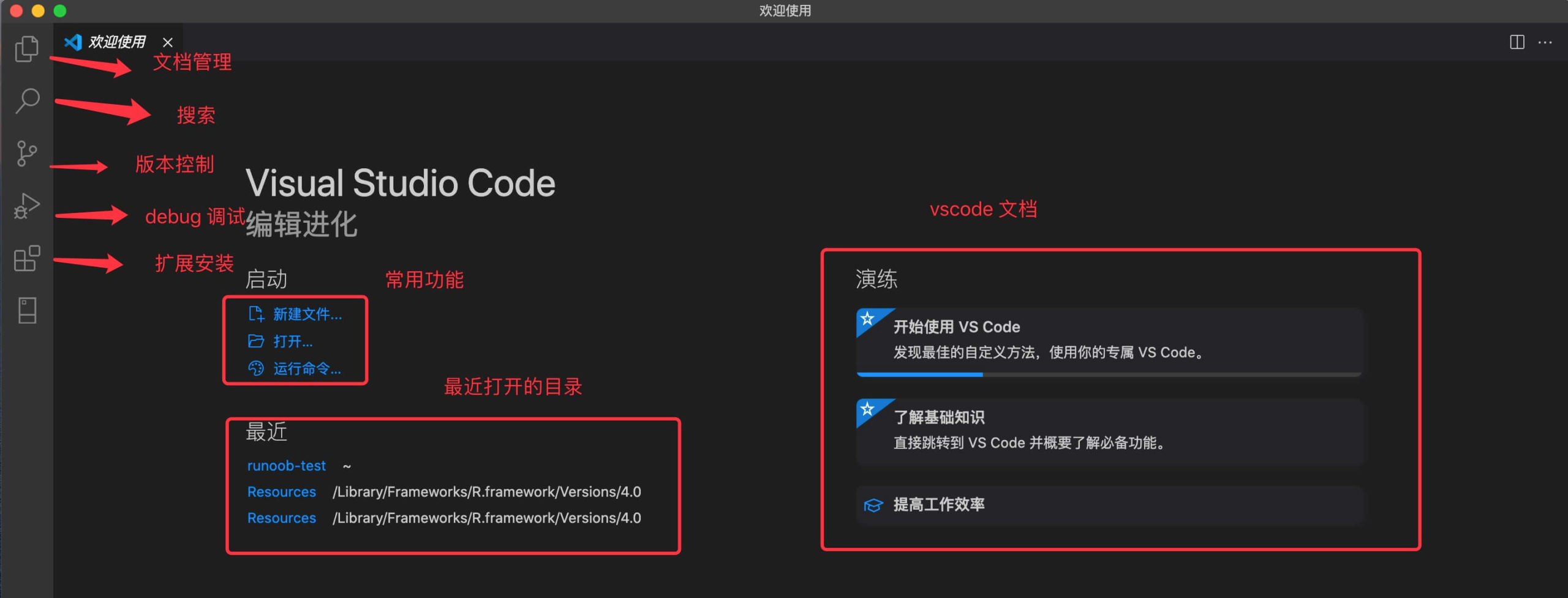
The following is the interface after VScode starts, with brief explanations as shown in the figure:
For VS Code related video content, you can follow our WeChat Video Channel to view: