jQuery UI Customization
jQuery UI provides multiple ways to customize. You have already seen how the Download Builder creates a custom build that includes only the options you need. Here are other customization methods.
jQuery UI Basics: Using Options
Every plugin in jQuery UI has a default configuration, and the default configuration values are generally set based on the most basic and common use cases. If you want a plugin to use non-default values, you can override its defaults with "options". Options are a set of properties passed as arguments to jQuery UI widgets. For example, the slider widget has an orientation option that lets you specify whether the slider is horizontal or vertical. To set this option for the slider, you simply pass it as an argument, as shown below:
$( "#mySliderDiv" ).slider({
    orientation: "vertical"
});
You can pass more options, separating each with a comma:
$( "#mySliderDiv" ).slider({
    orientation: "vertical",
    min: 0,
    max: 150,
    value: 50
});
Please remember that options must be placed in curly braces{ }. The above example is just a simple explanation. For detailed information about the complete set of jQuery UI widgets, please seejQuery UI Examples。
Visual Customization: Designing a jQuery UI Theme
If you want to design your own theme, jQuery UI provides a perfect application for theme customization, called ThemeRoller. For specific customization, please visitjQuery UI ThemeRoller。
ThemeRoller provides a customization interface for all elements styled by jQuery UI widgets. As you adjust the "levers" in the left column, the widgets in the right column update according to your design. The Gallery tab of ThemeRoller offers several designed themes, just like those on the Download Builder page. You can adjust these themes or download them directly.
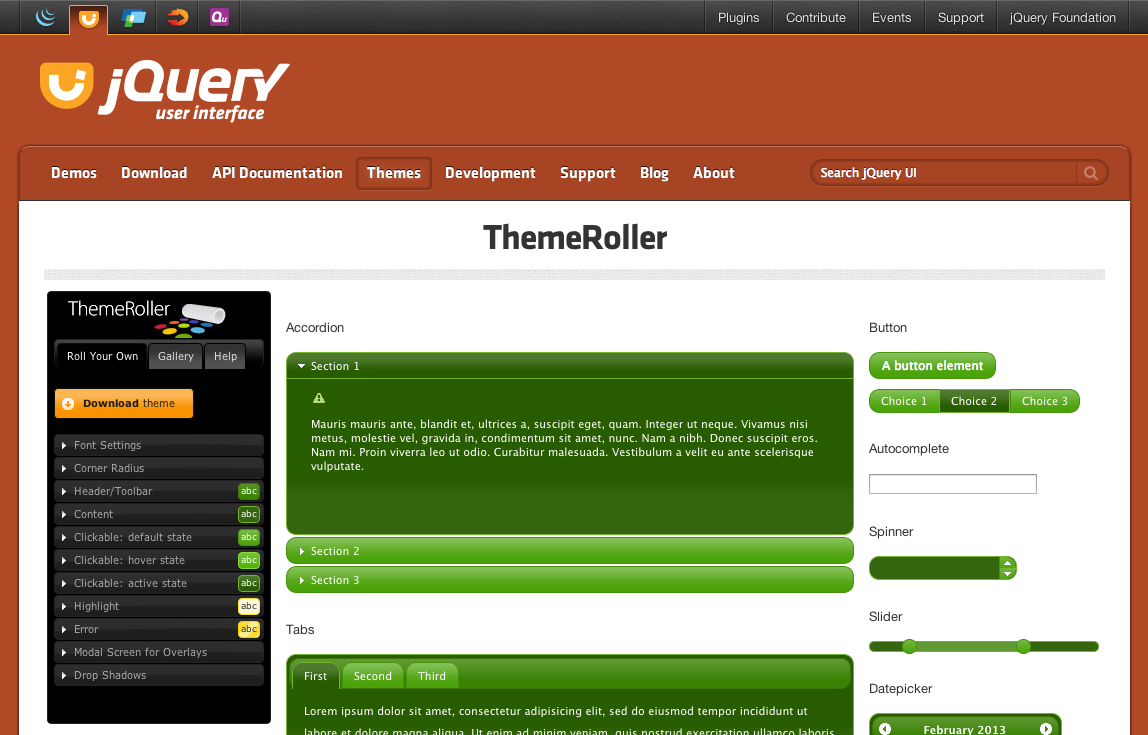
Download Theme
When you click the "Download theme" button on the ThemeRoller page, you will be redirected to the Download Builder page, where your custom theme is automatically selected in the theme drop-down menu. You can further configure the download package. Once the download is complete, you will seeexample.htmlthe page uses your custom theme.
Tip: If you need to edit your theme, simply open the CSS file, find line 43, "To view and modify this theme, visit ...". That URL is the link to open the theme in ThemeRoller for editing.
Other Extensions