Swarm cluster management
Introduction
Docker Swarm is Docker's cluster management tool. It transforms a pool of Docker hosts into a single virtual Docker host. Docker Swarm provides the standard Docker API, so any tool that already communicates with the Docker daemon can easily scale to multiple hosts using Swarm.
Supported tools include, but are not limited to, the following:
- Dokku
- Docker Compose
- Docker Machine
- Jenkins
Principle
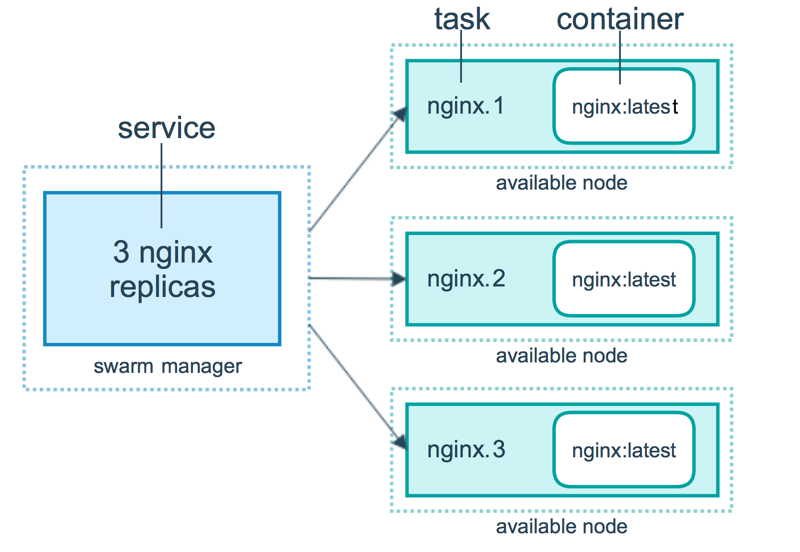
As shown in the figure below, a swarm cluster consists of manager nodes and worker nodes.
- swarm mananger: Responsible for the overall management of the cluster, including cluster configuration, service management, and all other cluster-related work.
- work node: i.e., the available node in the diagram, mainly responsible for running the corresponding services to execute tasks.
Usage
The following examples all use Docker Machine and VirtualBox for demonstration; make sure your host has VirtualBox installed.
1. Create a Swarm cluster manager node (manager)
Create docker machines:
$ docker-machine create -d virtualbox swarm-manager
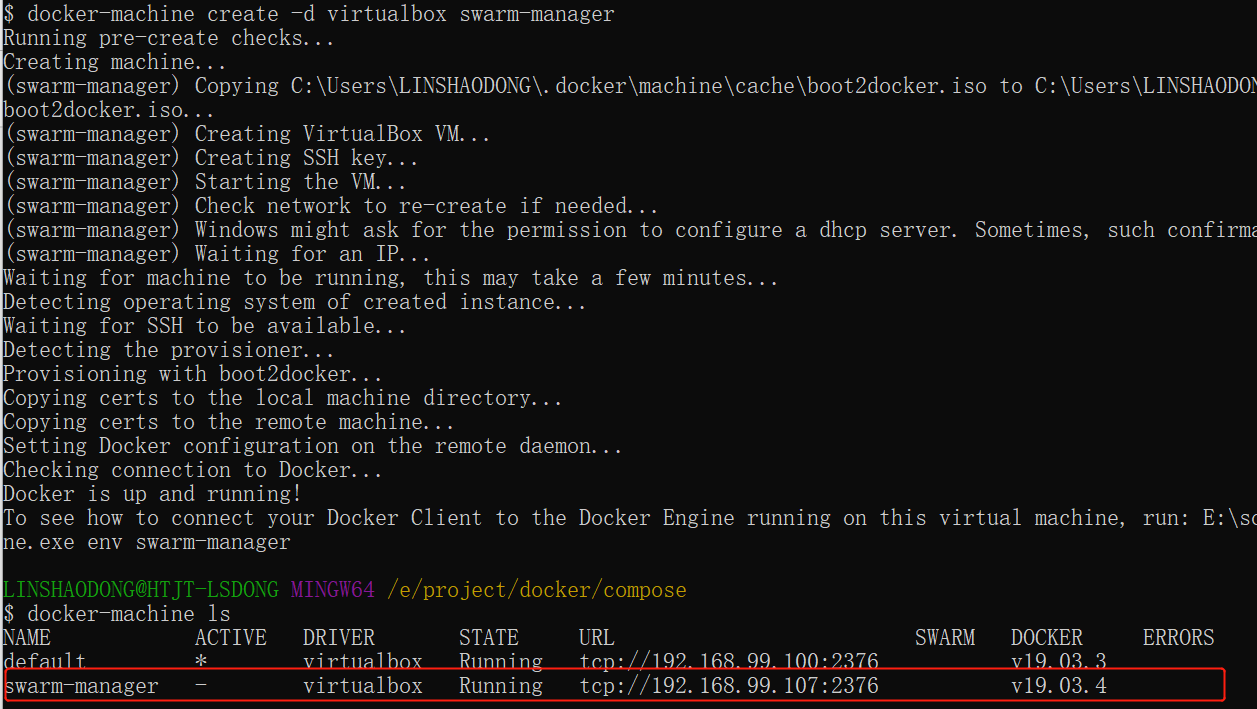
Initialize the swarm cluster; the machine that performs the initialization is the cluster's manager node.
$ docker-machine ssh swarm-manager
$ docker swarm init --advertise-addr 192.168.99.107 #这里的 IP 为创建机器时分配的 ip.

The above output proves that initialization has succeeded. You need to copy the following line; it will be used when adding worker nodes:
docker swarm join --token SWMTKN-1-4oogo9qziq768dma0uh3j0z0m5twlm10iynvz7ixza96k6jh9p-ajkb6w7qd06y1e33yrgko64sk 192.168.99.107:2377
2. Create a Swarm cluster worker node (worker)
Here, create two machines directly: swarm-worker1 and swarm-worker2.

Enter the two machines separately and specify adding them to the cluster created in the previous step. The content copied in the previous step will be used here.

The above data output indicates that the addition was successful.
In the above figure, since the content copied in the previous step is quite long, it will be automatically truncated. In fact, the command run in the figure is as follows:
docker@swarm-worker1:~$ docker swarm join --token SWMTKN-1-4oogo9qziq768dma0uh3j0z0m5twlm10iynvz7ixza96k6jh9p-ajkb6w7qd06y1e33yrgko64sk 192.168.99.107:2377
3. View cluster information
On the manager node, run: docker info to view the current cluster information.
$ docker info
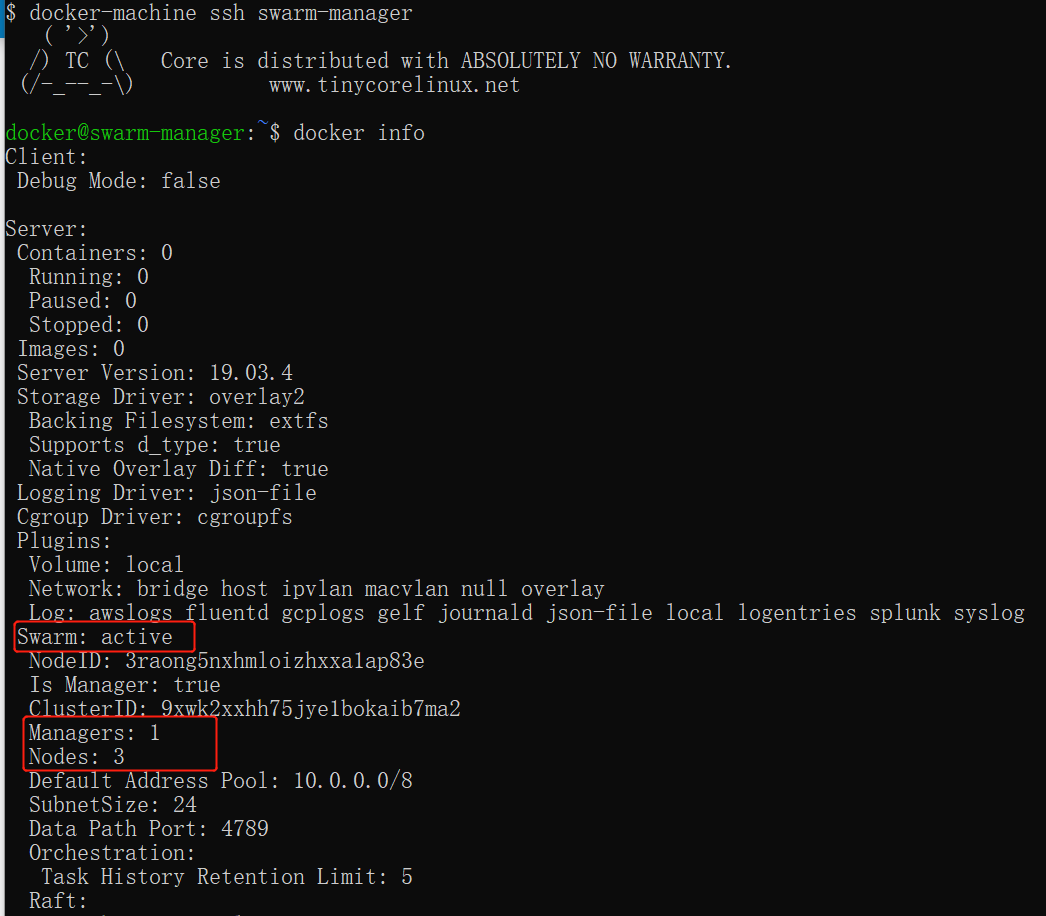
From the red-circled area, you can see that the currently running cluster has three nodes, one of which is a manager node.
4. Deploy services to the cluster
Note: Any operation related to cluster management is performed on the manager node.
In the following example, a service named helloworld is created on a worker node. Here, it is randomly assigned to a worker node:
docker@swarm-manager:~$ docker service create --replicas 1 --name helloworld alpine ping docker.com

5. View service deployment status
Check which node the helloworld service is running on. You can see that it is currently on the swarm-worker1 node:
docker@swarm-manager:~$ docker service ps helloworld

View the specific information about the helloworld deployment:
docker@swarm-manager:~$ docker service inspect --pretty helloworld

6. Scale cluster services
We scale the above helloworld service to two nodes.
docker@swarm-manager:~$ docker service scale helloworld=2

You can see that it has been scaled from one node to two nodes.

7. Delete service
docker@swarm-manager:~$ docker service rm helloworld

Check whether it has been deleted:

8. Rolling update services
In the following example, we will show how to perform a rolling update of redis to a higher version.
Create a Redis version 3.0.6.
docker@swarm-manager:~$ docker service create --replicas 1 --name redis --update-delay 10s redis:3.0.6

Rolling update redis.
docker@swarm-manager:~$ docker service update --image redis:3.0.7 redis

From the figure, you can see that the redis version has been upgraded from 3.0.6 to 3.0.7, indicating that the service has been upgraded successfully.
9. Stop a node from receiving new tasks
View all nodes:
docker@swarm-manager:~$ docker node ls

You can see that all nodes are currently Active and can accept new task assignments.
Stop the node swarm-worker1:

Note: swarm-worker1's status changes to Drain. This does not affect the cluster's services; it only means that the swarm-worker1 node no longer accepts new tasks, and the cluster's load capacity has decreased somewhat.
The node can be reactivated with the following command:
docker@swarm-manager:~$ docker node update --availability active swarm-worker1
