Docker Desktop
Docker DesktopIt is an official Docker releaseLocal containerized development environment, used onmacOS / Windows (and some Linux)on:
- Run Docker Engine
- Build, run, and manage containers and images
- Provides a graphical management interface (GUI)
- Integrated Kubernetes (optional)
In one sentence:
Docker Desktop = Docker Engine + Linux VM + GUI + developer experience optimization
Docker Desktop has becomeThe de facto standard for local Docker development。
Why use Docker Desktop
Before Docker Desktop, using Docker locally came with many problems:
- macOS / Windows cannot run Docker natively
- Required manually installing a virtual machine (VirtualBox)
- Network, file mounting, and port mapping configuration were complex
Docker Desktop solves these problems:
| Skills | Description |
|---|---|
| One-click install | Automatically completes virtualization and Docker installation |
| Out of the box | Ready to use after installation |
| Graphical interface | Visualization of containers, images, and logs |
| CLI compatible | with nativedockerCommands are completely identical |
| Kubernetes | One-click enablement of local K8s |
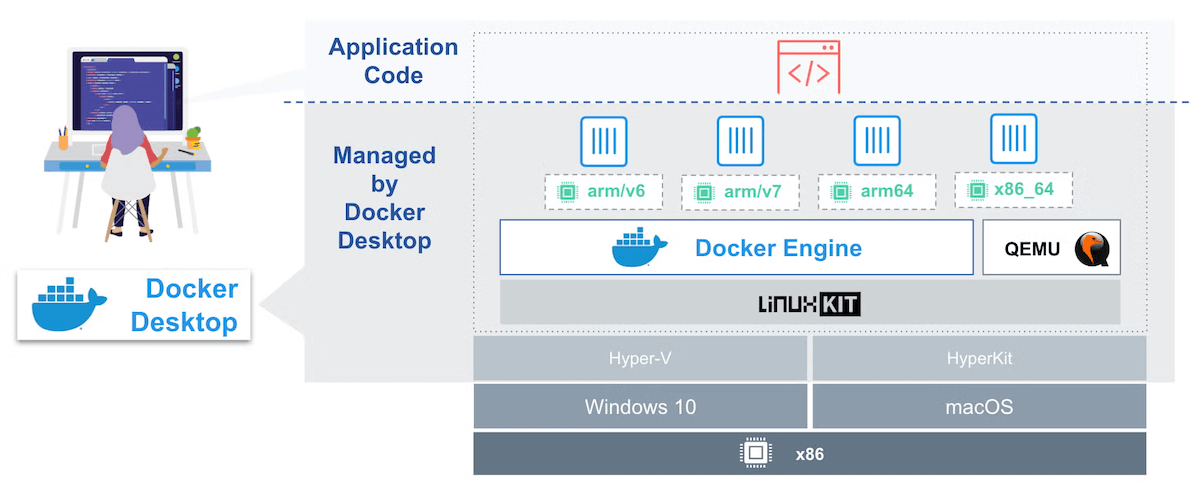
Docker Desktop's overall architecture
Understanding the architecture helps avoid common misunderstandings.
宿主系统(macOS / Windows)
 └── Docker Desktop
      └── Linux 虚拟机
           └── Docker Engine
                ├── Images
                ├── Containers
                └── Volumes
Key points:
- Docker actually runs onIn Linux VM
- The files, ports, and processes seen locally are "mapping results"
- This is also the root cause of file mounting and performance issues
Install Docker Desktop
System requirements
- macOS(Apple Silicon / Intel)
- Windows 10 / 11 (WSL2 recommended)
- At least 4GB RAM (8GB+ recommended)
Installation process (conceptual explanation)
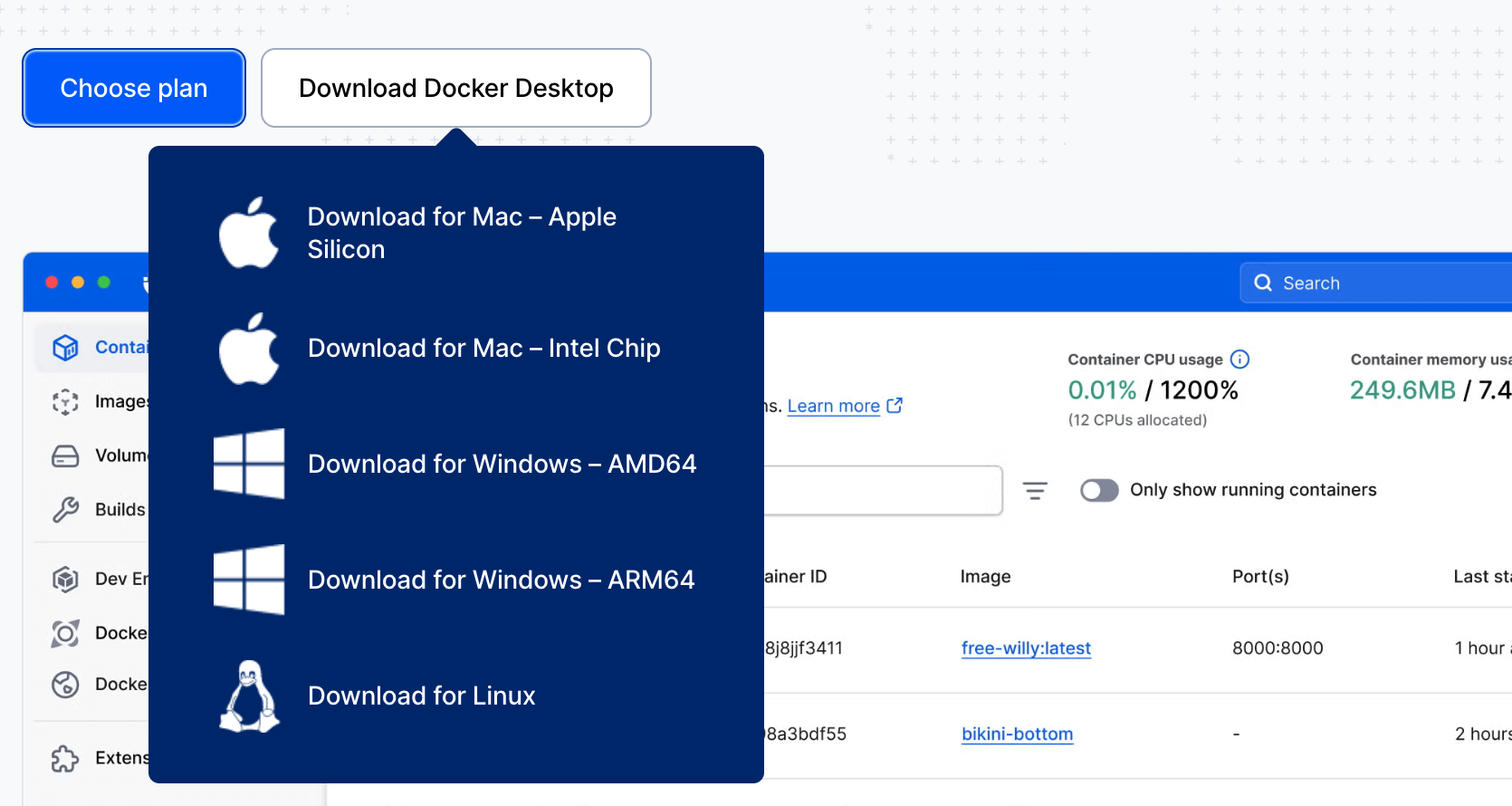
Download the Docker Desktop installation package. Download address:https://www.docker.com/products/docker-desktop/
- Drag into the Applications folder / complete the installation wizard. Windows users should ensure "Use WSL 2 instead of Hyper-V" is checked during installation.
- Launch Docker Desktop
- Wait for the Docker Engine to finish starting up
After successful startup:
- A Docker icon appears in the menu bar
docker versionCan output normally
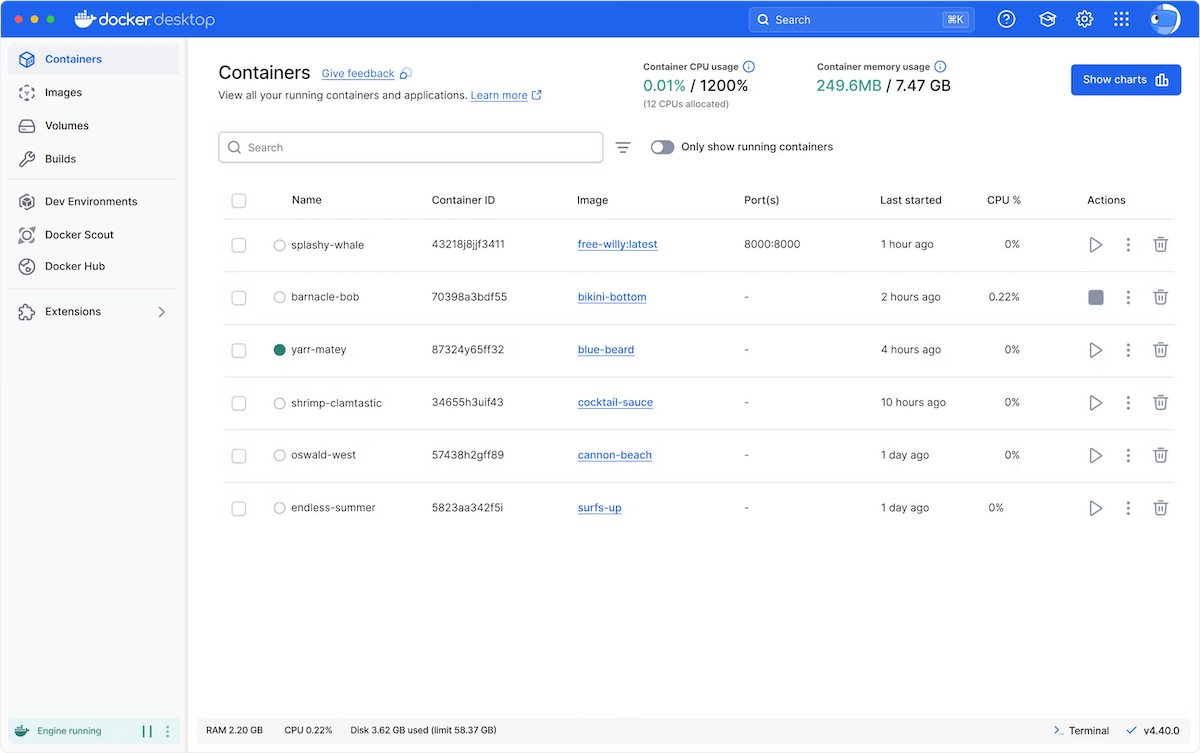
Quick introduction to the Docker Desktop interface
Docker Desktop's GUI is mainly divided into the following modules:
| Module | Function |
|---|---|
| Containers | Manage running containers |
| Images | View local images |
| Volumes | Manage data volumes |
| Builds | Build records |
| Settings | Configure resources, network, K8s |
Core concepts: Images and Containers
To understand Docker, just remember this simple analogy:
| Concepts | Analogy | Description |
|---|---|---|
| Image | Recipe | A read-only file that contains all the code, environment, and libraries needed to run a program. |
| Container | Cooked dish | The running instance of an image. You can make many dishes from a single recipe. |
| Registry | Food court | A place to store and share images; the most famous one isDocker Hub。 |