Docker Install Node.js
Node.js is a JavaScript runtime environment based on the Chrome V8 engine, and it is a development platform that enables JavaScript to run on the server side.
1. Check available Node versions
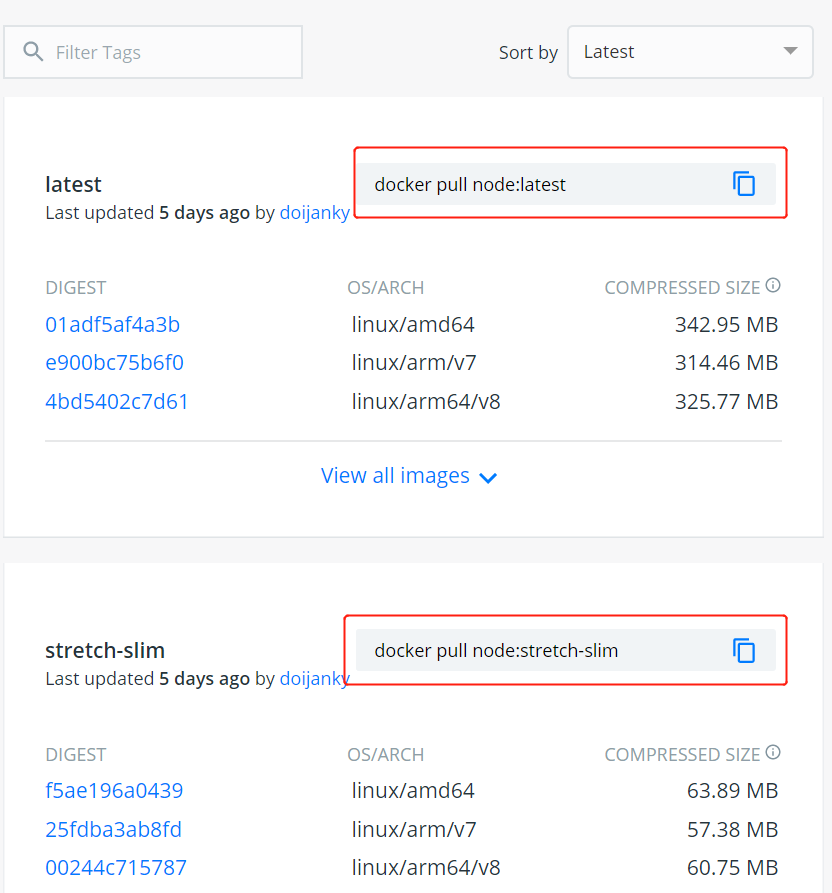
Access the Node image repository address:https://hub.docker.com/_/node?tab=tags。
You can use Sort by to view other versions of Node; the default is the latest version.node:latest。

You can also find other versions you want in the dropdown list:
In addition, we can also usedocker search nodethe command to view available versions:
$ docker search node
2. Pull the latest Node image
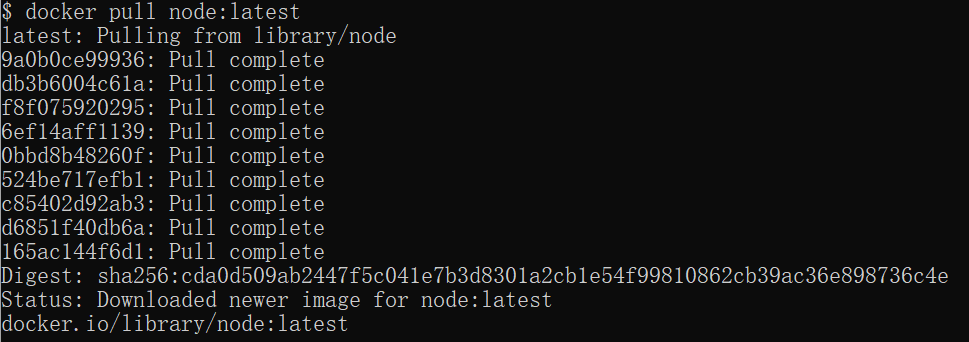
Here we pull the official latest version of the image:
$ docker pull node:latest
3. View local images
Use the following command to check whether Node has been installed
$ docker images
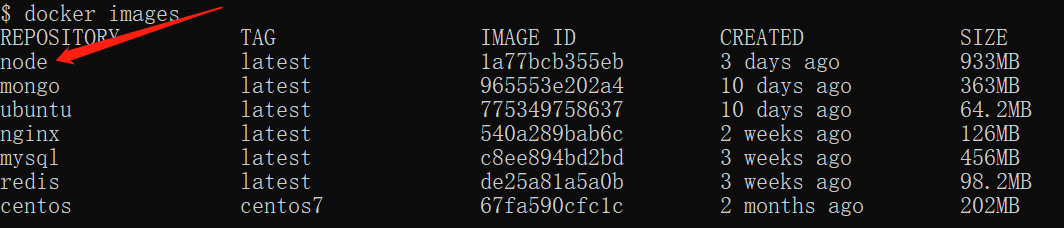
In the figure above, we can see that we have installed the latest version (latest) of the node image.
4. Run the container
After installation, we can use the following command to run the node container:
$ docker run -itd --name node-test node
Parameter description:
- --name node-test: container name.

5. Installation successful
Finally, enter to check the node version running in the container:
$ docker exec -it node-test /bin/bash
root@6c5d265c68a6:/# node -v
