Android Activity
An activity represents a single screen with a user interface, such as a Java window or frame. An Android activity is a subclass of the ContextThemeWrapper class.
If you have programmed in C, C++, or Java, you should know that these programs start from the main() function. Similarly, the Android system initializes its program by calling the onCreate() callback in an activity. There is a sequence of callback methods to start an activity, and a sequence of methods to shut down an activity, as shown in the activity lifecycle diagram below:
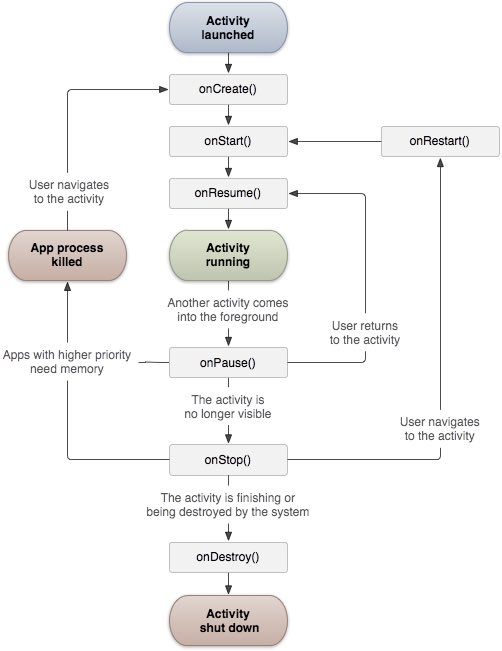
The Activity class defines the following callbacks. You do not have to implement every callback method. However, it is very important to understand each of them, and implementing them can ensure that your application behaves as users expect.
| Callback | Description |
|---|---|
| onCreate() | This is the first callback, called when the activity is first created. |
| onStart() | This callback is called when the activity becomes visible to the user. |
| onResume() | This callback is called when the application starts interacting with the user. |
| onPause() | A paused activity cannot accept user input and cannot execute any code. This is called when the current activity is about to be paused and the previous activity is about to be resumed. |
| onStop() | Called when the activity is no longer visible. |
| onDestroy() | Called before the activity is destroyed by the system. |
| onRestart() | Called when the activity is reopened after being stopped. |
Example
This example demonstrates the lifecycle of an Android application activity through simple steps. Follow the steps below to modify the Android application we created in the Hello World Example chapter.
| Step | Description |
|---|---|
| 1 | Use the Eclipse IDE to create an Android application, name it HelloWorld, and place it under the package com.example.helloworld. As described in the previous Hello World Example chapter. |
| 2 | Modify the main activity file MainActivity.java as follows. Keep the rest unchanged. |
| 3 | Run the application to open the Android emulator, and check the results of the application modifications. |
Below is the modified content of the main activity file src/com.example.helloworld/MainActivity.java. It contains every basic lifecycle method. The Log.d() method is used to generate log information:
package com.example.helloworld;

import android.os.Bundle;
import android.app.Activity;
import android.util.Log;

public class MainActivity extends Activity {
   String msg = "Android : ";

   /** 当活动第一次被创建时调用 */
   @Override
   public void onCreate(Bundle savedInstanceState) {
      super.onCreate(savedInstanceState);
      setContentView(R.layout.activity_main);
      Log.d(msg, "The onCreate() event");
   }

   /** 当活动即将可见时调用 */
   @Override
   protected void onStart() {
      super.onStart();
      Log.d(msg, "The onStart() event");
   }

   /** 当活动可见时调用 */
   @Override
   protected void onResume() {
      super.onResume();
      Log.d(msg, "The onResume() event");
   }

   /** 当其他活动获得焦点时调用 */
   @Override
   protected void onPause() {
      super.onPause();
      Log.d(msg, "The onPause() event");
   }

   /** 当活动不再可见时调用 */
   @Override
   protected void onStop() {
      super.onStop();
      Log.d(msg, "The onStop() event");
   }

   /** 当活动将被销毁时调用 */
   @Override
   public void onDestroy() {
      super.onDestroy();
      Log.d(msg, "The onDestroy() event");
   }
}
The activity class loads all UI components from the XML file in the project's res/layout. The following statement loads UI components from the res/layout/activity_main.xml file:
setContentView(R.layout.activity_main);
An application can have one or more activities without any restriction. Each activity defined for the application needs to be declared in AndroidManifest.xml. The main activity of the application needs to be declared in the manifest, and the intent filter tag must contain the MAIN action and the LAUNCHER category. As follows:
<manifest xmlns:android="http://schemas.android.com/apk/res/android"
   package="com.example.helloworld"
   android:versionCode="1"
   android:versionName="1.0" >

   <uses-sdk
      android:minSdkVersion="8"
      android:targetSdkVersion="22" />

   <application
       android:icon="@drawable/ic_launcher"
       android:label="@string/app_name"
       android:theme="@style/AppTheme" >

       <activity
          android:name=".MainActivity"
          android:label="@string/title_activity_main" >

          <intent-filter>
             <action android:name="android.intent.action.MAIN" />
             <category android:name="android.intent.category.LAUNCHER"/>
          </intent-filter>

       </activity>

   </application>
</manifest>
If either the MAIN action or the LAUNCHER category is not declared in the activity, then the application's icon will not appear in the application list on the home screen.
Let us run the "Hello World!" application we just modified. Assume you have already created an AVD during environment setup. To run the application from Eclipse, open an activity file in the project and click Run from the toolbar. icon. Eclipse installs the application on the AVD and launches it. If everything goes well, the emulator screen will be displayed as follows, and you can see the log information in the LogCat window of the Eclipse IDE.
07-19 15:00:43.405: D/Android :(866): The onCreate() event
07-19 15:00:43.405: D/Android :(866): The onStart() event
07-19 15:00:43.415: D/Android :(866): The onResume() event
Let's click the red button on the Android emulator. , it will produce the following event messages in the LogCat window of the Eclipse IDE.
<code>07-19 15:01:10.995: D/Android :(866): The onPause() event
07-19 15:01:12.705: D/Android :(866): The onStop() event
</code>
Let's click the menu button on the Android emulator again. , it will produce the following event messages in the LogCat window of the Eclipse IDE.
<code>07-19 15:01:13.995: D/Android :(866): The onStart() event
07-19 15:01:14.705: D/Android :(866): The onResume() event
</code>
Next, let's click the back button on the Android emulator. , it will produce the following event messages in the LogCat window of the Eclipse IDE, completing the entire lifecycle of the activity on the Android application.
07-19 15:33:15.687: D/Android :(992): The onPause() event
07-19 15:33:15.525: D/Android :(992): The onStop() event
07-19 15:33:15.525: D/Android :(992): The onDestroy() event
Other Extensions