Recently, many people have asked how to install multiple versions of Node at the same time? How to configure Node's environment variables, and how to freely switch between multiple versions of Node? For all these reasons, I decided to write an article specifically explaining how to install multiple versions of Node!!!
Node versions can be downloaded fromthe Node Chinese websiteor from myBaidu Cloud Driveto download
When installing multiple versions of Node, you must start with the lower version. If you install the higher version first, many problems will occur. If you have already installed it, uninstall it first and then follow the steps below
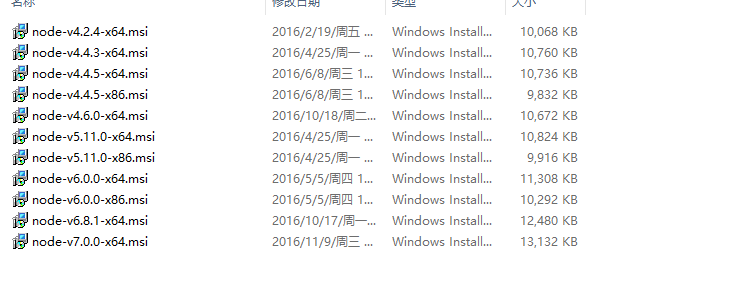
After downloading, you get the installation packages. There are 32-bit and 64-bit multi-version installation packages. Users can choose according to their own system
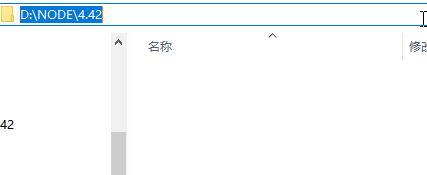
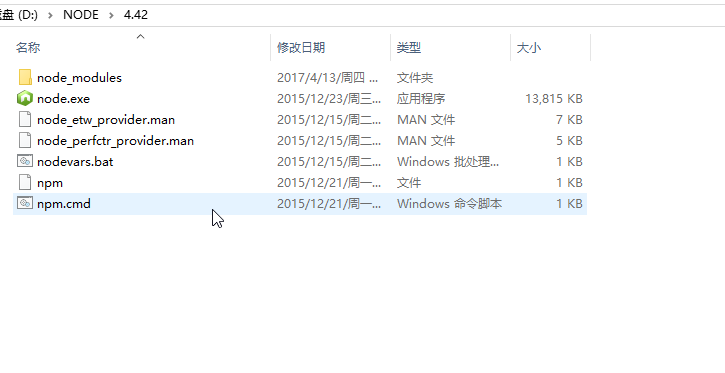
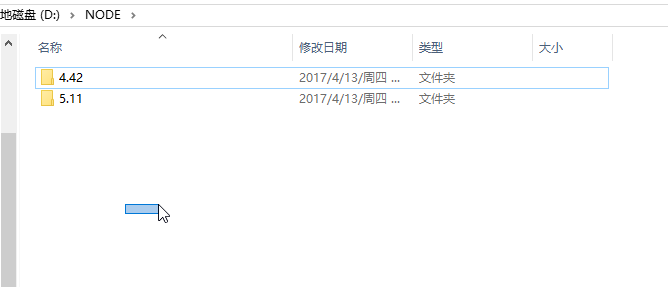
Before installing Node, I first choose a Node installation directory. I want to install it on the D drive, so I created a Node directory on the D drive, and created a 4.42 folder inside it, because I'm going to install version 4.42 of Node in this folder
Start installation:
Open the Node 4.42 installation package, keep clicking Next until the installation path appears:
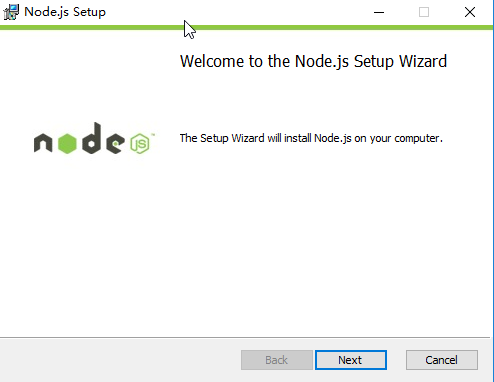
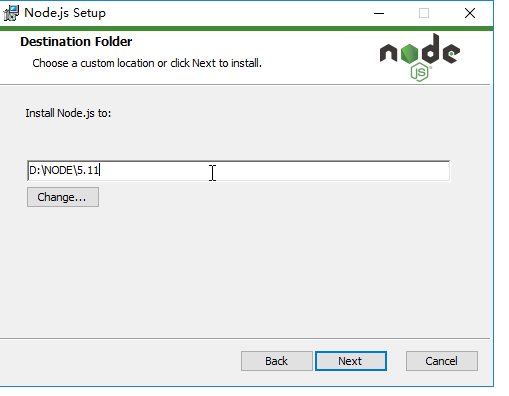
Change the installation path to the path of the 4.42 folder we created, then click Next all the way through. After successful installation, many files appear in the folder. At this point, Node is installed
Change the path inside toD:\node\4.42\
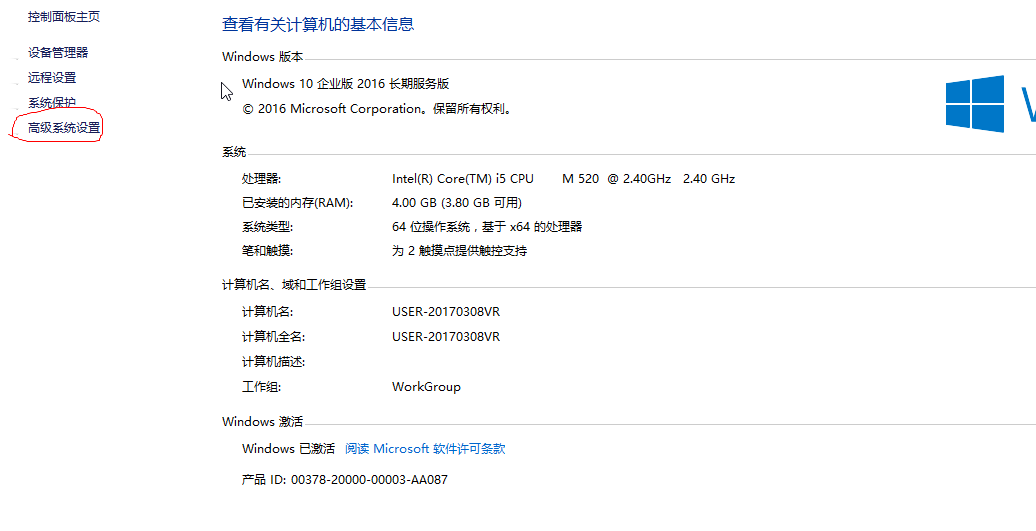
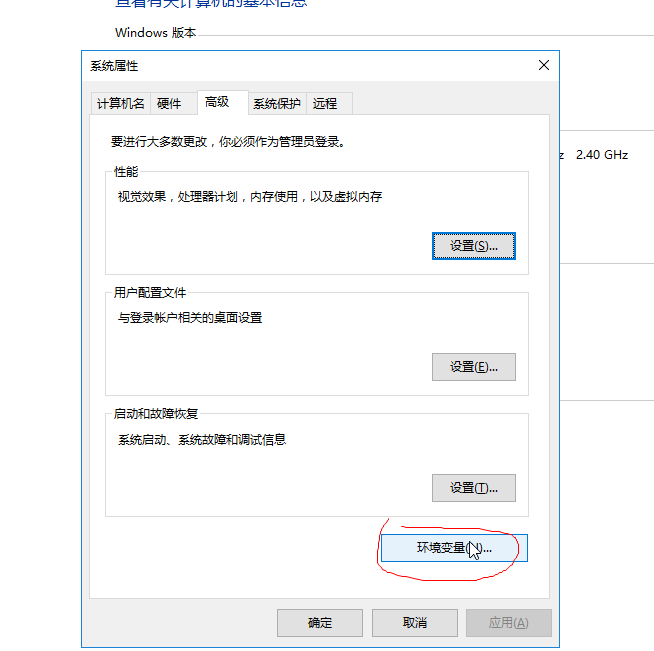
Is Node ready to use after installation? Of course not. You also need to configure environment variables: Computer => Properties => Advanced System Settings => Environment Variables
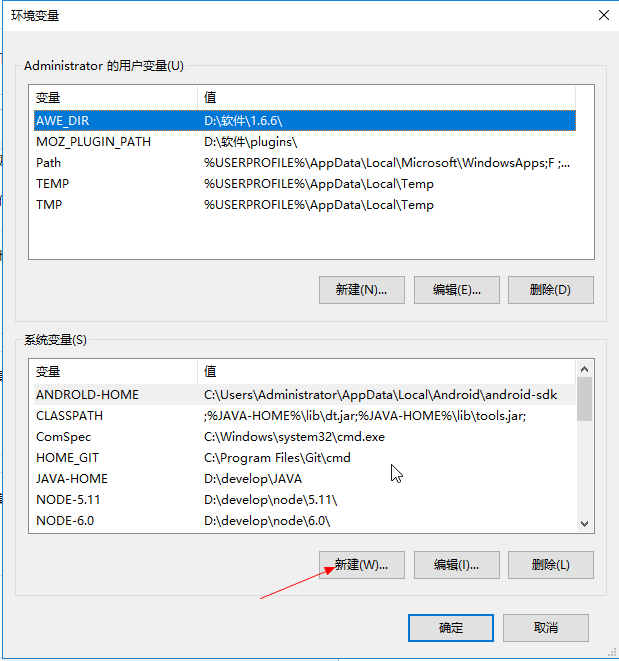
In System Variables, click New. Variable name: node_4.42. The variable value is the installation directory of your 4.42 version, which isD:\node\4.42\
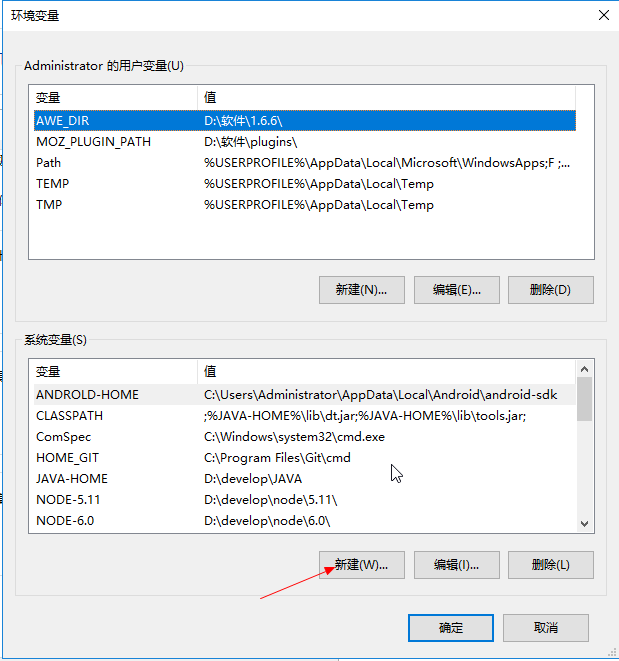
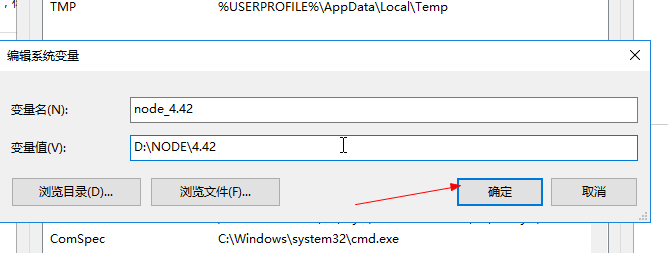
After clicking OK, find in System Variablespaththe variable, select it and click Edit
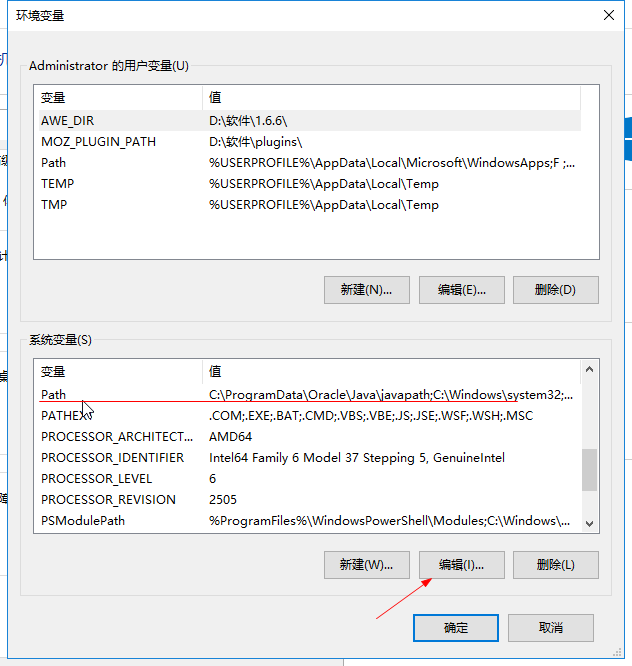
Seepaththe values in the variable? We add the variable we just created to it. How to add it? A pair of%marks, write the name of the variable we just created in the middle, then put it at the very end of PATH. Be sure not to forget the middle;mark. Between each variable there should be a;
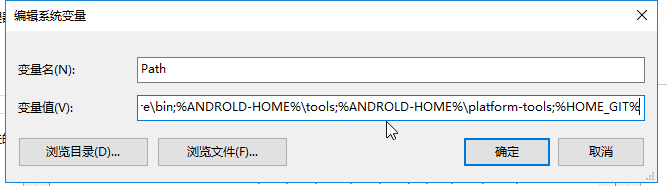
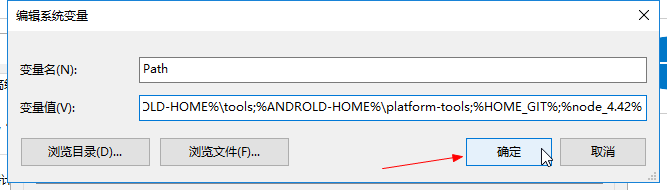
After placing it, click OK, then let's openCMD(Win+R); enter:
$ node -v
If the version number appears, then our first Node is installed and can be used normally;
Installing multiple versions: after the first one is installed, install the second Node version;
Before installing the new version, what we need to do is first find the installation directory of the previous version, which isD:\node\4.42, then rename the 4.42 folder (because if you don't change the name, when you install the new version, no matter where you install it, it will overwrite the previous one):
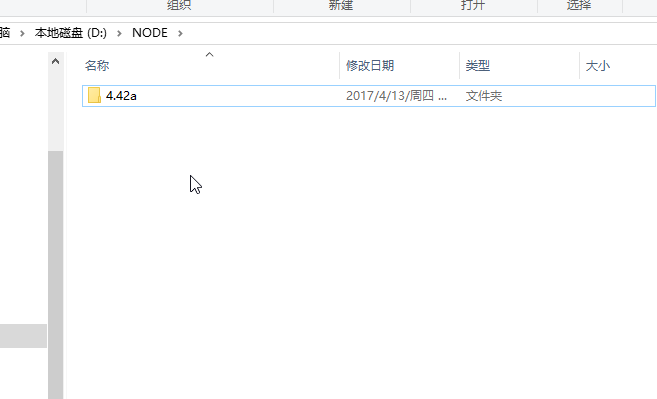
After modifying, create a new directory. I'll name it 5.11 (because I plan to install version 5.11 next)
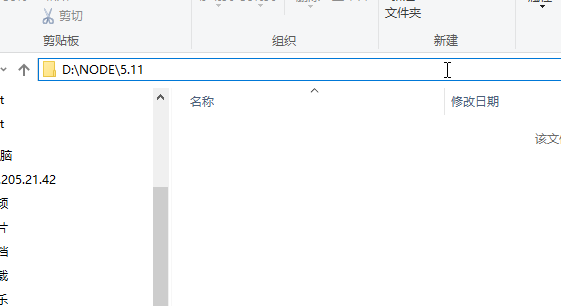
Just start installing 5.11. The process is the same as above. After configuring the environment variables, our 5.11 is installed.
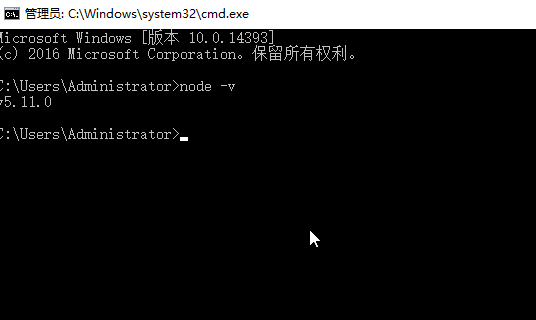
After installing version 5.11, let's come back and change the 4.42 directory back;
Let's verify whether we currently have two Node versions installed:where node, and the currently used version:node -v
$ where node
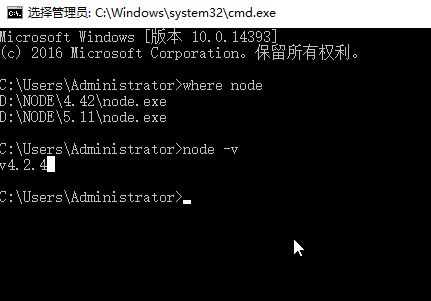
where node shows two entries, confirming that we have indeed installed two versions of Node,node -vtelling us which version is currently being used!!!
If we want to install other versions as well, the method is the same, just follow the steps above
Suppose we have now installed many versions of Node, but the current Node version is not the one I want to use. What should I do? How do I switch Node versions?
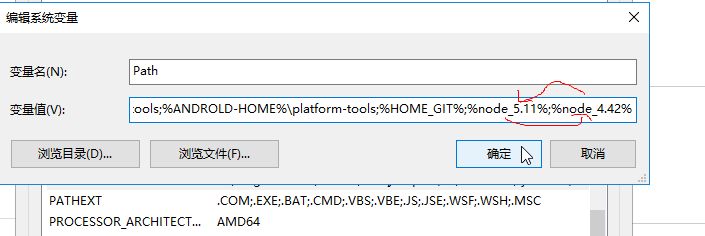
Open environment variables, findpath. Whichever version you want to use, put that Node variable at the very front of all Node variables. For example, if my previous PATH was %node_4.42%;%node_5.11%, I am using version 4.42. If I want to
use version 5.11, then I need to change the one in PATH%node_4.42%;%node_5.11%to%node_5.11%;%node_4.42%
 《
《
2 At this point, let's check again:where nodeandnode -v
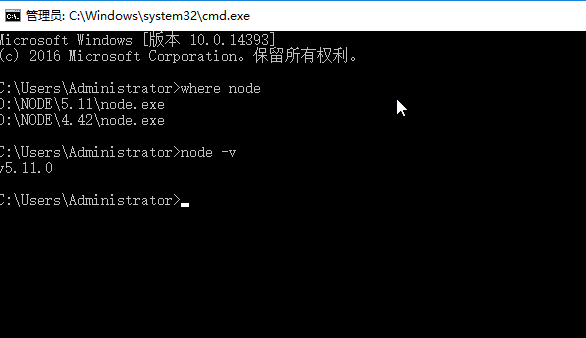
This is how we install multiple versions of Node and switch between Node versions;
Original author: 小鳥依家
Original link:http://www.birdshome.top/2017/04/13/nodejs/