In this chapter we will learn how to use JS/CSS to implement a dropdown menusearchorfilterfunctionality.
First look at the effect below:
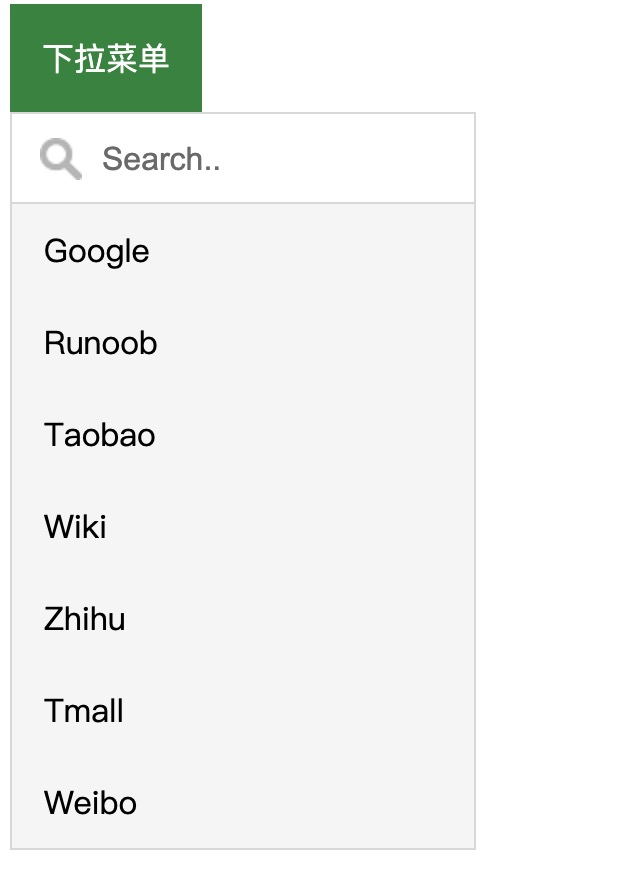
View online example:https://c.example.com/codedemo/6229/
Basic HTML Code
Example
<div class="dropdown">
<button onclick="myFunction()" class="dropbtn">Dropdown Menu</button>
<div id="myDropdown" class="dropdown-content">
<input type="text" placeholder="Search.." id="myInput" onkeyup="filterFunction()">
<a href="#about">Google</a>
<a href="#base">Example</a>
<a href="#blog">Taobao</a>
<a href="#contact">Wiki</a>
<a href="#custom">Zhihu</a>
<a href="#support">Tmall</a>
<a href="#tools">Weibo</a>
</div>
</div>
The following is the style for the search box and suggestion menu:
Example
/*Dropdown Menu Button*/
.dropbtn {
background-color: #0457AA;
color: white;
padding: 16px;
font-size: 16px;
border: none;
cursor: pointer;
}
/*The style when the mouse moves over the dropdown menu button*/
.dropbtn:hover, .dropbtn:focus {
background-color: #4877A6;
}
/*Search Box*/
#myInput {
box-sizing: border-box;
background-image: url('searchicon.png');
background-position: 14px 12px;
background-repeat: no-repeat;
font-size: 16px;
padding: 14px 20px 12px 45px;
border: none;
border-bottom: 1px solid #ddd;
}
/*The style when the search box gets focus*/
#myInput:focus {outline: 3px solid #ddd;}
/*Container <div> - Position the dropdown menu*/
.dropdown {
position: relative;
display: inline-block;
}
/*Dropdown menu content (hidden by default)*/
.dropdown-content {
display: none;
position: absolute;
background-color: #f6f6f6;
min-width: 230px;
border: 1px solid #ddd;
z-index: 1;
}
/*Dropdown menu link styles*/
.dropdown-content a {
color: black;
padding: 12px 16px;
text-decoration: none;
display: block;
}
/*The style when the mouse moves over the link*/
.dropdown-content a:hover {background-color: #f1f1f1}
/*Show dropdown menu (use JS to add the .dropdown-content class)*/
.show {display:block;}
The following is the JavaScript code for the search box and suggestion menu:
Example
/*Click the button to show or hide the dropdown menu*/
function myFunction() {
document.getElementById("myDropdown").classList.toggle("show");
}
/*Search functionality*/
function filterFunction() {
var input, filter, ul, li, a, i;
input = document.getElementById("myInput");
filter = input.value.toUpperCase();
div = document.getElementById("myDropdown");
a = div.getElementsByTagName("a");
for (i = 0; i < a.length; i++) {
txtValue = a[i].textContent || a[i].innerText;
if (txtValue.toUpperCase().indexOf(filter) > -1) {
a[i].style.display = "";
} else {
a[i].style.display = "none";
}
}
}
Try it yourself »