Anaconda Tutorial
For Python quantitative analysis, you can directly use Anaconda tools to improve efficiency and avoid some installation hassles.
Anaconda is a software suite for data science and machine learning. It includes many tools and libraries that make it easier for you to program, analyze data, and build machine learning models.
The management tool for Anaconda packages, their dependencies, and environments iscondacommand, which will be described in detail later in this article.
Compared with traditionalPython piptools, Anaconda'scondacan switch between different environments more conveniently, and environment management is simpler.
Why choose Anaconda?
Easy installation:Installing Anaconda is as simple as installing an application. It comes with many commonly used tools pre-installed, so there is no need to configure them separately.
Package manager:Anaconda includes a package manager named Conda, which is used to install, update, and manage software packages. Conda is not limited to Python; it also supports package management for many other languages.
Environment management:With Anaconda, you can easily create and manage multiple independent Python environments, such as installing python2 and python3 environments and then switching between them freely. This is very useful for using different library and tool versions in different projects to avoid version conflicts.
Integrated tools and libraries:Anaconda bundles many important tools and libraries for data science, machine learning, and scientific computing, such as NumPy, Pandas, Matplotlib, SciPy, Scikit-learn, and so on.
Jupyter Notebook:Jupyter is an interactive computing environment that supports multiple programming languages, but in Anaconda it is mainly used for Python. It allows users to create and share documents containing live code, equations, visualizations, and narrative text.
Spyder integrated development environment:Anaconda integrates Spyder, an integrated development environment designed specifically for scientific computing and data analysis, with features such as code editing, debugging, and data visualization.
Cross-platform support:Anaconda can run on operating systems such as Windows, macOS, and Linux, making it a cross-platform solution.
Community support:Anaconda has a large community. Users can get help, share experiences, and solve problems on community forums.
Anaconda Installation
Anaconda installation package download address:https://www.anaconda.com/download。
Anaconda can run on operating systems such as Windows, macOS, and Linux. You can download the installation package for different platforms:

macOS Platform
The installation process is also simple. Double-click to open the downloaded installation package, and selectInstall for me only:
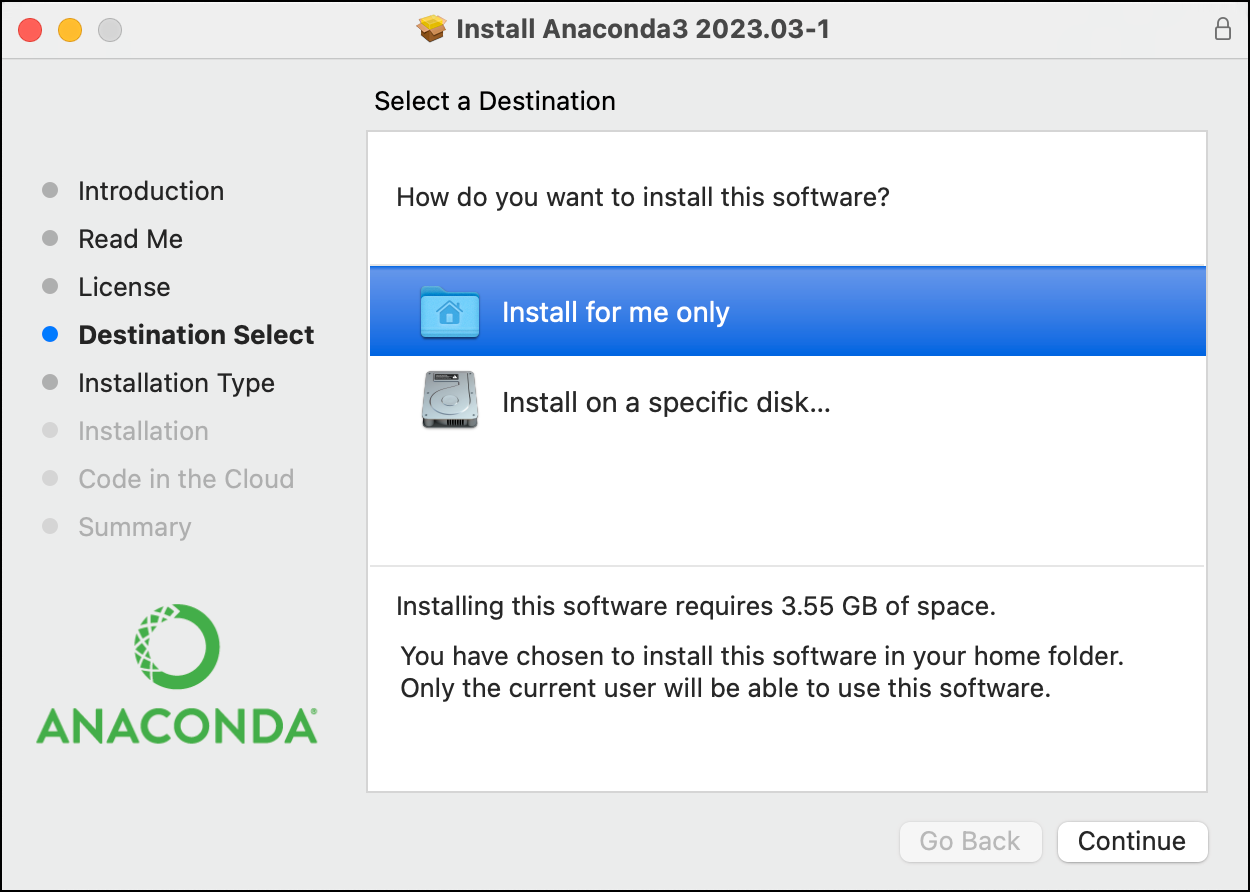
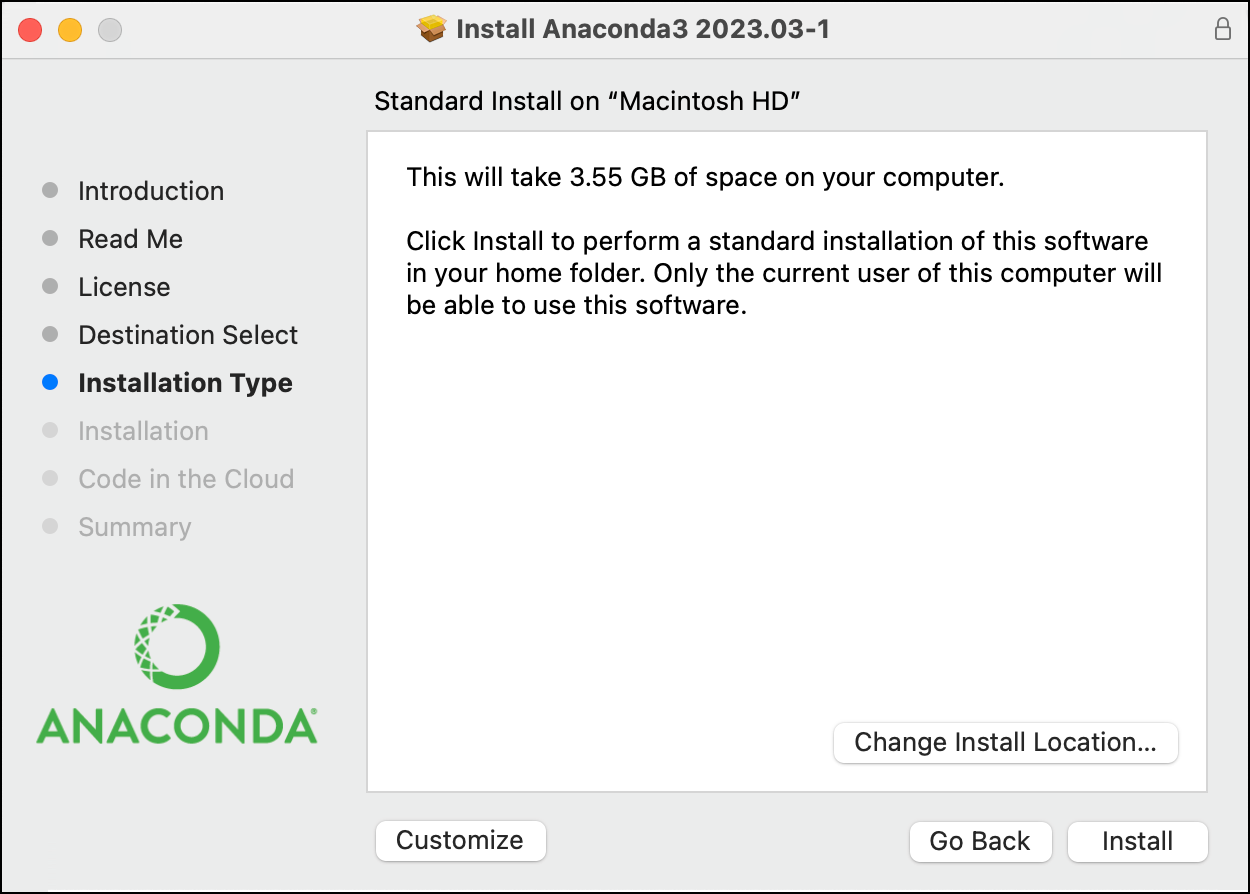
After the installation is complete, clickContinuebutton, and then you will see the installation completion interface:

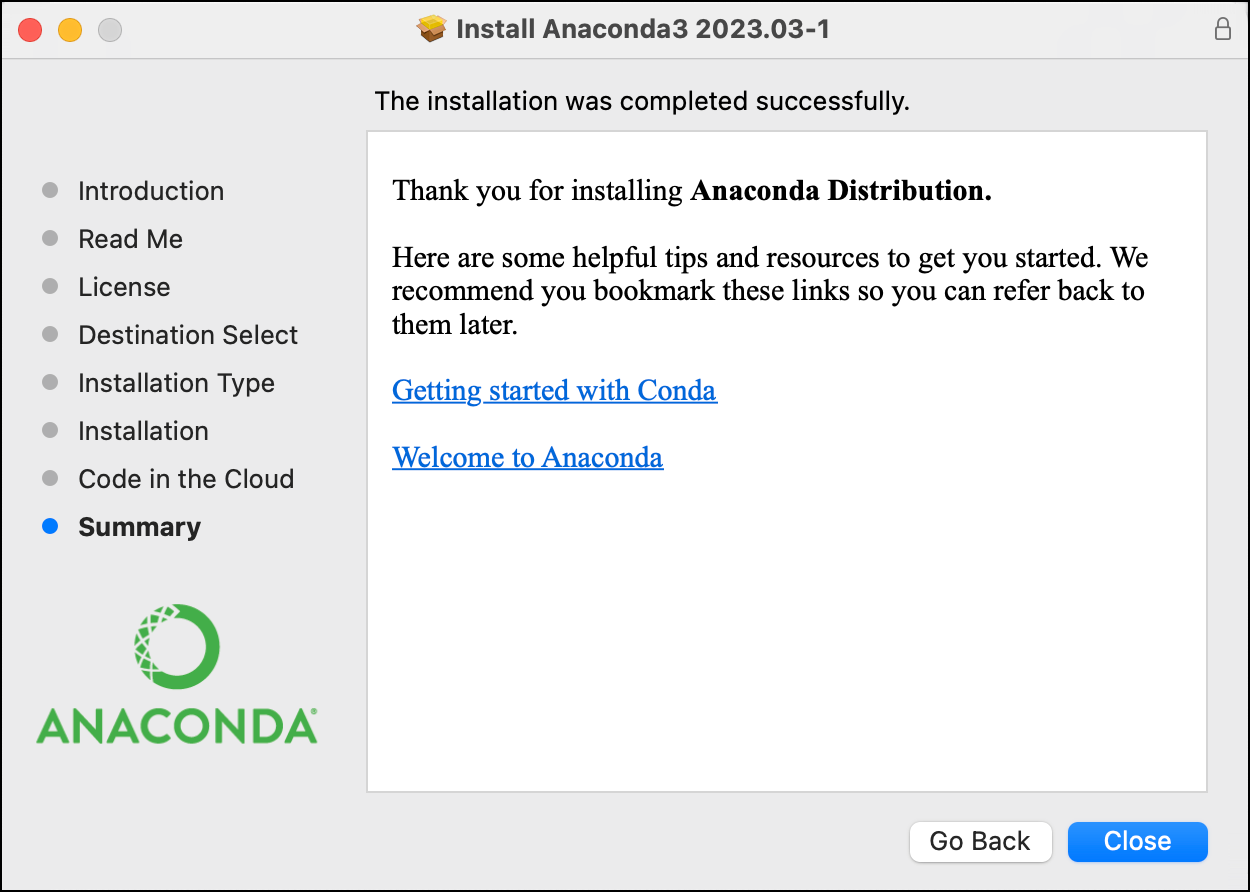
For macOS platform installation, please refer to the official website:https://docs.anaconda.com/free/anaconda/install/mac-os/
Windows Platform
The Windows platform is similar to macOS. After downloading the installation package, double-click it, agree to some agreements, and simply follow the default settings by clicking Next step by step.
Choose the installation directory: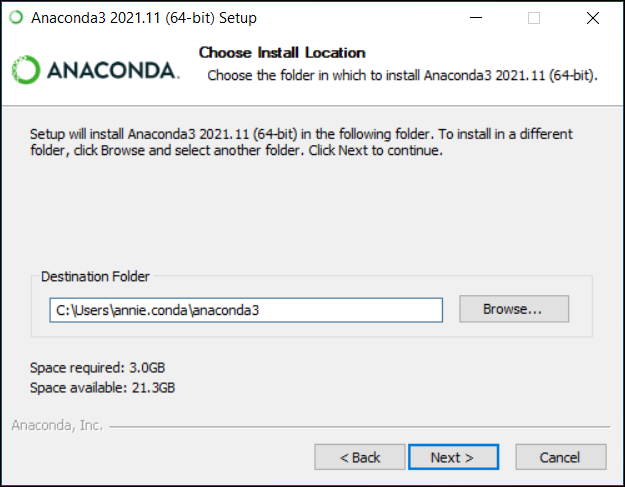
In "Advanced Installation Options", do not check "Add Anaconda to my PATH environment variable." (i.e., "Add Anaconda to my environment variables."), because if you check it, it will affect the use of other programs.
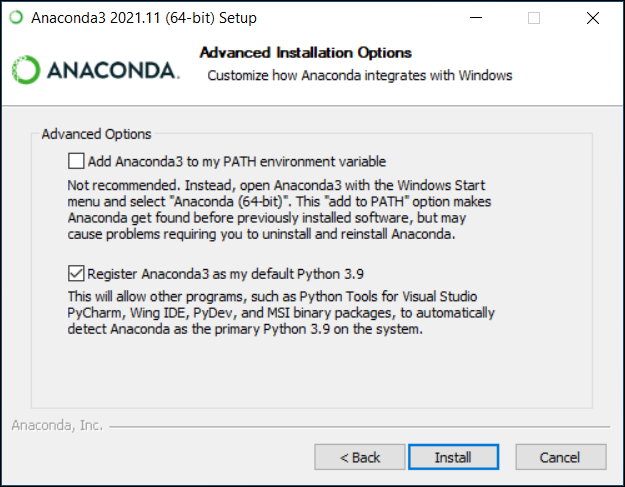
Click the Install button to proceed with the installation. After successful installation, the following interface appears:
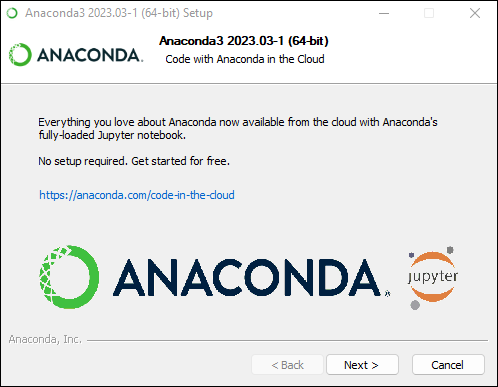
ClickNextbutton:
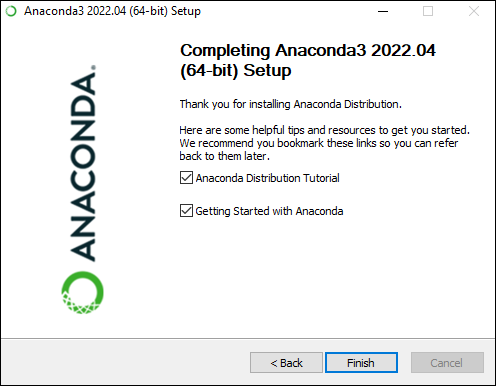
For Windows platform installation, please refer to the official website:https://docs.anaconda.com/free/anaconda/install/windows/
Linux Platform
On Linux, you can install it with the following command. You can replace the version number in the installation:
curl -O https://repo.anaconda.com/archive/Anaconda3-2023.09-0-Linux-x86_64.sh
For installation on different Linux platforms, please refer to the official website:https://docs.anaconda.com/free/anaconda/install/linux/
Using the Anaconda Interface
After installation, we can enter the Anaconda management interface to view and install different environments:
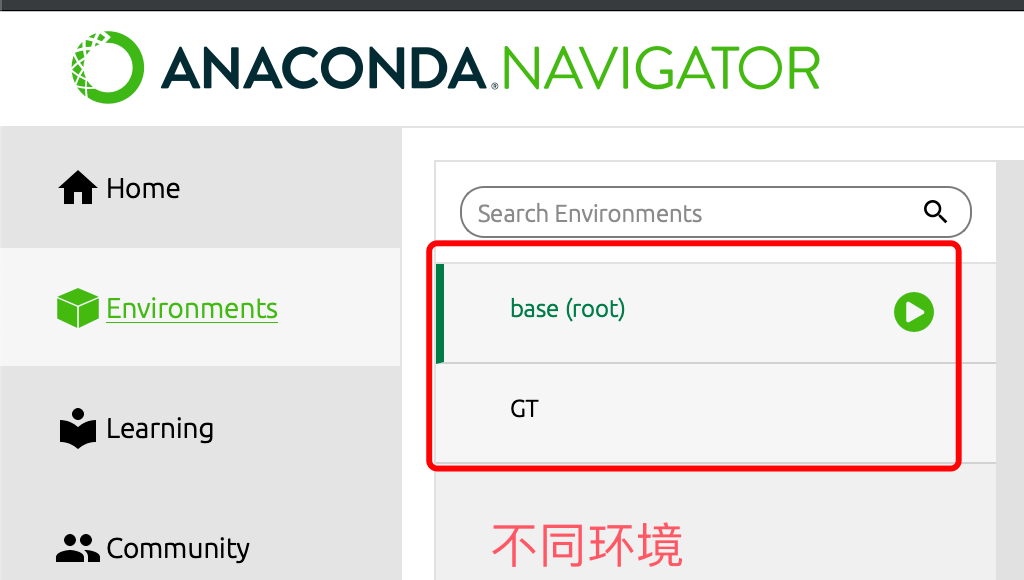
ClickEvironmentsto view the environments that have already been installed:
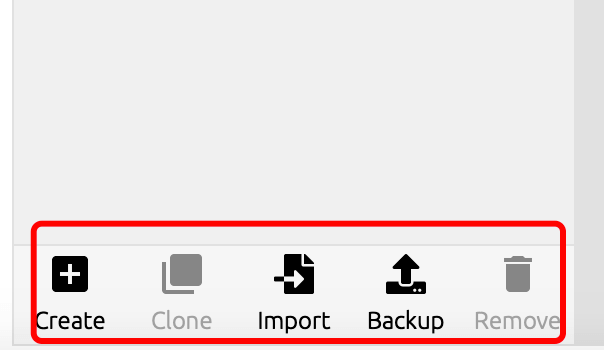
There are also buttons at the bottom for creating and deleting environments, which we can freely operate:
conda Commands
In addition to the interface operations, we can also use conda on the command line to manage different environments.
condaIt is the package manager in the Anaconda distribution, used to install, update, and uninstall software packages, as well as to create and manage different Python environments.
The following are some commonly used Conda commands and their brief introductions:
Environment Management
Create a new environment named "myenv":
conda create --name myenv
Create an environment with a specified version:
conda create --name myenv python=3.8
The above code creates a new environment named "myenv" and specifies Python version 3.8.
Activate the environment:
conda activate myenv
The above code activates the environment named "myenv".
To exit the current environment, use the following command:
deactivate
View all environments:
conda env list
The above code views all created environments.
Clone an environment:
conda create --name myclone --clone myenv
The above code creates a new environment by cloning an existing environment.
Delete an environment:
conda env remove --name myenv
The above code deletes the environment named "myenv".
Package Management
Install a package:
conda install package_name
The above code installs the software package named "package_name".
Install a specific version of a package:
conda install package_name=1.2.3
The above code installs the specified version of "package_name".
Update a package:
conda update package_name
The above code updates an installed package.
Uninstall a package:
conda remove package_name
The above code uninstalls an installed package.
View installed packages:
conda list
View all installed packages and their versions in the current environment.
Other Common Commands
View help:
conda --help
The above code obtains help information for the conda command.
View conda version:
conda --version
The above code views the installed conda version.
Search for a package:
conda search package_name
The above code searches the conda repository for the specified package.
Clean up packages that are no longer needed:
conda clean --all
The above code cleans the conda cache and deletes packages that are no longer needed.
Jupyter Notebook (Optional)
Install Jupyter Notebook:
conda install jupyter
The above code installs Jupyter Notebook.
Launch Jupyter Notebook:
jupyter notebook
The above code launches Jupyter Notebook in the activated environment.
Other Extensions