PostgreSQL Select Database
In the previous chapter, we discussed how to create a database. Next, let's discuss how to select the database we created.
Database command window
In the PostgreSQL command window, we can enter SQL statements after the command prompt:
postgres=#
Use \lis used to view existing databases:
postgres=# \l
                             List of databases
   Name    |  Owner   | Encoding | Collate | Ctype |   Access privileges
-----------+----------+----------+---------+-------+-----------------------
 postgres  | postgres | UTF8     | C       | C     |
 exampledb  | postgres | UTF8     | C       | C     |
 template0 | postgres | UTF8     | C       | C     | =c/postgres          +
           |          |          |         |       | postgres=CTc/postgres
 template1 | postgres | UTF8     | C       | C     | =c/postgres          +
           |          |          |         |       | postgres=CTc/postgres
(4 rows)
Next, we can use\c + database nameto enter the database:
postgres=# \c exampledb
You are now connected to database "exampledb" as user "postgres".
exampledb=#
System command line window
When checking in the system command line, we can add the database name after the database connection to select the database:
$ psql -h localhost -p 5432 -U postgres exampledb
Password for user postgres: ****
psql (11.3)
Type "help" for help.
You are now connected to database "exampledb" as user "postgres".
exampledb=#
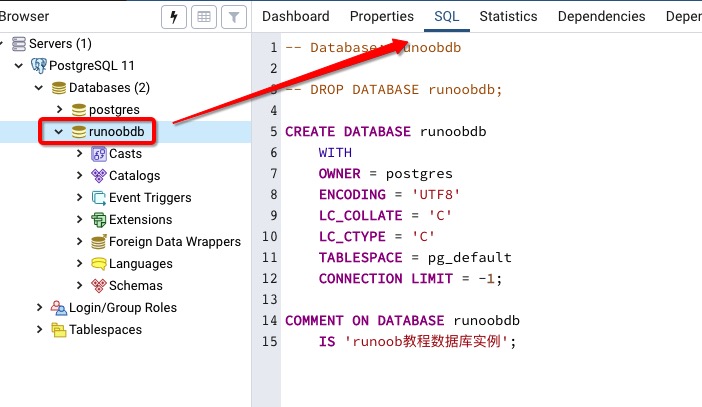
pgAdmin tool
The pgAdmin tool is even simpler. Just click on the database to select it, and you can also view some additional database information: