In this chapter, we will learn how to use JS/CSS to implement search box autocomplete functionality.
Let's first look at the effect:
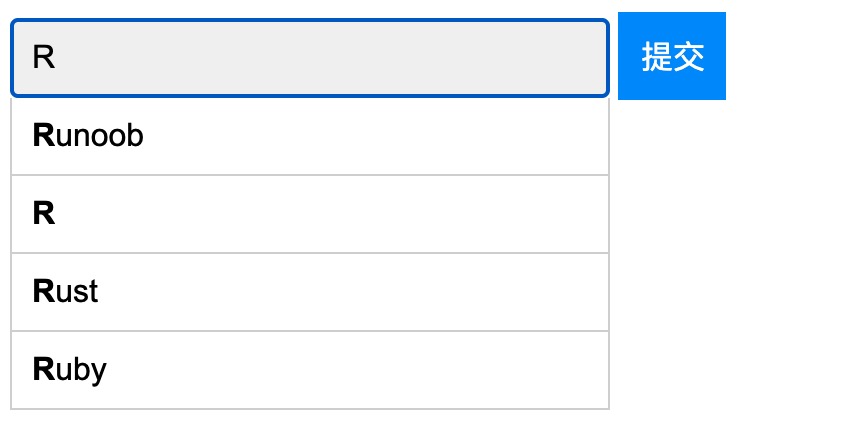
View online examples:https://c.example.com/codedemo/6190
Basic HTML code
Example
<!--autocomplete="off" ensures the form has autofill disabled:-->
<form autocomplete="off" action="/index.php">
<div class="autocomplete" style="width:300px;">
<input id="myInput" type="text" name="s" placeholder="Please enter search content">
</div>
<input type="submit">
</form>
Next, prepare the basic search test data, which is a JavaScript array:
var sites = ["Google","Taobao","Example","Wiki","Zhihu","Baidu","Sina","Tmall","JD","Alibaba","QQ","Weixin"];
The following are the styles for the search box and the suggestion menu:
Example
* { box-sizing: border-box; }
body {
font: 16px Arial;
}
.autocomplete {
/*Container positioning set to relative:*/
position: relative;
display: inline-block;
}
input {
border: 1px solid transparent;
background-color: #f1f1f1;
padding: 10px;
font-size: 16px;
}
input[type=text] {
background-color: #f1f1f1;
width: 100%;
}
input[type=submit] {
background-color: DodgerBlue;
color: #fff;
}
.autocomplete-items {
position: absolute;
border: 1px solid #d4d4d4;
border-bottom: none;
border-top: none;
z-index: 99;
/*Set the auto-fill item width to be the same as the container*/
top: 100%;
left: 0;
right: 0;
}
.autocomplete-items div {
padding: 10px;
cursor: pointer;
background-color: #fff;
border-bottom: 1px solid #d4d4d4;
}
.autocomplete-items div:hover {
/*The background color set when the mouse moves over the filled item*/
background-color: #e9e9e9;
}
.autocomplete-active {
/*Background color when using arrow keys to browse filled items*/
background-color: DodgerBlue !important;
color: #ffffff;
}
The following is the JavaScript code for the search box and the suggestion menu:
Example
function autocomplete(inp, arr) {
/*The autofill function has two parameters: the input element and the array to autofill.*/
var currentFocus;
/*Listen to the input field; when inside the input element, execute the following function.*/
inp.addEventListener("input", function(e) {
var a, b, i, val = this.value;
/*Close the open autofill list*/
closeAllLists();
if (!val) { return false;}
currentFocus = -1;
/*Create a DIV element to hold the values of the autofill list*/
a = document.createElement("DIV");
a.setAttribute("id", this.id + "autocomplete-list");
a.setAttribute("class", "autocomplete-items");
/*DIV as a child element of the auto-fill container*/
this.parentNode.appendChild(a);
/*Circular Array*/
for (i = 0; i < arr.length; i++) {
/*Check if autocomplete items have the same content as the text field value, ignoring case.*/
if (arr[i].substr(0, val.length).toUpperCase() == val.toUpperCase()) {
/*Create a DIV element for each matching element*/
b = document.createElement("DIV");
/*Bold matching items*/
b.innerHTML = "<strong>" + arr[i].substr(0, val.length) + "</strong>";
b.innerHTML += arr[i].substr(val.length);
/*The selected fill item is inserted into a hidden input field to store the current selected value.*/
b.innerHTML += "<input type='hidden' value='" + arr[i] + "'>";
/*Execute a function when someone clicks a fill item (DIV element)*/
b.addEventListener("click", function(e) {
/*The selected fill item is inserted into the hidden input search field*/
inp.value = this.getElementsByTagName("input")[0].value;
/*Disable auto-fill list*/
closeAllLists();
});
a.appendChild(b);
}
}
});
/*Execute a function when a key on the keyboard is pressed*/
inp.addEventListener("keydown", function(e) {
var x = document.getElementById(this.id + "autocomplete-list");
if (x) x = x.getElementsByTagName("div");
if (e.keyCode == 40) {
/*If the down arrow key is pressed, the currentFocus variable is incremented by 1, i.e., it moves down one position.*/
currentFocus++;
/*Make the current selected item more prominent*/
addActive(x);
} else if (e.keyCode == 38) { //up
/*Press the up arrow key to move the selected list item up one position.*/
currentFocus--;
/*Make the current selected item more prominent*/
addActive(x);
} else if (e.keyCode == 13) {
/*If the ENTER key is pressed, prevent submission; you can also set submit to submit.*/
e.preventDefault();
if (currentFocus > -1) {
/*Simulate clicking the selected item*/
if (x) x[currentFocus].click();
}
}
});
function addActive(x) {
/*Set the selected option function*/
if (!x) return false;
/*Mobile options set the background color of different selected options*/
removeActive(x);
if (currentFocus >= x.length) currentFocus = 0;
if (currentFocus < 0) currentFocus = (x.length - 1);
/*Add the "autocomplete-active" class*/
x[currentFocus].classList.add("autocomplete-active");
}
function removeActive(x) {
/*Remove the "autocomplete-active" class from unselected options.*/
for (var i = 0; i < x.length; i++) {
x[i].classList.remove("autocomplete-active");
}
}
function closeAllLists(elmnt) {
/*Disable auto-add list*/
var x = document.getElementsByClassName("autocomplete-items");
for (var i = 0; i < x.length; i++) {
if (elmnt != x[i] && elmnt != inp) {
x[i].parentNode.removeChild(x[i]);
}
}
}
/*Click anywhere in the HTML document to close the populated list*/
document.addEventListener("click", function (e) {
closeAllLists(e.target);
});
}
Finally, we use the above JavaScript code on the input field with id myInput: