この章では、JS/CSS を使って検索ボックスのオートコンプリート機能を実装する方法を学びます。
まず、以下のような効果をご確認ください:
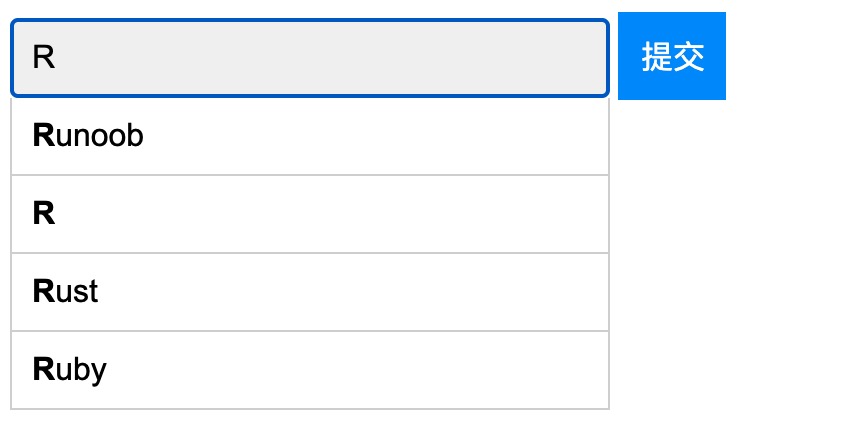
オンラインサンプルを表示:https://c.example.com/codedemo/6190
基本 HTML コード
サンプル
<!--autocomplete="off" は、フォームの自動入力機能をオフにします:-->
<form autocomplete="off" action="/index.php">
<div class="autocomplete" style="width:300px;">
<input id="myInput" type="text" name="s" placeholder="検索内容を入力してください">
</div>
<input type="submit">
</form>
次に、基本的な検索テストデータとして JavaScript 配列を用意します:
var sites = ["Google","Taobao","サンプル","Wiki","Zhihu","Baidu","Sina","Tmall","JD","Alibaba","QQ","Weixin"];
以下は、検索ボックスとオートコンプリートメニューのスタイルです:
サンプル
* { box-sizing: border-box; }
body {
font: 16px Arial;
}
.autocomplete {
/*コンテナの位置指定を relative に設定します:*/
position: relative;
display: inline-block;
}
input {
border: 1px solid transparent;
background-color: #f1f1f1;
padding: 10px;
font-size: 16px;
}
input[type=text] {
background-color: #f1f1f1;
width: 100%;
}
input[type=submit] {
background-color: DodgerBlue;
color: #fff;
}
.autocomplete-items {
position: absolute;
border: 1px solid #d4d4d4;
border-bottom: none;
border-top: none;
z-index: 99;
/*オートコンプリート項目の幅をコンテナと同じに設定します*/
top: 100%;
left: 0;
right: 0;
}
.autocomplete-items div {
padding: 10px;
cursor: pointer;
background-color: #fff;
border-bottom: 1px solid #d4d4d4;
}
.autocomplete-items div:hover {
/*マウスを候補項目の上に置いたときの背景色*/
background-color: #e9e9e9;
}
.autocomplete-active {
/*矢印キーで候補項目を移動したときの背景色*/
background-color: DodgerBlue !important;
color: #ffffff;
}
以下は、検索ボックスとオートコンプリートメニューの JavaScript コードです:
サンプル
function autocomplete(inp, arr) {
/*オートコンプリート関数には2つの引数があります。input 入力ボックス要素と、オートコンプリート用の配列です。*/
var currentFocus;
/*input 入力ボックスを監視し、input 入力ボックス要素内で入力が行われたときに次の関数を実行します。*/
inp.addEventListener("input", function(e) {
var a, b, i, val = this.value;
/*開いているオートコンプリートリストを閉じます*/
closeAllLists();
if (!val) { return false;}
currentFocus = -1;
/*オートコンプリートリストの値を配置するための DIV 要素を作成します*/
a = document.createElement("DIV");
a.setAttribute("id", this.id + "autocomplete-list");
a.setAttribute("class", "autocomplete-items");
/*DIV はオートコンプリートコンテナの子要素として追加されます*/
this.parentNode.appendChild(a);
/*配列をループします*/
for (i = 0; i < arr.length; i++) {
/*候補項目にテキストフィールドの値と一致する内容があるか確認します(大文字と小文字を区別しません)*/
if (arr[i].substr(0, val.length).toUpperCase() == val.toUpperCase()) {
/*一致した各要素に対して DIV 要素を作成します*/
b = document.createElement("DIV");
/*一致した項目を太字にします*/
b.innerHTML = "<strong>" + arr[i].substr(0, val.length) + "</strong>";
b.innerHTML += arr[i].substr(val.length);
/*選択された候補項目を非表示の input 入力フィールドに挿入し、現在の選択値を保存します*/
b.innerHTML += "<input type='hidden' value='" + arr[i] + "'>";
/*候補項目(DIV 要素)がクリックされたときに関数を実行します*/
b.addEventListener("click", function(e) {
/*選択された候補項目を非表示の input 検索フィールドに挿入します*/
inp.value = this.getElementsByTagName("input")[0].value;
/*オートコンプリートリストを閉じます*/
closeAllLists();
});
a.appendChild(b);
}
}
});
/*キーボードのいずれかのキーが押されたときに関数を実行します*/
inp.addEventListener("keydown", function(e) {
var x = document.getElementById(this.id + "autocomplete-list");
if (x) x = x.getElementsByTagName("div");
if (e.keyCode == 40) {
/*下矢印キーが押された場合、currentFocus 変数を 1 増やし、つまり下に 1 つ移動します*/
currentFocus++;
/*現在選択中の項目をより目立たせます*/
addActive(x);
} else if (e.keyCode == 38) { //up
/*上矢印キーが押された場合、選択中のリスト項目を上に 1 つ移動します*/
currentFocus--;
/*現在選択中の項目をより目立たせます*/
addActive(x);
} else if (e.keyCode == 13) {
/*Enter キーが押された場合、送信を防ぎます。submit 送信を設定することもできます*/
e.preventDefault();
if (currentFocus > -1) {
/*選択中の項目のクリックをシミュレートします*/
if (x) x[currentFocus].click();
}
}
});
function addActive(x) {
/*選択されたオプションを設定する関数*/
if (!x) return false;
/*オプションを移動して、選択されたオプションごとに異なる背景色を設定します*/
removeActive(x);
if (currentFocus >= x.length) currentFocus = 0;
if (currentFocus < 0) currentFocus = (x.length - 1);
/*"autocomplete-active" クラスを追加します*/
x[currentFocus].classList.add("autocomplete-active");
}
function removeActive(x) {
/*選択されていないオプションから "autocomplete-active" クラスを削除します*/
for (var i = 0; i < x.length; i++) {
x[i].classList.remove("autocomplete-active");
}
}
function closeAllLists(elmnt) {
/*オートコンプリートリストを閉じます*/
var x = document.getElementsByClassName("autocomplete-items");
for (var i = 0; i < x.length; i++) {
if (elmnt != x[i] && elmnt != inp) {
x[i].parentNode.removeChild(x[i]);
}
}
}
/*HTML ドキュメントの任意の場所をクリックするとオートコンプリートリストが閉じます*/
document.addEventListener("click", function (e) {
closeAllLists(e.target);
});
}
最後に、id が myInput の input 入力ボックスで上記の JavaScript コードを使用します: