HTML Editor
HTML Editor Recommendation
You can use professional HTML editors to edit HTML. Here are a few commonly used editors recommended for you:
You can download the corresponding software from the official website of the software mentioned above and install it by following the steps.
You can also use our online editor:https://www.jyshare.com/front-end/61/
Next, we will demonstrate how to use the VS Code tool to create an HTML file.
VS Code
Visual Studio Code (VS Code for short) is an open-source code editor developed by Microsoft that supports operating systems such as Windows, Linux, and macOS, and has built-in extension management functionality.
VS Code Installation Tutorial Reference:https://www.example.com/vscode/vscode-tutorial.html
Step 1: Create a new HTML file
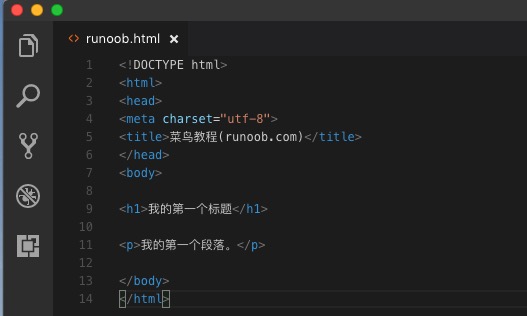
After installing VS Code, select "File (F) -> New File (N)", and enter the following code in the newly created file:
Step 2: Save as an HTML file
Then select "File (F) -> Save As (A)" and name the file example.html:
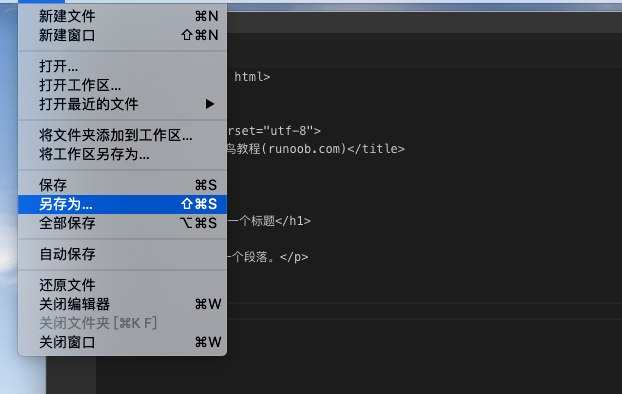
When saving the HTML file, you can use either.htmYou can also use.htmlextension. There is no difference between them; it is entirely up to your preference. I recommend using a unified.html。
Save this file in an easy-to-remember folder, for exampleexample
Step 3: Run this HTML file in a browser
Then right-click the file name on the editor and select Open in Default Browser (or another browser):
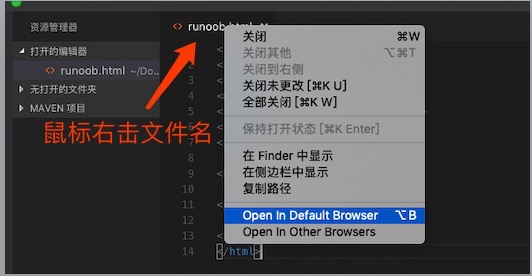
Note:To open an html file in the browser in vscode, you need to install"open in browser"Extension.
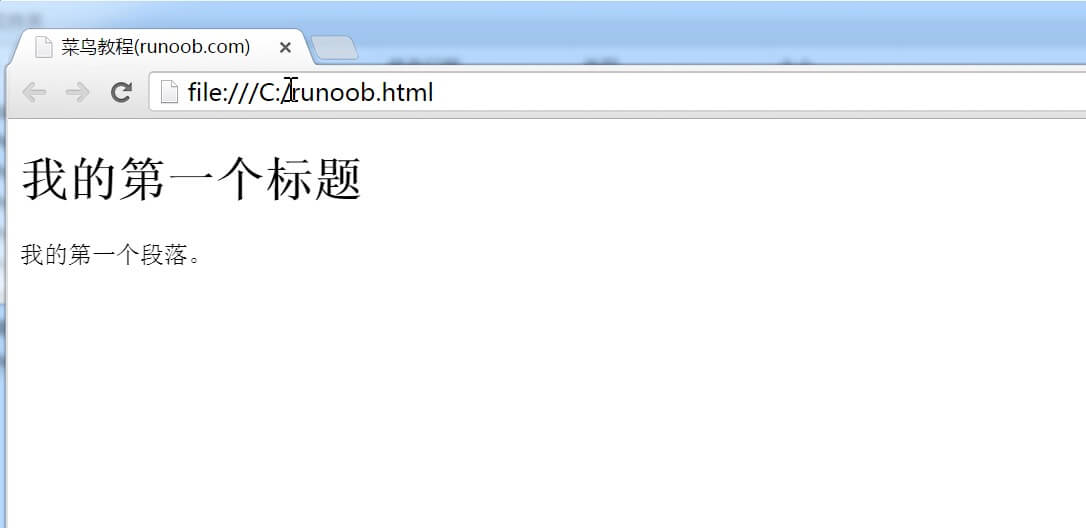
The running result will display something like the following:
other extensions
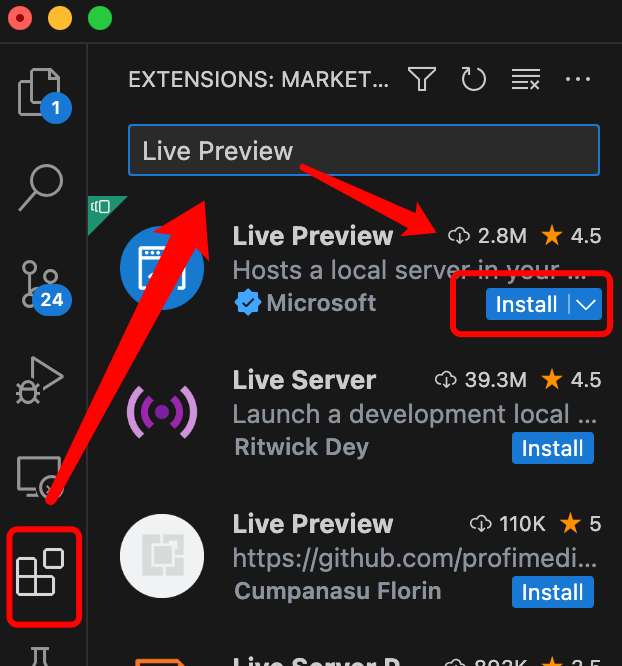
VS Code can installLive Previewplugins to preview the code you write in real time:
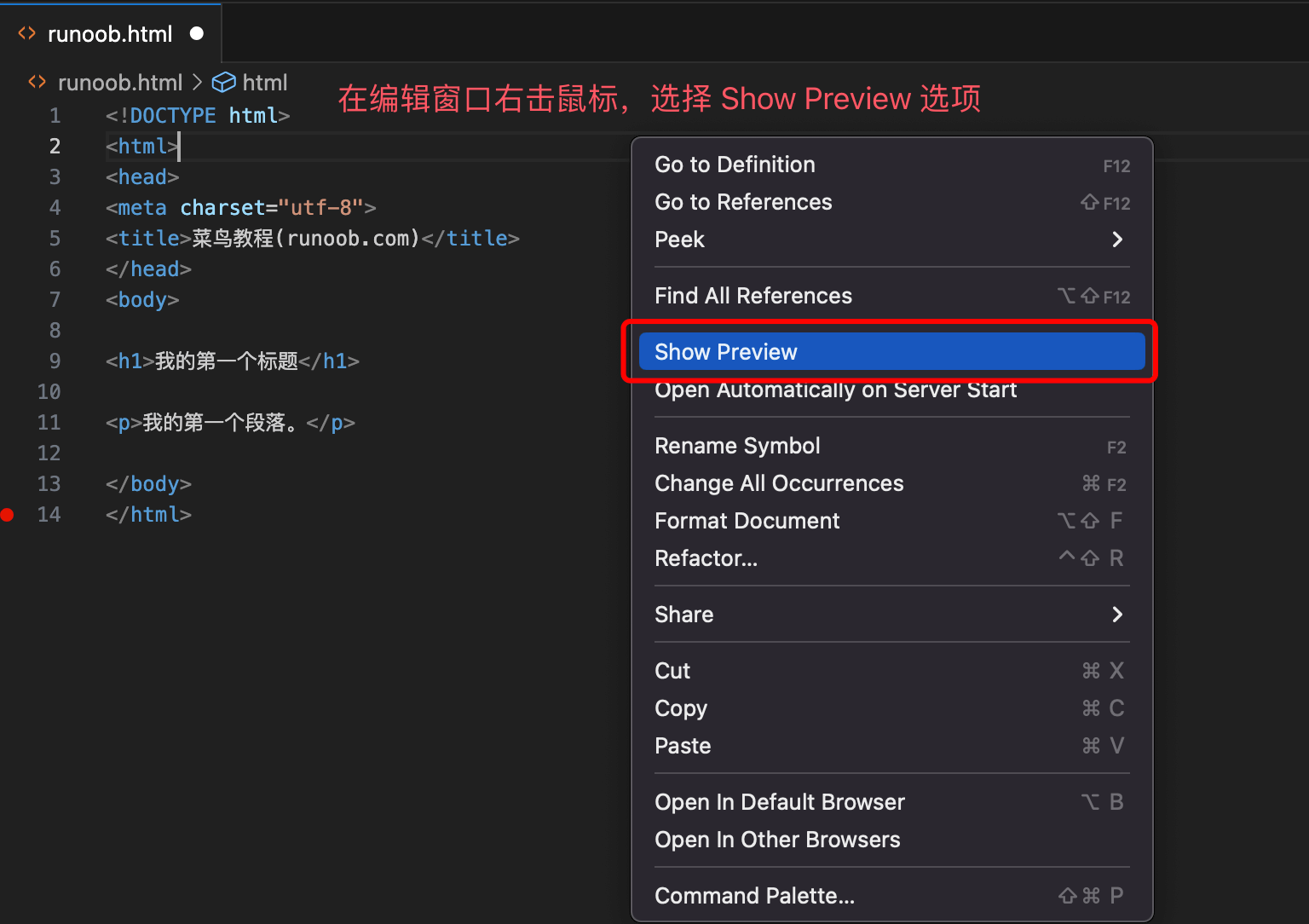
Right-click in the editing window and selectShow PreviewOptions:
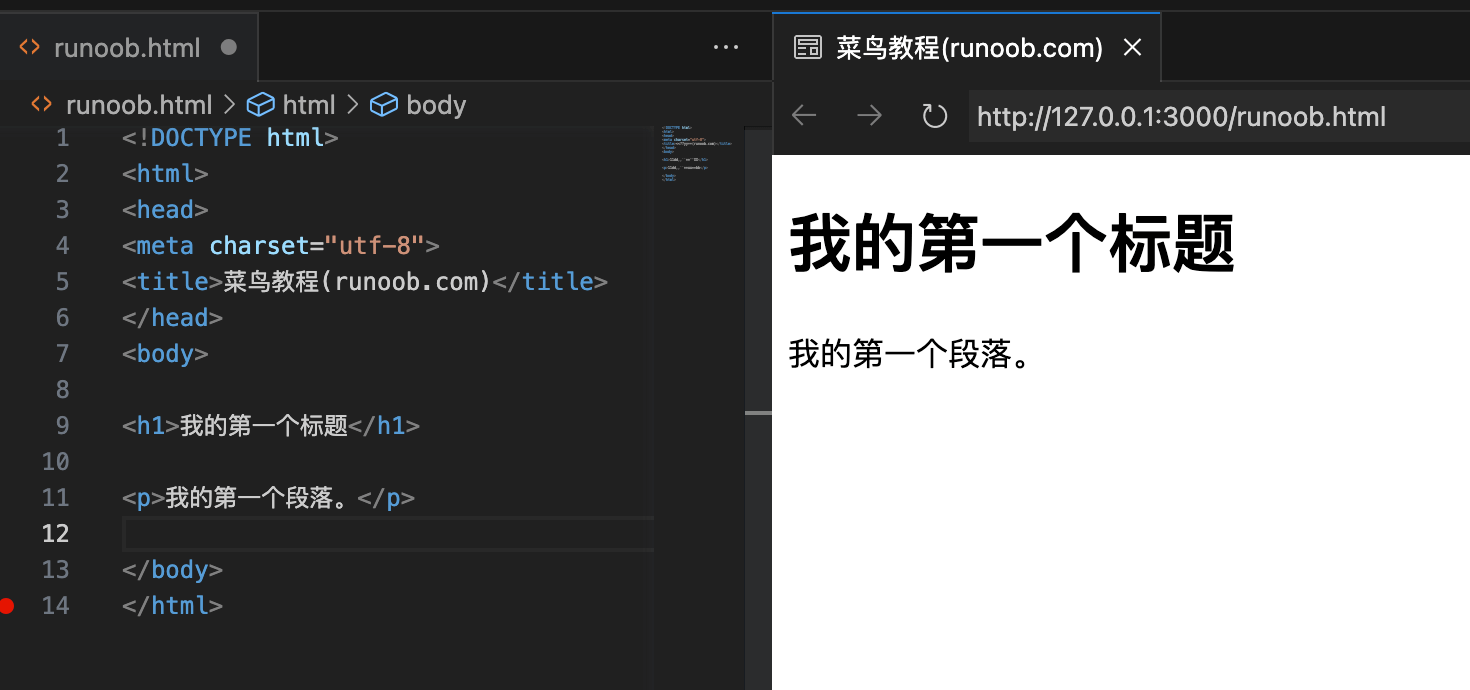
Display result:
This way, we can preview the effect in real time while editing the code.