Sourcetree Usage Tutorial

Git has many graphical interface tools (GUI), such as SourceTree, Github Desktop, TortoiseGit, etc.
SourceTree is a Git client management tool, suitable for Windows and Mac systems.
SourceTree simplifies the way developers interact with Git repositories, allowing us to conveniently handle Git operations through the interface menu without needing to use commands.
With SourceTree, we can manage all Git repositories, whether remote or local. SourceTree supports remote repositories such as Bitbucket, GitHub, and GitLab.
Sourcetree Installation
We can visit the Sourcetree official website.https://www.sourcetreeapp.com/Directly click the download button to download:

Other versions can be viewed at:https://www.sourcetreeapp.com/download-archives
After the download is complete, unzip the ZIP file and double-click the application file (EXE for Windows or DMG for Mac) to install.
During installation, we simply need to agree to the Atlassian customer agreement and click Continue.
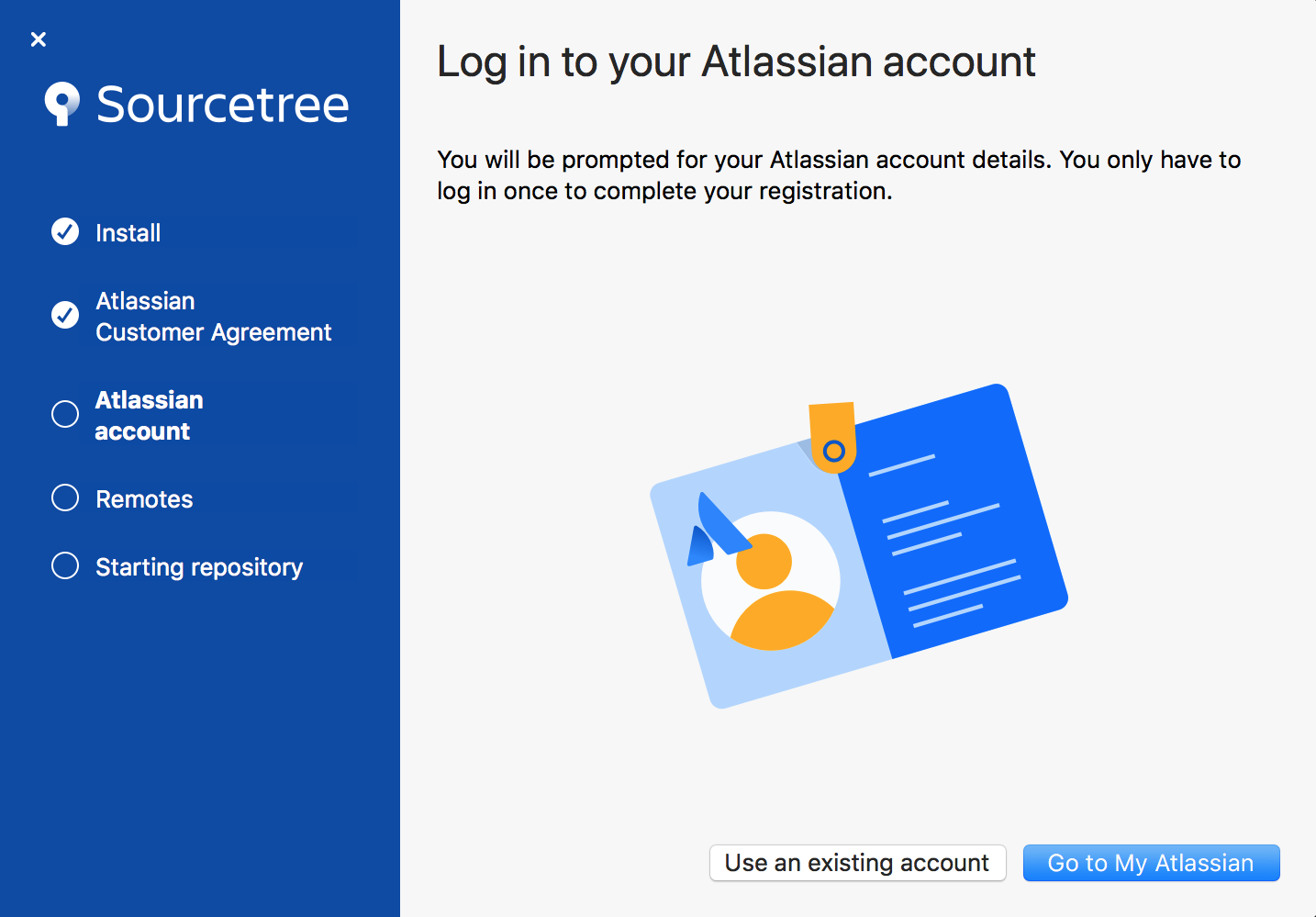
Creating a Bitbucket account allows you to skip the initial setup. SSH keys will be loaded by default if available, but you can also set them up later.
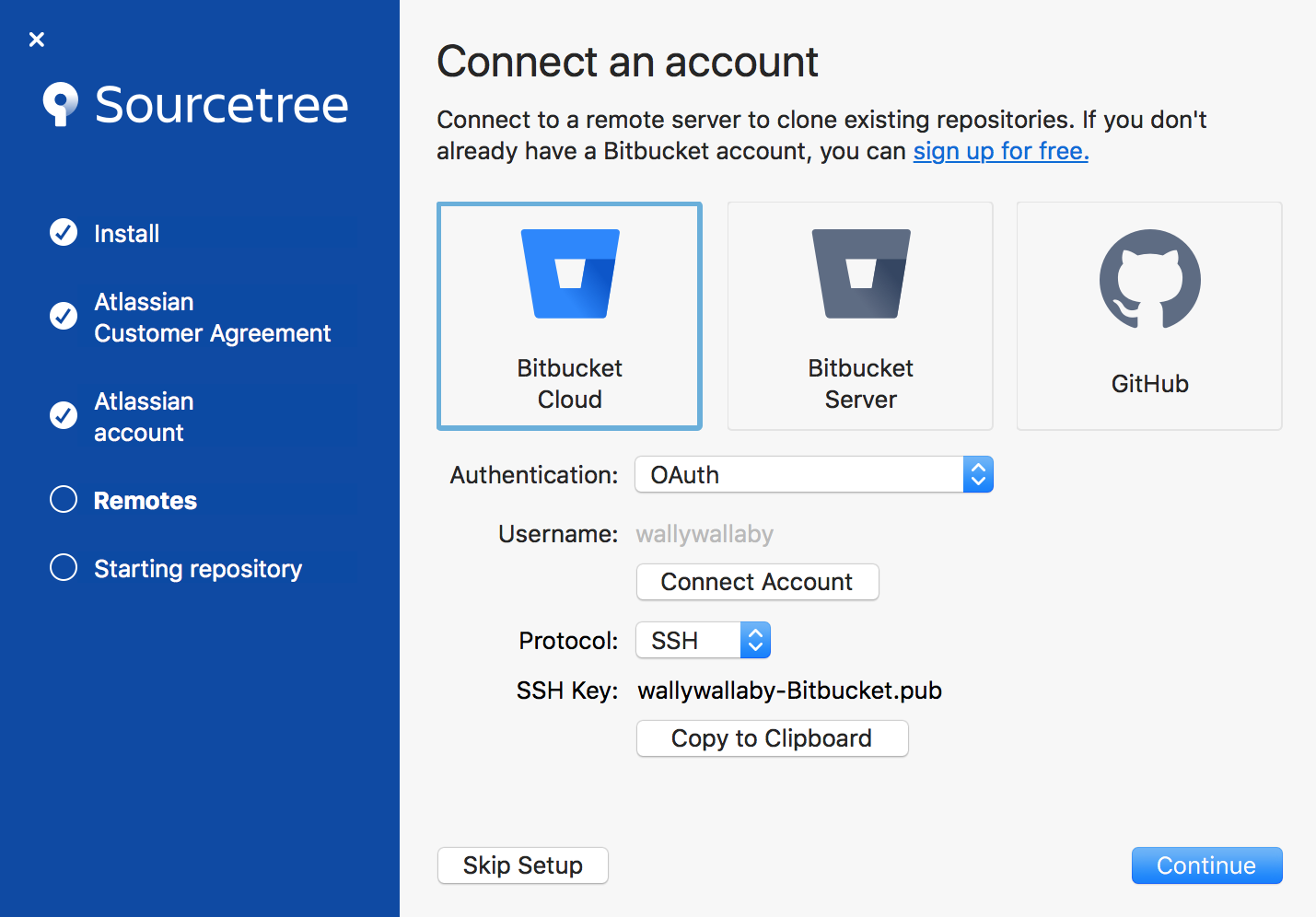
Follow the prompts until you complete the setup. If you are not ready to clone a repository, click Skip Setup.
Connect Github account
If you don't have a GitHub account yet, you need to create one. You can refer to.Git Remote Repository (Github)。
Next, we will introduce how to use Sourcetree to manage our GitHub account.
We can add multiple accounts to Sourcetree.
Click the button in the top right corner and selectaccount。
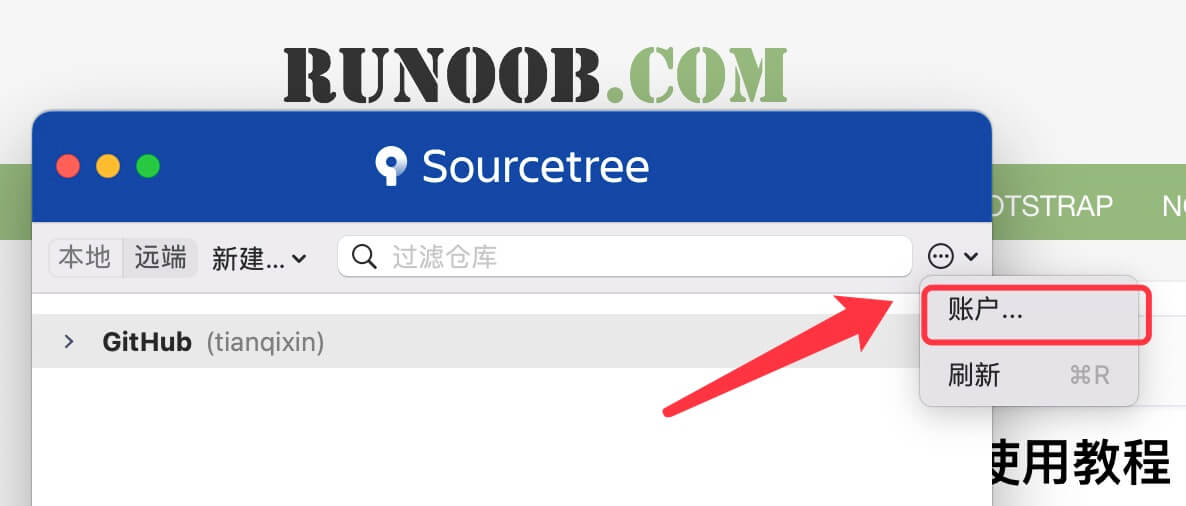
Next, we add the GitHub account via the Add Account button.
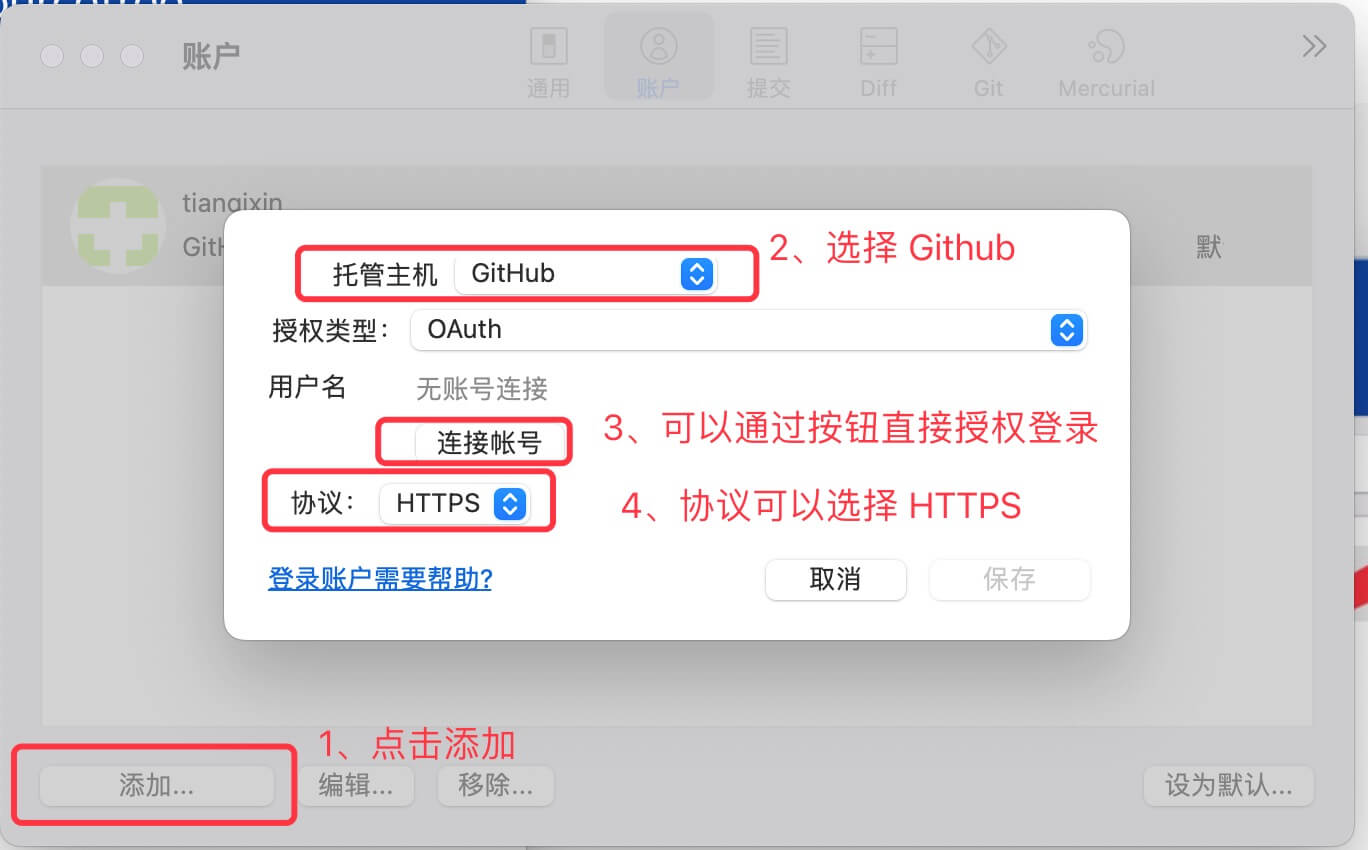
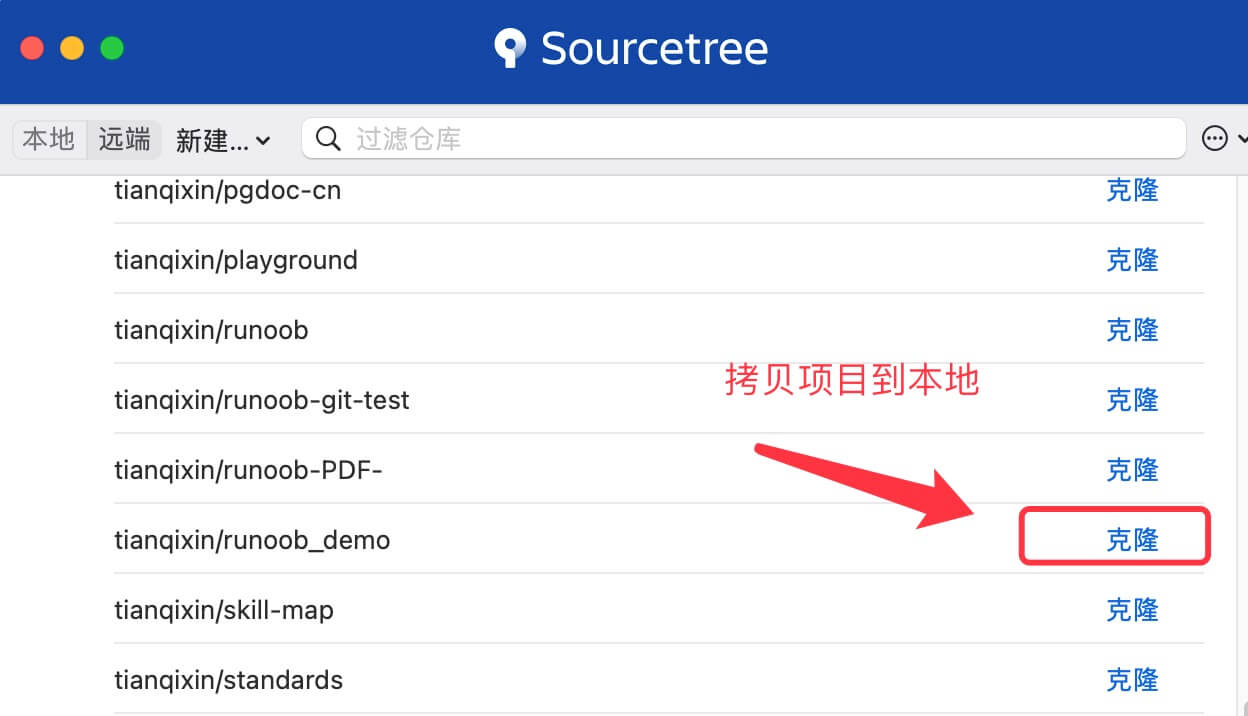
Once the GitHub account has been added, we can directly clone from our own account:
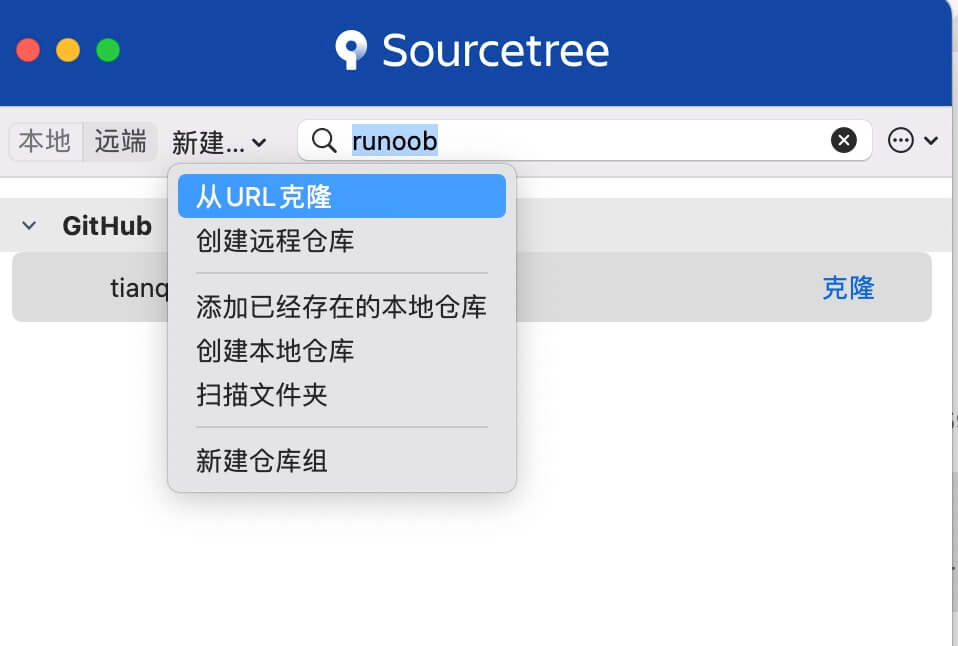
You can also clone other remote repositories:
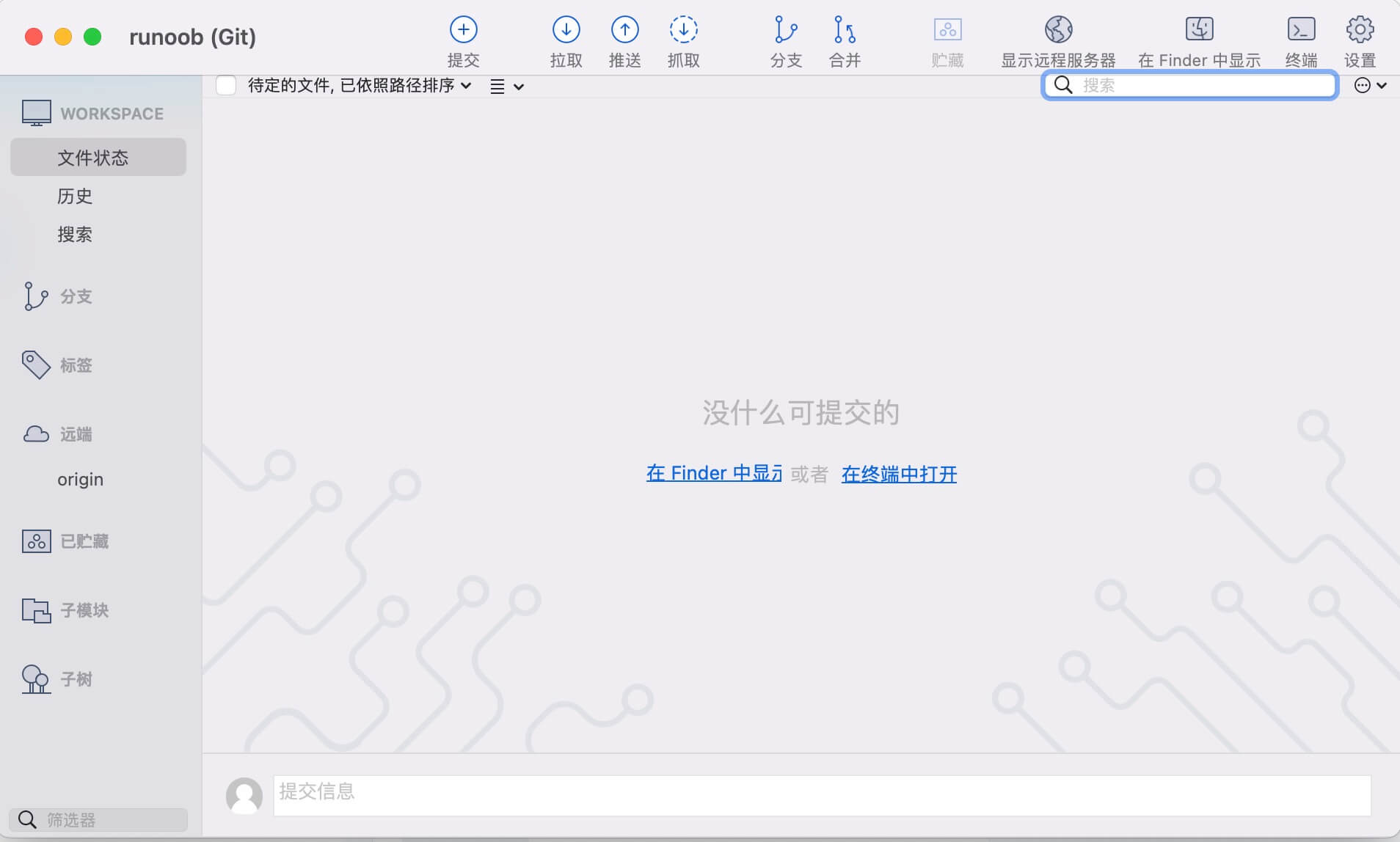
After cloning is complete, we can perform operations such as commit, pull, and merge:
Create Local Repository
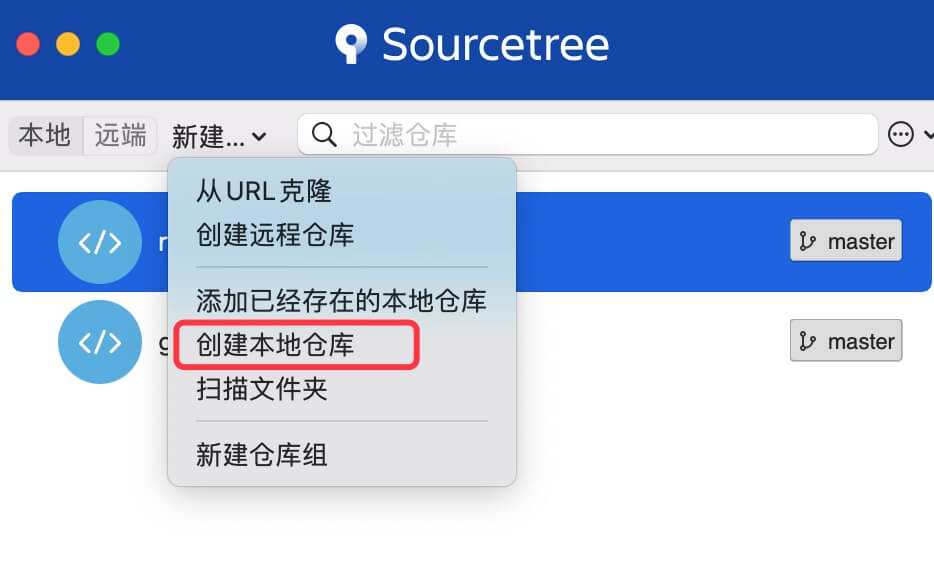
clickNew, then selectCreate Local Repository。
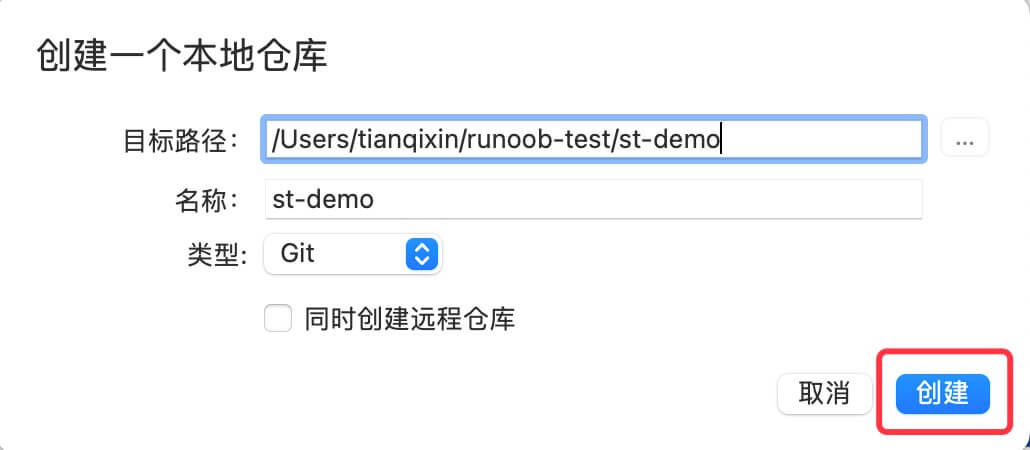
Enter your target path and repository name, then click.Create。
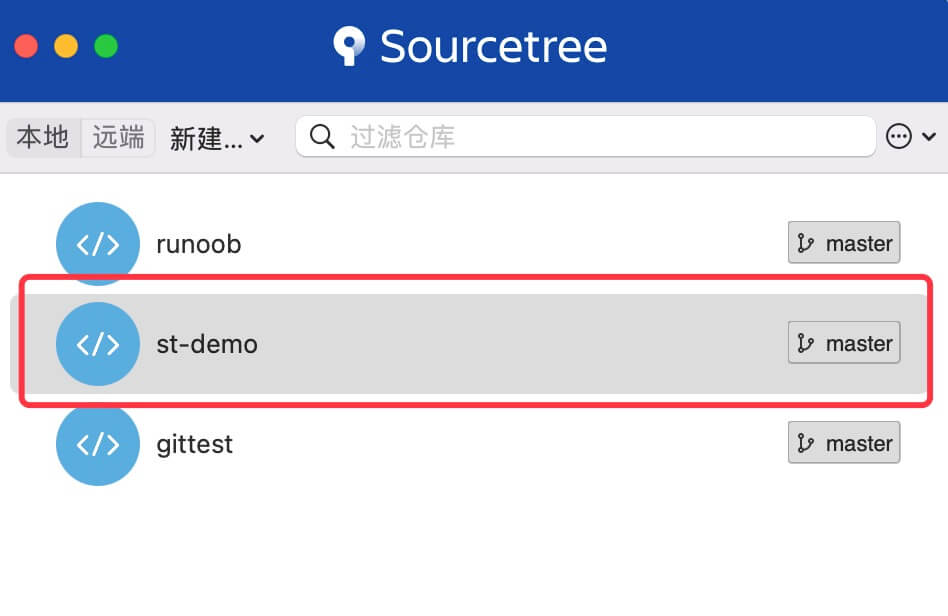
After creation, it will appear in the local list:
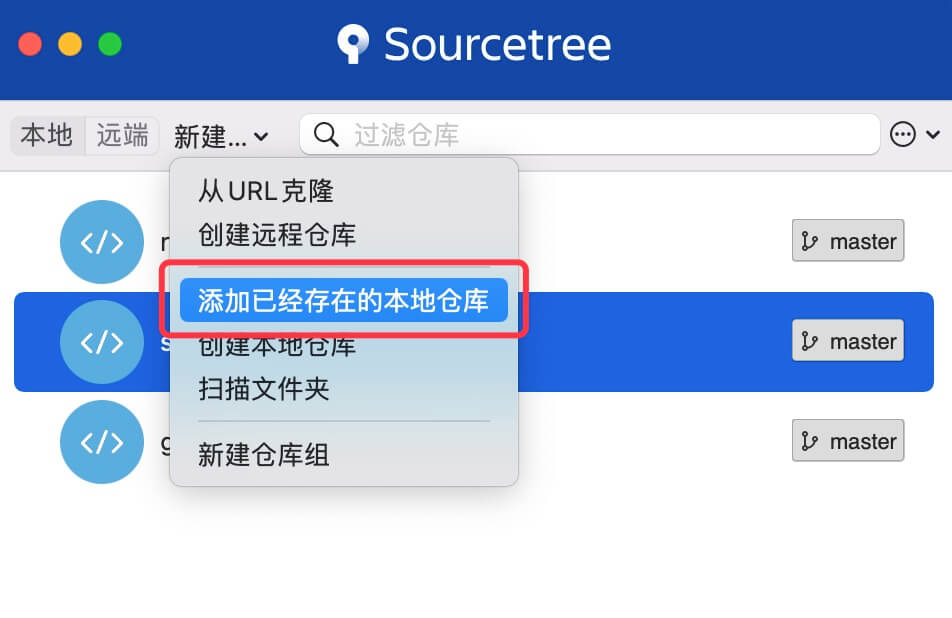
If we already have a local repository, we can directly add it.
ClickNew, then clickAdd an already existing local repository: