OpenCode TUI (Terminal Interface)
OpenCode provides an interactive terminal interface (TUI, Terminal User Interface) for efficient collaborative development with AI in the command line.
TUI is the core way to use OpenCode; all code analysis, modification, and execution are completed through this interface.
OpenCode TUI is essentially an AI conversational terminal that can execute commands, combining development, command line, and AI together.
All TUI commands use the slash/to invoke.
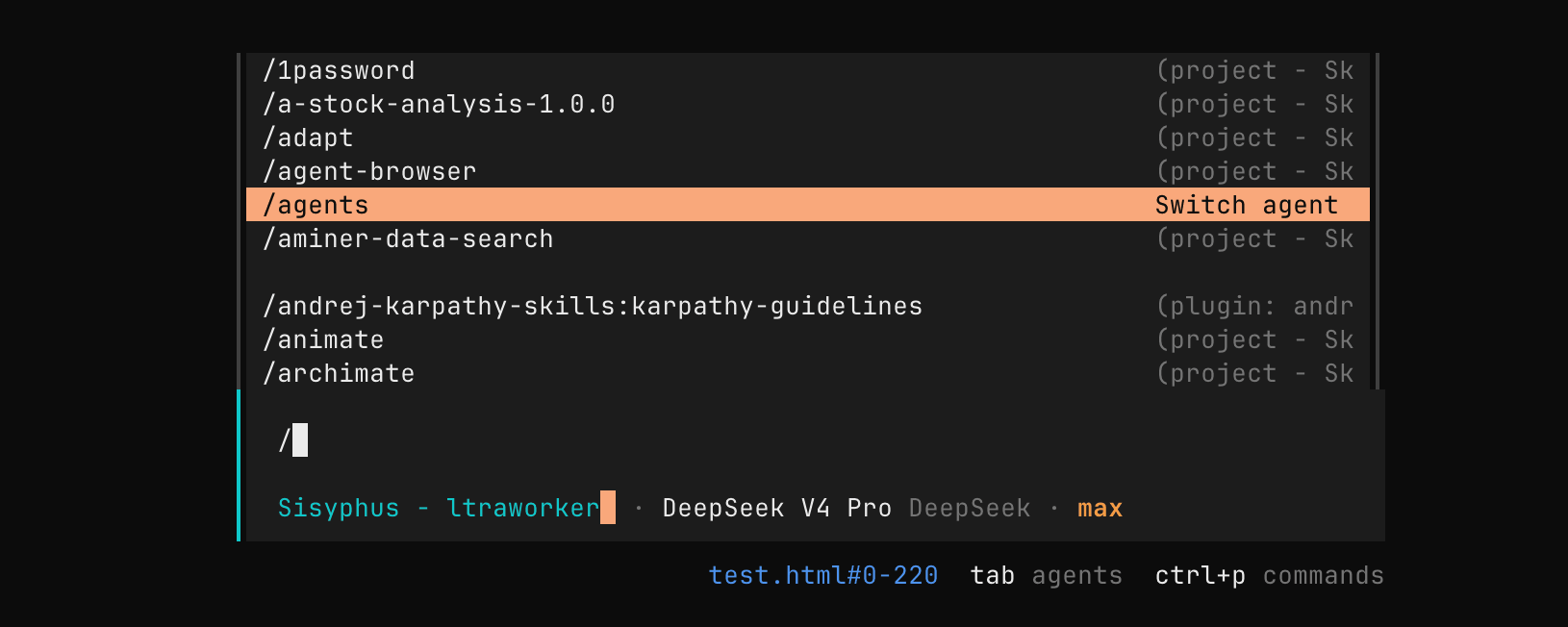
In the TUI input box, type/and it will list suggested commands:
OpenCode TUI Commands
Below is a table of OpenCode TUI commands:
| Command | Description | Shortcut |
|---|---|---|
/connect |
Add LLM provider and configure API Key | — |
/compact (/summarize) |
Compact current session context | ctrl + x → c |
/details |
Toggle tool execution detail display | ctrl + x → d |
/editor |
Open external editor to write messages | ctrl + x → e |
/exit (/quit / /q) |
Exit TUI | ctrl + x → q |
/export |
Export current conversation as Markdown | ctrl + x → x |
/help |
Open help panel | ctrl + x → h |
/init |
Create/Update AGENTS.md | ctrl + x → i |
/models |
List available models | ctrl + x → m |
/new (/clear) |
New session | ctrl + x → n |
/redo |
Redo/undoundone operations |
ctrl + x → r |
/sessions (/resume / /continue) |
Session list and switching | ctrl + x → l |
/share |
Share current session | ctrl + x → s |
/themes |
List/Switch themes | ctrl + x → t |
/thinking |
Show/Hide model reasoning process | — |
/undo |
Undo the last message (including file changes) | ctrl + x → u |
/unshare |
Cancel session sharing | — |
TUI Core Interaction Supplement (Non-slash Commands)
| Type | Syntax | Description |
|---|---|---|
| Startup | opencode |
Start TUI in the current directory |
| Specify directory | opencode /path |
Open the specified project |
| File reference | @file |
Fuzzy search and inject file content |
| Execute command | !command |
Execute a shell command and return the result |
OpenCode's TUI is essentially aLLM + project context + Git state management + command palettecomposite interaction layer:
/→ Control behavior (similar to IDE command palette)@→ Inject context (file-level RAG)!→ Execute environment operations (Shell tool calls)ctrl+x→ Prefix for efficient quick operations
I. Starting the TUI
1. Start in the current directory
opencode
If you seeEACCES: permission denied, open ''it's a permission issue; we can fix the directory permissions:
sudo chown -R $(whoami) ~/.localThen run:
chmod -R 755 ~/.localYou can also take a more brute-force approach and simply usesudo:
sudo opencode
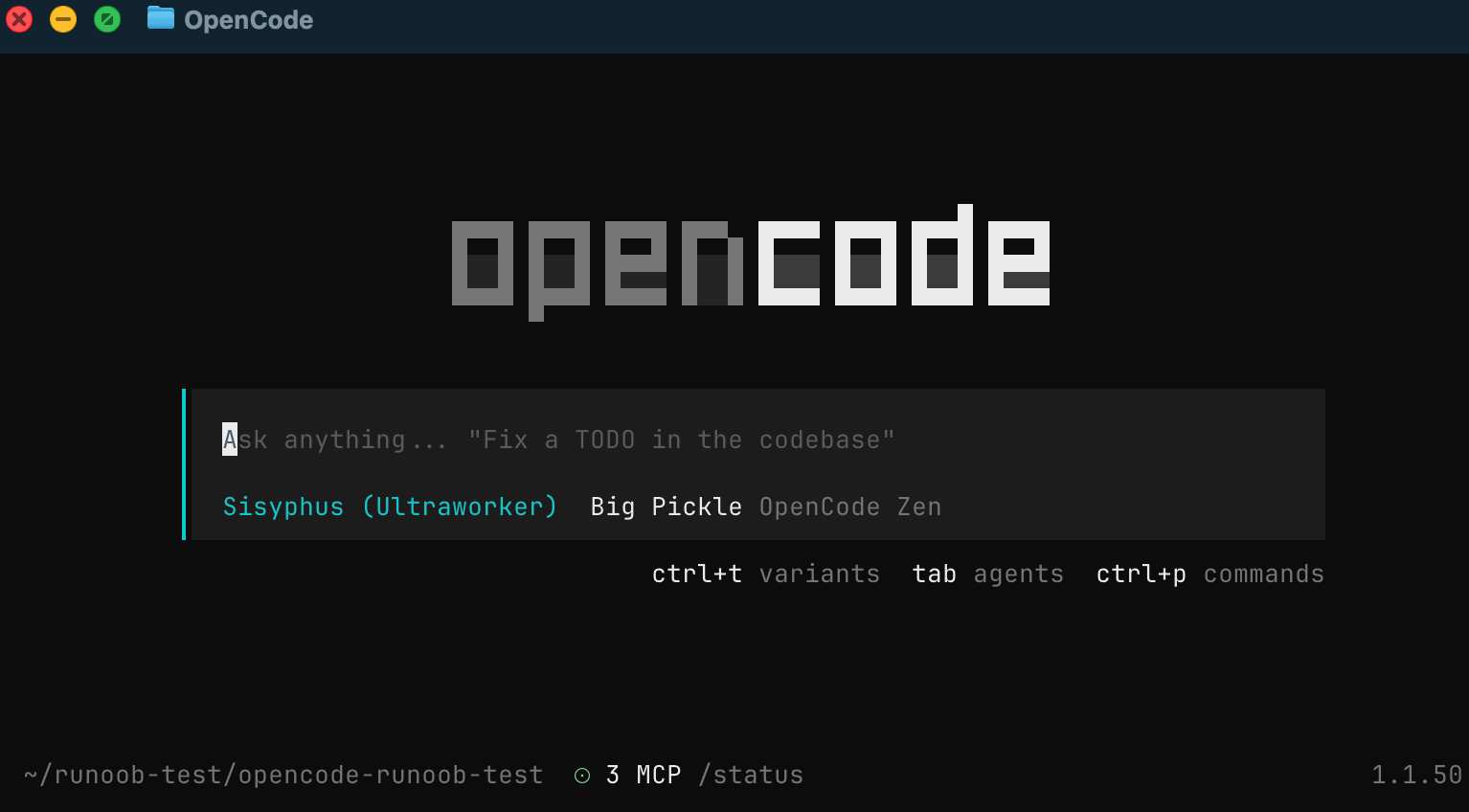
will automatically load the current project as the working directory:
2. Start in a specified project directory
opencode /path/to/project
Suitable for quickly switching between projects
II. Basic Interaction
After entering the TUI, you can directly type natural language:
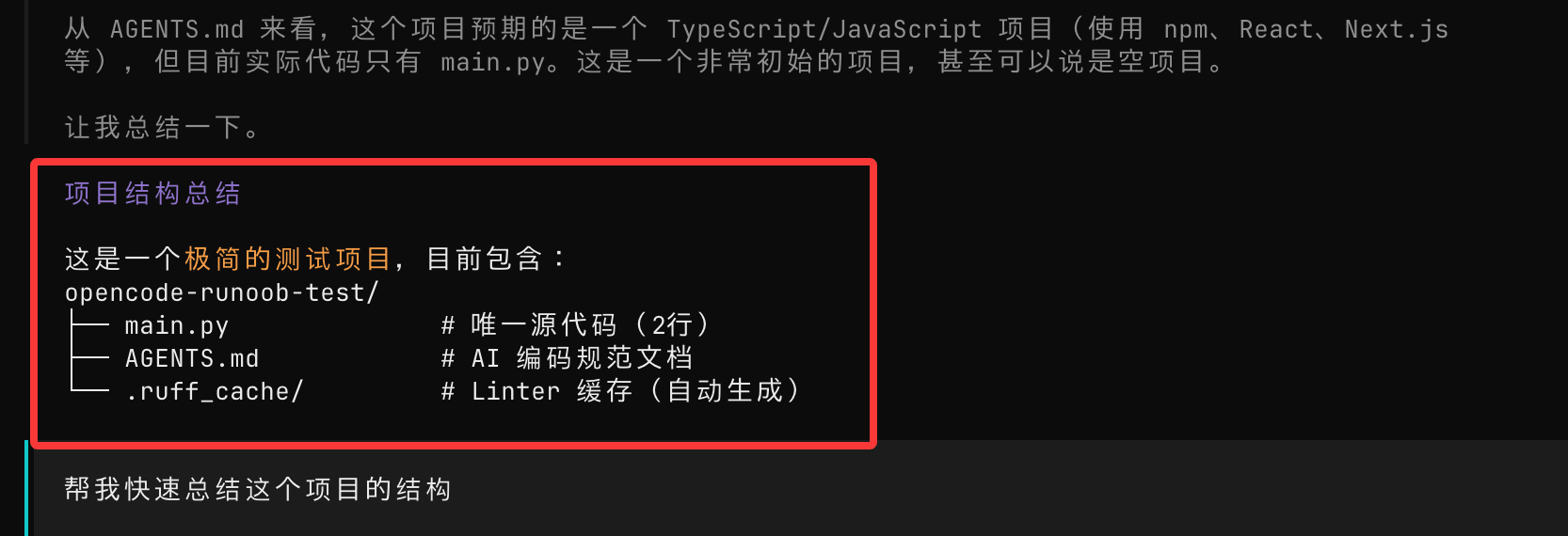
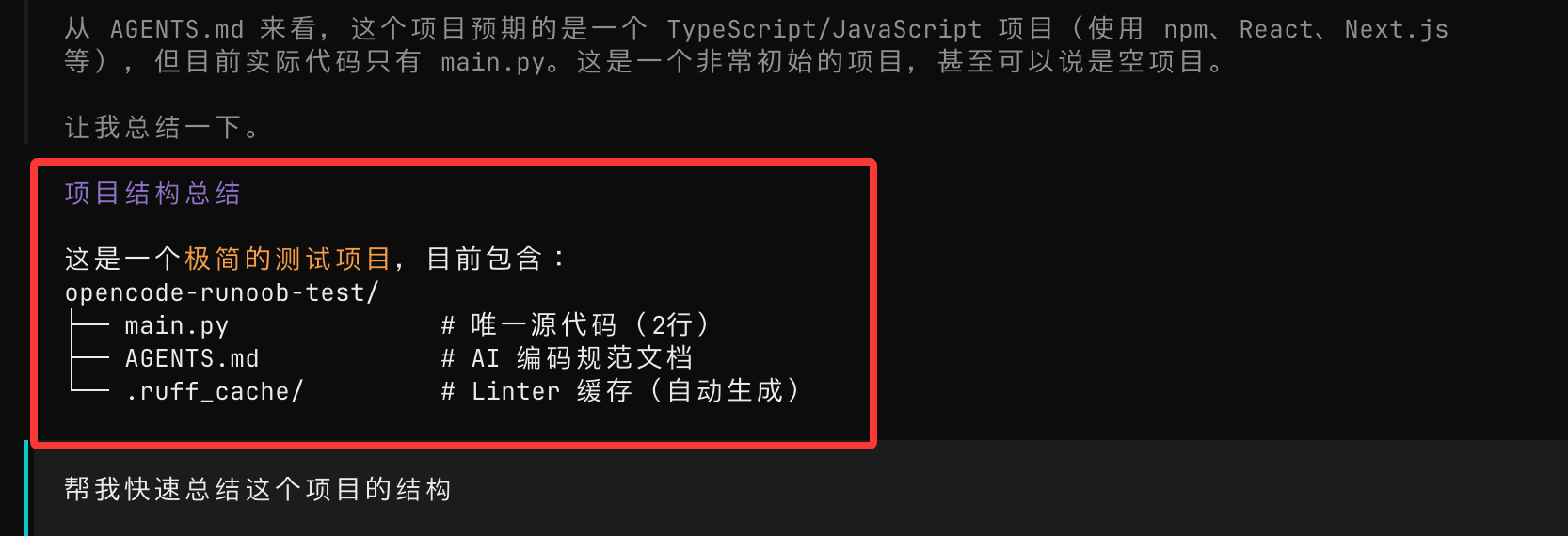
Help me quickly summarize the structure of this project.
OpenCode will provide analysis results based on the project code:
III. File Referencing (Core Feature)
You can use@to reference files in the project:
这个项目的认证逻辑是如何实现的?查看 @packages/functions/src/api/index.ts
Features:
- Supports fuzzy search of file paths
- Automatically reads file content
- No need to copy code
Very suitable for reading unfamiliar code
IV. Executing Bash Commands
Press!to switch to shell mode; content in this mode will be executed as shell commands:
!
Execute command:
ls -la
Execution results will be automatically added to the conversation context.
This way, we can ask the AI while executing system commands.
V. Slash Commands (/ Commands)
Type/to execute built-in commands, for example:
/help
Open the help panel.
Common Commands at a Glance
| Command | Description |
|---|---|
| /connect | Configure model API |
| /models | View available models |
| /init | Initialize project configuration (generate AGENTS.md) |
| /new | New session |
| /sessions | Switch session |
| /undo | Undo changes (including code) |
| /redo | Redo changes |
| /share | Share current conversation |
| /export | Export conversation as Markdown |
| /exit | Exit OpenCode |
VI. Keyboard Shortcuts (Efficiency Boost)
OpenCode supports keyboard shortcuts:
| Function | Shortcut |
|---|---|
| Command palette | Ctrl + X → H |
| New session | Ctrl + X → N |
| Undo | Ctrl + X → U |
| Redo | Ctrl + X → R |
| Model list | Ctrl + X → M |
Note:
- Ctrl + X is the default "leader key"
- Similar to Vim's keybinding mode
VII. Editor Integration (/editor)
You can use an external editor to write complex prompts:
/editor
Requires prior configuration:
export EDITOR="code --wait"
Supported editors:
- VS Code(code)
- Cursor(cursor)
- Vim / Neovim
- Nano
VIII. Session Management
View sessions
/sessions
New session
/new
You can switch between multiple tasks
IX. Undo and Redo (Important)
Undo
/undo
Function:
- Undo messages
- Rollback code changes
Redo
/redo
Note:
- Depends on Git to manage code changes
- It is recommended to enable Git for the project
X. TUI Configuration
You can customize behavior through configuration files:
opencode.json
Example:
{
  "tui": {
    "scroll_speed": 3,
    "scroll_acceleration": {
      "enabled": true
    }
  }
}
Explanation:
- scroll_speed: scroll speed
- scroll_acceleration: smooth scrolling (recommended to enable)
XI. Usage Suggestions
- Make more use of@referencing files to improve accuracy
- For complex tasks, use plan mode first; useTabkey to switch modes.
- Iterate in small steps; don't do anything too complex at once.
- Before important operations, make sure Git is committed.