OpenCode Integration with DeepSeek
OpenCode is an open-source AI programming assistant that supports running in multiple environments such as terminals, web browsers, and more.
In this section, we will configure DeepSeek as its AI backend to gain powerful intelligent assistance in programming.
OpenCode Download and Installation
First, visit the official OpenCode download page according to your operating systemhttps://opencode.ai/zh/downloadand obtain the installation package or installation script:
To avoid compatibility issues caused by version differences, we strongly recommend upgrading OpenCode to the latest version and ensuring the version number is ≥ v1.14.24.
The simplest installation and upgrade is one-command installation:
curl -fsSL https://opencode.ai/install | bash
After installation, you can run the following command in the terminal to verify the version:
opencode --version
If the displayed version is lower than v1.14.24, please re-download the latest version and perform an overwrite installation.
Running and Configuring DeepSeek
After OpenCode is launched, you can quickly integrate DeepSeek through the built-in command-line interaction.
Basic information required:
API key: https://platform.deepseek.com/api_keysApply for API keys.
BASE_URL: The URL for API requests ishttps://api.deepseek.com/anthropic。
1. Launch OpenCode
Enter the project directory (e.g.,cd example-opencode-test), and run directly in the terminal:
opencode
At this point, you will enter the OpenCode interactive interface.
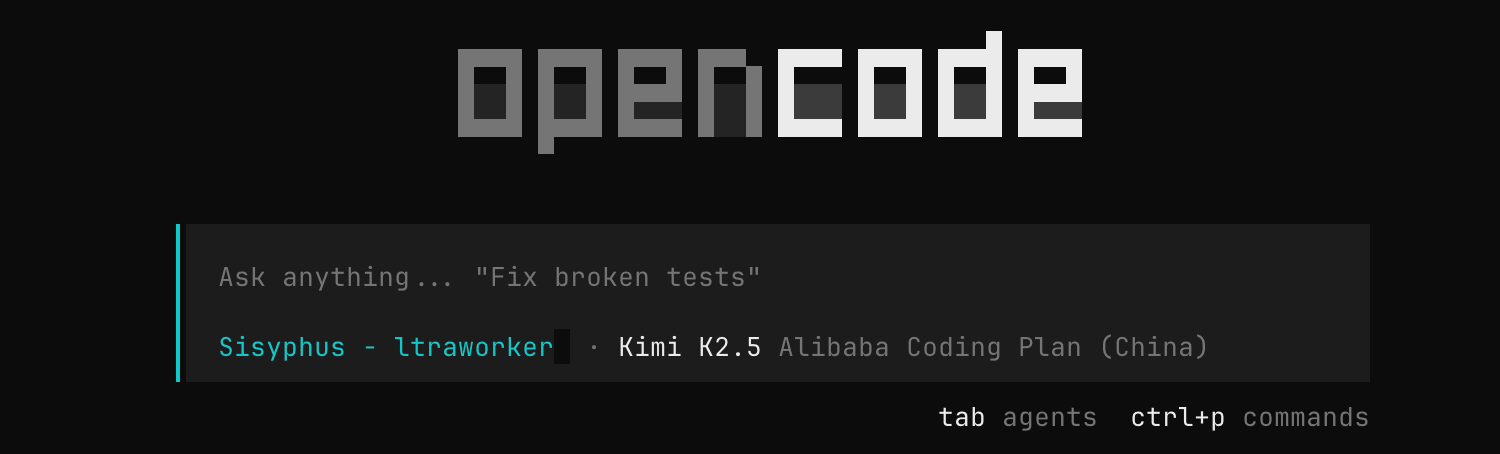
2. Enable Connection Configuration Mode
Enter the following command in the OpenCode input box and press Enter:
/connect
The system will enter the connection configuration process and prompt you to select an AI model provider.
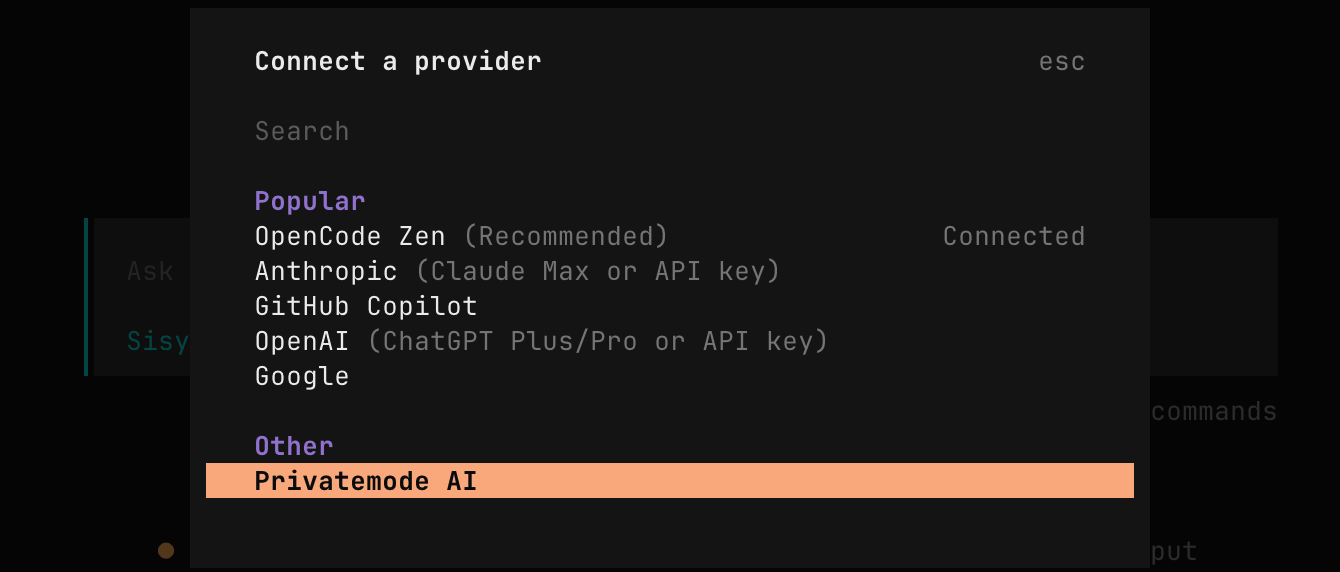
3. Select DeepSeek as the Provider
When the provider list appears, type deepseek and confirm the selection.
4. Enter the DeepSeek API Key
Next, you need to enter your DeepSeek API Key. You can apply for and obtain your exclusive Key from the DeepSeek Open Platform.
Please enter the DeepSeek API Key: sk-xxxxxxxxxxxxxxxxxxxxxxxx
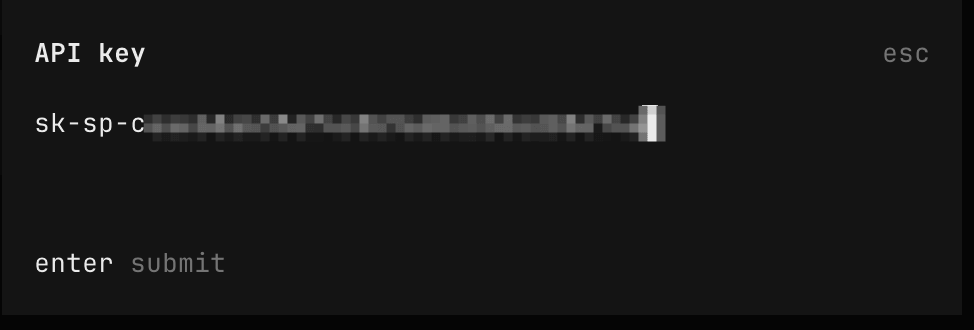
It is recommended to save the API Key in a secure location in advance and be careful not to leak it.
5. Select a Model
In the list of supported models, select DeepSeek-V4-Pro to complete the configuration.
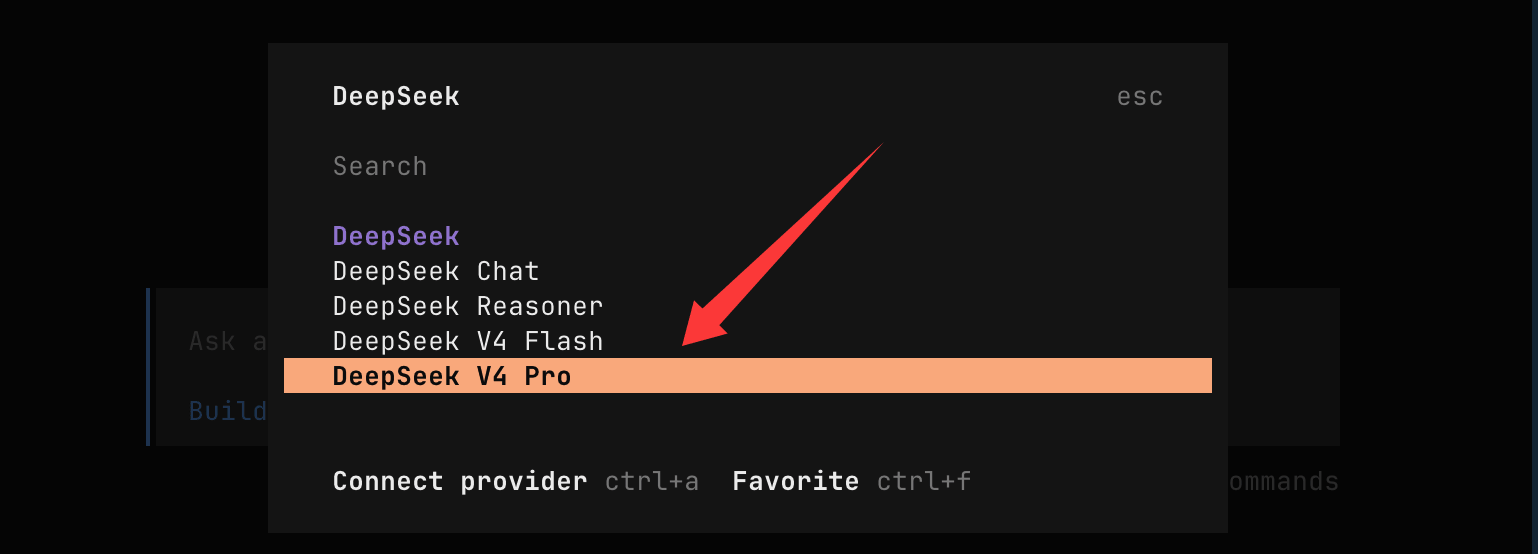
Maximum thinking effort setting: max
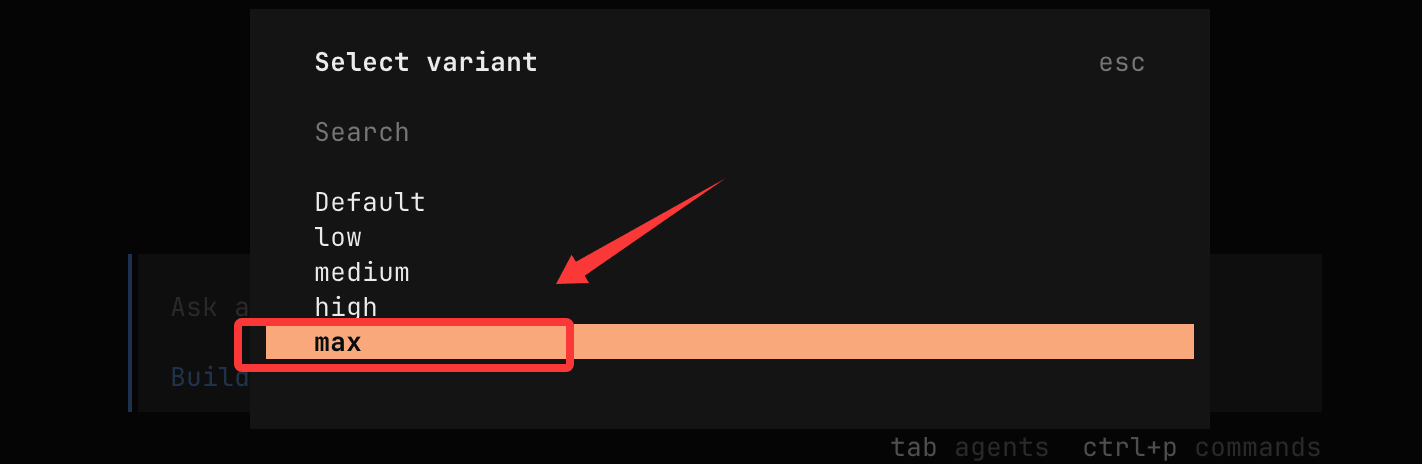
After configuration, all AI requests made through OpenCode will use the DeepSeek-V4-Pro model you specified to generate responses. You can immediately experience the efficiency and intelligence that DeepSeek brings in programming scenarios.
At this point, we have successfully integrated DeepSeek into OpenCode.
Example Test
Enter the project directory
cd example-opencode-test
Launch OpenCode:
opencode
Enter a prompt:
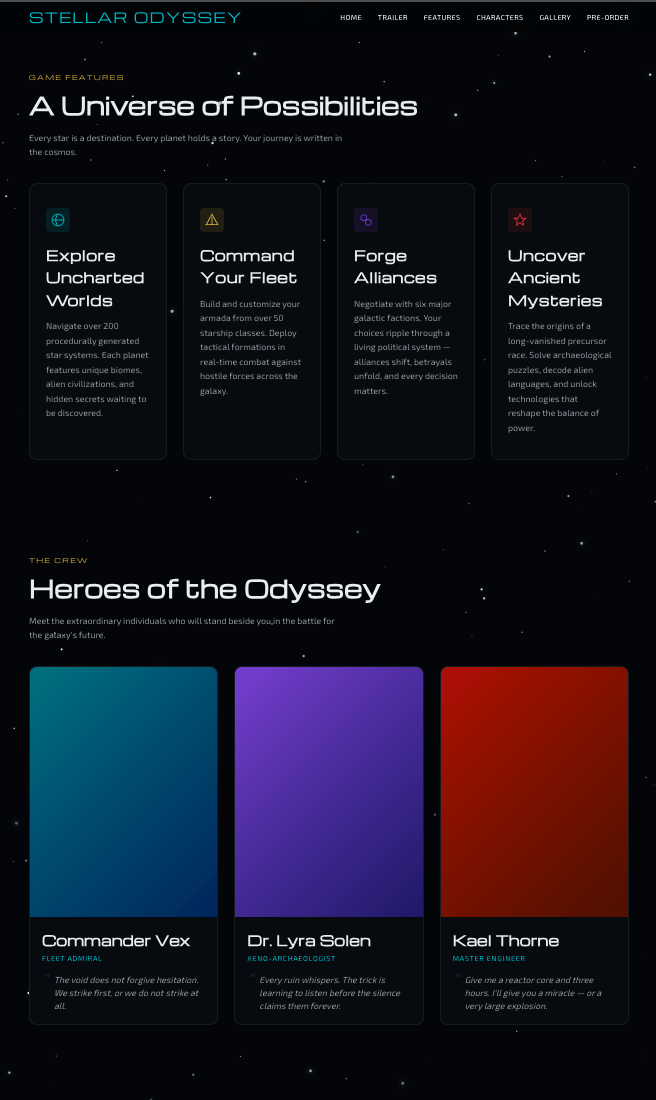
Generate an enterprise-level professional [game promotional] landing page. Add interactive elements and animation effects, and ensure the page has a fully responsive design. Please surprise me, fully unleash your creativity, and complete this task step by step.

Check the result, it's quite good: