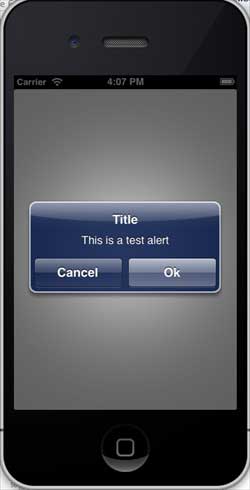
IOS警告ダイアログの使用
警告ダイアログは、ユーザーに重要な情報を提供するために使用されます。
警告ダイアログビューでオプションを選択した後でのみ、アプリケーションの使用を続行できます。
重要なプロパティ
- alertViewStyle
- cancelButtonIndex
- delegate
- message
- numberOfButtons
- title
重要なメソッド
- (NSInteger)addButtonWithTitle:(NSString *)title
- (NSString *)buttonTitleAtIndex:(NSInteger)buttonIndex
- (void)dismissWithClickedButtonIndex:
  (NSInteger)buttonIndex animated:(BOOL)animated
- (id)initWithTitle:(NSString *)title message:
  (NSString *)message delegate:(id)delegate
  cancelButtonTitle:(NSString *)cancelButtonTitle
  otherButtonTitles:(NSString*)otherButtonTitles, ...
- (void)show
ViewController.h を次のように更新します
次のように、ViewController.h に <UIAlertViewDelegate> を追加して、クラスを警告ダイアログビューのデリゲートプロトコルに準拠させます。
#import <UIKit/UIKit.h>

@interface ViewController : UIViewController<UIAlertViewDelegate>{

}
@end
カスタムメソッド addAlertView を追加します
-(void)addAlertView{
    UIAlertView *alertView = [[UIAlertView alloc]initWithTitle:
    @"Title" message:@"This is a test alert" delegate:self
    cancelButtonTitle:@"Cancel" otherButtonTitles:@"Ok", nil];
    [alertView show];
}
警告ダイアログビューのデリゲートメソッドを実装します
#pragma mark - Alert view delegate
- (void)alertView:(UIAlertView *)alertView clickedButtonAtIndex:
  (NSInteger)buttonIndex{
    switch (buttonIndex) {
        case 0:
            NSLog(@"Cancel button clicked");
            break;
        case 1:
            NSLog(@"OK button clicked");
            break;

        default:
            break;
    }
}
ViewController.m の viewDidLoad を次のように変更します
(void)viewDidLoad
{
   [super viewDidLoad];
   [self addAlertView];
}
出力
このアプリケーションを実行すると、以下の出力が表示されます。