Hermes Agent Session Lifecycle and Scheduled Tasks
Session Reset Policy
Reset policy controls when a session automatically "loses memory" — it gets a new session_id and the old context is archived.
Reasonable configuration of the reset policy prevents the Agent context from expanding indefinitely while ensuring user experience is unaffected.
Four reset modes
| Mode | Behavior | Applicable scenarios |
|---|---|---|
| none | Never auto-reset; context is managed solely by the compression mechanism. | Scenarios requiring long-running continuous context |
| idle | Automatically reset after idle for more than N minutes | Occasionally used Agents |
| daily | Automatically reset daily at a specified time | Agents used for daily routine tasks |
| both | Idle timeout or daily reset, whichever triggers first takes effect. | Most scenarios (default recommended) |
Configure reset policy
Example
session_reset:
mode: both # none | idle | daily | both
at_hour: 4 # Daily reset time (4 AM, local time)
idle_minutes: 1440 # Idle timeout (1440 minutes = 24 hours)
notify: true # Notify user on reset
# Customize reset policy per platform
platforms:
telegram:
session_reset:
mode: idle
idle_minutes: 720 # Telegram session resets after 12 hours of inactivity
slack:
session_reset:
mode: none # Slack conversations never automatically reset
Reset Effect
When a session triggers a reset, the following happens:
- Old sessions are marked as ended in SQLite (reason: "session_reset")
- Generate a new session_id (format: YYYYMMDD_HHMMSS_8-digit random hex)
- New SessionEntry's was_auto_reset is marked as true
- Cached Agent instances are cleaned up
- The user will see a "Session has been reset" notice in the next message.
Sessions with active background processes are never reset. Hermes checks the has_active_processes callback to ensure it never interrupts running tasks.
Restart recovery mechanism
Hermes Gateway's restart recovery mechanism ensures that ongoing sessions are not lost after an unexpected crash or a planned restart.
Two recovery markers
| Mark | Trigger Scenario | Behavior | Severity Level |
|---|---|---|---|
| resume_pending | Crash recovery, drain timeout | Preserve the session_id and continue the conversation on the next visit. | soft recovery |
| suspended | /stop command, or 3 consecutive restart failures. | Force reset, generate a new session_id. | hard reset |
Startup recovery process
When the Gateway starts, the recovery process is as follows:
Step 1: Check the .clean_shutdown marker.
If it exists, the previous shutdown was clean, so the recovery process is skipped.
Step 2: If the .clean_shutdown marker does not exist, the previous exit was abnormal.
Gateway calls suspend_recently_active(), marking sessions active within the last 120 seconds as resume_pending.
Step 3: Detect stuck-loop (dead loop).
If a session is still active after 3 consecutive restarts, it may be stuck in a dead loop; the Gateway will mark it as suspended.
Step 4: Resume pending sessions.
Gateway synthesizes a MessageEvent for each resume_pending session, triggering the Agent to automatically continue.
Drain timeout marker
During a clean shutdown/restart, if a session is being processed but exceeds the drain wait time, the Gateway will mark it as resume_pending.
Reasons for marking in different scenarios:
| Mark Reason | Meaning |
|---|---|
| restart_timeout | Drain timeout during restart |
| shutdown_timeout | Drain timeout during shutdown |
| restart_interrupted | Crash recovery (triggered from suspend_recently_active) |
The resume_pending marker is not cleared at get_or_create_session() — it is cleared after the next successful Agent reply. If the recovered session is interrupted again, the marker remains, allowing a retry on the next restart. After 3 consecutive failures, it is upgraded to suspended.
Message queue mechanism
When a user sends multiple messages consecutively while the Agent is processing a message, the Gateway's message queue mechanism ensures that messages are not lost.
Queue Structure
The Gateway uses a two-level queue design:
- Single-slot pending (_pending_messages): each session has only one "next" slot; repeated sends overwrite it.
- Overflow queue (_queued_events): when the slot is occupied, subsequent messages are appended to the tail of the overflow queue.
/queue command
The /queue command lets you submit tasks in batches, and each task produces a full Agent turn.
Example
/queue review src/main.py's code style
/queue as src/Write unit tests for utils.py
/queue update installation instructions in README.md
Each task in the queue is executed in FIFO order, with each task producing a full Agent turn; they are not merged.
Use the /new or /reset command to clear the message queue of the current session.
If you send multiple messages consecutively while the Agent is processing, the intermediate ones will be overwritten (only the last one is kept); messages in the /queue command are not overwritten — each /queue task executes in order.
Scheduled Tasks (Cron)
Hermes has first-class support for scheduled tasks, letting you configure the Agent to periodically execute specific tasks.
Scheduled tasks can bind to a Skill and deliver the results to a specified platform.
Configure scheduled tasks
Scheduled tasks are defined in jobs.json and support multiple scheduling formats.
{
  "jobs": [
    {
      "id": "daily-news-summary",
      "schedule": "0 8 * * *",
      "description": "每天早上 8 点抓取 AI 行业新闻并生成摘要",
      "skill": "ai-news-summarizer",
      "deliver_to": {
        "platform": "telegram",
        "chat_id": "-1001234567890"
      }
    },
    {
      "id": "weekly-code-review",
      "schedule": "0 10 * * 1",
      "description": "每周一早上 10 点审查项目代码变更",
      "skill": "code-review-assistant",
      "deliver_to": {
        "platform": "discord",
        "chat_id": "123456789"
      }
    },
    {
      "id": "health-check",
      "schedule": "*/30 * * * *",
      "description": "每 30 分钟检查服务器健康状态",
      "skill": "server-health-checker",
      "deliver_to": {
        "platform": "telegram",
        "chat_id": "123456789"
      }
    }
  ]
}
Supported scheduling formats
| Formatting | Example | Description |
|---|---|---|
| Cron expression | 0 8 * * * | Standard 5-field cron expression |
| Interval | 30m | Every 30 minutes |
| Relative Time | +90s | Execute once after 90 seconds |
| Repeat Count | repeat.times: 5 | Automatically stop after 5 executions |
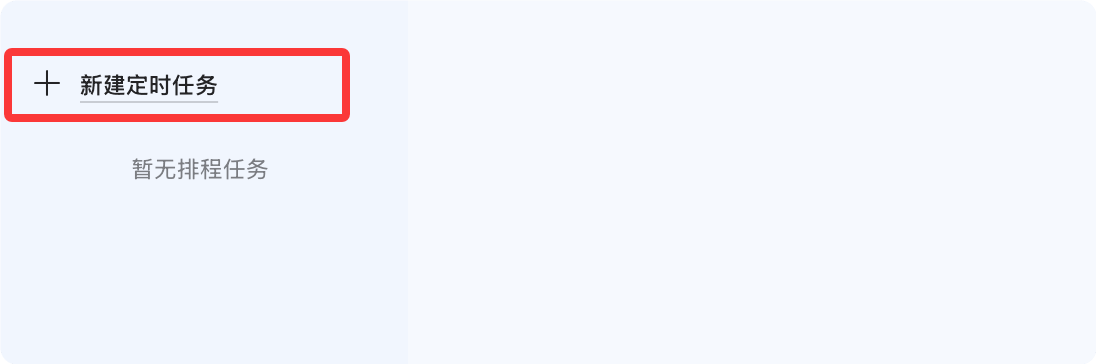
Can be configured in the desktop version; click "Schedule" in the lower-left corner:
Click "Create Scheduled Task":
Create task:
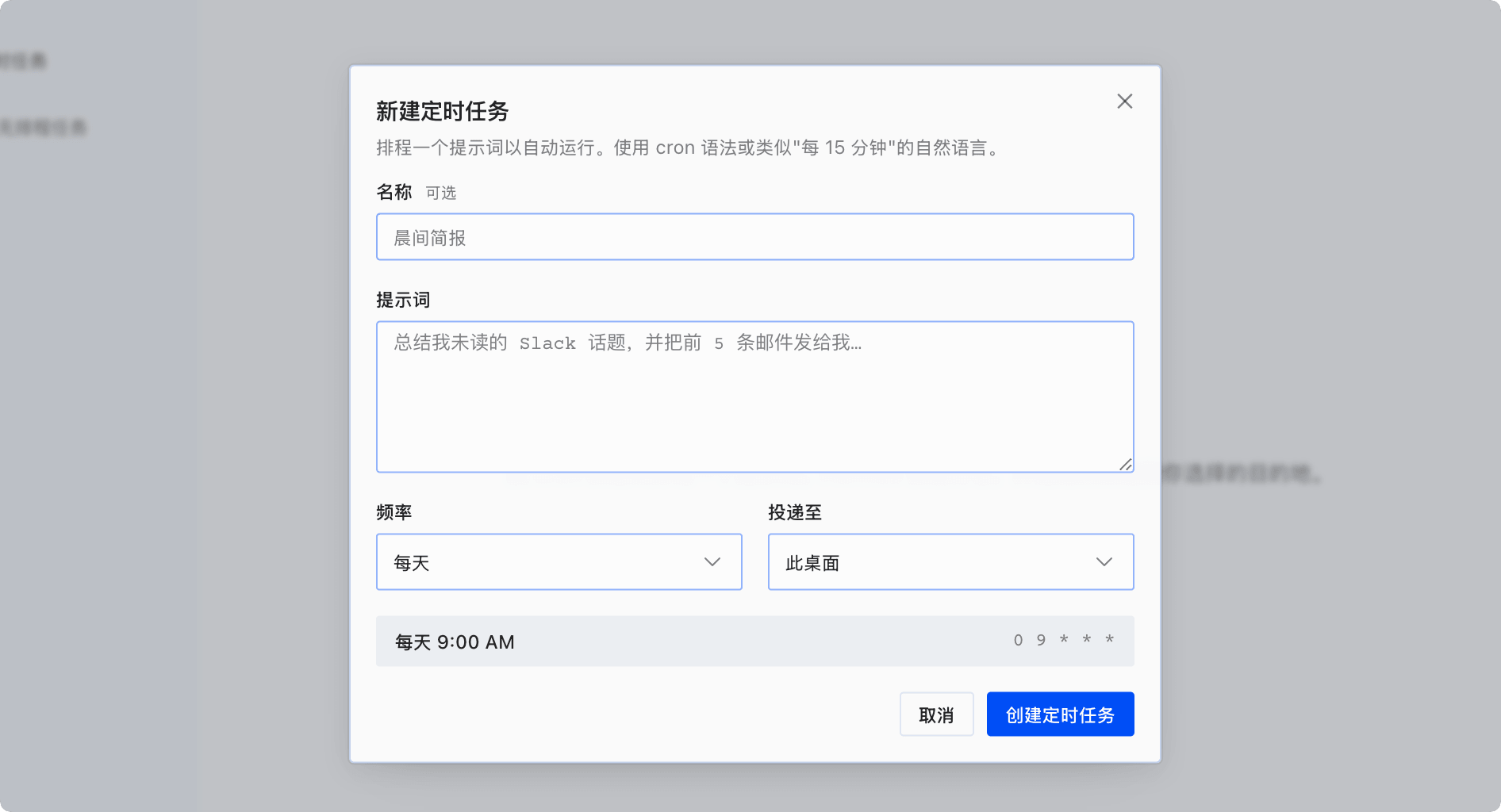
After a scheduled task is bound to a Skill, the output will be automatically formatted according to the Skill's defined output format. This ensures that when scheduled task results are delivered to a messaging platform, the presentation is consistent and readable.
Chronos-Managed Cron (Advanced)
Chronos is Hermes' managed scheduled-task solution, designed specifically for scale-to-zero deployment models.
When your Gateway is completely stopped while idle, Chronos can still ensure scheduled tasks fire on time.
Why is Chronos needed?
The built-in cron ticker requires the Gateway process to run continuously—if the Gateway scales down to zero, scheduled tasks will not trigger.
Chronos delegates scheduled-task management to NAS (Nous Account Service), which wakes up the Gateway via an external scheduler when a task triggers.
Chronos Workflow
Chronos' workflow is divided into four steps:
Step 1: The Agent calculates the next trigger time and registers a one-shot timer with NAS.
Step 2: NAS uses an external scheduler (such as Fly Machines' scheduled triggers) to fire a callback at the specified time.
Step 3: The external scheduler calls back to NAS, and NAS generates a short-lived JWT Token.
Step 4: NAS calls the Agent's /api/cron/fire endpoint using a JWT Token. The Agent verifies it, executes the task, and re-registers the next one-shot timer.
At-most-once guarantee
Chronos uses store-level CAS (Compare-And-Set) operations to ensure each scheduled task is executed only once.
Even if the scheduler sends duplicate trigger requests due to network retries, the Agent can deduplicate via CAS, ensuring tasks are not executed repeatedly.
Configure Chronos
Example
cron:
provider: "chronos" # Use Chronos instead of the built-in ticker
chronos:
portal_url: "https://portal.nousresearch.com"
callback_url: "https://my-agent.fly.dev" # Agent's publicly accessible URL
expected_audience: "agent:inst_abc123" # Audience for JWT validation
nas_jwks_url: "https://portal.nousresearch.com/.well-known/jwks.json"
other extensionsChronos is the recommended scheduling solution for managed Hermes deployments. If you use a self-hosted deployment and your Gateway never scales down to zero, the built-in cron ticker is fully sufficient. If callback_url is empty or the Agent does not have a Nous login, the system automatically falls back to the built-in ticker.