Hermes Agent CLI Command Line
CLI (Command Line Interface) is the most native way to interact with Hermes Agent, and also the most feature-complete entry point.
This chapter systematically introduces the three operation modes of CLI, session management, slash commands, TUI interface, shortcut operations, and scripting usage techniques.
Three Running Modes
Hermes CLI provides three operation modes, from simple Q&A to interactive sessions to pure keyboard operation, covering different usage scenarios.
Mode 1: Interactive session (hermes chat)
This is the most commonly used mode—launching a continuous multi-turn conversation session.
Start an interactive session (using the default Profile):
hermes chat
After starting, you enter the conversation interface, the prompt changes to, and after typing a message, press Enter to send; Agent begins to reply:
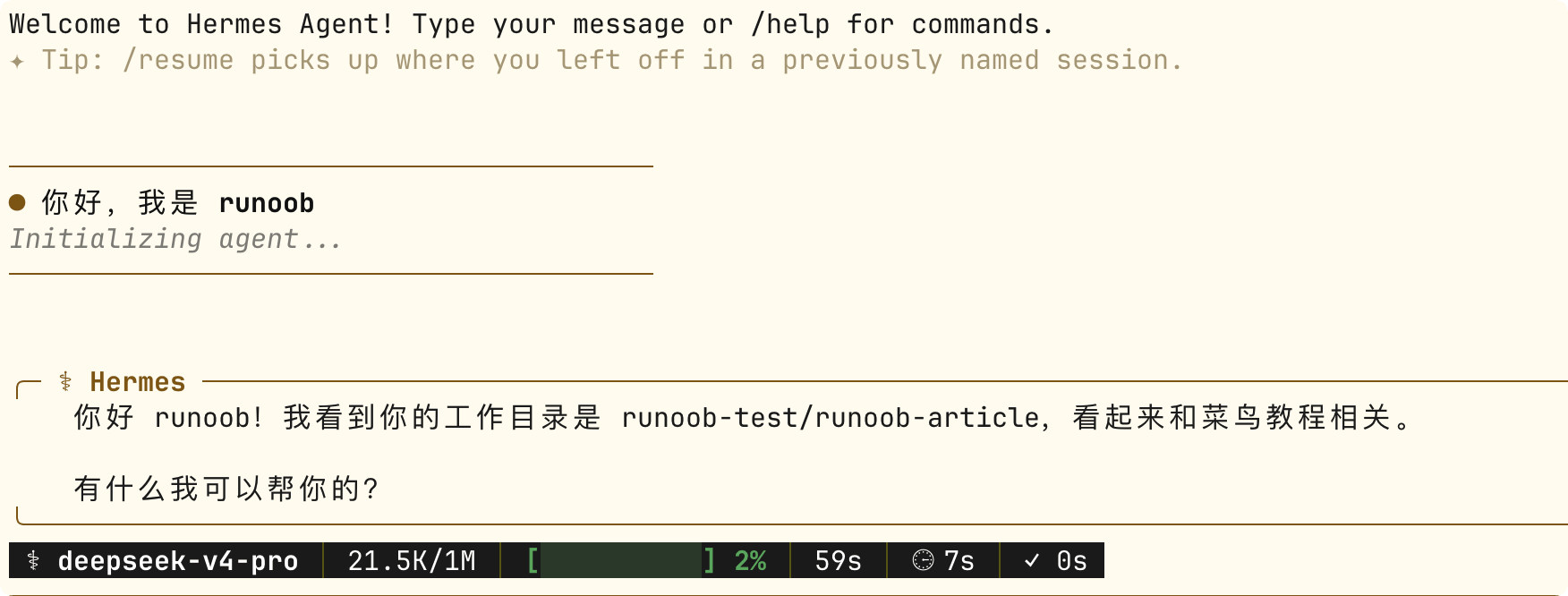
Once in an interactive session, you can send multiple messages continuously, and Agent will remember the previous conversation context.
This is the most natural way to use it in daily development—just like chatting with a colleague on Slack.
Mode 2: One-time query (-q / --query)
No need to enter an interactive session; pass in a question directly and get a reply, suitable for scripting and quick queries.
Example
hermes chat -q Write a quicksort function in Python
# Use in combination with Profile
coder chat -q "Review the code style of src/main.py"
# Use in Shell scripts
hermes chat -q "Extract the error lines from the following log" < error.log
-qKey features of the modes:
- Non-interactive; Agent exits immediately after completing the reply.
- Returns a standard exit code, allowing scripts to determine success or failure.
- Supports pipes and redirection
Mode 3: TUI terminal interface (hermes --tui)
TUI (Terminal User Interface) provides a full-screen terminal interface with pure keyboard operation.
Example
hermes --tui
# In TUI mode:
# Up/Down arrows: Browse conversation history
# Ctrl+N: New session
# Ctrl+S: Toggle sidebar (files, tool history, etc.)
# Ctrl+C: Interrupt the Agent's current operation
# Start with /: Enter slash commands
Unique advantages of TUI mode:
- The sidebar can simultaneously display conversation, file changes, and tool call history.
- Pure keyboard operation, no mouse required
- Suitable for long-duration deep work scenarios
Comparison of Three Modes
| Mode | Command | Interaction mode | Suitable scenarios |
|---|---|---|---|
| Interactive session | hermes chat | Multi-turn dialogue, input a message then wait for reply | Daily development, complex tasks |
| One-time query | hermes chat -q "..." | Single query, exits after reply | Scripting, quick queries |
| TUI | hermes --tui | Full-screen keyboard operation, multi-panel | Deep work, file-operation intensive |
Session Management
A session is the basic unit of conversation in the CLI. Each session has its own independent context, token count, and session ID.
Continue and Resume Sessions
Example
hermes --continue
hermes chat --continue
# Restore by session title (provided it has been named with /title)
hermes -c Refactor authentication module
# Restore exactly by session ID
hermes -r 20260305_091234_abc12345
When resuming a session, Agent retains the full conversation context, including previous tool call records and LLM reasoning history.
Start new session
Example
/new
# or
/reset
# Same effect: end current session, start a new session,
# Agent will reload system prompts and persistent memory
New sessions do not retain previous conversation context, but persistent memory (MEMORY.md and USER.md) remains visible.
Session Title Management
Hermes automatically generates a session title after the first round of conversation; you can also manually name it:
Example
/title Database Migration Plan Discussion
# View current session info (ID, title, token usage, etc.)
/status
Context compression
When the conversation history becomes too long and approaches the context window limit, you can manually trigger compression:
Example
/compress
# After compression, old content is summarized to free up space,
# You can continue sending new messages.
# Auto-Lineage of Compressed Session Creation:
# "Database Migration" → "Database Migration #2"
Automatic compression is triggered by Hermes when the context approaches the limit. /compress simply allows you to trigger it manually in advance. Both have the same effect.
Common Slash Commands
In interactive session and TUI mode, with/Input starting with / is recognized as a slash command.
The following are the most commonly used CLI commands, grouped by function.
Session Control
| Command | Features |
|---|---|
| /new or /reset | Start new session |
| /title <name> | Set the current session title |
| /status | Shows session ID, title, and token usage. |
| /usage | Shows token consumption details for the current session. |
| /compress | Manually compress conversation context |
| /resume [title] | Restore a previously named session |
Task Control
| Command | Features |
|---|---|
| /stop | Interrupts the task Agent is currently executing. |
| /retry | Makes Agent regenerate the previous reply. |
| /undo | Undoes the previous round of conversation (removes the last Q&A pair). |
| /background <task> | Run Tasks Asynchronously in Background Sessions |
/undo is a conversation-level undo—it removes the last Q&A round from the session history, returning Agent's context to the state before the previous reply. This is different from /retry (which keeps the original Q&A and asks Agent to re-answer).
Models and configuration
| Command | Features |
|---|---|
| /model | View the currently used model |
| /model <name> | Switch to a Specified Model |
| /model list | List all available models |
| /reload-mcp | Reload MCP server configuration |
Security and approval
| Command | Features |
|---|---|
| /yolo | Enables YOLO mode, automatically approving dangerous commands in the current session. |
| /yolo | Enter again to disable YOLO mode |
| /approve | Approve operations currently awaiting approval |
| /deny | Reject operations currently awaiting approval |
Memory and skills
| Command | Features |
|---|---|
| /memory | View current memory contents |
| /memory pending | View pending memory writes |
| /memory approve all | Approve all pending memory writes |
| /skills | List all installed skills |
| /skills search <keyword> | Search Local and Hub Skills |
| /skills install <id> | Install Skills |
| /<skill-name> [task] | Invoke a specified skill to execute tasks |
| /learn <source> | Generate a new skill from documentation or description |
Other
| Command | Features |
|---|---|
| /checkpoint <tag> | Create a filesystem checkpoint |
| /rollback [ID] | List or restore to a specified checkpoint |
| /cron list | View the scheduled task list |
| /cron pause/resume <name> | Pause or resume scheduled tasks |
| /suggestions | Views Agent's automation suggestions. |
| /voice on/off/tts | Control Voice Mode |
| /update | Update Hermes to the Latest Version |
| /help | Display all available commands |
Quick Actions and Tips
Keyboard shortcuts
In interactive session, the following shortcuts can improve operational efficiency:
| Shortcuts | Features |
|---|---|
| Ctrl+C | Interrupts Agent's current reply or tool execution. |
| Ctrl+D | Exit Interactive Session |
| Ctrl+L | Clear screen |
| Ctrl+B (voice mode) | Hold to record, release to send |
| up arrow | Retrieve Previous Input |
| Tab | Auto-complete file paths and skill names |
Multi-line Input
When you need to send messages containing line breaks (such as code blocks):
Example
hermes chat -q Review the following code:\n\ndef hello():\n print('world')"
# Method 2: Using Heredoc (Shell Syntax)
hermes chat -q "$(cat << 'EOF'
Please analyze this error stack:
Traceback (most recent call last):
File "app.py", line 42, in <module>
main()
File "app.py", line 38, in main
result = process(data)
TypeError: 'NoneType' object is not iterable
Please provide a fix.
EOF
)"
Pipes and Redirection
-qThe mode natively supports standard Unix pipes:
Example
cat error.log | hermes chat -q "Analyze these error logs and find the root cause"
# Save the Agent's response to a file
hermes chat -q "Generate the project's README.md" > README.md
# Use Agent as a filter in the pipeline
cat data.csv | hermes chat -q "Extract all email addresses, one per line" > emails.txt
Combined with Profile command aliases
Each Profile automatically generates dedicated command aliases, no need to-pflag:
Example
coder chat -q Refactor this function
researcher chat -q Search for the latest Transformer papers
admin gateway status
# Equivalent to
hermes -p coder chat -q Refactor this function
hermes -p researcher chat -q Search for the latest Transformer papers
hermes -p admin gateway status
Approvals and Security Controls
Approval Mode
When executing dangerous commands in the CLI, Hermes displays an approval prompt:
Agent 请求执行: rm -rf /tmp/build/*
原因: 清理构建缓存
[approve/deny]: _
You can decide in real time within the session to approve or reject.
The approval mode is configured in config.yaml:
Example
approvals:
mode: manual # manual (default, each dangerous command requires approval)
# smart (intelligent judgment, low-risk auto-approved)
# off (disable approval, not recommended)
timeout: 60 # Number of seconds to wait for approval; automatically reject on timeout
YOLO mode
When you are sure what Agent is about to do is safe (such as operations in a project you are familiar with), you can temporarily skip approval:
Example
# All commands in the current session are auto-approved
/yolo
# Agent starts executing operations, no longer pops up approval prompts...
# Enter /yolo again to disable YOLO mode and resume approvals.
/yolo
YOLO mode only takes effect in the current session; new sessions automatically restore the approval mode configured in config.yaml. This ensures that temporary relaxation does not become a permanent vulnerability.
Scripted usage
Using Hermes in shell scripts
-qThe mode's exit codes and standard output allow Hermes to integrate seamlessly into shell scripts:
Example
# File path: scripts/auto-review.sh
# Automatic code review script — reviews Git changed files one by one
# Get all changed Python files
changed_files=$(git diff --name-only HEAD~1 | grep '\.py$')
for file in $changed_files; do
echo === Review:$file ==="
# Use Hermes to review code and output results directly to the terminal
hermes chat -q "Review the code style and potential issues of the following Python files:
$(cat "$file")
Please provide the discovered issues and suggestions in list form. 2>/dev/null
# Check exit code
if [ $? -ne 0 ]; then
echo "[Warning]$fileAn error occurred during the review process.
fi
echo ""
done
Integrate with Git Hooks
The following is a Git pre-commit hook example—letting Agent check the code before committing.
Example
# File path: .git/hooks/pre-commit
# Git pre-commit hook: Agent checks code before commit
# Get the list of files changed in the staging area
staged_files=$(git diff --cached --name-only)
if [ -z "$staged_files" ]; then
exit 0
fi
echo "Hermes Agent is checking code changes..."
# Have the Agent Review Staged Changes
result=$(hermes chat -q "Review the following code changes in the Git staging area,\
Only report critical issues (security vulnerabilities, logic errors, breaking changes).\
If there are no serious issues, reply PASS.\
\
Changed files:\n$staged_files\n\
Detailed diff:\n$(git diff --cached)" 2>/dev/null)
echo "$result"
# If the Agent discovers a serious problem, block the commit
if echo "$result" | grep -q "PASS"; then
echo "Approved"
exit 0
else
echo ""
echo "Agent found issues that require attention."
echo If confirmed correct, use git commit --no-verify to skip this check.
exit 1
fi
Scheduled Execution
Combined with the system's cron or Hermes' built-in Cron system, CLI tasks can be executed periodically—but it is recommended to use Hermes' built-in Cron (viahermes cron create), because it can directly deliver results to the message platform.