Jupyter Notebook Interface Introduction
After successfully launching Jupyter Notebook, you will encounter two core interfaces:
- File Browser Interface
- Notebook Editing Interface
1. File Browser Interface
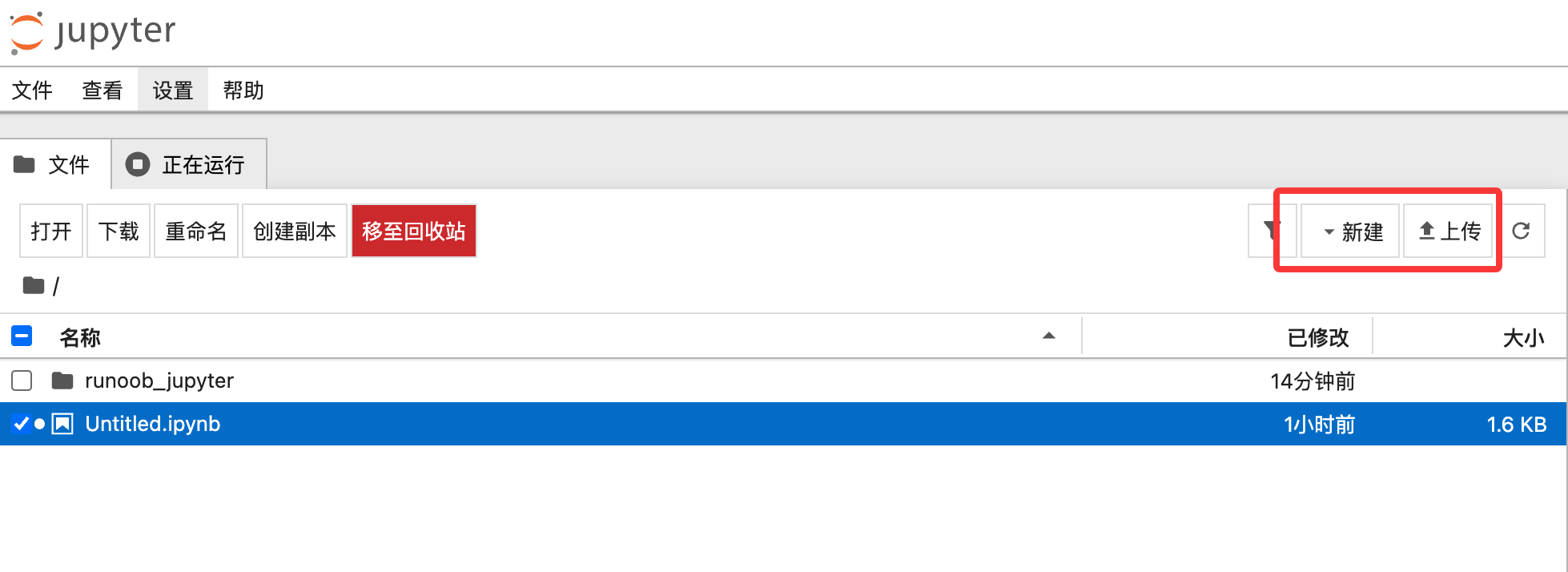
When you start Jupyter, you see this management interface, similar to a file explorer with backend control functionality:
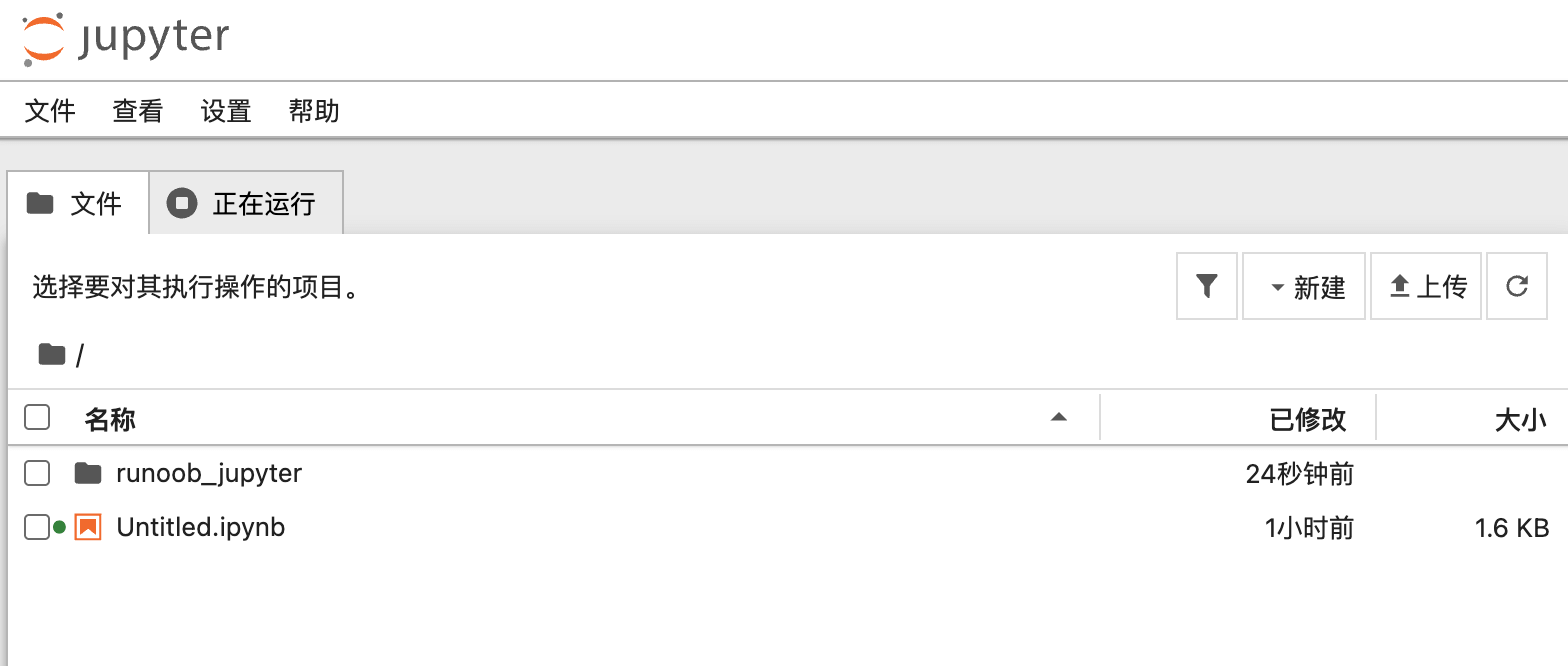
- Working Directory:This shows the folder you were in when you started Jupyter.
- Note the icon color:If the notebook icon isgreen, it means the document's kernel is running in the background, occupying CPU and memory;gray, it means the file is saved but not activated.
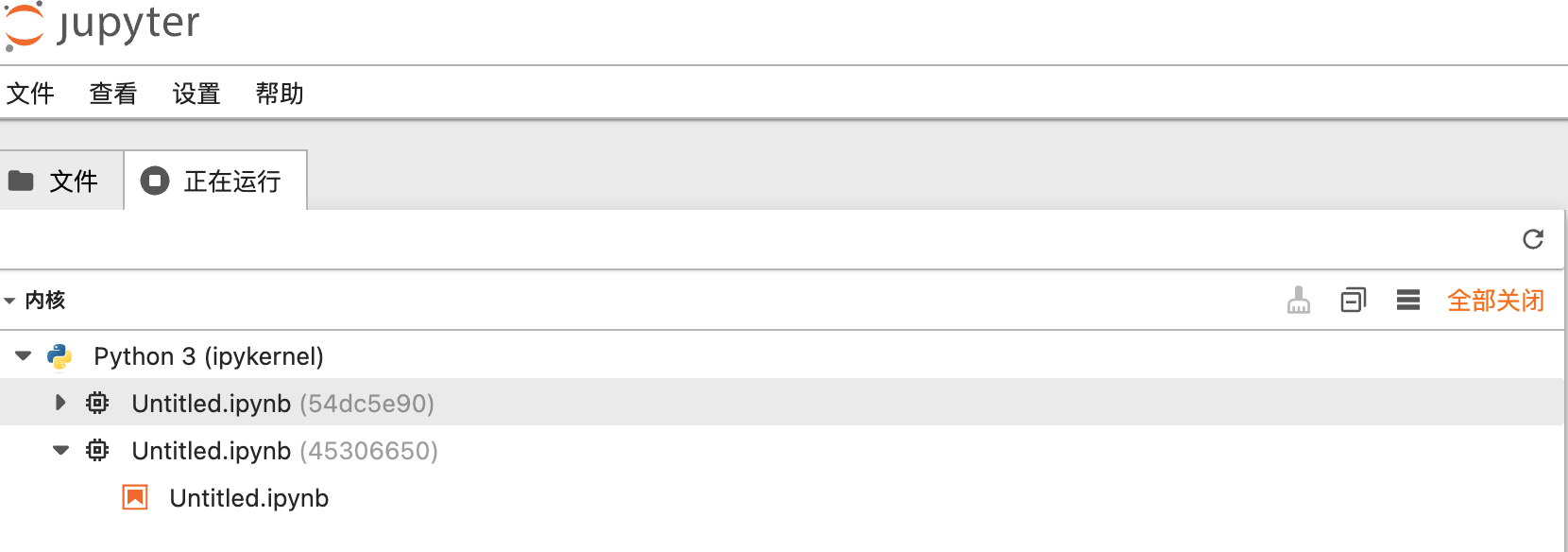
Click the Running tab to view all running Notebooks at a glance:
Newbutton is used to create new notes; usually select the first option.Python 3。
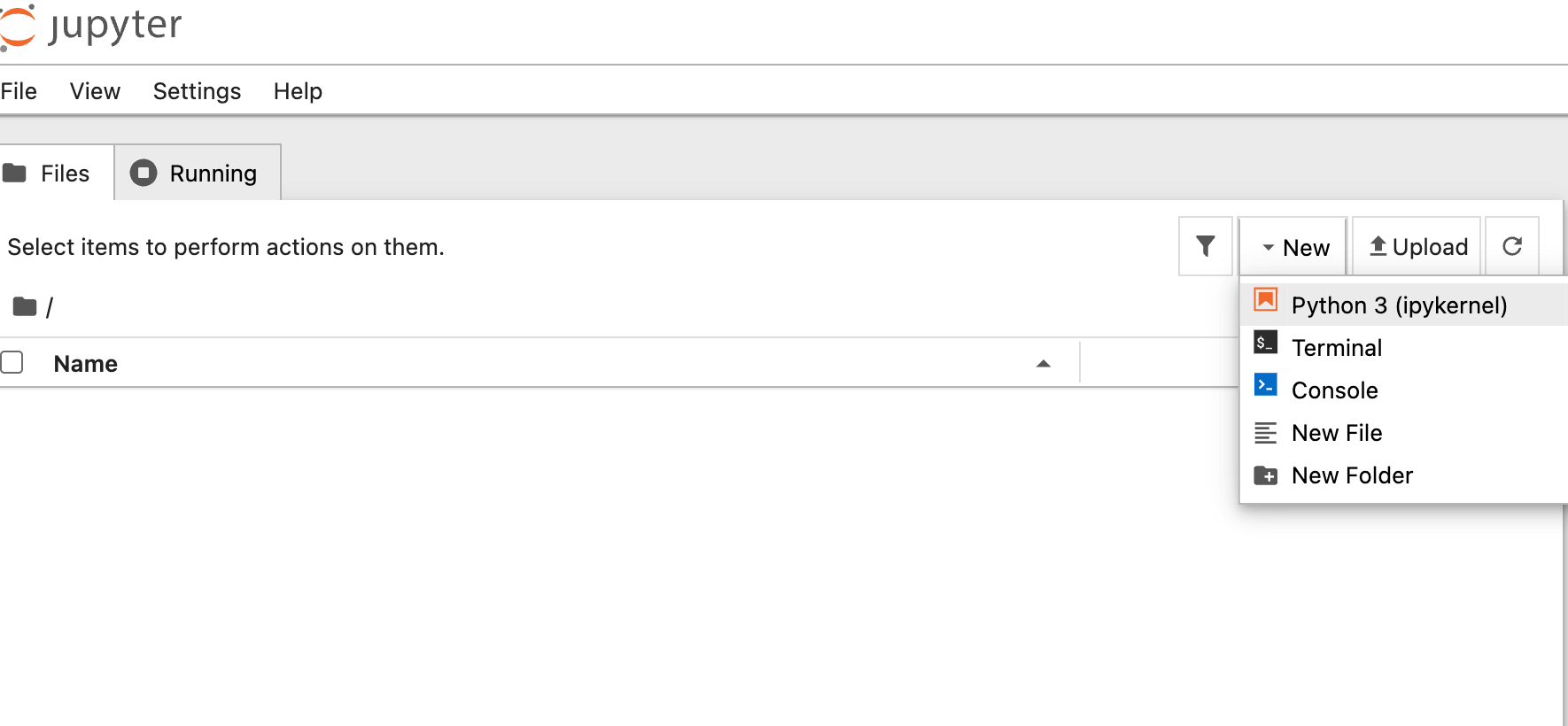
If you downloaded someone else's.ipynbtutorial, useUploadto import it into the current directory.
Notebook Editing Interface
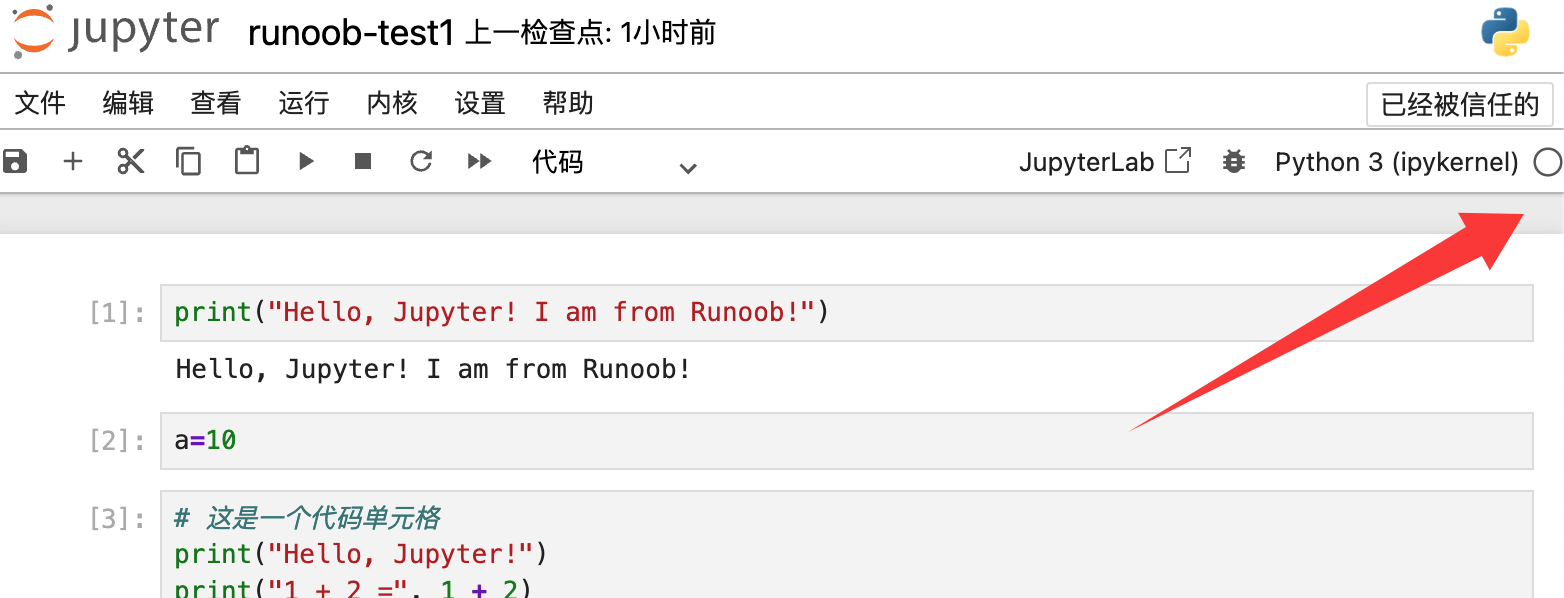
This is the interface you enter after clicking New File; it is the Notebook editing interface.
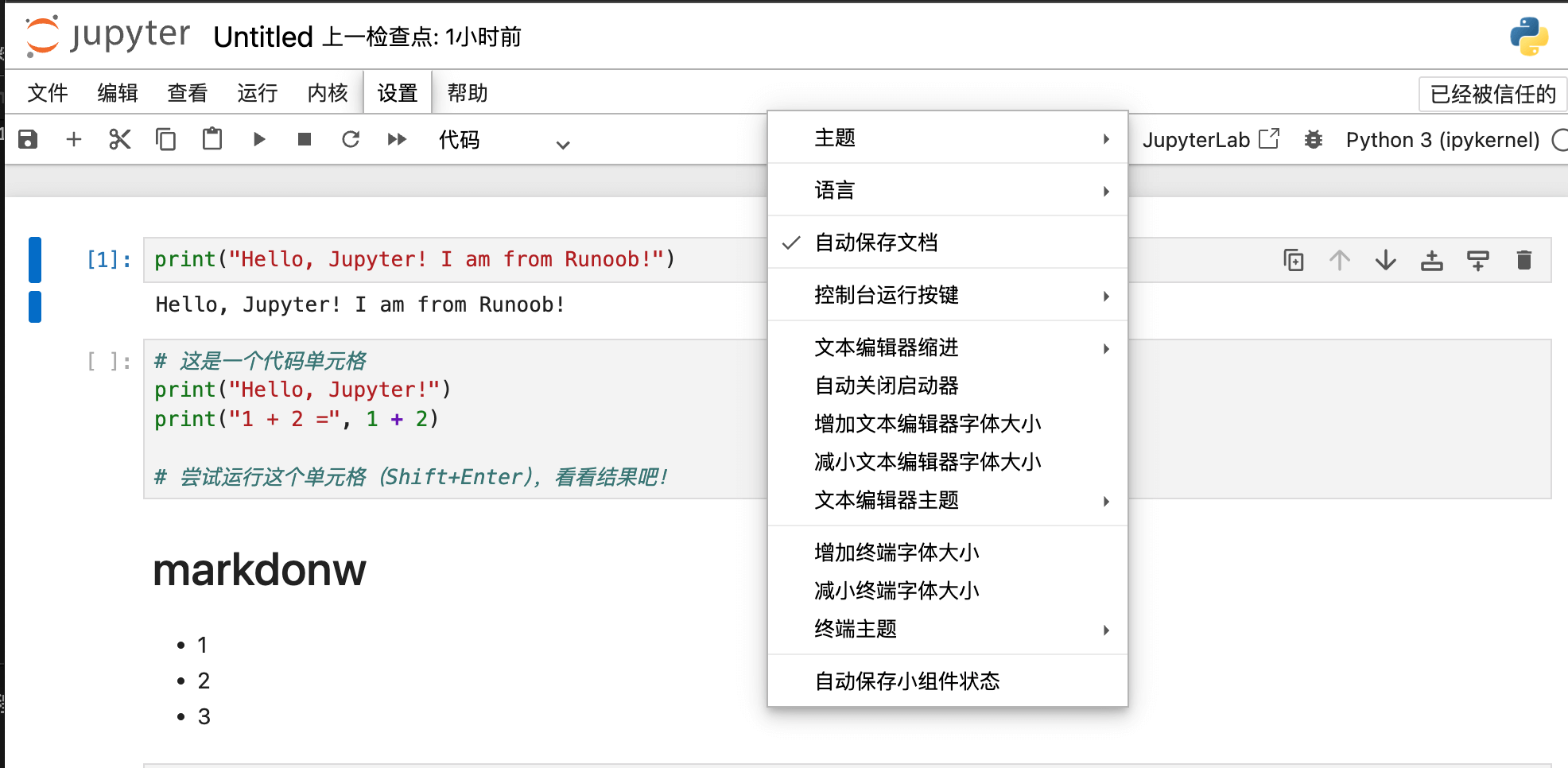
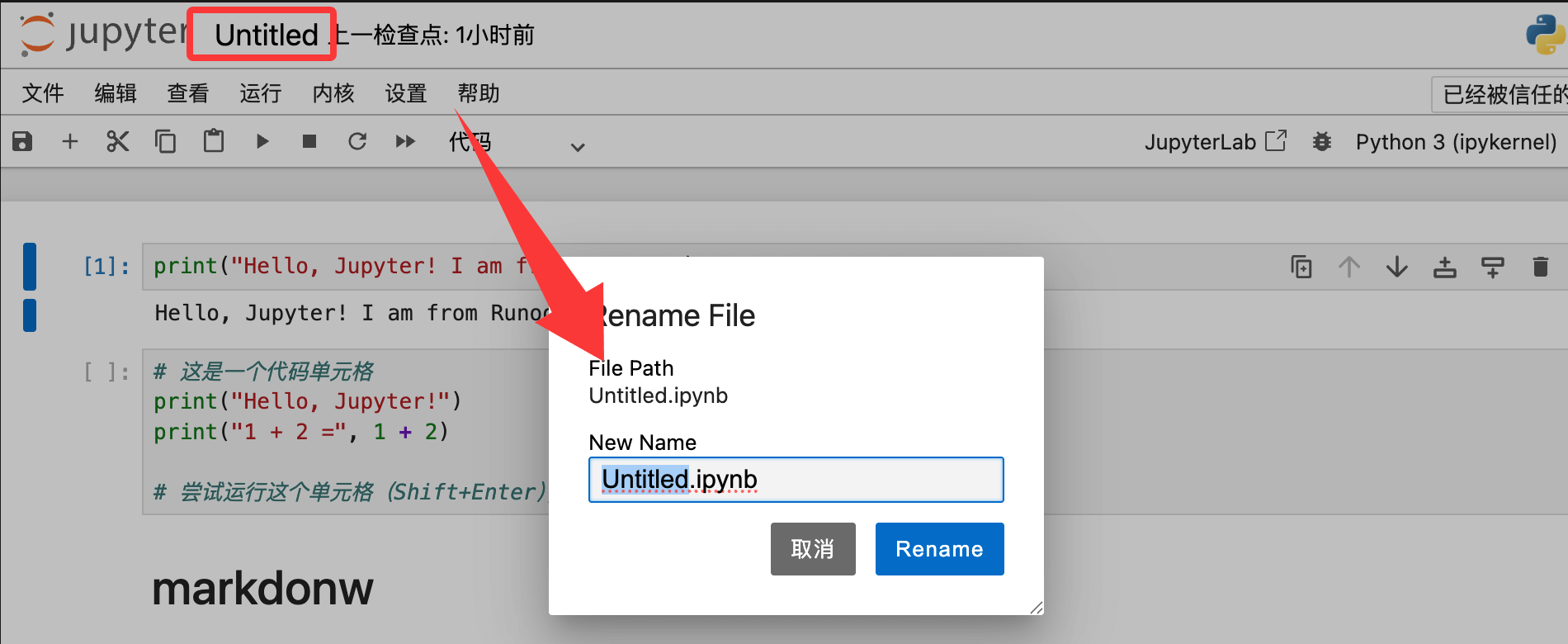
1. File Renaming:Click the upper-leftJupytertitle next to the Logo (e.g.,Untitled), and a rename dialog will pop up.
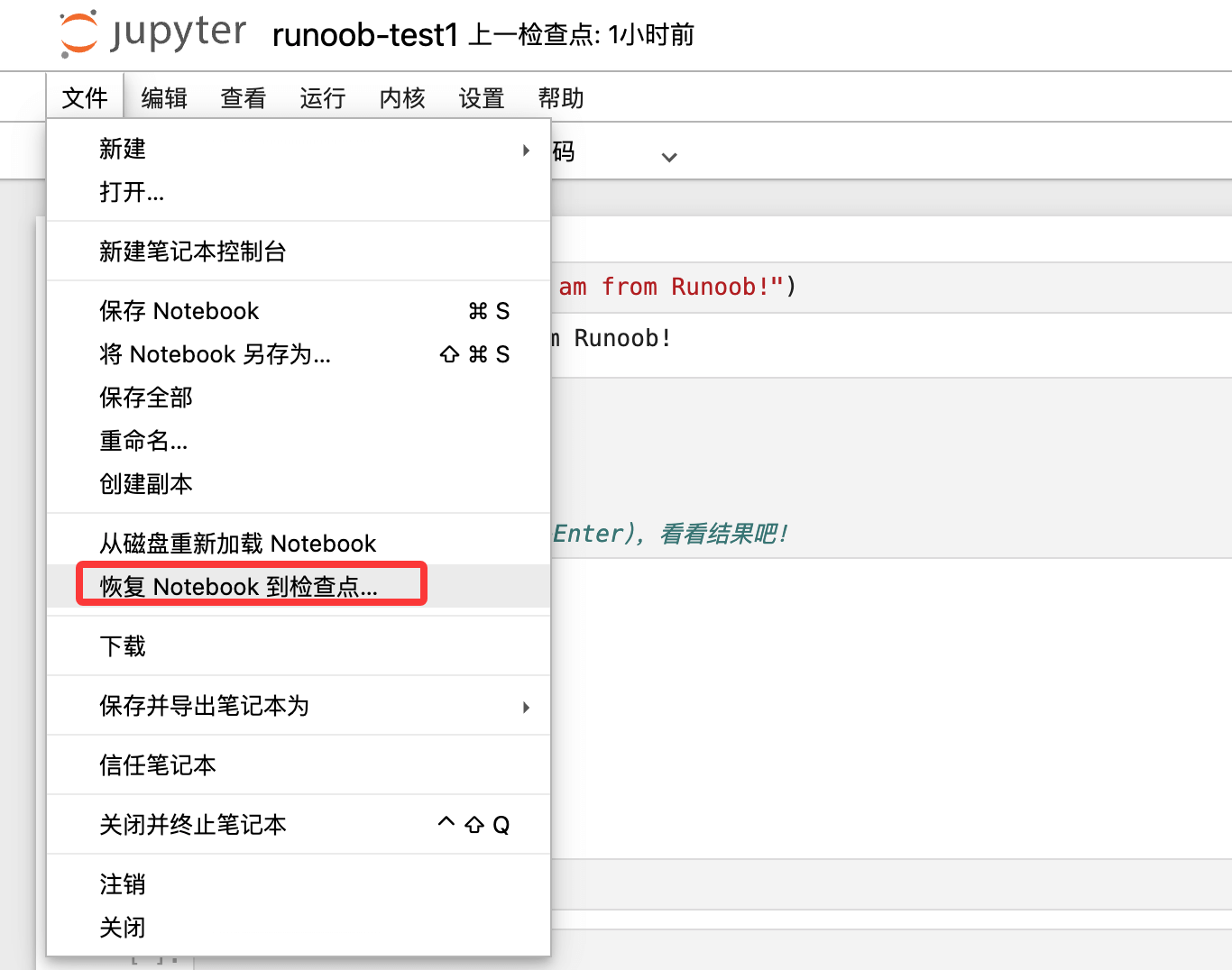
2. Saving and Restoring: FileUnder the File menu,Revert Notebook to Checkpoint. Jupyter creates checkpoints. If you mess up your code, you can roll back to a previous state at any time.
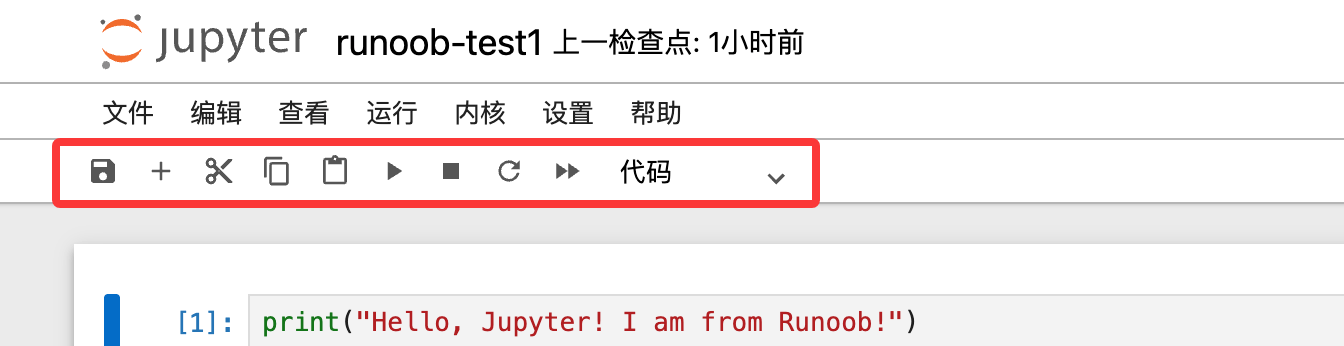
Toolbar
The three most core actions in the toolbar:
- Insert (
+):"Adds a line" below the current cell. - Control (cut, copy, paste):Used to adjust the order of code blocks.
- Run controls:
Run ( ▶ )Run the current cell;Interrupt( ■ ) Force-stop code that is reporting errors;Restart( ↻ ) Equivalent to powering off and restarting the brain, clearing all variables that have been run.
Cell
The cell is the soul of Jupyter; it has two identities:
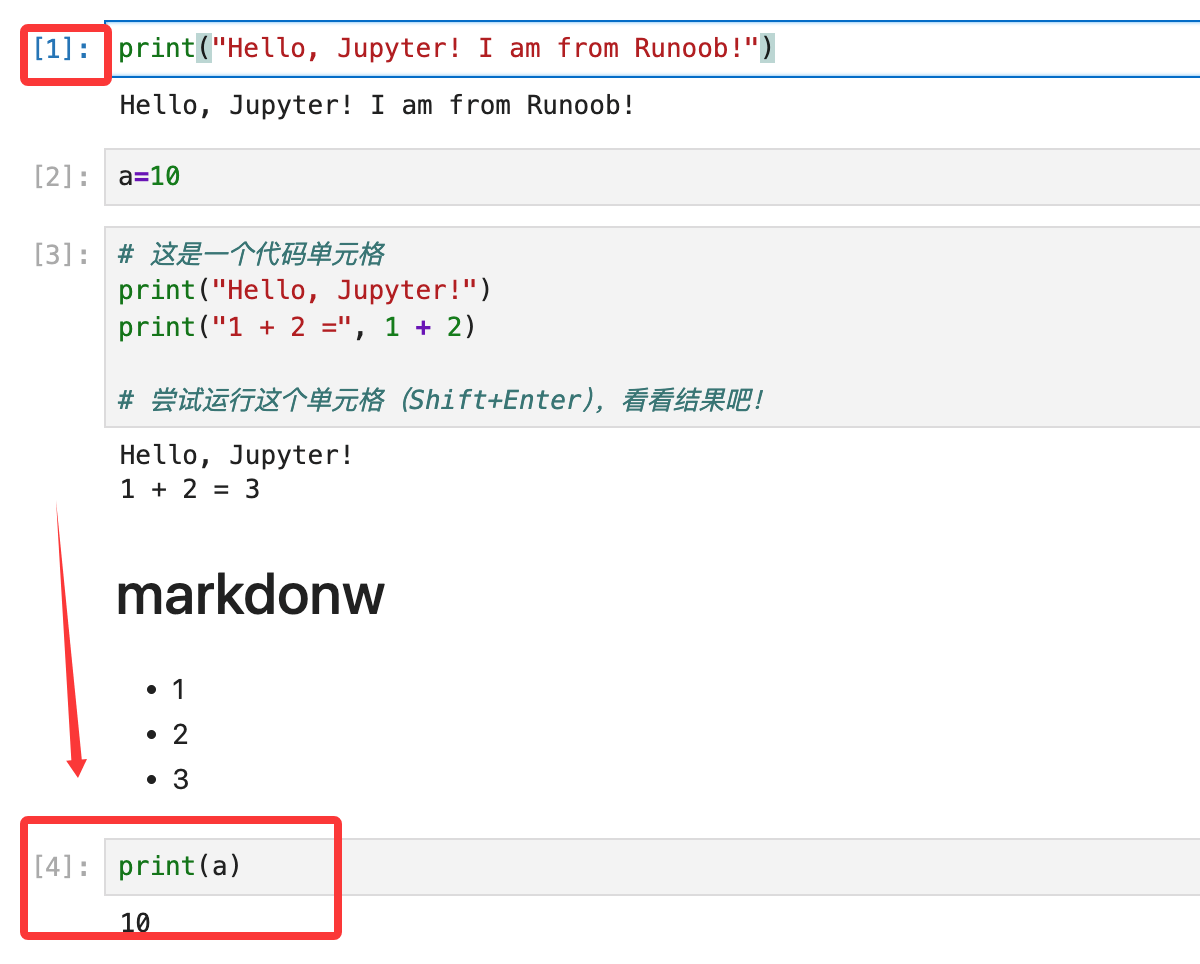
- Code mode: There is a
In [数字]。number on the left. The number is very important:it represents theexecution order。 - For example: you define a variable in the 1st cell
a = 10, then write it in the 4th cellprint(a)and it will still work, as long as the execution order is correct.
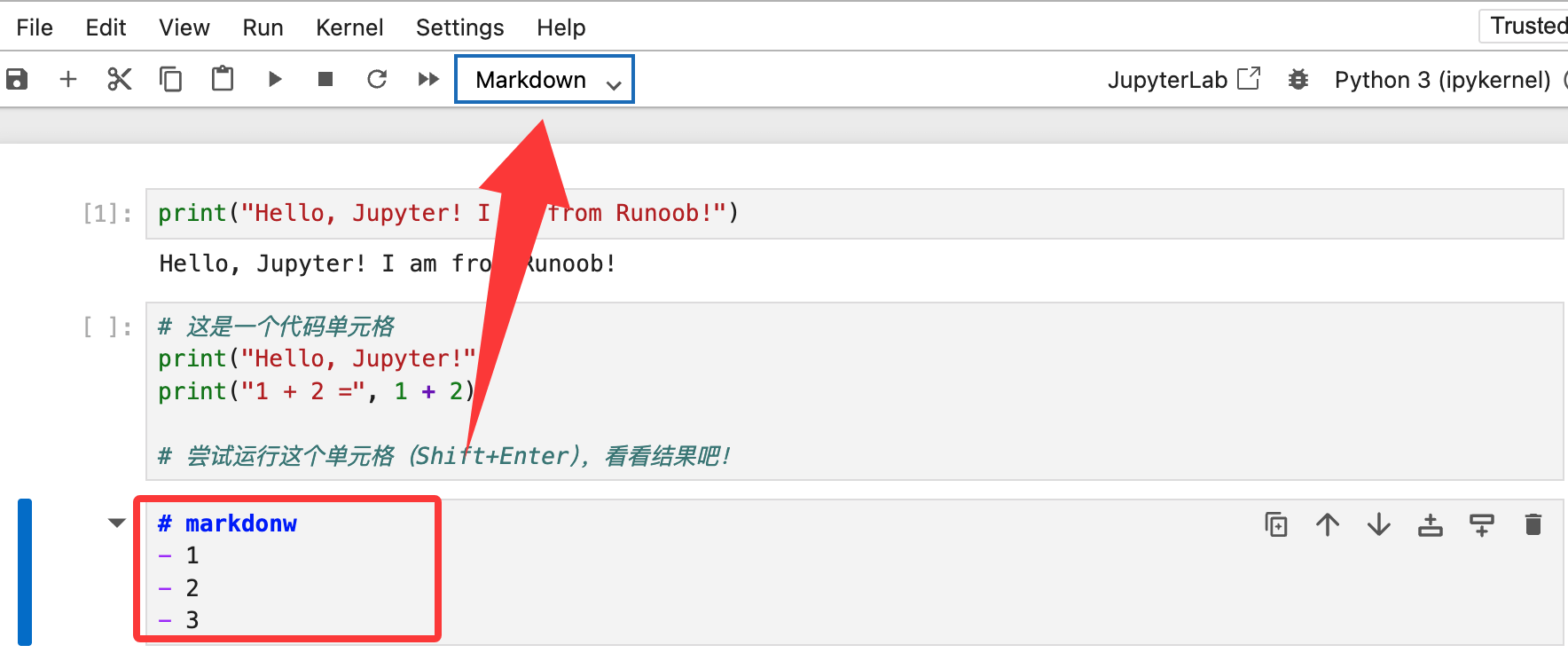
- Markdown mode:The left side has no
In [ ]. After writing, run it and it will instantly transform from raw text into a beautiful document with headings, bold text, and even mathematical formulas.
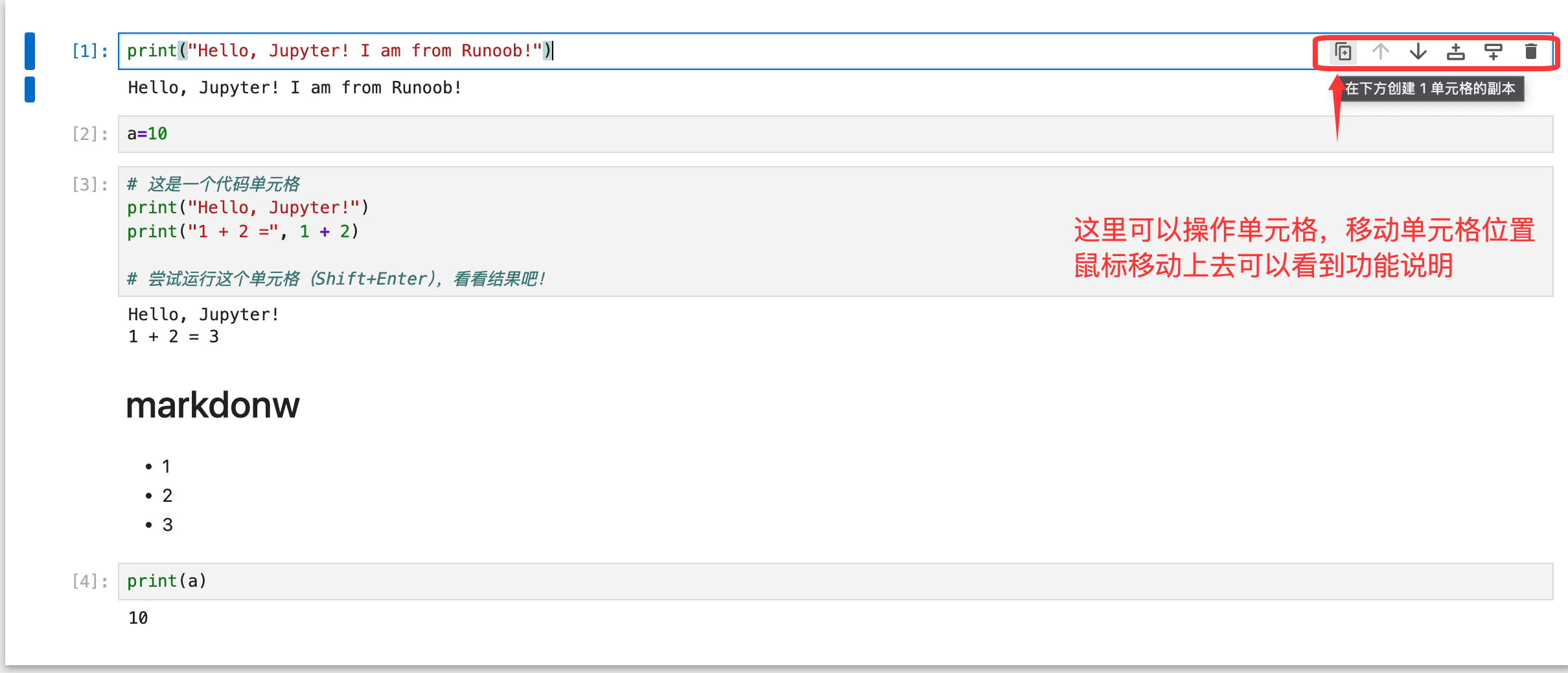
On the right side of the cell, you can perform operations such as moving the cell:
Upper-right corner: kernel status indicator
- Hollow circle ( ○ ): the brain is idle, waiting for instructions.
- Solid black circle ( ● ): the brain is running at full speed (computing).
- No Kernel / Python 3: If it displays "No Kernel", click it to reconnect, otherwise the code cannot run.