Google MapsAPI Key
Before starting this tutorial, you need to have a free Google Maps API key.
Start learning?
Before starting this tutorial, you need to apply for a designated API key on Google.
Through the following steps, we can get an API key for free.
Visithttps://code.google.com/apis/console/, Log in with your Google account.
After logging in, the following interface will appear:
Click the "Create Project" button.
In the service list, findGoogle Maps API v3,Then click "off" to turn on the server
In the next step, select "I Agree..." and then click the "Accept" button. Now you should be able to see in the service list that Google Maps API v3 has changed to the "on" state.
Then click "API Access" in the left menu, and in the right panel you will see the following prompt: "Create an OAuth 2.0 client id...".
Click "Create an OAuth 2.0 client id...", a form will pop up, which requires you to fill in your project name, project image or logo, and then click the "Next" button.
Then, we need to select the application type ("Web application"), then fill in your site address, and then click the "Create Client Id" button.
Finally, we can get the API key we need, as shown in the figure below:
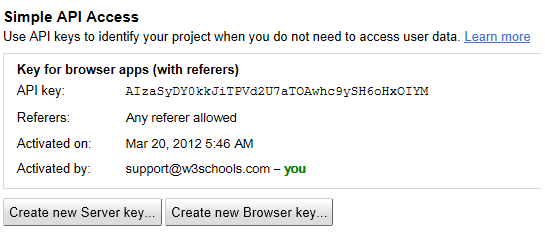
 Note:Save your API key! (You will need to use this API key to develop all Google Maps applications at the specified URL you filled in).