Django Admin management tool
Django provides a web-based admin tool.
Django's automatic admin tool is part of django.contrib. You can see it in INSTALLED_APPS in your project's settings.py:
/HelloWorld/HelloWorld/settings.py file code:
django.contrib is a vast set of feature sets and is an integral part of Django's base code.
Activate management tools
Usually, this is automatically configured in urls.py when we generate a project; we just need to remove the comments.
The configuration items are as follows:
/HelloWorld/HelloWorld/urls.py file code:
Once all this is configured, the Django Admin management tool is ready to run.
Use management tools
Start the development server, then visit http://127.0.0.1:8000/admin/ in the browser, and you will see the following interface:
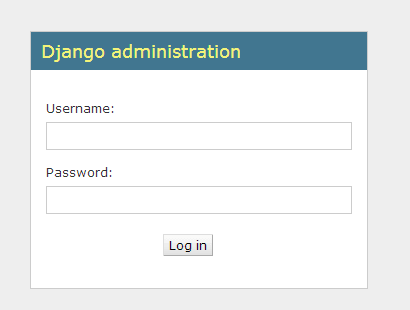
You can use the commandpython manage.py createsuperuserTo create a superuser, as shown below:
# python manage.py createsuperuser
Username (leave blank to use 'root'): admin
Email address: [email protected]
Password:
Password (again):
Superuser created successfully.
[root@solar HelloWorld]#
Then enter the username and password to log in. The interface is as shown below:
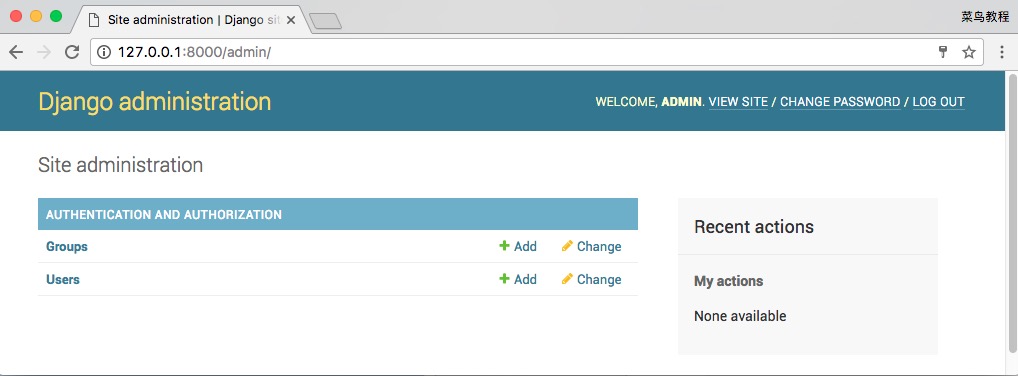
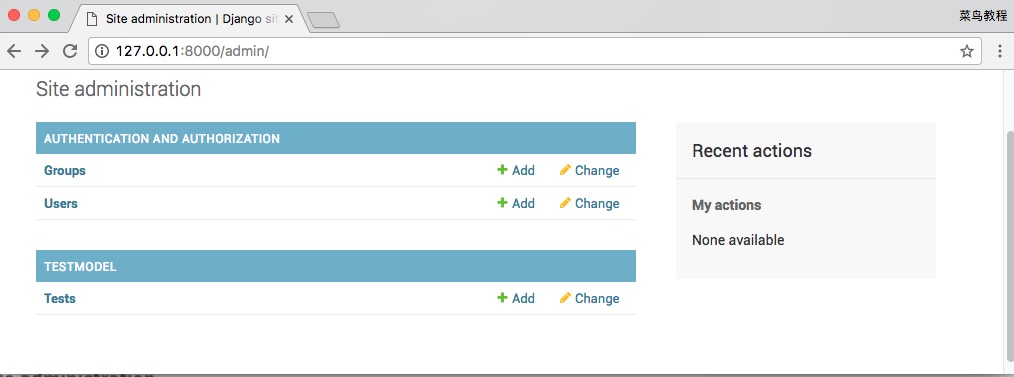
To let the admin interface manage a data model, we need to first register the data model with admin. For example, we previously created the model Test in TestModel. Modify TestModel/admin.py:
HelloWorld/TestModel/admin.py: file code:
After refreshing, you can see the Testmodel data table:
Complex Model
The admin page is powerful and fully capable of handling more complex data models.
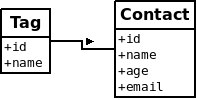
First, add a more complex data model in TestModel/models.py:
HelloWorld/TestModel/models.py: File code:
There are two tables here. Tag uses Contact as a foreign key. One Contact can correspond to multiple Tags.
We can also see many attribute types we haven't seen before, such as IntegerField for storing integers.
Register multiple models in TestModel/admin.py and display them:
HelloWorld/TestModel/admin.py: file code:
Refresh the management page, and the results are displayed as follows:
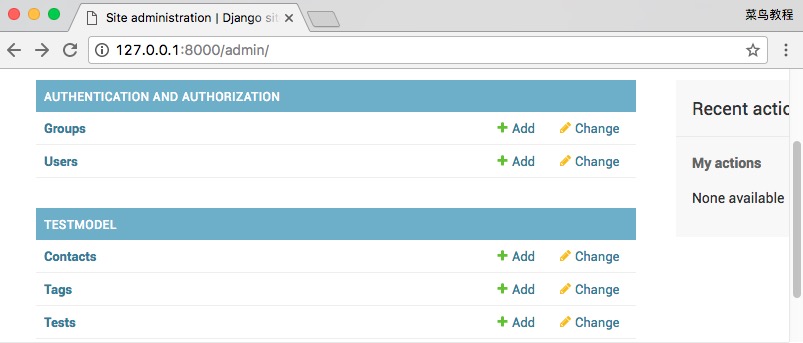
With the above admin tool, we can perform complex model operations.
If you haven't created the table structure yet, you can use the following command to create it:
$ python manage.py makemigrations TestModel  # 让 Django 知道我们在我们的模型有一些变更
$ python manage.py migrate TestModel   # 创建表结构
Custom form
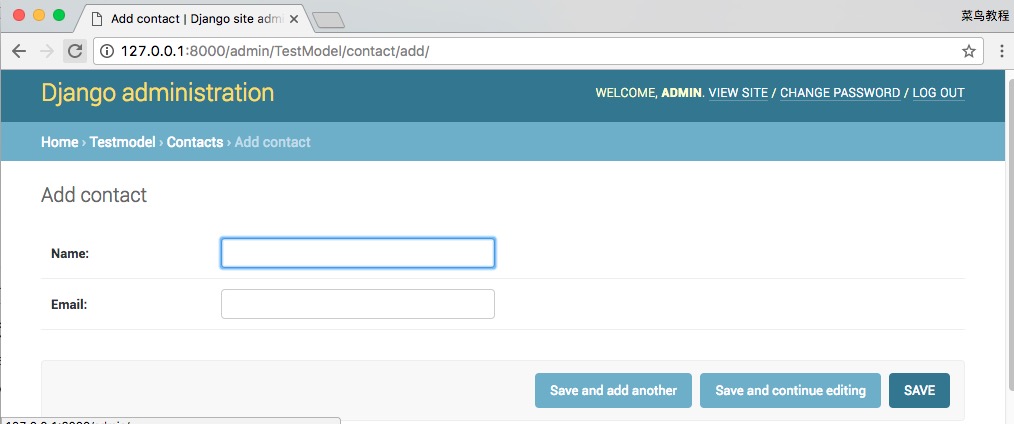
We can customize the admin page to replace the default page. For example, on the "add" page above, we want to display only the name and email sections. Modify TestModel/admin.py:
HelloWorld/TestModel/admin.py: file code:
The above code defines a ContactAdmin class to specify the display format of the admin page.
The fields attribute inside defines the fields to be displayed.
Since this class corresponds to the Contact data model, we need to register them together. The display effect is as follows:
We can also divide the input fields into sections, and each section can define its own format. Modify TestModel/admin.py to:
HelloWorld/TestModel/admin.py: file code:
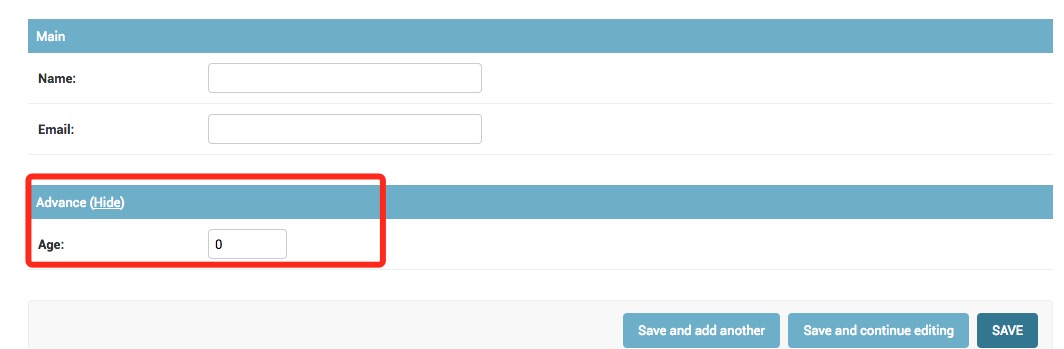
The above fields are divided into two sections: Main and Advance. The classes attribute specifies the CSS format of the section it belongs to. Here, the Advance section is hidden:
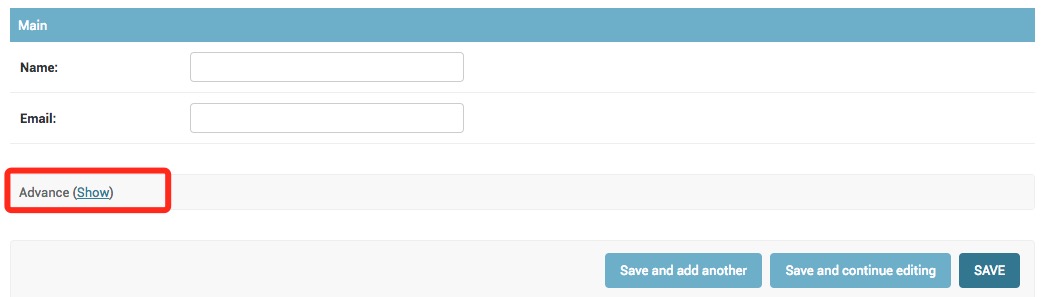
There is a Show button next to the Advance section for expanding it. After expansion, you can click Hide to hide it, as shown in the figure below:
Inline display
In the above, Contact is the foreign key of Tag, so there is a foreign reference relationship.
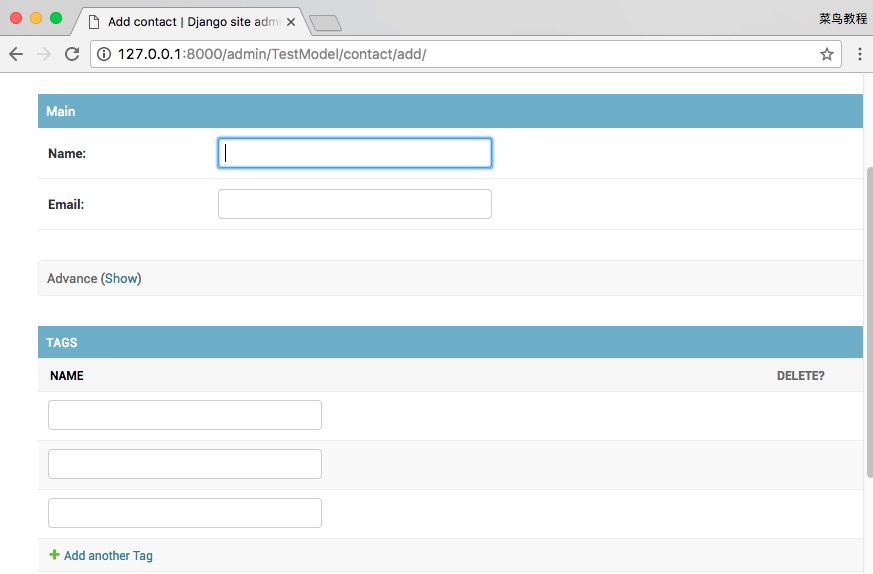
However, in the default page display, the two are separated, failing to reflect their subordinate relationship. We can use inline display to have Tag displayed attached to the Contact edit page.
Modify TestModel/admin.py:
HelloWorld/TestModel/admin.py: file code:
The display effect is as follows:
List page display
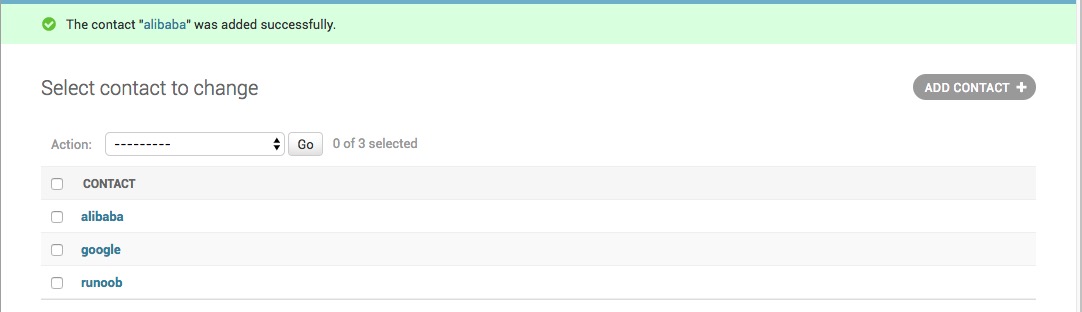
After entering several records in Contact, Contact's list page looks as follows:
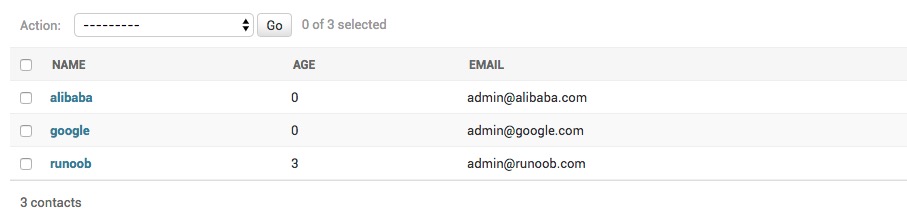
We can also customize the display of this page. For example, to show more columns in the list, simply add the list_display attribute in ContactAdmin:
HelloWorld/TestModel/admin.py: file code:
Refresh the page, the display effect is as follows:
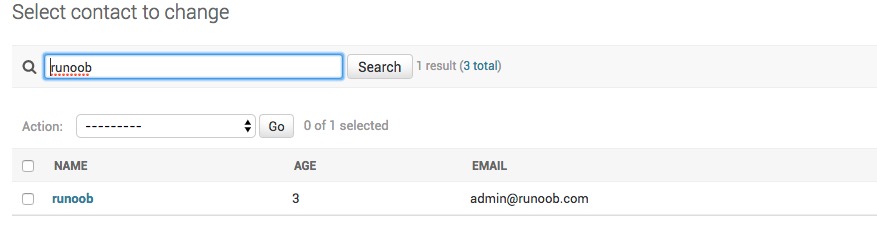
The search function is very useful when managing a large number of records. We can use search_fields to add a search bar to this list page:
HelloWorld/TestModel/admin.py: file code:
In this example, we searched for records with name example, and the results are as shown below:
The Django Admin management tool also has many practical features. Interested students can study it in depth.
other extensions