Create a simple Dash app
In the previous chapter, we introduced how to install Dash. To ensure that Dash is installed correctly, we can create a simple Dash app to test it.
1. Create a Python file
Create a new Python file in your project directory, for exampleapp.py。
2. Write code
Inapp.pyIn the file, enter the following code:
Example
# Import Dash related libraries
import dash
from dash import dcc, html # dcc is Dash's core component library, html is the HTML component library
# Create a Dash app instance
app = dash.Dash(__name__)
# Define the application layout
app.layout = html.Div(children=[
# Add a title
html.H1(children='Hello, Dash!'),
# Add some descriptive text
html.Div(children='''
Dash: A web application framework for Python.
'''),
# Add a chart
dcc.Graph(
id='example-graph', # Chart ID, used for callback functions
figure={
'data': [ # Chart data
{'x': [1, 2, 3], 'y': [4, 1, 2], 'type': 'bar', 'name': 'Shanghai'},
{'x': [1, 2, 3], 'y': [2, 4, 5], 'type': 'bar', 'name': 'Beijing'},
],
'layout': { # Chart Layout
'title': Dash Data Visualization Example # Chart Title
}
}
)
])
# Run the app
if __name__ == '__main__':
app.run_server(debug=True) # Start the app, debug=True enables debug mode
import dash
from dash import dcc, html # dcc is Dash's core component library, html is the HTML component library
# Create a Dash app instance
app = dash.Dash(__name__)
# Define the application layout
app.layout = html.Div(children=[
# Add a title
html.H1(children='Hello, Dash!'),
# Add some descriptive text
html.Div(children='''
Dash: A web application framework for Python.
'''),
# Add a chart
dcc.Graph(
id='example-graph', # Chart ID, used for callback functions
figure={
'data': [ # Chart data
{'x': [1, 2, 3], 'y': [4, 1, 2], 'type': 'bar', 'name': 'Shanghai'},
{'x': [1, 2, 3], 'y': [2, 4, 5], 'type': 'bar', 'name': 'Beijing'},
],
'layout': { # Chart Layout
'title': Dash Data Visualization Example # Chart Title
}
}
)
])
# Run the app
if __name__ == '__main__':
app.run_server(debug=True) # Start the app, debug=True enables debug mode
3. Run the application
Run the following command in the terminal to start the Dash app:
python app.py
If everything works properly, you will see output similar to the following:
Dash is running on http://127.0.0.1:8050/

 * Serving Flask app 'test'
 * Debug mode: on
Open your browser and visithttp://127.0.0.1:8050/you will see a simple Dash app page displaying a title, text, and a bar chart, as shown below
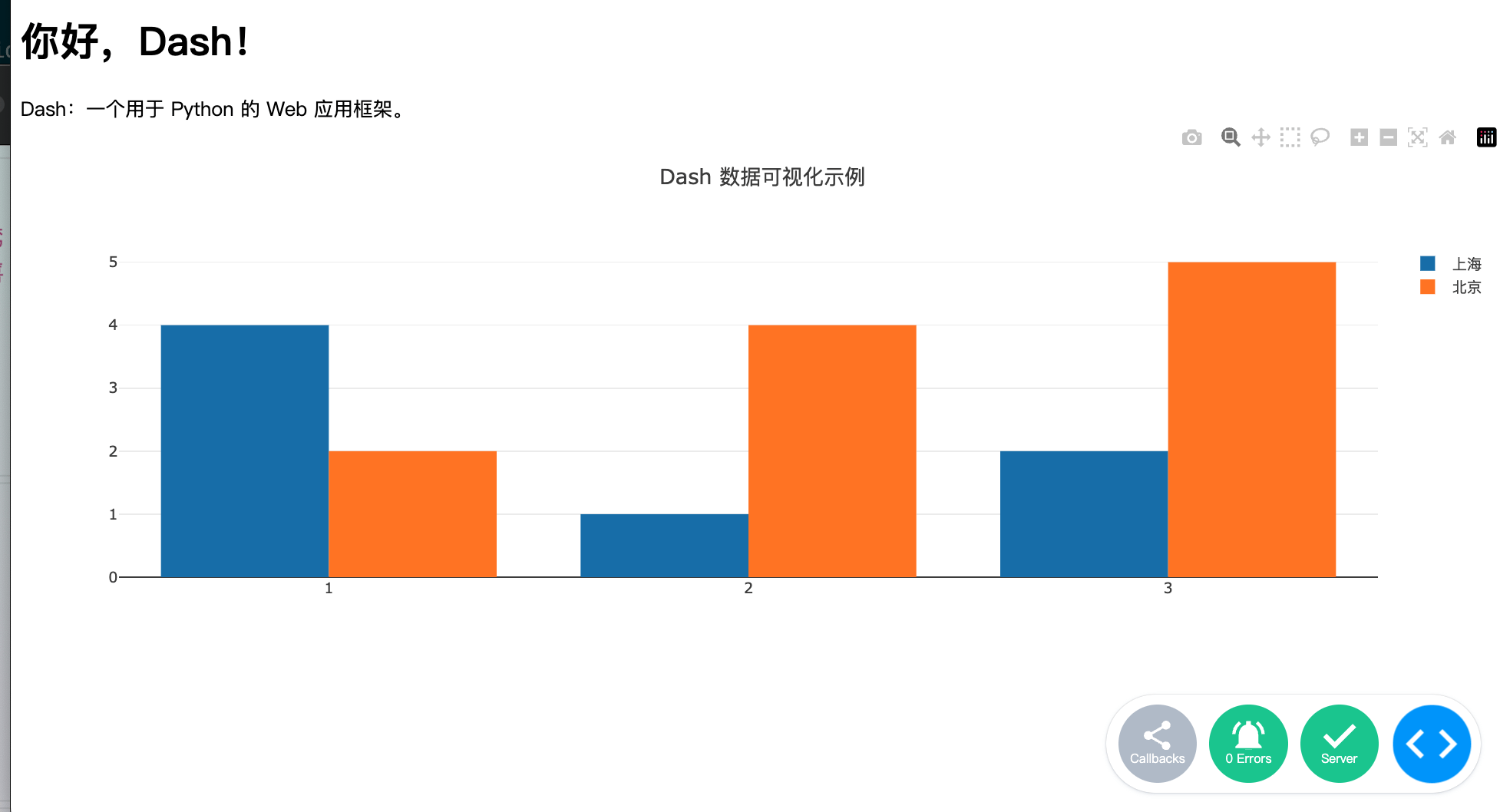
Through the above steps, we have successfully run a simple Dash app.
Dash is a powerful and easy-to-use framework, especially well-suited for developing data visualization and interactive web applications.
other extensions