Получение бесплатного SSL-сертификата - Certbot
Мы знаем, что использование SSL-сертификатов (Secure Sockets Layer) очень важно для веб-сайтов и онлайн-сервисов. SSL-сертификаты защищают данные от перехвата и подмены, шифруя обмен данными между пользователями и серверами.
В этой главе мы расскажем, как использовать инструмент Certbot для получения бесплатных SSL-сертификатов.
Что такое Certbot?
Certbot — это инструмент автоматизации с открытым исходным кодом, используемый для получения и продления бесплатных SSL/TLS-сертификатов, предоставляемых Let's Encrypt.
Let's Encrypt — это центр сертификации (CA), управляемый Internet Security Research Group (ISRG). Он предоставляет автоматизированный процесс создания и продления сертификатов, позволяя администраторам сайтов легко включать шифрование HTTPS для своих сайтов.
Основные возможности Certbot включают:
- Автоматизация: он может автоматически проверять владение доменом и запрашивать сертификаты.
- Бесплатность: используются бесплатные сертификаты, предоставляемые Let's Encrypt.
- Совместимость: поддерживает несколько веб-серверов, таких как Apache, Nginx и др.
- Простота использования: предоставляет интерфейс командной строки, что делает установку и использование простыми.
- Продление: Автоматически обрабатывает продление сертификата, гарантируя, что HTTPS-соединение сайта остаётся действительным в любое время.
Сертификаты, выпущенные Let's Encrypt, действительны в течение 90 дней. Certbot автоматически настраивает задачи продления сертификатов, чтобы гарантировать, что сертификаты не истекают.
Установка Certbot
1. Установка Certbot в системах Ubuntu/Debian
Установка с помощью APT:
sudo apt update
sudo apt install certbot
После завершения установки Certbot готов к использованию.
Установите версию Snap:
Snap — официально рекомендуемый метод установки Certbot, особенно для версий Ubuntu с долгосрочной поддержкой.
sudo snap install core
sudo snap refresh core
sudo snap install --classic certbot

sudo ln -s /snap/bin/certbot /usr/bin/certbot  # 这一步是为了确保 certbot 命令能全局使用
2. Установка Certbot в системах CentOS/RHEL
Установите репозиторий EPEL (для CentOS 7 и ниже):
sudo yum install epel-release
sudo yum install certbot
3. Установка Certbot на macOS
В macOS можно установить Certbot с помощью Homebrew:
brew install certbot
Для получения дополнительной информации вы можете посетить сайт Certbothttps://certbot.eff.org/Просмотрите методы установки для каждой системной платформы:
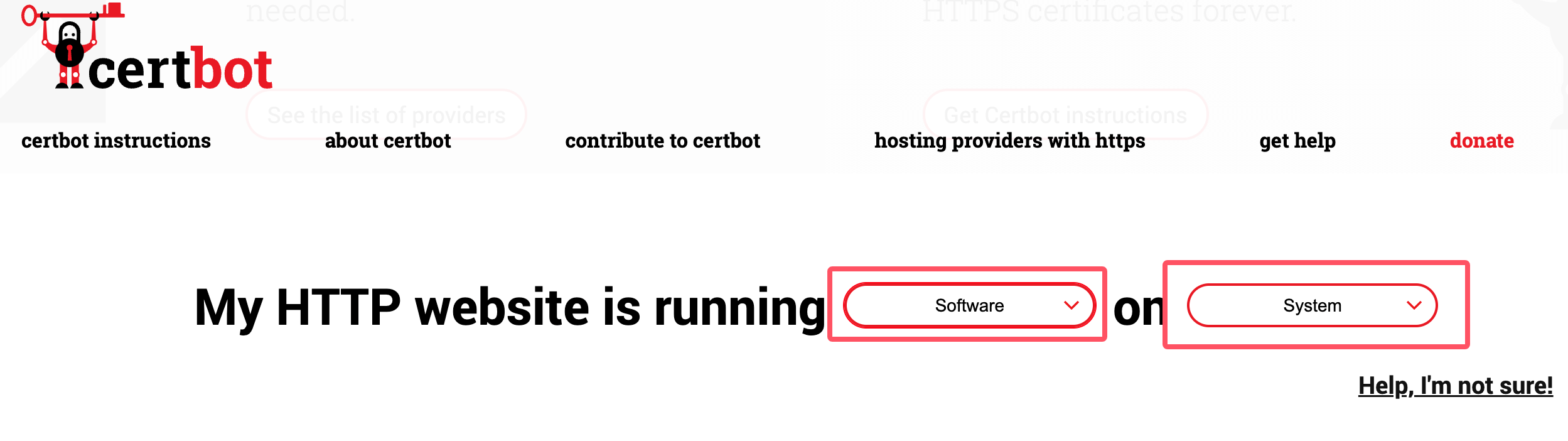
После установки используйте следующую команду, чтобы проверить установленную версию certbot:
certbot --version
Получение и продление сертификата
После установки certbot вы можете использовать следующую команду для запроса сертификата. Обратите внимание, что *.example.com следует заменить на ваш собственный домен:
certbot certonly -d *.example.com --manual --preferred-challenges dns --server https://acme-v02.api.letsencrypt.org/directory
После выполнения вышеуказанной команды заполните информацию:
Saving debug log to /var/log/letsencrypt/letsencrypt.log
Enter email address (used for urgent renewal and security notices)
 (Enter 'c' to cancel): xxx@qq.com. # 这里输入你的邮箱

- - - - - - - - - - - - - - - - - - - - - - - - - - - - - - - - - - - - - - - -
Please read the Terms of Service at
https://letsencrypt.org/documents/LE-SA-v1.4-April-3-2024.pdf. You must agree in
order to register with the ACME server. Do you agree?
- - - - - - - - - - - - - - - - - - - - - - - - - - - - - - - - - - - - - - - -
(Y)es/(N)o: Y    # 输入 Y

- - - - - - - - - - - - - - - - - - - - - - - - - - - - - - - - - - - - - - - -
Would you be willing, once your first certificate is successfully issued, to
share your email address with the Electronic Frontier Foundation, a founding
partner of the Let's Encrypt project and the non-profit organization that
develops Certbot? We'd like to send you email about our work encrypting the web,
EFF news, campaigns, and ways to support digital freedom.
- - - - - - - - - - - - - - - - - - - - - - - - - - - - - - - - - - - - - - - -
(Y)es/(N)o: Y       # 输入 Y

Account registered.
Requesting a certificate for *.example.com

- - - - - - - - - - - - - - - - - - - - - - - - - - - - - - - - - - - - - - - -
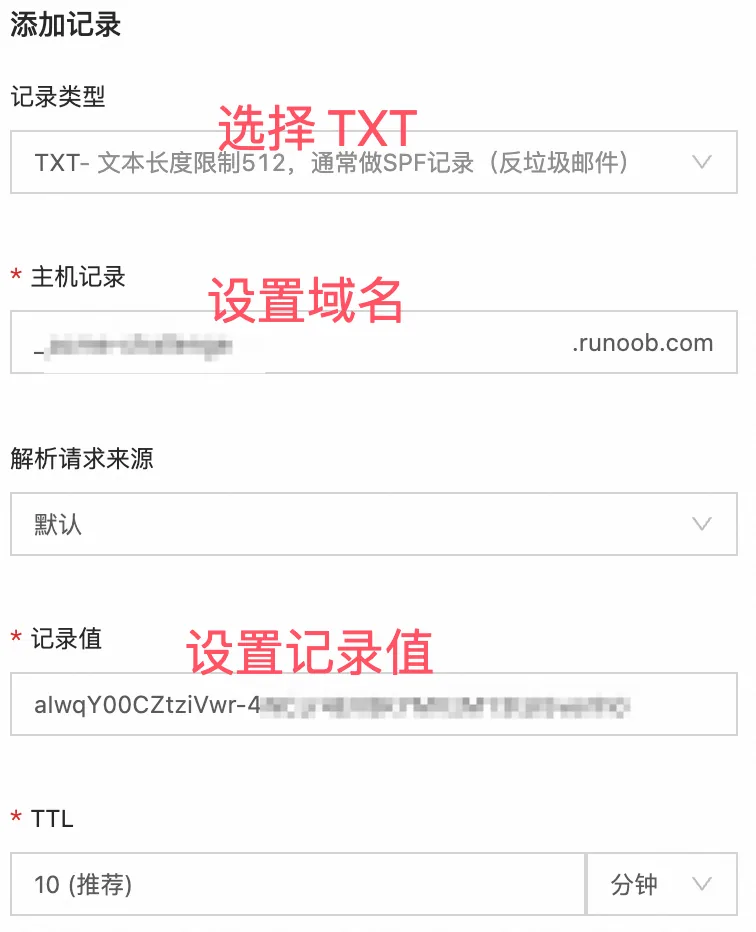
Please deploy a DNS TXT record under the name:

xxxxxxx.example.com. # 这里需要设置域名解析,需要到域名后台填写信息,参考下图

with the following value:

aIwqY00CZtziVwr-xxxxxxxxxxxxxx  # 这里是域名解析的内容,参考下图

Before continuing, verify the TXT record has been deployed. Depending on the DNS
provider, this may take some time, from a few seconds to multiple minutes. You can
check if it has finished deploying with aid of online tools, such as the Google
Admin Toolbox: https://toolbox.googleapps.com/apps/dig/#TXT/_acme-challenge.example.com.
Look for one or more bolded line(s) below the line ';ANSWER'. It should show the
value(s) you've just added.

- - - - - - - - - - - - - - - - - - - - - - - - - - - - - - - - - - - - - - - -
Press Enter to Continue  # 参考下图设置完域名解析后,按回车就可以生成了,记住一定要先解析设置完成后再回车,然后生成的证书信息如下:

Successfully received certificate.
Certificate is saved at: /etc/letsencrypt/live/example.com/fullchain.pem
Key is saved at:         /etc/letsencrypt/live/example.com/privkey.pem
This certificate expires on 2024-12-21.
These files will be updated when the certificate renews.

NEXT STEPS:
- This certificate will not be renewed automatically. Autorenewal of --manual certificates requires the use of an authentication hook script (--manual-auth-hook) but one was not provided. To renew this certificate, repeat this same certbot command before the certificate's expiry date.

- - - - - - - - - - - - - - - - - - - - - - - - - - - - - - - - - - - - - - - -
If you like Certbot, please consider supporting our work by:
 * Donating to ISRG / Let's Encrypt:   https://letsencrypt.org/donate
 * Donating to EFF:                    https://eff.org/donate-le
- - - - - - - - - - - - - - - - - - - - - - - - - - - - - - - - - - - - - - - -
Настройте домен для проверки сертификата:
Сертификаты, выданные Let's Encrypt, действительны в течение 90 дней. Вы можете использовать следующую команду для продления сертификата
certbot certonly --force-renewal --manual -d '*.example.com' \
--preferred-challenges dns \
--server https://acme-v02.api.letsencrypt.org/directory
После выполнения вышеуказанной команды продления она предложит нам обновить записи разрешения DNS:
Saving debug log to /var/log/letsencrypt/letsencrypt.log
Requesting a certificate for *.jysahre.com

- - - - - - - - - - - - - - - - - - - - - - - - - - - - - - - - - - - - - - - -
Please deploy a DNS TXT record under the name:

_acme-challenge.jysahre.com.

with the following value:

ckxo1wGXbP1CtNQ3ZRfvHxxxxxx          # 这里会显示你要更改的 DNS 解析记录值,设置好就可以完成更新了

Before continuing, verify the TXT record has been deployed. Depending on the DNS
provider, this may take some time, from a few seconds to multiple minutes. You can
check if it has finished deploying with aid of online tools, such as the Google
Admin Toolbox: https://toolbox.googleapps.com/apps/dig/#TXT/_acme-challenge.jysahre.com.
Look for one or more bolded line(s) below the line ';ANSWER'. It should show the
value(s) you've just added.

- - - - - - - - - - - - - - - - - - - - - - - - - - - - - - - - - - - - - - - -
Другие расширения