Cursor Introduction
Cursor is a modern AI-powered code editor developed by Anysphere.
Cursor is based onVS CodeAn editor developed to retain VS Code's powerful features and familiar operating experience while focusing on integrating AI technology to help developers write code more efficiently.
Additionally, domestic companies Alibaba and ByteDance have also launched AI IDEs deeply customized based on VS Code:
Core Features:
- AI-native design: AI capabilities integrated from the underlying architecture, rather than plugins added later
- Intelligent code generation: Quickly generate code snippets through natural language descriptions
- Context Awareness: Deep understanding of project structure and code relationships
- Real-time Assistance: Provide real-time suggestions and optimizations during programming
- Multi-model Support: Integrates multiple advanced large language models
The difference between Cursor and traditional IDEs
| Features | Traditional IDE | Cursor |
|---|---|---|
| Code Completion | Static completion based on syntax analysis and existing code | AI-driven intelligent completion that understands context and intent |
| Code Generation | Relies on preset templates and code snippets | Generate complete code logic through natural language descriptions |
| Problem Solving | Requires manually searching documentation, Stack Overflow, etc. | Built-in AI assistant for instant answers to programming questions |
| Code Understanding | Provides syntax highlighting and basic structure analysis | Deep understanding of code logic, providing detailed explanations |
| Refactoring and Optimization | Manual operation, dependent on developer experience | AI intelligently analyzes and suggests the best refactoring solutions |
| Learning Support | Requires external resources and documentation | Built-in technical knowledge, real-time learning guidance |
| Error Handling | Displays compilation errors and basic syntax checks | Predicts potential issues, provides fix suggestions and explanations |
| Project Understanding | File-level analysis and navigation | Deep understanding and correlational analysis of the entire project architecture |
| Collaboration Mode | Primarily relies on communication among team members | AI participates in the development process as an intelligent programming partner |
| Adaptability | Requires manual configuration and plugin extensions | Automatically adapts to project types and programming language characteristics |
Core differences summary:
| Comparison Dimension | Traditional IDE | Cursor |
|---|---|---|
| Interaction mode | Tool operation based on menus and keyboard shortcuts | Natural language conversation + traditional operations |
| Learning Curve | Requires memorizing many keyboard shortcuts and feature locations | Quickly get started through dialogue, lowering the learning curve |
| Development Efficiency | Depends on developer's experience and proficiency | AI assistance significantly improves coding speed |
| Code Quality | Mainly relies on developer's skill level | AI continuously provides best practice suggestions |
| Knowledge Acquisition | Requires proactive searching and learning | Passively receives AI recommendations and explanations |
| Problem Diagnosis | Manual troubleshooting based on error messages | AI analyzes the root cause of problems and provides solutions |
| Innovation Capability | Limited by developer's knowledge scope | AI provides diverse solution approaches |
| Target Audience | Requires some programming basics | Suitable for developers of all levels |
Settings
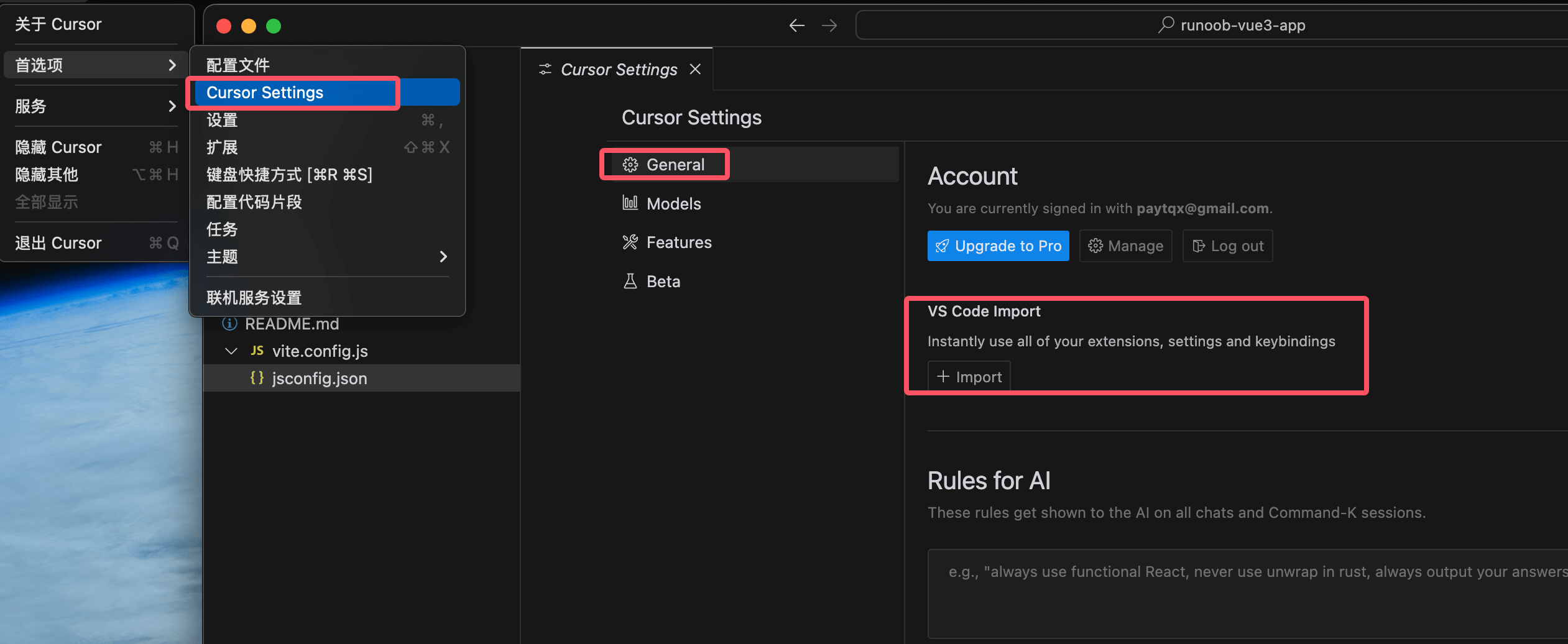
If you previously used VS Code, you can easily import your extensions, themes, settings, and keyboard shortcuts into Cursor with one click.
Simply go to Cursor Settings > General > Account, select import to import the configuration file, and the migration is complete.
Cursor regularly syncs the latest version of VS Code, ensuring you always have the newest features and optimizations.
Why is Cursor a standalone application rather than a VS Code plugin?
As a standalone application, Cursor can more deeply optimize the editor interface and achieve more powerful AI integration. For example, features such as Cursor Tab and CMD-K cannot be implemented as plugins in existing programming environments.
How to set up Cursor?
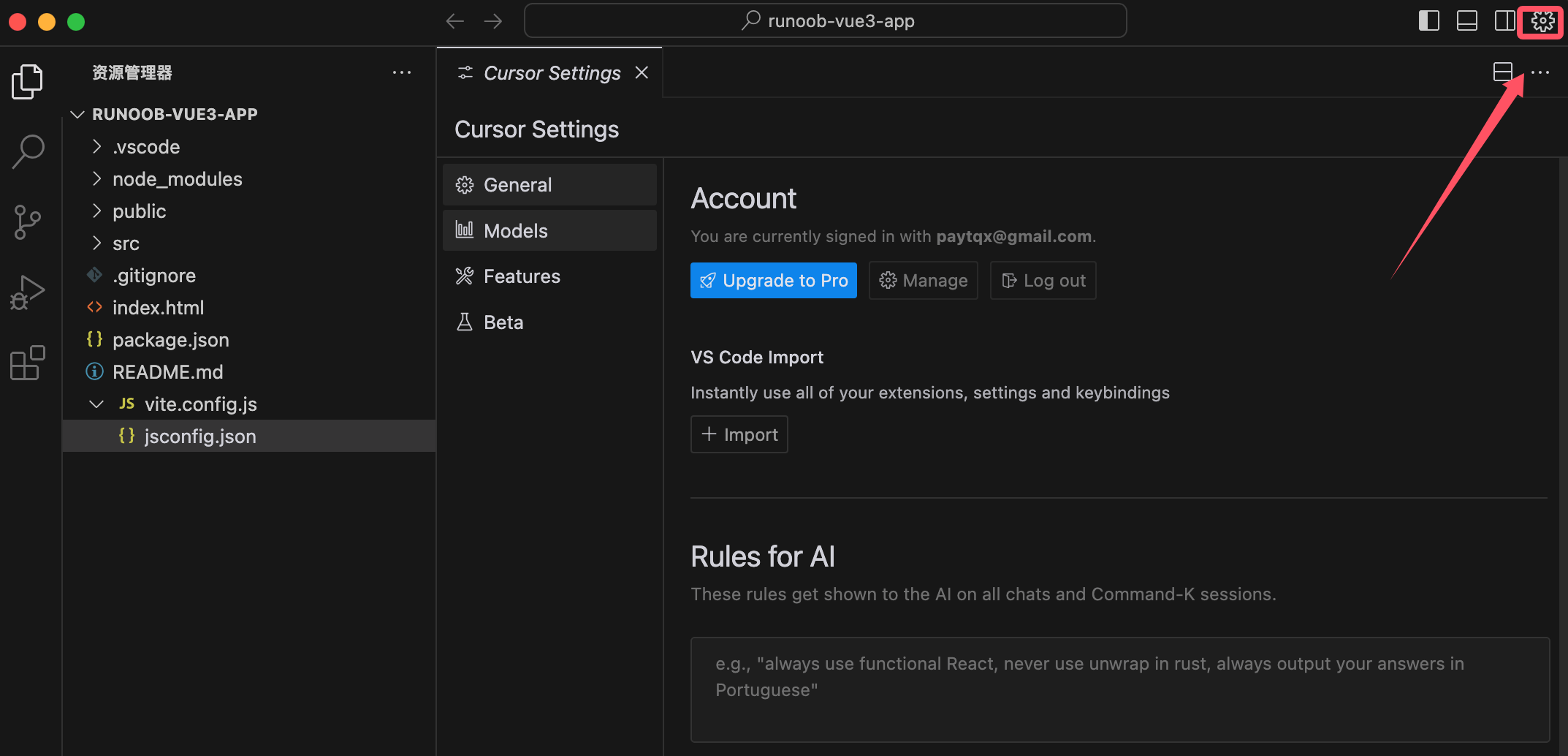
Click the gear button in the top right corner, or press the shortcut keyCtrl/⌘ + Shift + J, to open Cursor's dedicated settings panel.
You can alsoCtrl/⌘ + Shift + P, typeCursor Settingsto open.
Why is Cursor's activity bar horizontal?
By default, Cursor's activity bar is placed horizontally to save space and facilitate the integration of chat functionality.
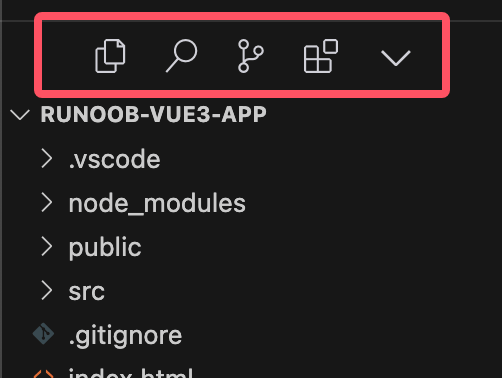
If you prefer the traditional vertical activity bar, you can adjust it by following these steps:
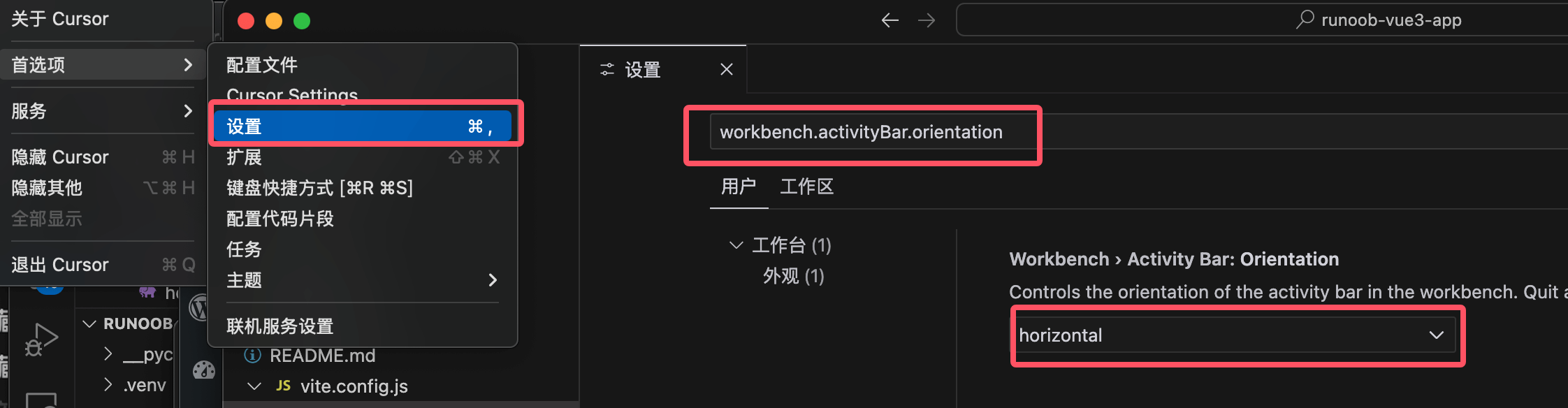
OpenCursor Settings。
Search and Findworkbench.activityBar.orientation, change its value tovertical。
Restart Cursor for the changes to take effect.
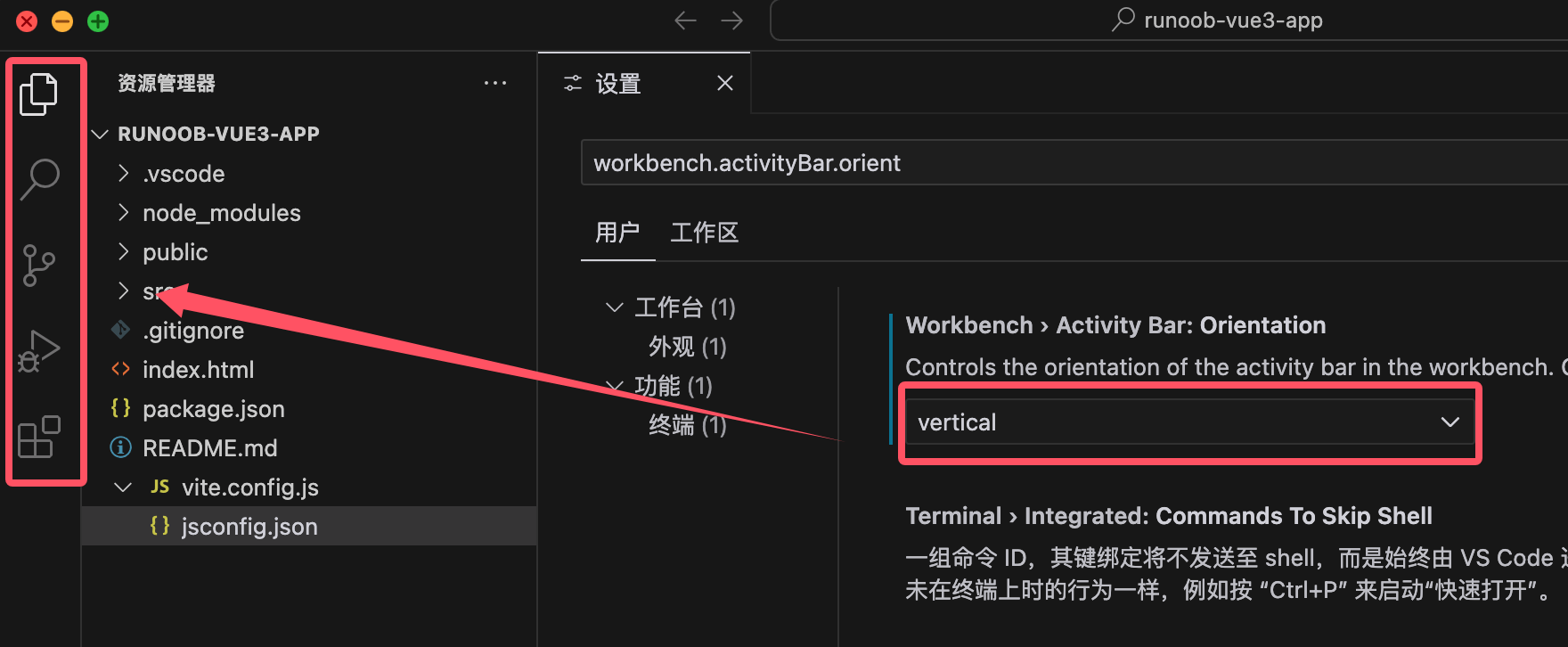
Change toverticalAfter restarting, the effect:
Cursor Usage
Cursor offers multiple subscription tiers to meet the needs of different users.
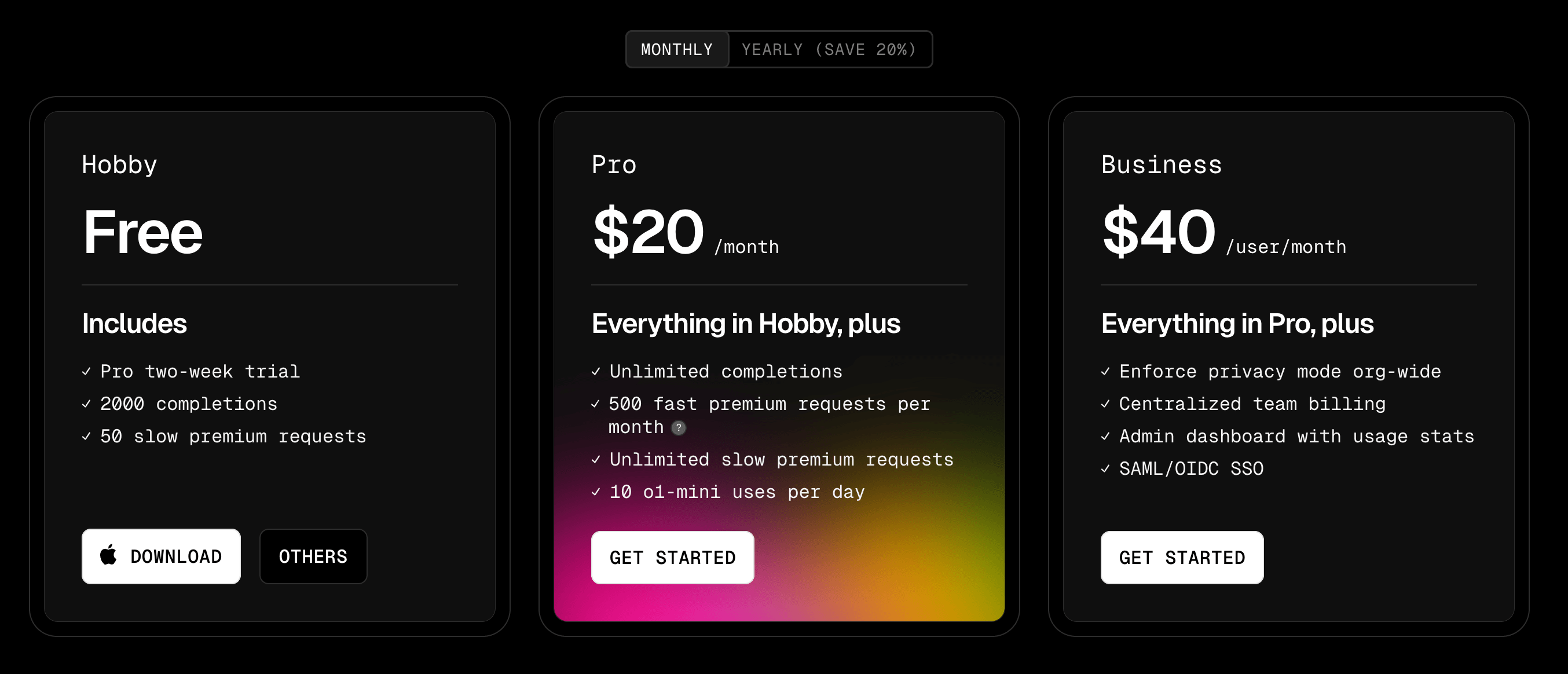
Hobby Plan
-
14-day Pro trial(Includes 250 fast premium model uses)
-
50 slow advanced model uses
-
2000 code completion uses
Pro Plan
-
500 fast premium model uses per month
-
Unlimited slow advanced model uses
-
Unlimited code completion uses
-
10 o1+mini uses per month
Business Plan
-
Same usage as the Pro plan
-
Organization-wide mandatory privacy mode
-
Centralized team billing management
-
Admin dashboard for viewing usage statistics
-
Supports SAML/OIDC single sign-on (SSO)
Advanced Models
GPT-4, GPT-4o, and Claude 3.5 Sonnet are all considered premium models. Each Claude 3.5 Haiku request counts as 1/3 of a premium model request.
Pro Trial
All new users can enjoy a 14-day Pro trial, during which they can use all Pro features and 250 fast premium model requests. After the 14-day trial period ends, users who have not upgraded will automatically be downgraded to the Hobby plan.
Fast and slow requests
By default, Cursor servers try to provide fast premium model requests to all users. However, during peak hours, users who have exhausted their fast request quota will be moved to the slow request pool, i.e., a queue waiting for fast requests to become available.
The queue is fair, and Cursor will do its best to reduce queue waiting time. If you need more fast requests and don't want to wait, you can purchase additional quota on the settings page.
View usage
You can view usage on the Cursor settings page.
-
In the Cursor application, go toCursor Settings > General > Account。
-
Cursor's usage resets monthly, with the reset time based on your subscription start date.